How to Optimize WordPress Load Speed: The Ultimate Guide to Core Web Vitals and Conversions

The clock is ticking. Every second your WordPress site takes to load, you lose visitors and revenue. In fact, the probability of a user bouncing (leaving) your site increases by 32% when the page load time goes from one second to three seconds. This guide gives you the definitive, step-by-step strategy to dramatically optimize your WordPress load speed, crush your Core Web Vitals score, and boost your conversion rate.
I. Why Speed Is Your #1 Conversion Tool (The Hard Data)
Website speed is no longer just a nice-to-have; it is a critical business metric. Therefore, you must prioritize it.
| Load Time Delay | Impact on Bounce Rate (Google Data) | Impact on Conversions (Industry Average) |
| 1 second to 3 seconds | 32% increase in bounce rate | Conversions can fall by up to 20% on mobile. |
| 1 second to 5 seconds | 90% increase in bounce rate | A site loading in 1s has a conversion rate 3x higher than a site loading in 5s. |
| 1 second to 6 seconds | 106% increase in bounce rate | Almost 70% of consumers say page speed affects their willingness to buy. |
The Goal: Aim for a page load time of under 2 seconds—ideally closer to the 1-second mark—to maximize user retention and revenue.
Google’s Current Core Web Vitals (CWV) Targets for 2025
| Metric | Measures | “Good” Target (75th Percentile) | Key Strategy |
| Largest Contentful Paint (LCP) | Load speed (main content visible) | $\le 2.5$ seconds | Server-side caching and image optimization. |
| Interaction to Next Paint (INP) | Responsiveness (interactivity) | $\le 200$ milliseconds | Minify, defer JavaScript, and audit third-party scripts. |
| Cumulative Layout Shift (CLS) | Visual stability (page jumping) | $\le 0.1$ | Specify image/ad dimensions and preload custom fonts. |
II. Foundation: The Big Three Factors That Slow Down WordPress
Before diving into plugins, you must address the three core culprits. Furthermore, addressing these foundational issues provides the biggest initial speed gains.
1. Poor or Shared Hosting (Time to First Byte – TTFB)
Your TTFB—the time it takes for your server to respond to a request—is the first metric Google checks. If so, cheap, overcrowded shared hosting will definitely result in a slow TTFB.
- Action: Upgrade to a managed WordPress host or a VPS that uses Solid State Drives (SSDs) and the latest PHP versions (8.2+).
2. Unoptimized Media (Largest Contentful Paint – LCP)
Large, uncompressed images are the most common cause of slow LCP (the time it takes for the largest element to load). In addition, neglecting optimization here often breaks the LCP target.
- Action: Compress images, serve them in modern formats like WebP, and implement Lazy Loading (delaying off-screen images).
3. Bloated Plugins & Code (Interaction to Next Paint – INP)
Excessive, poorly coded themes, or too many plugins that load scripts everywhere, create long tasks that block the browser from responding to user input. Consequently, this hurts your INP score the most.
- Action: Conduct a plugin audit. Remove any unused or duplicate plugins. Disable scripts where they are not needed (using a tool like Perfmatters).
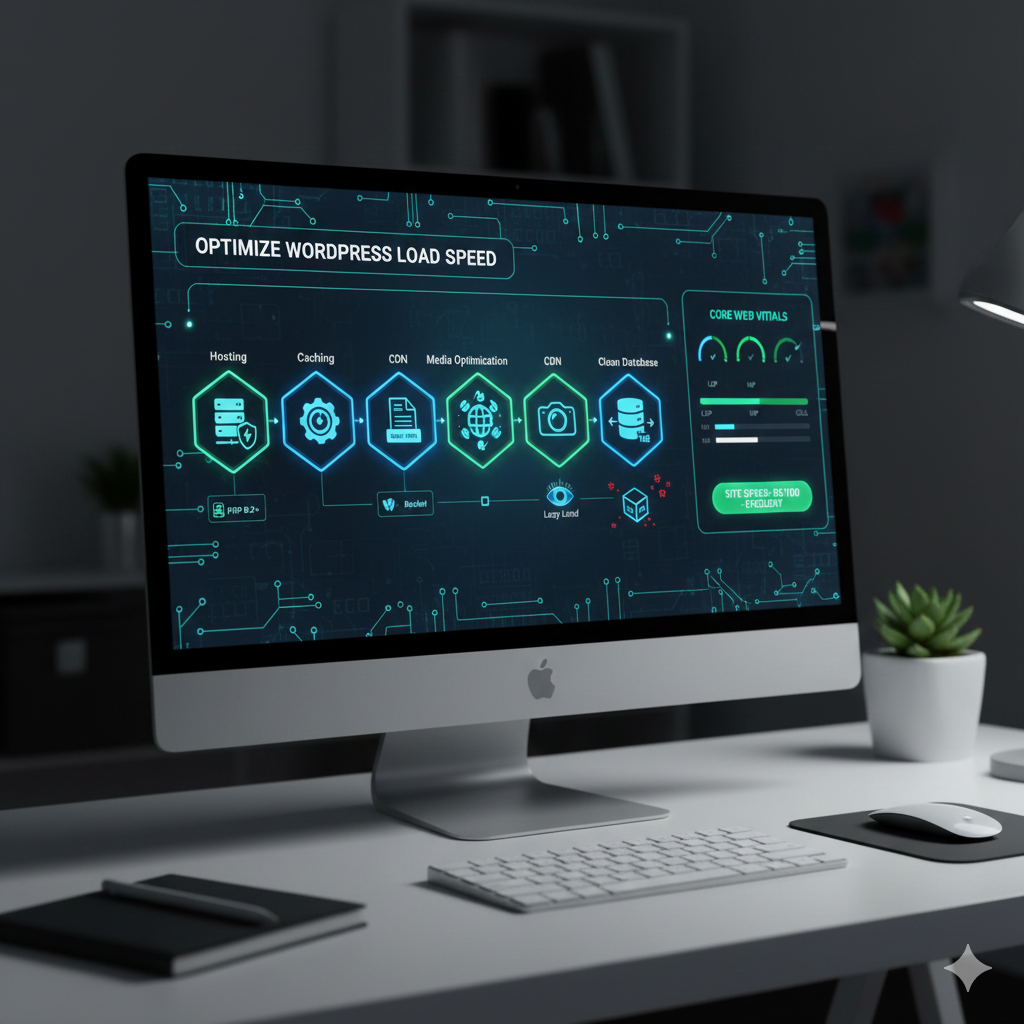
III. The Essential 5-Step Checklist to Optimize WordPress Load Speed
Follow these steps in order for the most significant, measurable improvements. Ultimately, these steps transform your site’s performance profile and help you optimize WordPress load speed effectively.
Step 1: Install a Premium Caching Plugin
Caching is the single most important step. Specifically, it generates static HTML versions of your dynamic pages, reducing server processing load by hundreds of times.
- Recommended Plugin (Versatility): WP Rocket is highly recommended for its ease of setup and comprehensive features.
- Recommended Plugin (Performance Edge): FlyingPress or LiteSpeed Cache (if you use a LiteSpeed server) currently offer some of the best INP and LCP scores due to advanced Remove Unused CSS features.
Step 2: Implement a Content Delivery Network (CDN)
A CDN stores copies of your site’s static files (images, CSS, JavaScript) on servers globally. As a result, when a user requests your site, the CDN delivers the files from the closest server, dramatically reducing latency.
- Recommended Services (Best Overall): Cloudflare (for its free WAF/security and APO full-page caching) or Bunny.net (highly affordable and optimized for WordPress).
- Advanced Tip: Use Cloudflare APO (Automatic Platform Optimization) to cache the entire HTML page at the CDN edge, drastically improving your TTFB globally.
Step 3: Optimize and Lazy-Load All Media
Images are typically the largest files on a webpage and are the main obstacle to achieving a fast LCP. Therefore, this step is non-negotiable.
- Actionable Tip: Use an image optimization plugin like ShortPixel or Imagify to bulk-compress your existing library and convert all media to the WebP format.
- LCP Focus: Ensure you exclude your largest, “Above-the-Fold” image (the LCP element) from Lazy Loading so it loads immediately.
Step 4: Minify, Defer, and Optimize CSS/JS
Minification removes unnecessary characters from files. Meanwhile, Deferring tells the browser to load non-critical scripts after the main content.
- Tool Focus: Use the features built into your caching plugin (WP Rocket, FlyingPress) to handle minification. Moreover, for better INP, prioritize the Remove Unused CSS (RUCSS) feature to clean up theme bloat.
- Font Optimization: Use
font-display: swap;for custom fonts and consider hosting Google Fonts locally to eliminate render-blocking external requests.
Step 5: Clean the WordPress Database and Eliminate Bloat
Over time, your database fills up with post revisions, expired transients, and leftover data from old plugins. Ultimately, this bloat slows down server processing.
- Tool Focus: Use a plugin like WP-Optimize or the database features within WP Rocket to schedule automatic cleanups of revisions and transients.
- Pro-Tip: Install Perfmatters to selectively disable scripts/CSS from plugins on pages where they aren’t needed (e.g., disable contact form scripts everywhere except the Contact page).
Final Performance Audit: Hitting the Green Zone
To confirm your changes, run tests on these three essential tools: First, check Google PageSpeed Insights (PSI). Next, use GTmetrix. Finally, test with WebPageTest.
- Google PageSpeed Insights (PSI): Provides the official Core Web Vitals score (aim for a “Good” score, 90+).
- GTmetrix: Offers a detailed Waterfall chart to show you the exact loading order of every file, helping you pinpoint slow scripts.
- WebPageTest: Allows you to test your site from various locations around the world.
By executing these steps, you will actively convert your slow-loading website into an optimized, high-performance asset that delivers better user experience and higher conversion rates. This dedication to performance is the final step to optimize WordPress load speed and secure your SEO ranking.
FAQ: Your WordPress Speed Questions Answered
1. Which Core Web Vital is most critical in 2025? While all three are important, Interaction to Next Paint (INP) has officially replaced FID and is now Google’s key metric for responsiveness. Since INP tracks interaction delay across the entire user session, optimizing JavaScript and reducing render-blocking code is more crucial than ever to stay under the 200-millisecond target.
2. Should I pay for a caching plugin like WP Rocket, or is a free one enough? For most business and professional sites, a premium plugin like WP Rocket or FlyingPress is highly recommended. Free plugins (like WP Super Cache) handle basic page caching, but paid solutions offer advanced features like Remove Unused CSS (RUCSS), deferred JavaScript execution, and automatic database optimization, which are necessary to hit the “Good” INP and LCP scores.
3. Will converting my images to WebP affect the image quality? No. The WebP format is a “next-gen” image format developed by Google that offers superior compression compared to JPEG and PNG, resulting in smaller file sizes with little to no visible loss of quality. Using an image optimization plugin like ShortPixel or Imagify handles this conversion automatically.
4. What is the single biggest factor affecting my site’s Time to First Byte (TTFB)? Your hosting quality. If your TTFB is slow (over 500ms), no client-side optimization (caching, minification) will help. You must upgrade to Managed WordPress Hosting with SSDs and the latest PHP versions (8.2+) to ensure the server responds quickly before any content even starts loading.
5. I have a lot of plugins. Do I need to delete them all? No, you don’t need to delete them all. The issue is usually not the number but the efficiency and where they load. Use a plugin manager tool (like Perfmatters) to strategically disable unnecessary scripts from your plugins on pages where they aren’t used. This reduces code bloat and dramatically improves your INP score.