Difficulty: Beginner
What Does “Wi-Fi Authentication” Mean?
Authentication is the process your device uses to prove it’s allowed on a Wi-Fi network. It usually involves:
- The correct network name (SSID)
- The correct password or credentials
- Matching security settings (WPA2/WPA3, enterprise methods)
Definition Box
Wi-Fi Authentication
The security handshake between a device and a wireless network that verifies identity before granting access.
If any part of that handshake fails, you’ll see Wi-Fi authentication problems.
Quick Checks Before You Troubleshoot
Before diving deeper, do these fast checks:
- Toggle Wi-Fi off and on
- Turn Airplane mode on (10 seconds), then off
- Move closer to the router
- Make sure other devices can connect
If others connect fine, the issue is likely on your device.
Most Common Causes (and Fast Fixes)
1) Wrong Password or Keyboard Mismatch
It sounds obvious—but it’s the top cause.
Fix:
- Re-enter the password carefully
- Check Caps Lock and keyboard language
- Avoid copy-paste (hidden spaces happen)
Key Takeaway Box
A single extra space or wrong keyboard layout can cause authentication to fail—even with the “right” password.
2) Saved Network Conflict
Old or corrupted settings can block re-authentication.
Fix (Recommended):
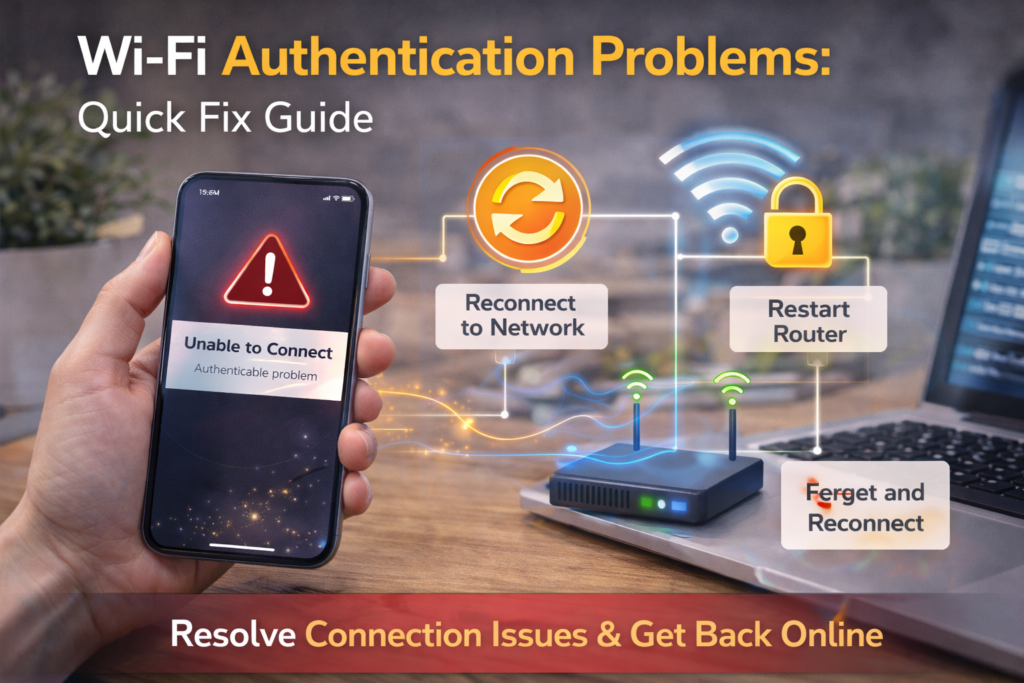
- Forget the Wi-Fi network
- Restart your device
- Reconnect and enter the password again
This clears most Wi-Fi authentication problems instantly.
3) Router Glitch or Overload
Routers sometimes fail to hand out new sessions.
Fix:
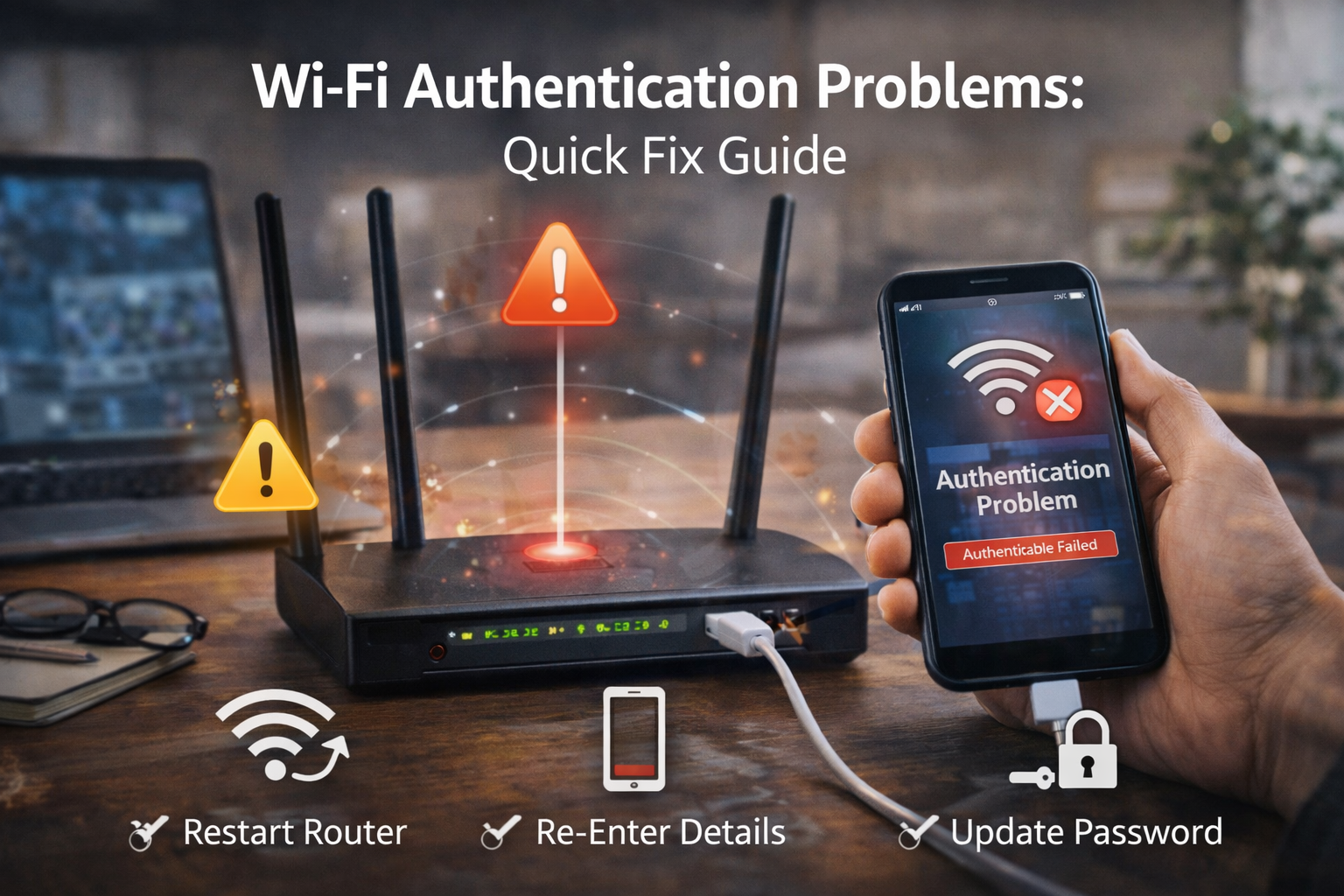
- Restart the router (power off 30–60 seconds)
- Wait until all lights stabilize
- Try connecting again
If it works after a reboot, it was a temporary router issue.
4) Security Mode Mismatch (WPA2 vs WPA3)
Newer routers may default to WPA3, while older devices expect WPA2.
Fix:
- Log in to the router
- Set security to WPA2/WPA3 mixed mode
- Save and reconnect
According to guidance from Wi‑Fi Alliance, mixed mode improves compatibility without reducing security for most home networks.
5) Device Time & Date Out of Sync
Incorrect system time can break secure handshakes.
Fix:
- Enable automatic date & time
- Restart the device
- Reconnect to Wi-Fi
This is a surprisingly common cause on laptops and phones.
Platform-Specific Fixes
Windows (Quick Wins)
- Turn Wi-Fi off/on
- Forget network → reconnect
- Disable and re-enable the Wi-Fi adapter
- Update the Wi-Fi driver
Microsoft notes that outdated drivers frequently cause connection failures after OS updates.
macOS / iPhone
- Forget the network
- Reset network settings (last resort)
- Update the OS
- Restart the device
Apple devices may block authentication if security certificates are outdated.
Android
- Forget and re-add the network
- Disable “Randomized MAC” (test only)
- Update system software
Advanced Fixes (Use Only If Needed)
Change DNS Settings
Occasionally helps with enterprise or captive networks.
- Try automatic DNS
- Or test with public DNS temporarily
Reset Network Settings
This clears all Wi-Fi, Bluetooth, and VPN settings.
Quick Fix Box
Reset network settings only if basic fixes fail—it removes all saved networks.
When the Problem Is the Network (Not You)
You may not be able to fix it if:
- The network limits device count
- MAC filtering is enabled
- The password was recently changed
- Captive portal is down (hotels, cafés)
In these cases, contact the network admin.
How to Prevent Wi-Fi Authentication Problems
- Keep devices updated
- Use WPA2/WPA3 mixed mode at home
- Avoid special characters if devices are old
- Restart routers occasionally
- Remove unused saved networks
FAQs: Wi-Fi Authentication Problems
1) Why does Wi-Fi say “authentication failed”?
Usually due to wrong credentials or a security mismatch.
2) Can a correct password still fail?
Yes. Saved settings, time sync, or security mode can cause failure.
3) Does restarting really help?
Yes. It resets sessions and clears temporary glitches.
4) Is WPA3 better than WPA2?
Yes for security, but mixed mode improves compatibility.
5) Should I reset my router?
Only if multiple devices fail to connect.