Difficulty: Beginner
What Is a WordPress Plugin Conflict?
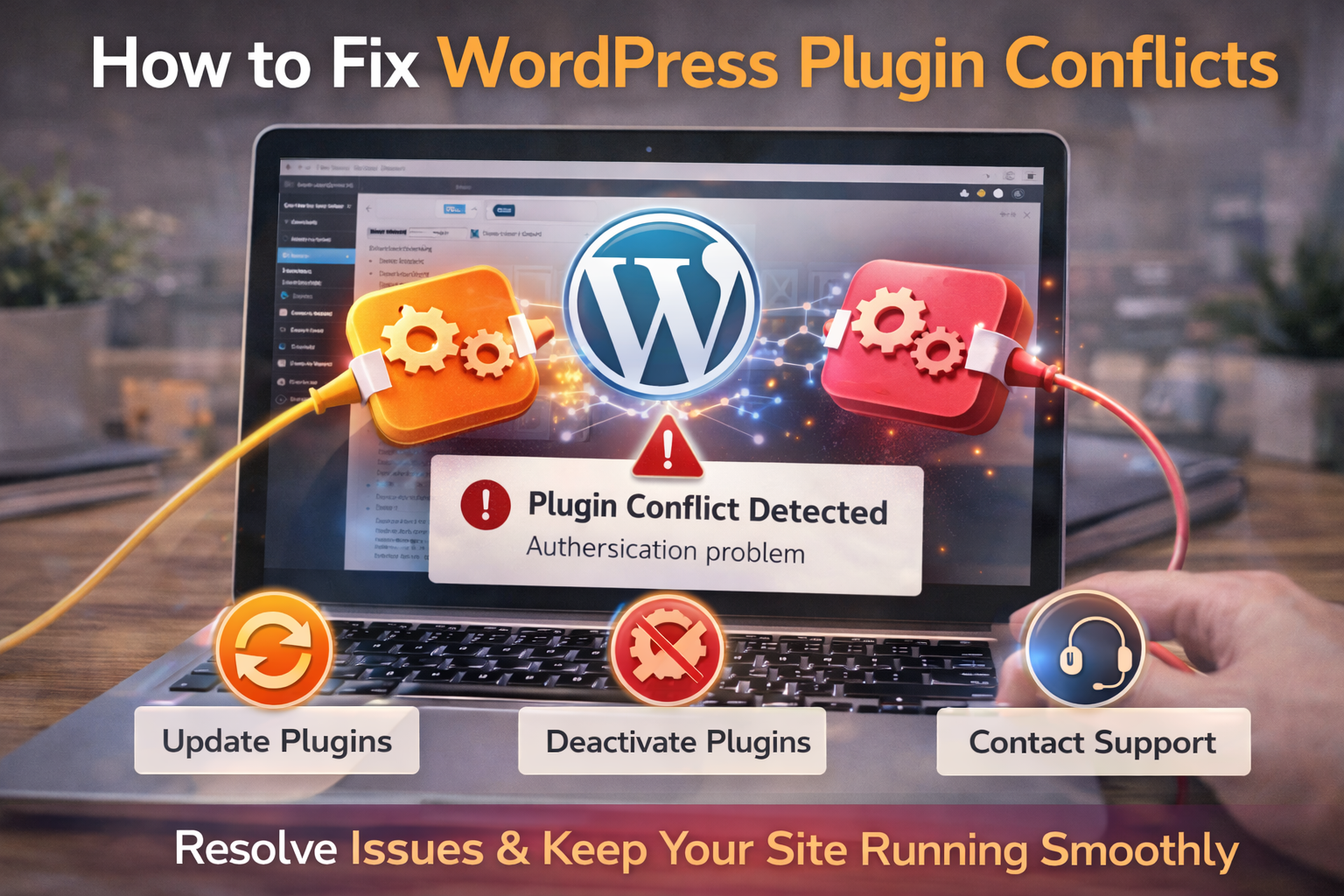
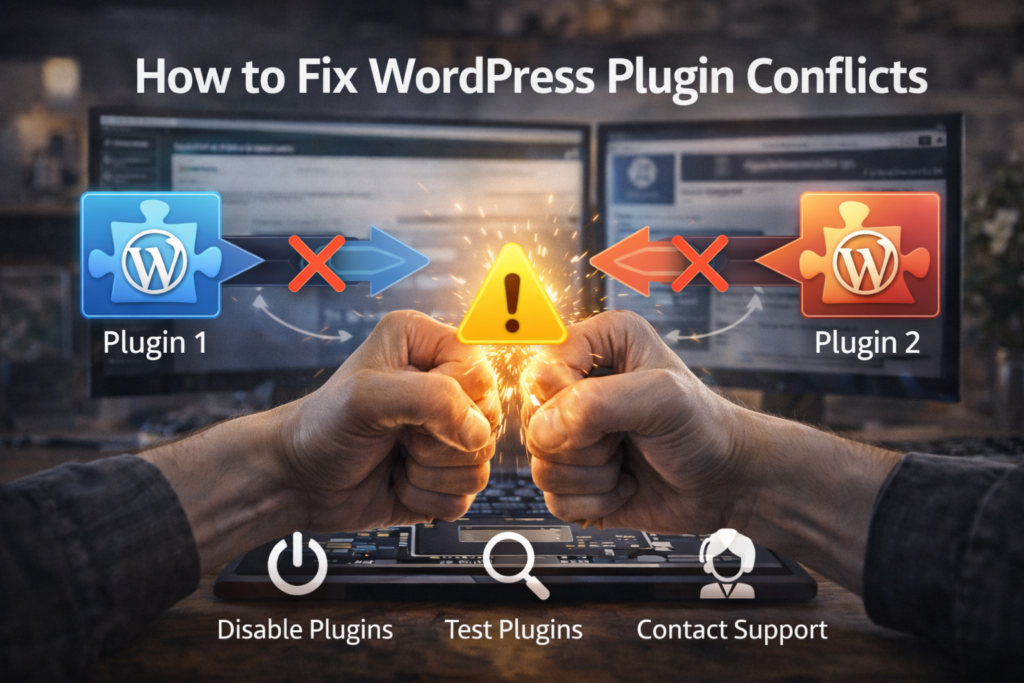
A plugin conflict occurs when plugins interfere with each other’s code execution or with your theme.
Definition Box
WordPress Plugin Conflict
A situation where one plugin prevents another plugin or the theme from functioning correctly, causing errors, broken layouts, or site crashes.
Because WordPress sites often rely on many plugins, conflicts are common—especially after updates.
Common Signs of Plugin Conflicts
You may be dealing with WordPress plugin conflicts if you notice:
- White screen of death (blank page)
- Admin dashboard not loading
- Features suddenly stop working
- Error messages after updates
- Slow or unstable site behavior
If the issue appeared right after installing or updating a plugin, that plugin is your first suspect.
Why Plugin Conflicts Happen
1. Outdated Plugins
Older plugins may not support the latest WordPress or PHP versions.
2. Overlapping Features
Two plugins doing similar things (e.g., caching, security, SEO) often clash.
3. Theme Incompatibility
Some themes override core functions that plugins rely on.
4. PHP Version Issues
New PHP versions can break older plugin code.
According to guidance from WordPress.org, keeping plugins updated and compatible is critical for site stability.
Step-by-Step: How to Fix WordPress Plugin Conflicts
Follow these steps in order. Most issues are resolved before reaching the end.
Step 1: Enable Debugging (Optional but Helpful)
Turn on WordPress debugging to reveal errors.
How:
- Edit
wp-config.php - Set:
define('WP_DEBUG', true);
Error messages often point directly to the conflicting plugin.
Step 2: Disable All Plugins at Once
This confirms whether a plugin conflict exists.
From the Dashboard:
- Go to Plugins → Installed Plugins
- Select all plugins
- Choose “Deactivate”
If the site works again, you’ve confirmed a plugin conflict.
Key Takeaway Box
If disabling all plugins fixes the issue, the problem is plugin-related—not hosting or WordPress core.
Step 3: Reactivate Plugins One by One
This is the fastest way to find the culprit.
How:
- Activate one plugin
- Refresh your site
- Repeat until the issue returns
The last plugin activated is usually the cause.
Step 4: Check for Plugin Updates
Once you identify the problematic plugin:
- Update it to the latest version
- Update WordPress core
- Update your theme
Many WordPress plugin conflicts are fixed automatically through updates.
Step 5: Test With a Default Theme
Sometimes the issue is between a plugin and your theme.
How:
- Switch temporarily to a default theme (e.g., Twenty Twenty-Four)
- Check if the problem disappears
If it does, the conflict involves your theme.
Step 6: Check PHP Version Compatibility
Your hosting control panel usually lets you switch PHP versions.
Try:
- Downgrading one PHP version (e.g., from 8.2 to 8.1)
- Testing the site again
WP Engine notes that PHP mismatches are a frequent cause of plugin failures after updates.
When You Can’t Access WordPress Admin
If your site is completely down:
Fix via File Manager or FTP
- Connect using FTP
- Go to
/wp-content/plugins/ - Rename the plugins folder (e.g.,
plugins_old)
This disables all plugins instantly.
Quick Fix Box
Renaming the plugins folder is the fastest way to regain admin access when WordPress crashes.
How to Prevent Plugin Conflicts in the Future
- Avoid installing plugins with overlapping features
- Remove unused or abandoned plugins
- Update plugins regularly (but not blindly)
- Test updates on staging sites
- Use reputable plugins with active support
Less plugins = fewer conflicts.
Are Premium Plugins Safer Than Free Ones?
Not always.
Free plugins from the WordPress repository are reviewed, while premium plugins vary by developer quality. What matters most is:
- Update frequency
- Compatibility notes
- User reviews
- Active support
FAQs: WordPress Plugin Conflicts
1. Can plugin conflicts damage my site?
They rarely cause permanent damage, but they can break functionality temporarily.
2. Should I delete the conflicting plugin?
Only if no update or alternative fixes the issue.
3. Can two popular plugins still conflict?
Yes. Popularity doesn’t guarantee compatibility.
4. Is it safe to update plugins automatically?
For small sites, yes. For business sites, test first.
5. Do plugin conflicts affect SEO?
Yes. Broken pages and slow sites can hurt rankings.