Difficulty: Beginner
Why Fake App Updates Work So Well
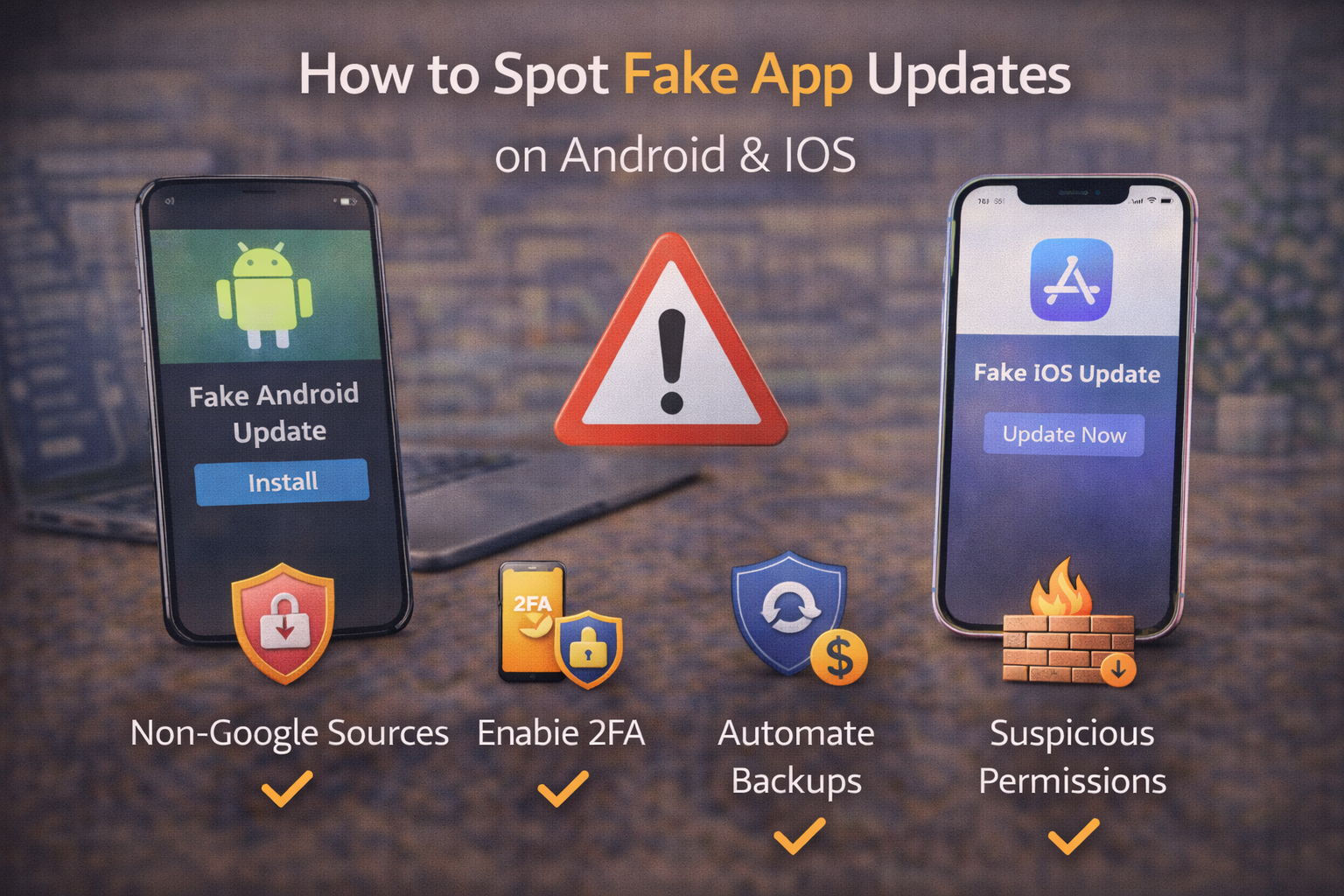
Attackers rely on urgency and familiarity. Messages claim your app is “outdated,” “at risk,” or “about to stop working,” pushing you to act fast. Both Android and iOS users are targeted, often through:
- Web pop-ups while browsing
- Phishing emails or SMS
- In-app banners inside fake apps
Security guidance from Google and Apple consistently warns that real updates come from official stores—not random prompts.
What a Real App Update Looks Like
Definition Box
Official App Update
An update delivered through the device’s official app store with a verified developer, version notes, and permission controls.
On Android
- Updates appear in the Google Play Store
- Managed via “Updates available”
- No external download required
On iOS
- Updates appear in the Apple App Store
- Managed via the Updates tab or auto-update
- No pop-ups from websites
Red Flags: How to Spot Fake App Updates
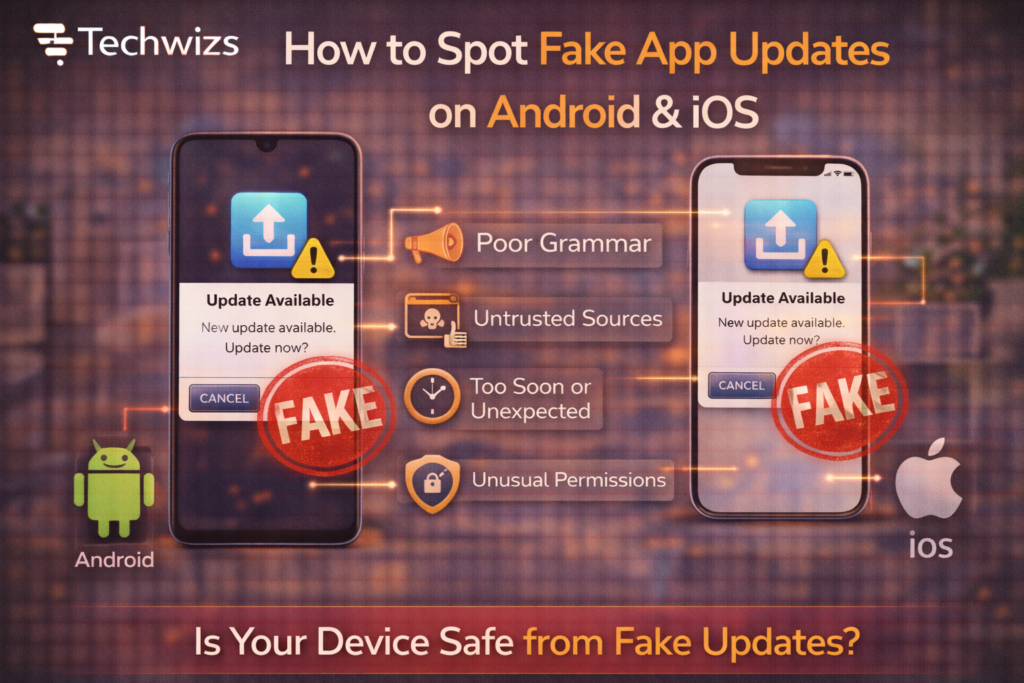
1) Update Prompts From Websites
If a browser page says “Update WhatsApp now” or “Your app is outdated,” it’s fake.
2) Requests to Install APKs (Android)
Legitimate updates never ask you to sideload files.
3) Urgent Language and Countdown Timers
“Update now or lose access” is a classic scare tactic.
Key Takeaway Box
Real updates don’t threaten you—and they don’t rush you.
4) App Name Spelling or Icon Changes
Fake updates often use slightly altered names or icons.
5) Unexpected Permission Requests
An update asking for SMS, contacts, or accessibility access is suspicious—especially for simple apps.
6) Emails or SMS Claiming to Be App Updates
Updates don’t arrive via email links or text messages.
Step-by-Step: What to Do When You See an “Update”
- Close the prompt (don’t tap links)
- Open the official app store
- Search for the app manually
- Check the developer name and reviews
- Update only from the store
Quick Fix Box
When in doubt, open the app store yourself—never trust the link.
Android vs iOS: Practical Differences
| Area | Android | iOS |
|---|---|---|
| Sideloading risk | Higher | Very low |
| Store enforcement | Strong | Very strict |
| Common attack | Fake APKs | Phishing prompts |
| Best defense | Play Protect + updates | App Store only |
Extra Safety Tips (2 Minutes to Do)
- Enable auto-updates in the app store
- Keep the OS updated
- Use built-in protection (e.g., Play Protect)
- Remove apps you don’t recognize
- Review app permissions regularly
What If You Already Installed a Fake Update?
Act quickly:
- Uninstall the suspicious app
- Run a security scan
- Change passwords for affected apps
- Enable two-factor authentication
If banking or email apps were involved, review activity immediately.
FAQs: Fake App Updates
1) Do real apps ever update outside app stores?
No. Legitimate apps update through official stores.
2) Are iPhones immune to fake updates?
No—but they’re less exposed due to stricter controls.
3) Can fake updates steal passwords?
Yes. That’s a primary goal.
4) Should I allow “unknown sources” on Android?
Only temporarily—and only if you fully trust the source.
5) Are pop-up “security updates” real?
No. OS updates also come from system settings, not pop-ups.