Difficulty: Beginner
Why WordPress Updates Sometimes Break Sites
Most issues come from:
- Plugin or theme conflicts
- Major core changes
- Outdated PHP versions
- Custom code not following standards
According to guidance from WordPress, compatibility problems—not the update itself—cause the majority of failures.
Definition Box
Plugin Conflict
When two plugins (or a plugin and theme) try to modify the same function, causing errors or crashes.
The 10-Minute Safe Update Checklist
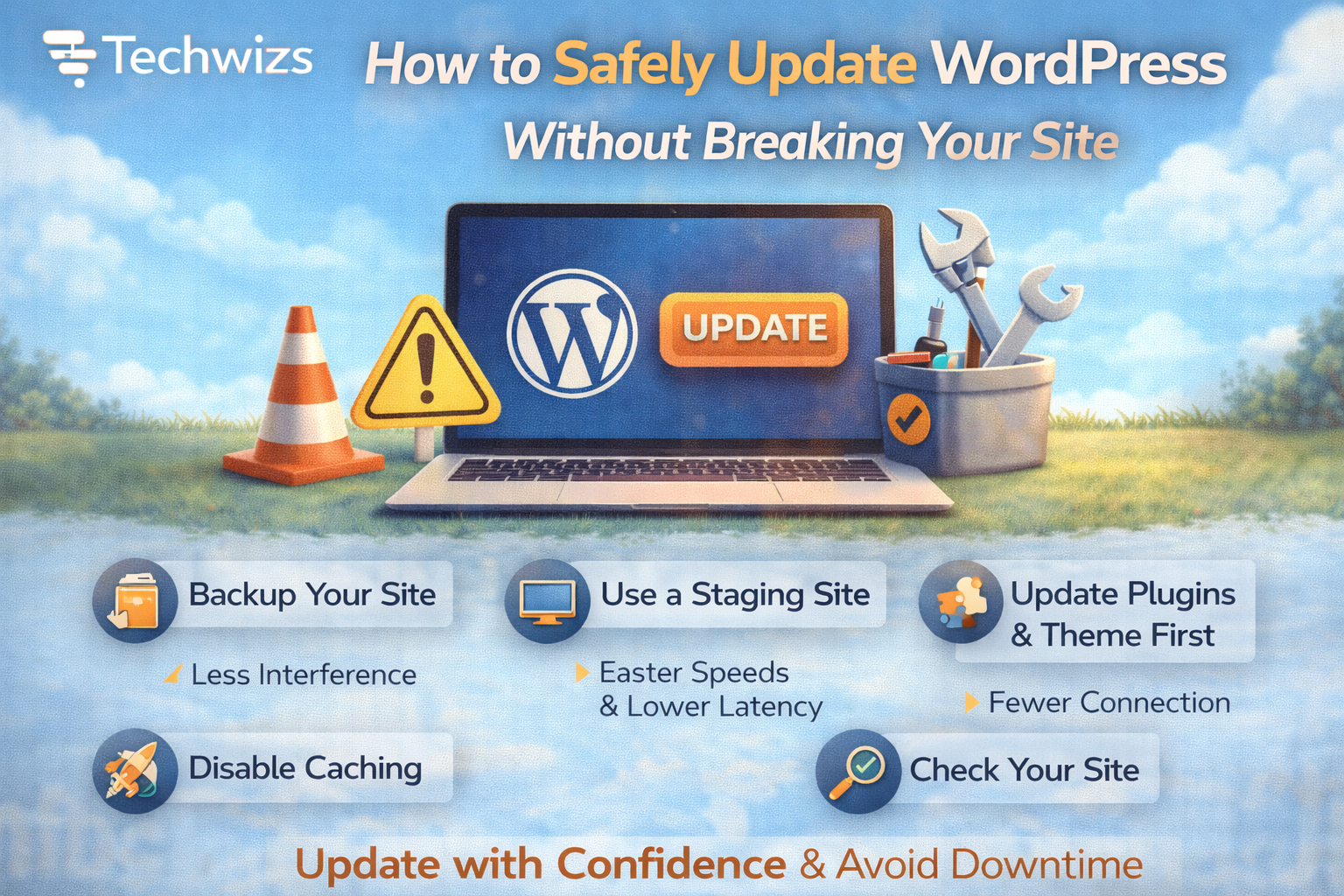
Step 1: Take a Full Backup (Non-Negotiable)
Back up:
- Database
- wp-content folder
- Configuration files
Key Takeaway Box
If you can restore your site, updates stop being scary.
Store backups off-site (cloud or local).
Step 2: Check Compatibility (30 Seconds)
- Read the plugin/theme update notes
- Confirm compatibility with your WordPress version
- Note any major changes
If a plugin hasn’t been updated in a long time, be cautious.
Step 3: Use a Staging Site (Best Option)
A staging site lets you test updates safely.
- Many hosts offer 1-click staging
- Test updates there first
- Push changes live only if everything works
If staging isn’t available, use maintenance mode.
Step 4: Enable Maintenance Mode (If Updating Live)
- Use a lightweight maintenance plugin
- Prevent users from seeing errors during updates
This avoids broken pages for visitors.
The Correct Update Order (Very Important)
- Plugins
- Themes
- WordPress Core
Why this order works:
- Plugins adapt fastest
- Themes rely on plugins
- Core should be last to avoid API mismatches
Quick Fix Box
Updating core first is the most common beginner mistake.
Step 5: Update in Small Batches
Avoid “Update All” on large sites.
- Update 3–5 plugins at a time
- Check the site after each batch
- Identify the culprit quickly if something breaks
Step 6: Clear Cache After Updating
Caching can hide problems—or create them.
- Clear plugin cache
- Clear server cache
- Clear CDN cache (if used)
This ensures you’re seeing the real result.
Step 7: Test the Critical Pages
Check:
- Homepage
- Login page
- Forms
- Checkout (if applicable)
- Admin dashboard
Look for:
- White screens
- Layout issues
- Console errors
What to Do If Something Breaks
Option A: Disable the Problem Plugin
- Use FTP or file manager
- Rename the plugin folder
- Reload the site
Option B: Roll Back
- Restore from backup
- Or use a plugin rollback feature
Key Takeaway Box
A calm rollback is faster than panic debugging.
Extra Safety Tips (Optional but Smart)
- Keep PHP updated to supported versions
- Remove unused plugins/themes
- Avoid nulled or pirated themes
- Use reputable plugins only
Security guidance from Google also emphasizes keeping CMS software updated to reduce known vulnerabilities.
How Often Should You Update WordPress?
- Security updates: Immediately
- Minor updates: Weekly or bi-weekly
- Major releases: After testing or 1–2 weeks
Consistency is safer than delaying everything.
FAQs: Safely Update WordPress
1) Is it safe to auto-update WordPress?
Yes for core security updates; manual is better for plugins.
2) Should I update everything at once?
No. Batch updates are safer.
3) Can updates delete my content?
No—content lives in the database.
4) Why does my site break after updates?
Usually a plugin or theme conflict.
5) Do I need a developer?
Not for basic updates if you follow this process.