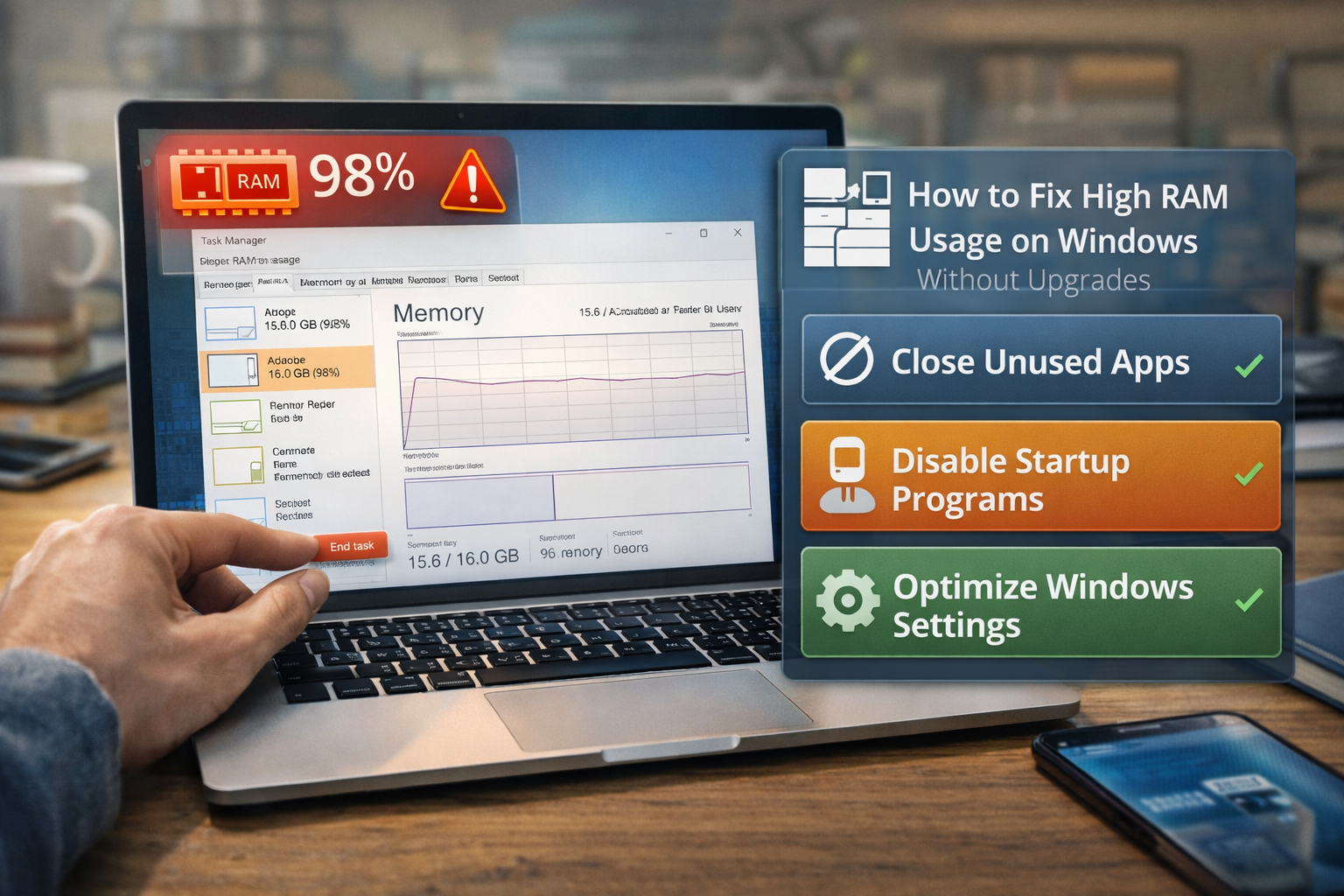
Difficulty: Beginner
What Is RAM and Why Does It Matter?
Before fixing the issue, let’s quickly explain RAM in simple terms.
RAM (Random Access Memory) is your computer’s short-term working space. Think of it like a desk where you place documents you’re currently working on.
- A bigger desk (more RAM) lets you work on more tasks at once.
- A cluttered desk (high RAM usage) makes it harder to find things quickly.
When RAM is overloaded, Windows slows down because it has to move data to the slower storage drive.
How to Check If RAM Usage Is Too High
First, confirm whether RAM is actually the problem.
Steps
- Press Ctrl + Shift + Esc
- Open Task Manager
- Click Performance
- Select Memory
If RAM usage stays above 80–90% during normal use, you likely have a high RAM usage Windows issue.
⚡ Quick Fix Box
Try these first — they solve many RAM problems quickly:
✔ Restart your computer
✔ Close unused programs
✔ Disable unnecessary startup apps
✔ Update Windows
If RAM usage remains high, continue with the steps below.
Step 1: Disable Unnecessary Startup Programs
Many apps automatically start when Windows boots, silently using memory.
How to Disable Startup Apps
- Press Ctrl + Shift + Esc
- Open Task Manager
- Click Startup Apps
- Disable programs you don’t need at startup
Examples you can often disable:
- Auto-updaters
- Messaging apps
- Game launchers
- Cloud sync tools
Reducing startup load is one of the most effective fixes for high RAM usage Windows systems.
Step 2: Close Background Apps
Some apps continue running even after you close their main window.
Check Background Usage
- Open Task Manager
- Click Processes
- Sort by Memory
Look for apps consuming large amounts of memory and close those you’re not actively using.
Step 3: Reduce Browser Memory Usage
Web browsers are often the biggest RAM consumers.
For example:
- Chrome with many tabs open can easily consume several gigabytes of RAM.
Tips to Reduce Browser RAM Usage
- Close unused tabs
- Remove unnecessary browser extensions
- Enable browser memory saver features
According to usage data reported by browser developers, modern browsers can use large amounts of memory due to heavy web applications and background processes.
Step 4: Disable Unnecessary Background Apps
Windows allows apps to run in the background even when you’re not using them.
Disable Background Apps
- Go to Settings
- Click Apps
- Open Installed Apps
- Select an app
- Go to Advanced Options
- Set Background App Permissions → Never
This prevents apps from consuming RAM silently.
Step 5: Turn Off Visual Effects
Windows animations and visual effects use additional system resources.
Disable Visual Effects
- Press Win + R
- Type:
sysdm.cpl
- Go to Advanced → Performance Settings
- Select Adjust for best performance
This reduces graphical overhead and helps systems with limited memory.
Step 6: Scan for Malware
Malware can secretly consume system resources.
Signs of malware-related RAM usage include:
- Unknown processes
- Constant high CPU and RAM usage
- Random pop-ups
Run a Windows Security Full Scan to eliminate threats.
Microsoft notes that malware infections often cause unexplained system performance problems.
Step 7: Restart Windows Explorer
Sometimes Windows Explorer consumes excessive memory due to bugs.
Restart Explorer
- Open Task Manager
- Find Windows Explorer
- Right-click → Restart
This refreshes the desktop environment and frees memory.
Step 8: Check for Memory Leaks
A memory leak happens when software keeps using memory but never releases it.
Signs include:
- RAM usage slowly increasing over time
- Apps slowing down after long use
Restarting the affected application usually resolves this.
If the problem persists, update the software.
Step 9: Disable Unnecessary Windows Services
Some services run constantly even if you don’t need them.
Steps
- Press Win + R
- Type:
services.msc
- Review services and disable those not required.
Be cautious — disabling critical services can affect system stability.
Step 10: Keep Windows Updated
Windows updates often include performance improvements and bug fixes.
Check Updates
- Go to Settings
- Select Windows Update
- Install available updates
These updates can resolve high RAM usage Windows problems caused by system bugs.

🛠️ Key Takeaway Box
High RAM usage in Windows is usually caused by too many background apps, startup programs, or inefficient software — not insufficient hardware.
When Should You Consider a RAM Upgrade?
Even though this guide focuses on fixing high RAM usage Windows without upgrades, sometimes additional RAM is necessary.
Consider upgrading if:
- You regularly run heavy applications
- You multitask with many browser tabs
- Your system has less than 8GB RAM
For most users today, 16GB RAM provides a comfortable experience.
Real-World Example
A user with 8GB RAM experienced slow performance and constant lag.
After investigation:
- 18 startup apps were running
- Browser had 40 open tabs
- Two cloud sync apps ran in background
After disabling startup apps and closing unused tabs, RAM usage dropped from 92% to 55%, restoring normal performance.
Long-Term Tips to Keep RAM Usage Low
✔ Restart your computer regularly
✔ Limit startup programs
✔ Avoid installing unnecessary utilities
✔ Monitor RAM usage periodically
✔ Keep at least 20% disk space free
Preventive maintenance helps keep Windows running smoothly.
Frequently Asked Questions (FAQ)
1. Why is my RAM usage so high even when nothing is open?
Background processes and startup apps may still be running. Check Task Manager to identify them.
2. Does restarting the computer reduce RAM usage?
Yes. Restarting clears temporary processes and memory leaks.
3. Is 8GB RAM enough for Windows today?
For basic tasks, yes. However, heavy multitasking benefits from 16GB.
4. Can a virus cause high RAM usage?
Yes. Malware can run hidden processes that consume system memory.
5. Why does Chrome use so much RAM?
Modern websites are complex and each browser tab runs as a separate process, which increases memory usage.