Difficulty: Beginner
Why WordPress Sites Get Targeted
WordPress powers a huge portion of the web, which makes it a frequent target for:
- Brute-force login attempts
- Outdated plugins/themes
- Weak passwords and admin usernames
According to security guidance from WordPress, keeping WordPress updated and limiting access are the most effective defenses for beginners.
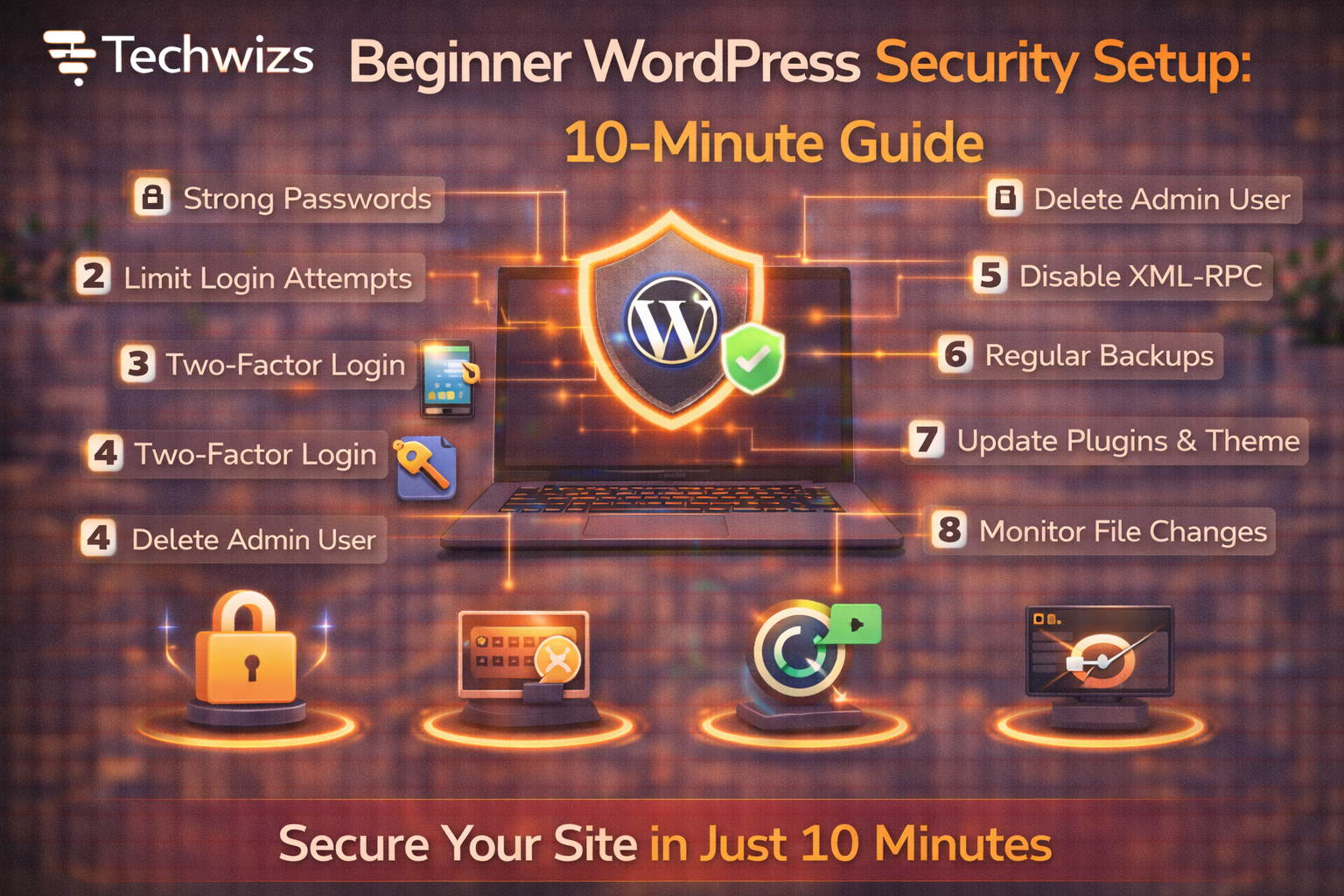
Your 10-Minute WordPress Security Checklist
Minute 1–2: Update Everything (Non-Negotiable)
- Update WordPress core
- Update all plugins and themes
- Delete unused plugins/themes
Key Takeaway Box
Most WordPress hacks exploit known vulnerabilities in outdated components.
Minute 3: Change Weak Login Habits
- Avoid using admin as a username
- Use a long, unique password
- Enable a password manager
Definition Box
Brute-Force Attack
Repeated login attempts using automated tools to guess usernames and passwords.
Minute 4–5: Enable Two-Factor Authentication (2FA)
- Add 2FA to your admin account
- Use an authenticator app
- Apply 2FA to editors if possible
This alone stops most unauthorized logins.
Minute 6: Install One Security Plugin (Not Many)
Choose one reputable plugin that includes:
- Firewall
- Login protection
- Malware scanning
Avoid stacking multiple security plugins—they can conflict.
Minute 7: Turn On Automatic Backups
- Daily backups for databases
- Weekly full backups
- Store backups off-site (cloud)
Quick Fix Box
Backups don’t prevent hacks—but they turn disasters into recoveries.
Minute 8: Secure Your Hosting Account
- Enable 2FA on hosting login
- Update hosting passwords
- Limit who has admin access
Hosting security matters as much as WordPress itself.
Minute 9: Enable HTTPS (If Not Already)
- Use a free SSL certificate
- Force HTTPS in WordPress settings
Google recommends HTTPS for both security and trust.
Minute 10: Add a Basic Firewall Layer
If available:
- Enable a web application firewall (WAF)
- Block common bot traffic
This reduces server load and attack noise.
Common Beginner Mistakes to Avoid
- Using multiple security plugins
- Ignoring backups
- Leaving unused plugins installed
- Sharing admin accounts
What This Setup Protects You From
- Automated bots
- Credential stuffing
- Common plugin exploits
- Accidental data loss
It won’t stop every advanced attack—but it blocks the majority.
FAQs: Beginner WordPress Security Setup
1) Is WordPress secure by default?
Yes, but only if kept updated and configured properly.
2) Do I need paid security tools?
Not for basic protection—free tools are enough for beginners.
3) Will security plugins slow my site?
One well-configured plugin has minimal impact.
4) How often should I review security?
Monthly is sufficient for small sites.
5) What’s the biggest security risk?
Weak passwords and outdated plugins.