Difficulty Level: Beginner / Basic User
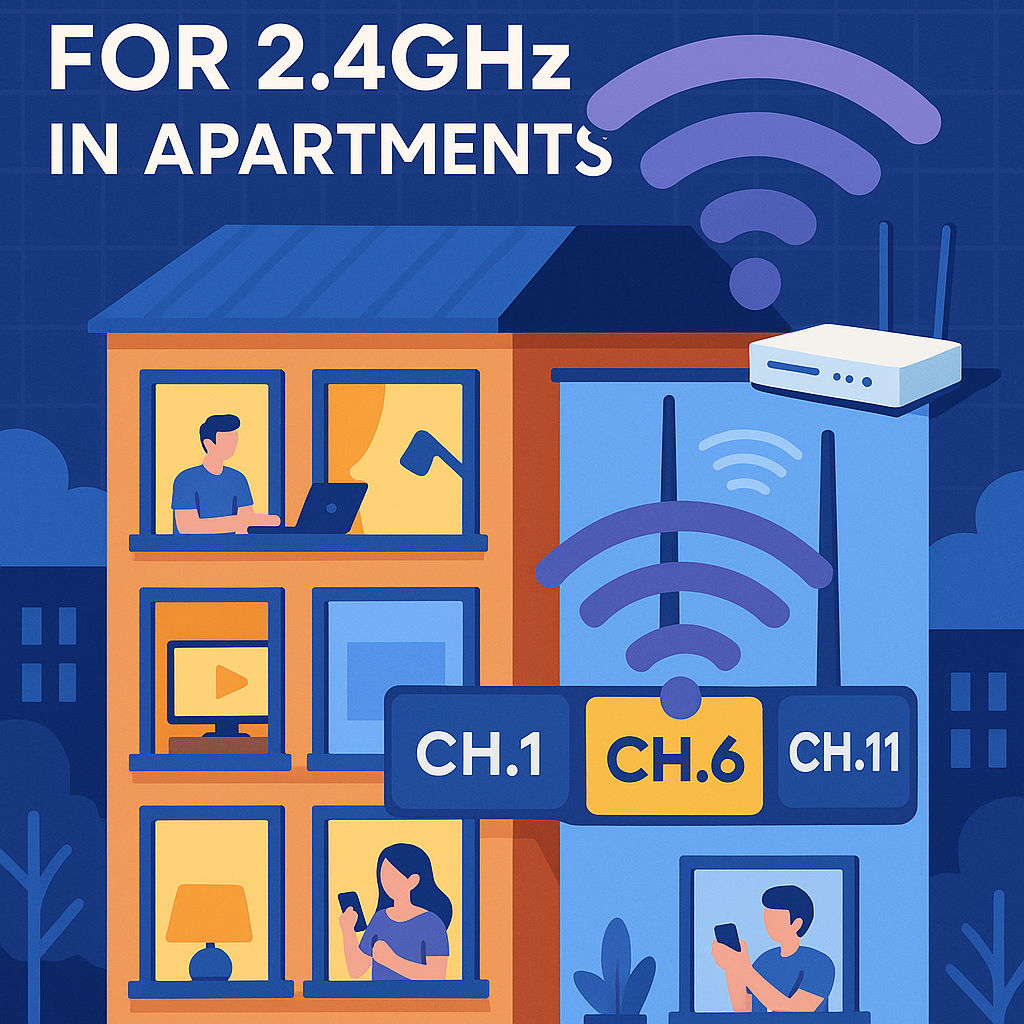
If you’re searching for the best 2.4GHz Wi-Fi channel, it’s probably because your internet becomes slow, unstable, or inconsistent—especially during evenings. In apartments, dozens of routers overlap on the same 2.4GHz spectrum, causing heavy interference. The good news is you can fix this in minutes by choosing the optimal channel and reducing overlap with your neighbors.
According to the Wi-Fi Alliance, over 70% of urban Wi-Fi performance issues are caused by channel congestion, not your ISP. This guide will show you the fastest and most accurate way to escape interference and boost your speed.
Best 2.4GHz Wi-Fi Channel Guide
Why the Best 2.4GHz Wi-Fi Channel Matters in Apartments
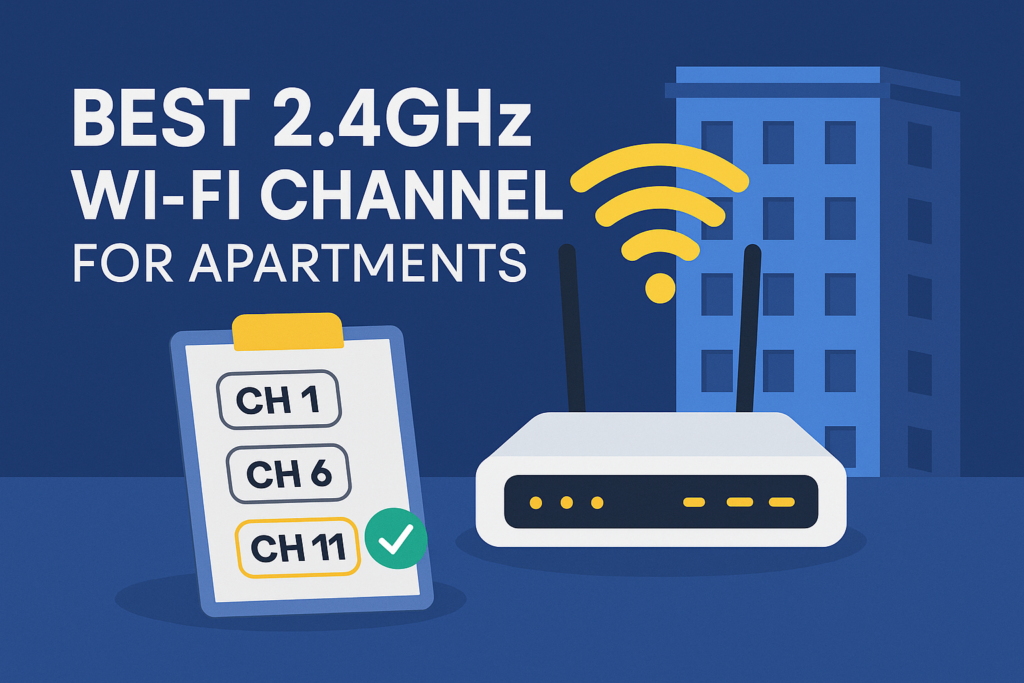
The 2.4GHz band only has three non-overlapping channels:
- Channel 1
- Channel 6
- Channel 11
Every other channel overlaps with another, creating interference that reduces speed and stability.
Why Apartments Make It Worse
In an apartment block:
- You share radio space with 10–50 nearby routers
- Microwaves, Bluetooth devices, smart home gadgets also crowd 2.4GHz
- Walls reflect signals, creating noise and signal collisions
This makes picking the best 2.4GHz Wi-Fi channel essential for real speed gains.
How to Choose the Best 2.4GHz Wi-Fi Channel
Step 1: Scan Nearby Wi-Fi Channels
Before choosing your channel, scan the environment so you don’t pick the same one as your neighbors.
Use one of these free tools:
- WiFi Analyzer (Windows)
- NetSpot (Mac/Windows)
- WiFiman (iOS/Android)
Choose the channel with the least number of routers on it.
Most of the time, this ends up being:
- Channel 1 → Least interference in crowded areas
- Channel 11 → Best when microwave noise is present
- Channel 6 → Balanced option
Step 2: Set Your Router to the Best 2.4GHz Wi-Fi Channel
- Open your router’s admin panel (usually 192.168.0.1 or 192.168.1.1).
- Log in with admin credentials.
- Go to Wireless Settings.
- Change:
- Band: 2.4GHz
- Channel: 1, 6, or 11 (whichever is least crowded)
- Save & restart router.
This change alone can improve your speed by 20%–50%.
Bonus: Advanced Tricks to Improve Your 2.4GHz Wi-Fi in Apartments
Use a 20MHz Channel Width for Stability
Set channel width to 20MHz, not 40MHz.
40MHz is faster on paper but extremely unstable in apartments due to interference.
Move Router Away from Walls
Concrete, metal, and closets destroy Wi-Fi signal.
Place router:
- In the open
- Higher up
- Away from microwaves, TVs, Bluetooth speakers
Disable “Auto Channel”
Auto mode often makes bad choices because it:
- Picks channels based on old scans
- Doesn’t adapt quickly
- Often chooses overlapping channels (2, 3, 4, 5, 7, 8, 9, 10)
Always manually select your channel.
Key Takeaway Box
The best 2.4GHz Wi-Fi channel for apartments is always 1, 6, or 11.
To find your optimal choice, scan nearby networks and pick the least crowded one.
This simple change can dramatically boost speed, reduce lag, and stabilize your connection.
FAQ
1. What is the best 2.4GHz Wi-Fi channel for apartments?
Usually 1, 6, or 11—because they are the only non-overlapping channels.
2. Why does my Wi-Fi get slower at night?
More neighbors are online, causing channel congestion—especially on 2.4GHz.
3. Should I use Auto Channel on my router?
No. Auto mode frequently picks overlapping channels that reduce performance.
4. How do I know which channel is best?
Use a Wi-Fi scanner like WiFiman or NetSpot and pick the channel with the fewest routers.
5. Is 5GHz better than 2.4GHz for apartments?
Yes for speed, but 2.4GHz has better wall penetration. Use both if possible.