Difficulty: intermediate
Why Streaming Buffers (Even with Fast Internet)
Streaming platforms like Netflix and YouTube require stable bandwidth — not just high speed.
Common causes of buffering:
- Weak Wi-Fi signal
- Network congestion
- Poor channel selection
- Outdated firmware
- Router overloaded with devices
According to technical guidance from the Wi-Fi Alliance, interference and congestion often impact real-world performance more than raw internet speed.
1️⃣ Use 5GHz (or 6GHz) for Streaming Devices
Why It Matters
- 2.4GHz → Longer range, more interference
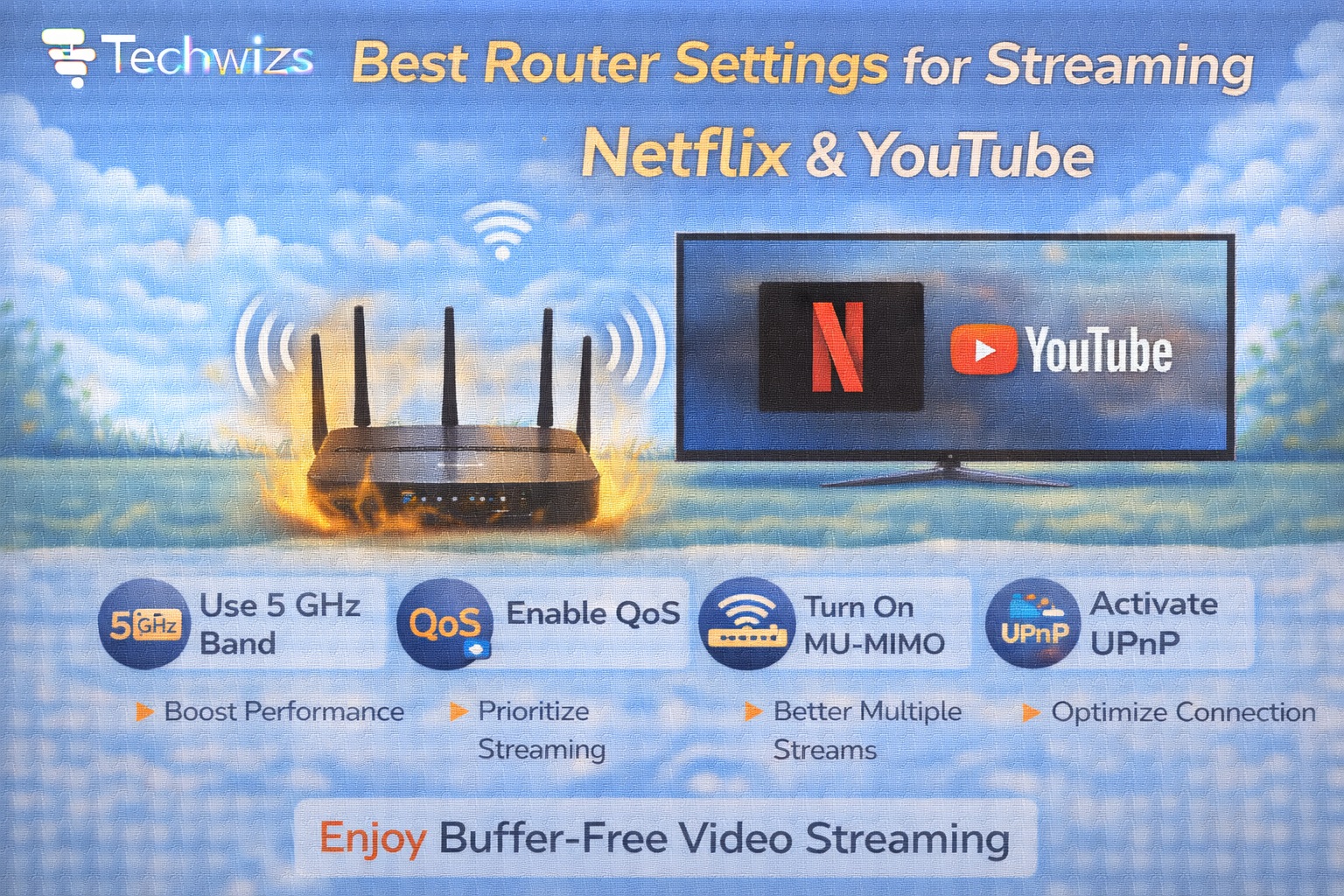
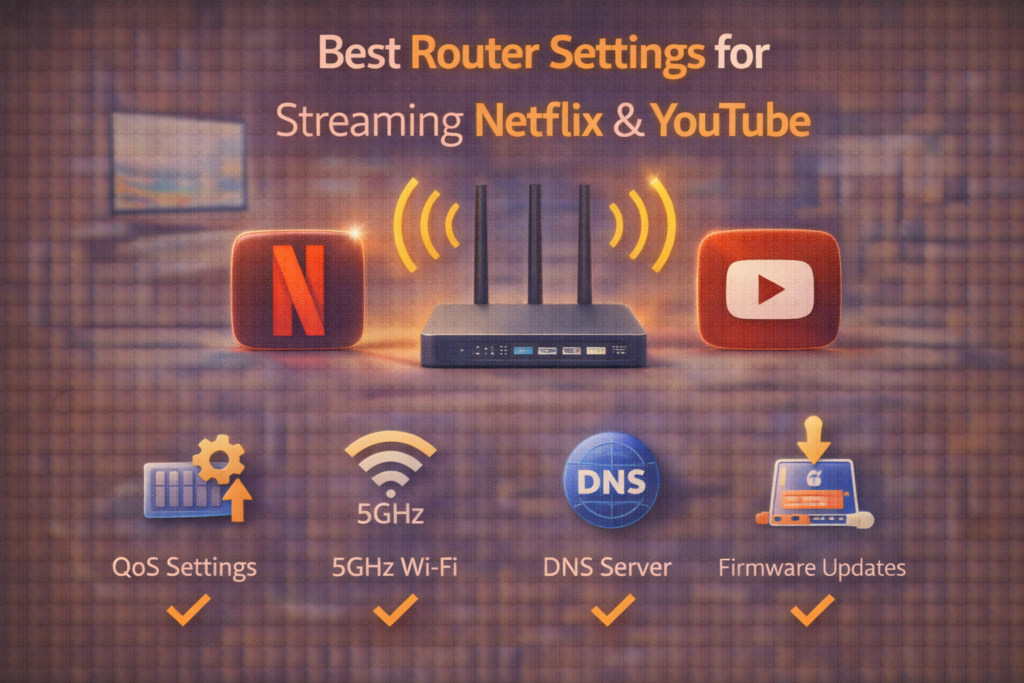
- 5GHz → Faster, cleaner, ideal for streaming
- 6GHz (Wi-Fi 6E/7) → Fastest, least congested
If your TV, console, or streaming device is near the router, connect it to 5GHz or 6GHz.
Key Takeaway Box
5GHz is usually the best choice for smooth 4K streaming.
2️⃣ Enable QoS (Quality of Service)
QoS prioritizes video traffic over background downloads.
How It Helps
Without QoS:
- Someone downloading files can disrupt streaming
With QoS:
- Streaming traffic gets priority bandwidth
Look for:
- “Media Prioritization”
- “Streaming Mode”
- “Bandwidth Control”
Quick Fix Box
Enable QoS and prioritize smart TVs, streaming boxes, or consoles.
3️⃣ Update Router Firmware
Old firmware can cause:
- Stability issues
- Wi-Fi dropouts
- Performance degradation
Check your router’s admin panel for firmware updates.
Manufacturers like TP-Link and Netgear frequently release performance improvements.
4️⃣ Choose the Best Wi-Fi Channel
Auto-channel selection doesn’t always choose the best option.
For 2.4GHz:
- Use channels 1, 6, or 11
For 5GHz:
- Choose less congested channels manually if possible
Interference from neighbors often causes buffering spikes.
5️⃣ Use Ethernet for Maximum Stability
If possible:
- Connect smart TV or streaming box via Ethernet
- Avoid Wi-Fi congestion entirely
Key Takeaway Box
Wired connections always outperform Wi-Fi for streaming stability.
6️⃣ Optimize DNS Settings
Switching DNS can improve streaming responsiveness.
Recommended DNS:
- 1.1.1.1 (Cloudflare)
- 8.8.8.8 (Google DNS)
While DNS won’t increase speed directly, it can reduce delays when loading content.
7️⃣ Disable Unnecessary Router Features
Turn off features you don’t use:
- Legacy Wi-Fi modes
- WPS (if unused)
- Old guest networks
- Heavy traffic monitoring tools
Freeing router resources improves performance.
8️⃣ Adjust Channel Width (Advanced but Helpful)
For 5GHz:
- Use 80MHz width for faster speeds
- Avoid 160MHz unless stable
Wider channels increase speed but may increase interference.
9️⃣ Place Router Correctly
Best placement:
- Central location
- Elevated position
- Away from microwaves and metal objects
Physical placement impacts streaming more than many realize.
10️⃣ Upgrade to Wi-Fi 6 or Wi-Fi 7 (If Needed)
If your router is 5+ years old:
- Upgrade to Wi-Fi 6
- Consider Wi-Fi 7 for heavy households
Newer standards handle multiple devices better.
Ideal Setup for 4K Streaming
Minimum requirements:
- 25 Mbps per 4K stream
- 5GHz connection
- QoS enabled
- Updated firmware
- Low interference
Common Streaming Mistakes
- Using 2.4GHz for 4K TVs
- Ignoring router placement
- Not updating firmware
- Overloading network with downloads
- Using cheap ISP routers only
FAQs: Best Router Settings for Streaming Netflix & YouTube
1) How much speed do I need for 4K?
At least 25 Mbps per stream.
2) Is 5GHz better for streaming?
Yes — if you’re close to the router.
3) Does QoS really help?
Yes, especially in busy households.
4) Should I use Ethernet?
If possible, yes.
5) Will upgrading router fix buffering?
Often, yes — especially older models.