Difficulty: Beginner
Why Chrome Uses So Much RAM
Before fixing the problem, it helps to understand why Chrome using too much RAM happens in the first place.
Chrome is designed differently from older browsers. Instead of running everything inside one process, Chrome separates components into multiple processes.
Think of it like separate rooms in a house.
If one room has a problem, the rest of the house still works.
That’s why if one Chrome tab crashes, the entire browser usually stays open.
According to Google’s Chromium development documentation, this multi-process architecture improves security, stability, and performance — but it also increases RAM usage.
The Most Common Reasons Chrome Uses Too Much RAM
1. Too Many Open Tabs
Every tab is essentially its own mini program.
Even if the tab looks idle, it may still be running:
- scripts
- ads
- background processes
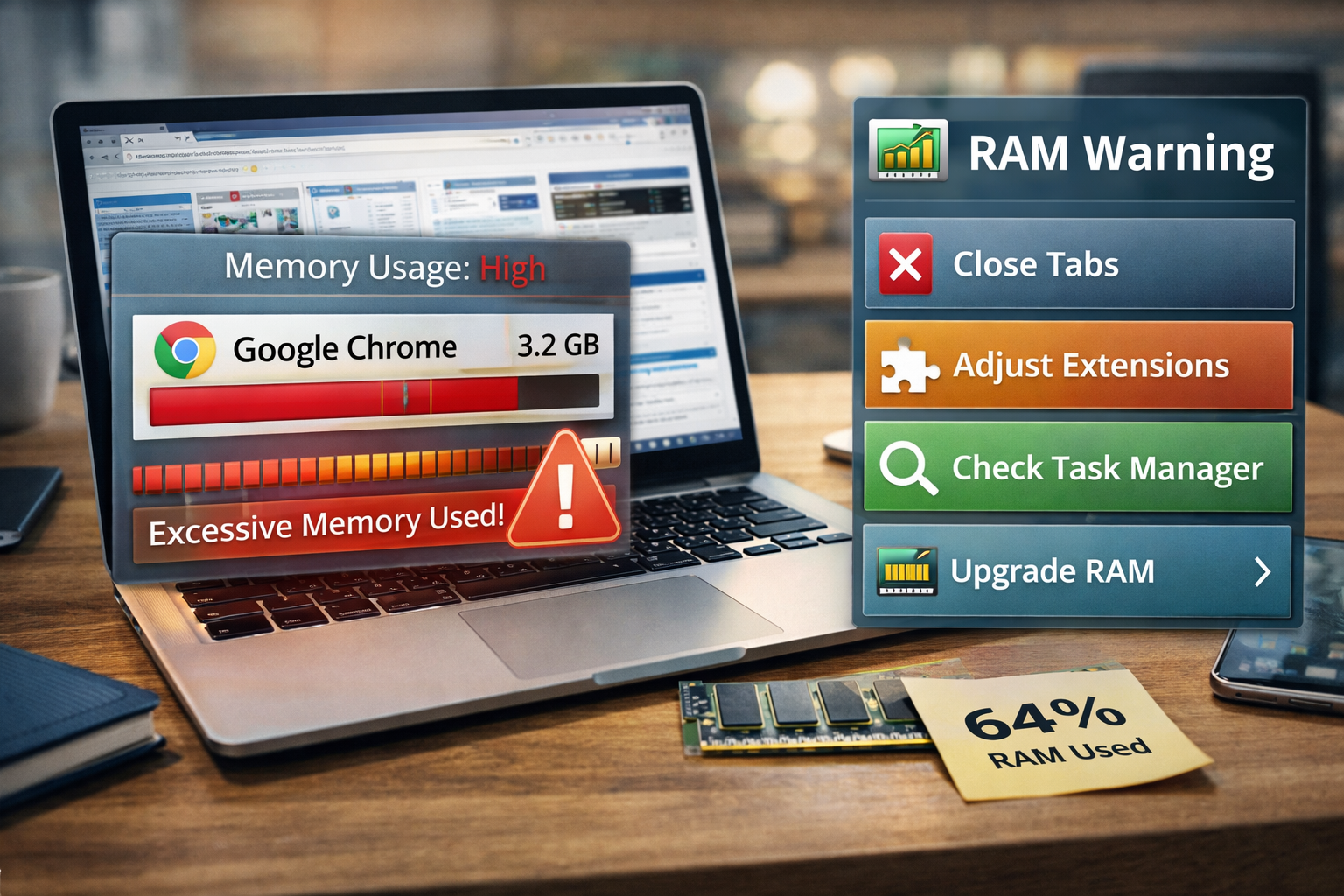
If you keep 20+ tabs open, Chrome using too much RAM becomes very common.
2. Heavy Browser Extensions
Extensions are small add-ons that enhance Chrome, but many of them constantly run in the background.
Examples include:
- ad blockers
- password managers
- screenshot tools
- productivity trackers
Each extension consumes memory.
Some poorly coded extensions use far more RAM than necessary.
3. Websites With Heavy Scripts
Modern websites are very complex.
Streaming platforms, social media sites, and web apps like Google Docs run many scripts simultaneously.
For example:
- YouTube
- Canva
- Notion
These sites behave almost like full applications inside the browser.
4. Background Apps Still Running
Chrome can keep apps running even when you close the browser window.
This is meant to keep things like notifications working, but it can contribute to Chrome using too much RAM.
5. Insufficient System RAM
Sometimes the issue is not Chrome itself.
If your computer has:
- 4 GB RAM
- 8 GB RAM with many apps open
Chrome will compete with other programs for memory.
⚡ Quick Fix Box
If Chrome is using too much RAM, try these first:
✔ Close unused tabs
✔ Disable unnecessary extensions
✔ Enable Chrome Memory Saver
✔ Restart the browser
These simple steps solve most memory issues.
Real Fix #1: Enable Chrome Memory Saver
Chrome now includes a built-in feature designed to reduce memory usage.
How to enable it
- Open Chrome
- Click Settings
- Go to Performance
- Enable Memory Saver
What it does:
Chrome automatically puts inactive tabs to sleep.
When you return to the tab, it reloads.
For many users, this dramatically reduces Chrome using too much RAM.
Real Fix #2: Use Chrome Task Manager
Chrome has its own task manager.
How to open it
Press:
Shift + Esc
You’ll see which tabs and extensions consume the most memory.
You can then close the biggest offenders.
Think of it like a control panel for Chrome processes.
Real Fix #3: Remove Unused Extensions
Many users forget how many extensions they installed.
To check extensions:
- Type in address bar
chrome://extensions - Remove anything you don’t need.
Good rule:
If you haven’t used it in 30 days, remove it.
This alone can reduce Chrome using too much RAM significantly.
Real Fix #4: Turn Off Background Apps
Chrome may keep running apps after you close it.
To disable this:
- Go to Chrome Settings
- Click System
- Disable:
Continue running background apps when Google Chrome is closed
This prevents hidden RAM usage.
Real Fix #5: Restart Chrome Regularly
Browsers accumulate memory usage over time.
If Chrome stays open for days or weeks, memory usage can slowly increase.
A quick restart clears temporary processes.
Real Fix #6: Update Chrome
Chrome updates often include performance improvements.
To update:
- Click Help
- Select About Google Chrome
- Install updates if available
Google continuously optimizes memory usage.
Real Fix #7: Reduce Tab Overload
If you tend to keep many tabs open, consider using:
- bookmarks
- tab grouping
- reading list
Instead of keeping everything open simultaneously.

🧠 Definition Box
RAM (Random Access Memory):
The short-term memory your computer uses to run programs quickly. More RAM allows your system to handle more tasks at the same time.
Does Chrome Actually Use Too Much RAM?
Here’s an interesting perspective.
Chrome uses more RAM because it prioritizes speed and stability.
Unused RAM is essentially wasted RAM.
So Chrome uses available memory to keep things fast.
Problems only occur when:
- RAM becomes fully used
- Other apps begin to slow down
When Should You Consider a RAM Upgrade?
If Chrome using too much RAM happens frequently and you multitask heavily, you may benefit from more memory.
Typical modern requirements:
| Usage Type | Recommended RAM |
|---|---|
| Basic browsing | 8 GB |
| Heavy browsing | 16 GB |
| Professional multitasking | 32 GB |
Real-World Example
A user with 8 GB RAM had Chrome open with:
- 18 tabs
- 9 extensions
- YouTube streaming
RAM usage reached 7.5 GB.
After disabling 6 extensions and enabling Memory Saver, usage dropped to 3.2 GB.
The system became noticeably faster.
🛡️ Key Takeaway Box
Chrome uses more RAM by design for better speed and stability, but controlling tabs, extensions, and background apps can dramatically reduce memory usage.
Frequently Asked Questions (FAQ)
1. Why does Chrome use more RAM than other browsers?
Chrome separates tabs and extensions into individual processes for better stability and security.
2. Is Chrome RAM usage dangerous for my computer?
No. High RAM usage itself does not damage your system.
3. How much RAM should Chrome use?
It depends on how many tabs and extensions are active. Heavy browsing can easily exceed several gigabytes.
4. Does closing tabs reduce RAM usage immediately?
Yes. Closing tabs frees memory instantly.
5. Is there a Chrome extension that reduces RAM usage?
Yes, tab management extensions can suspend inactive tabs, though Chrome’s built-in Memory Saver now handles this well.