Difficulty: Beginner
Why Cleaning Your Laptop Matters
Over time, laptops collect:
- Dust inside vents and fans
- Fingerprints and grime on the keyboard
- Unused files and background programs
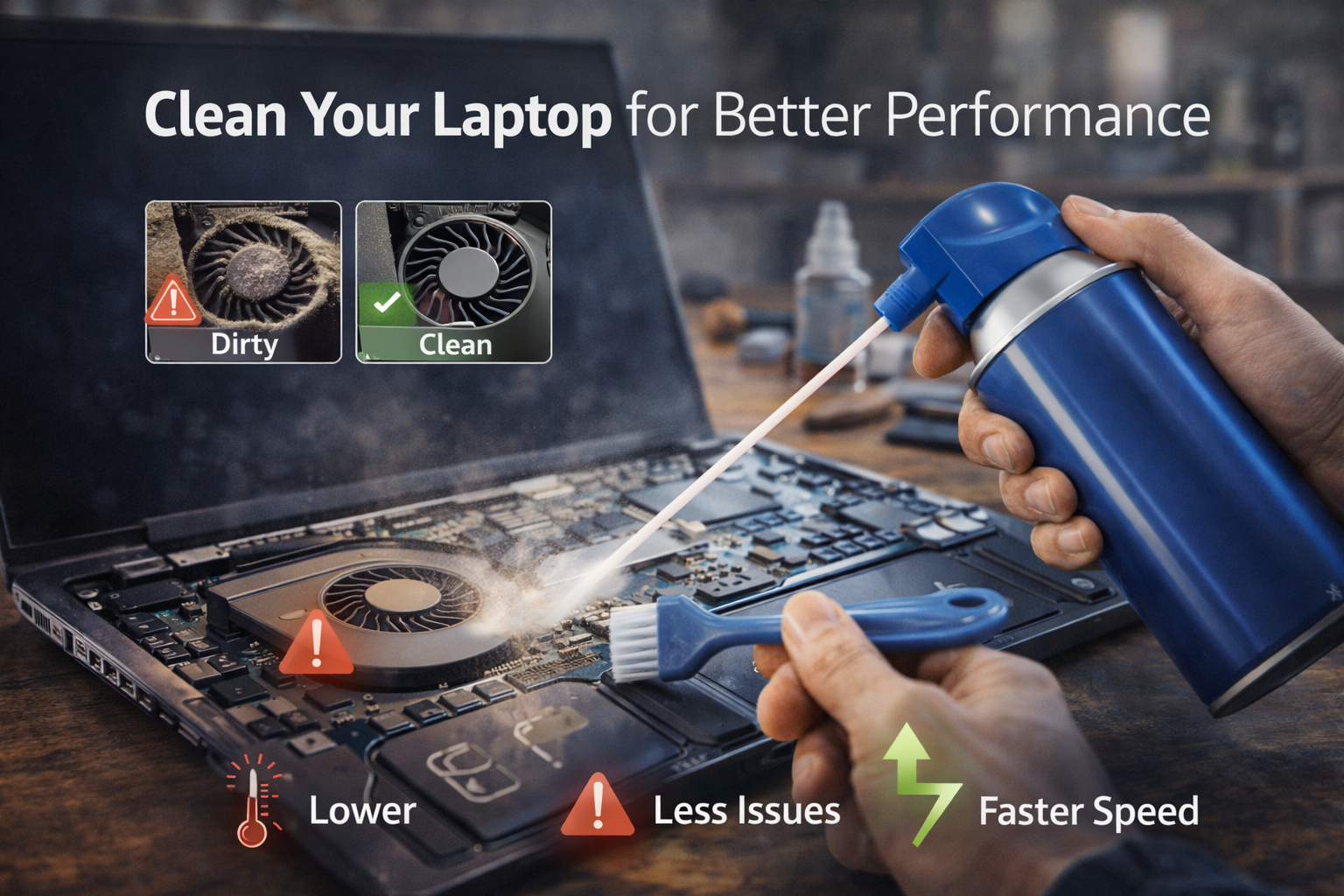
Clean your laptop for better performance As a result, airflow drops, temperatures rise, and performance suffers. According to guidance from Microsoft, overheating and background processes are common causes of system slowdowns—especially on older devices.
Part 1: Physical Cleaning (Hardware)
Physical cleaning improves cooling and prevents thermal throttling.
Step 1: Power Off and Unplug
Before cleaning:
- Shut down your laptop
- Unplug the charger
- Disconnect accessories
This protects both you and your device.
Step 2: Clean the Keyboard and Screen
What You’ll Need
- Microfiber cloth
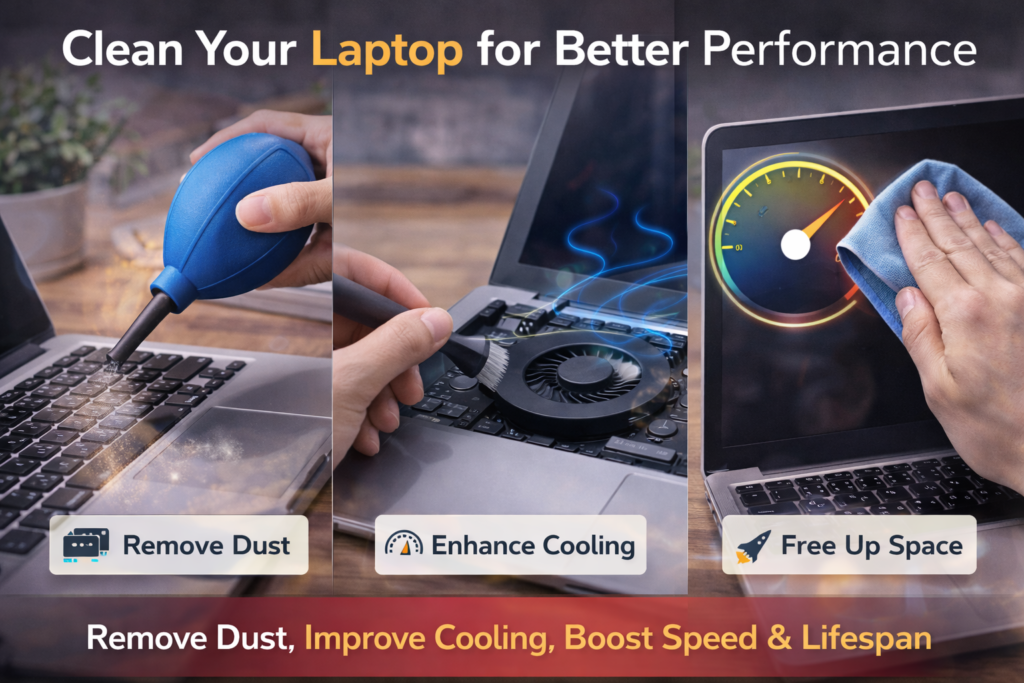
- Compressed air
- Isopropyl alcohol (70% or higher)
How to Clean Safely
- Gently blow debris out of the keyboard
- Wipe keys and screen with a lightly damp cloth
- Never spray liquid directly onto the laptop
Key Takeaway Box
A clean keyboard and screen won’t speed up your laptop directly, but they prevent long-term damage and improve usability.
Step 3: Clear Dust From Vents and Fans
Blocked vents are a major cause of overheating.
What to do:
- Use compressed air in short bursts
- Aim at side and bottom vents
- Hold the can upright
What not to do:
- Do not use a vacuum
- Do not insert objects into vents
Quick Fix Box
If your fan is loud or your laptop feels hot, vent cleaning can immediately reduce temperatures.
Part 2: Internal Cleaning (Advanced but Optional)
If your laptop is older and out of warranty, internal cleaning can help—but proceed carefully.
When to Consider Internal Cleaning
- Laptop is 2+ years old
- Fan noise is constant
- Temperatures stay high even after vent cleaning
If unsure, let a professional handle it.
Part 3: Digital Cleaning (Equally Important)
Physical cleaning helps cooling. Digital cleaning restores speed.
Step 4: Remove Unnecessary Startup Programs
Too many startup apps slow boot time.
How to fix:
- Open Task Manager (Windows)
- Disable non-essential startup apps
This frees memory and CPU resources.
Step 5: Delete Temporary and Unused Files
Over time, junk files pile up.
What to clean:
- Temporary files
- Old downloads
- Unused apps
Built-in tools like Disk Cleanup or Storage Sense work well.
Step 6: Update Your System and Drivers
Updates often include performance and security improvements.
Both Apple and Microsoft regularly optimize system behavior through updates, so keeping your OS current matters.
Step 7: Scan for Malware
Malware can quietly drain resources.
Use:
- Built-in security tools
- Reputable antivirus software
If your laptop feels slow after cleaning, a scan is essential.
How Often Should You Clean Your Laptop?
Recommended schedule:
- Keyboard & screen: weekly
- Vent cleaning: every 2–3 months
- Digital cleanup: monthly
- Deep cleaning: once a year
Consistency matters more than perfection.
Common Cleaning Mistakes to Avoid
- Using household cleaners
- Spraying liquid directly
- Ignoring vents
- Skipping software cleanup
These mistakes can cause more harm than good.
FAQs: How to Clean Your Laptop for Better Performance
1. Does cleaning really make a laptop faster?
Yes. Better airflow and fewer background processes improve performance.
2. Can dust cause laptop overheating?
Yes. Dust blocks airflow and traps heat.
3. Is compressed air safe for laptops?
Yes, when used correctly and sparingly.
4. Should I open my laptop to clean it?
Only if you are confident or the warranty has expired.
5. How do I know if my laptop needs cleaning?
Loud fans, heat, and slowdowns are common signs.