Difficulty: Beginner
Why Image Compression Matters for WordPress
Images often make up 50–80% of a page’s total weight. Heavy files increase:
- Page load time
- Bounce rate
- Hosting bandwidth usage
- Core Web Vitals penalties
According to performance guidance from Google, faster pages improve user experience and search rankings.
Definition Box
Image Compression
The process of reducing file size while maintaining acceptable visual quality.
Step 1: Resize Before Uploading (Most Important)
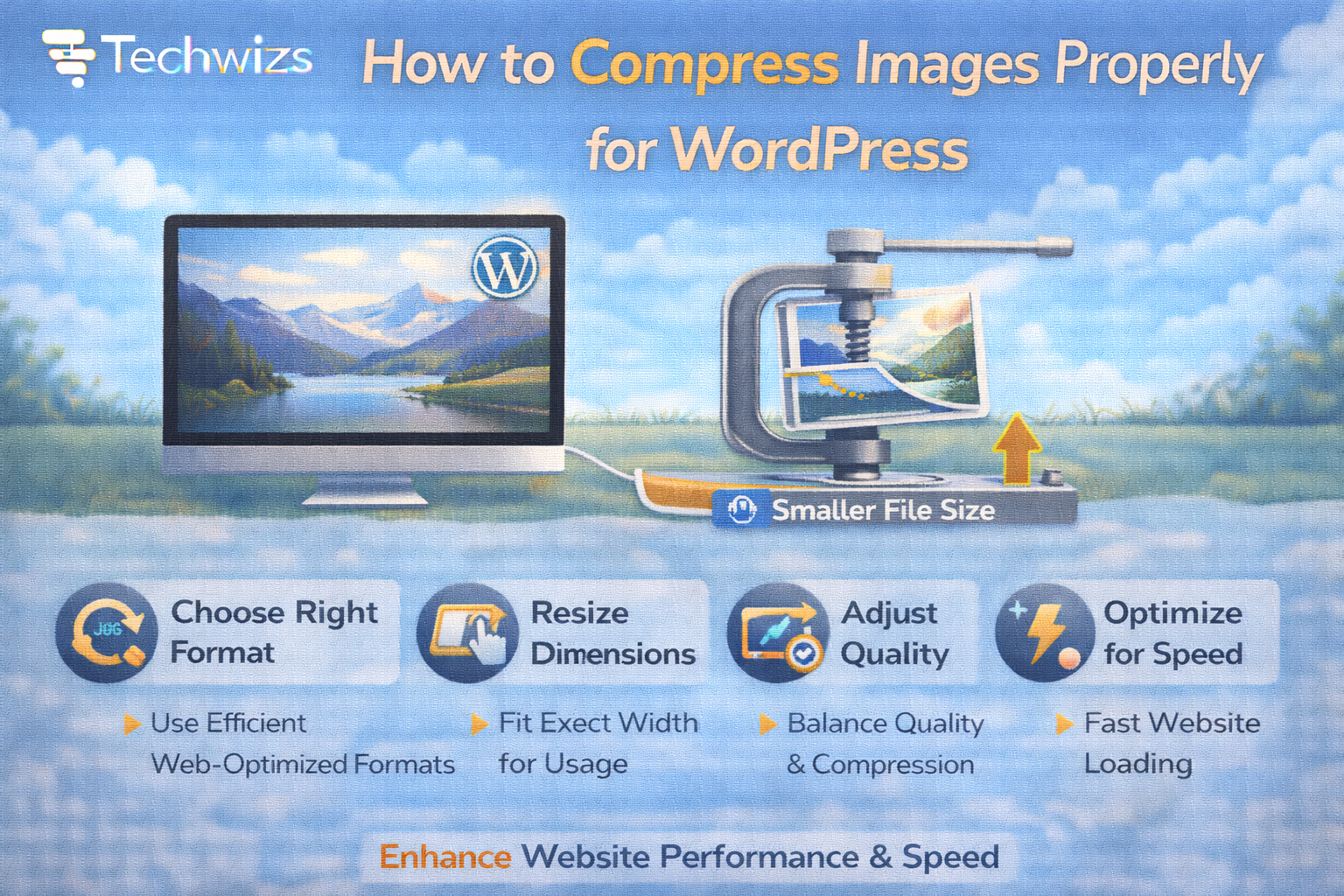
Uploading a 4000px image for a 1200px layout wastes bandwidth.
Recommended Sizes:
- Blog content images: 1200px width max
- Thumbnails: 600–800px
- Full-width hero: 1600–1920px (optimized)
Key Takeaway Box
Resizing before compression delivers the biggest performance gain.
Step 2: Choose the Right Format
JPEG
Best for:
- Photos
- Real-world images
Smaller size with acceptable quality loss.
PNG
Best for:
- Graphics with transparency
- Logos
WebP (Recommended)
- Smaller than JPEG & PNG
- Supported by all modern browsers
- Ideal for WordPress in 2026
WordPress now supports WebP uploads natively.
Step 3: Use Smart Compression (Lossy vs Lossless)
Definition Box
Lossy Compression
Removes some image data to significantly reduce size.
Lossless Compression
Reduces file size without removing image data.
For WordPress blogs:
- Use moderate lossy compression
- 70–85% quality setting is ideal
You won’t see the difference—but speed improves dramatically.
Step 4: Use a WordPress Compression Plugin
Reliable tools include:
- WP Rocket (Image Optimization Add-on)
- Smush
- ShortPixel
- Imagify
Look for:
- Automatic compression on upload
- WebP conversion
- Bulk optimization
- Lazy loading support
Step 5: Enable Lazy Loading
Lazy loading ensures images load only when visible.
WordPress includes built-in lazy loading, but some optimization plugins improve it further.
Quick Fix Box
Lazy loading reduces initial page size instantly.
Step 6: Avoid These Common Mistakes
- Uploading images straight from a DSLR
- Using PNG for photos
- Over-compressing until blurry
- Ignoring mobile file sizes
- Forgetting to optimize featured images
Ideal Image Workflow for WordPress
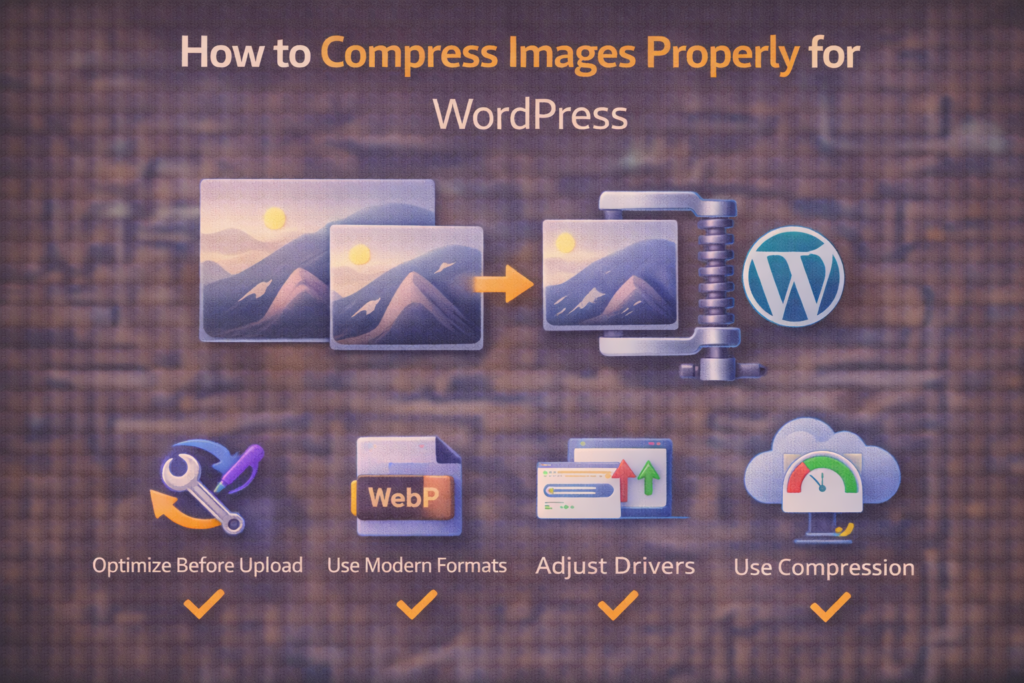
- Resize image (1200px recommended)
- Save as WebP (or optimized JPEG)
- Compress to ~75% quality
- Upload to WordPress
- Let plugin optimize further
- Verify with PageSpeed Insights
How Much Compression Is Too Much?
If you notice:
- Blurry text in images
- Blocky shadows
- Color banding
You’ve gone too far.
Balance performance and clarity.
Do You Need a CDN for Images?
If you get:
- Global visitors
- High traffic
- Large media libraries
A CDN improves image delivery speed significantly.
FAQs: Compress Images Properly for WordPress
1) Does compression hurt SEO?
No—improves it through faster loading.
2) Is WebP better than JPEG?
Yes—usually 25–35% smaller.
3) Should I compress before uploading?
Yes—it’s best practice.
4) Are free plugins enough?
Yes—for most blogs.
5) What’s ideal image size for blog posts?
Under 200KB when possible.