Difficulty: Beginner
Why Large File Transfers Fail
Large files stress every part of the system at once—storage, cables, ports, and software.
Common causes include:
- File system limits (e.g., FAT32’s 4GB cap)
- Unstable USB cables or hubs
- Power-saving interruptions
- Background apps (antivirus, cloud sync)
- Disk errors on source or destination drives
According to guidance from Microsoft and Apple, ensuring compatible formats and stable connections prevents most copy failures.
Step 1: Check the Drive Format (Most Important)
Definition Box
File System
The method a drive uses to store files (e.g., NTFS, exFAT, APFS).
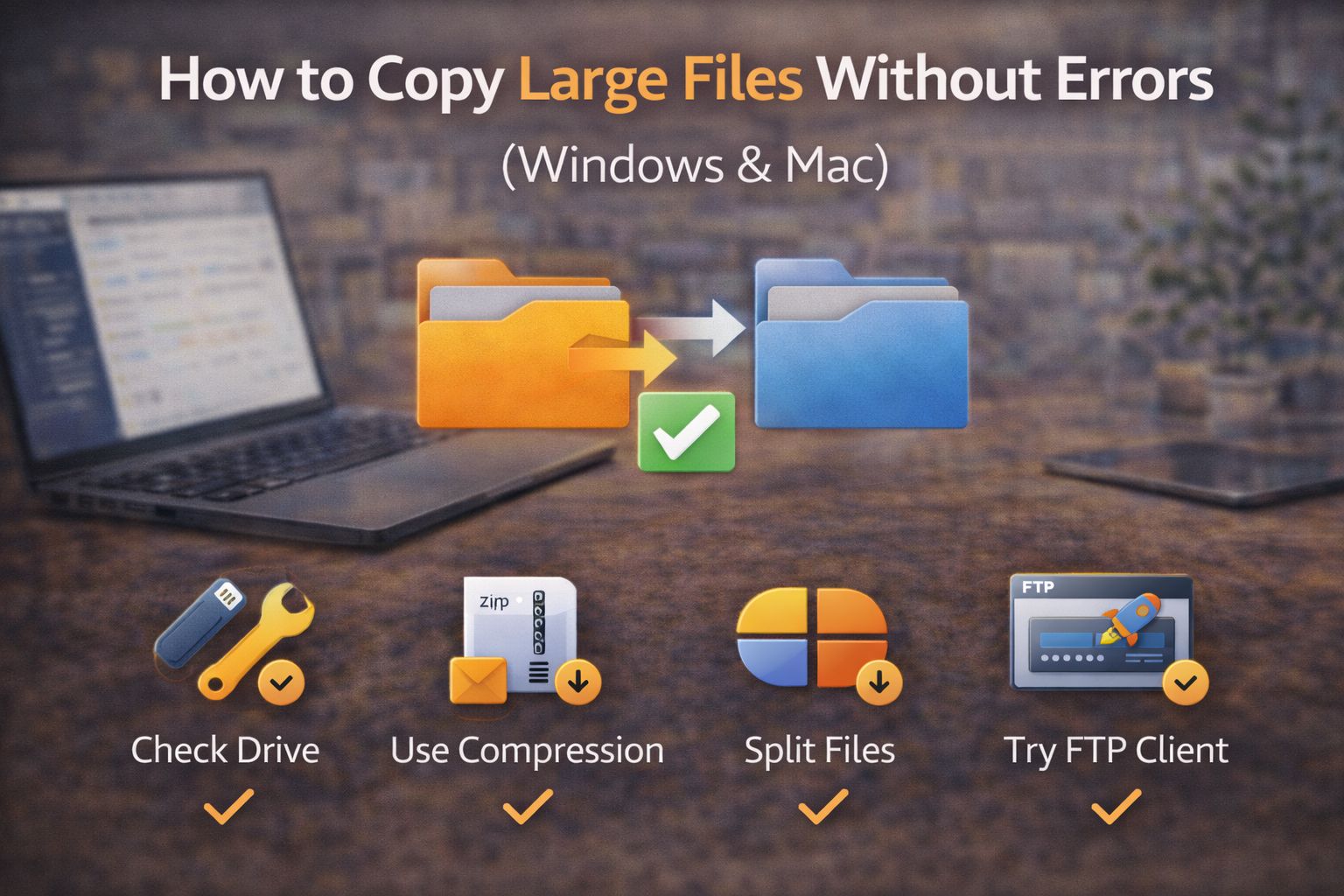
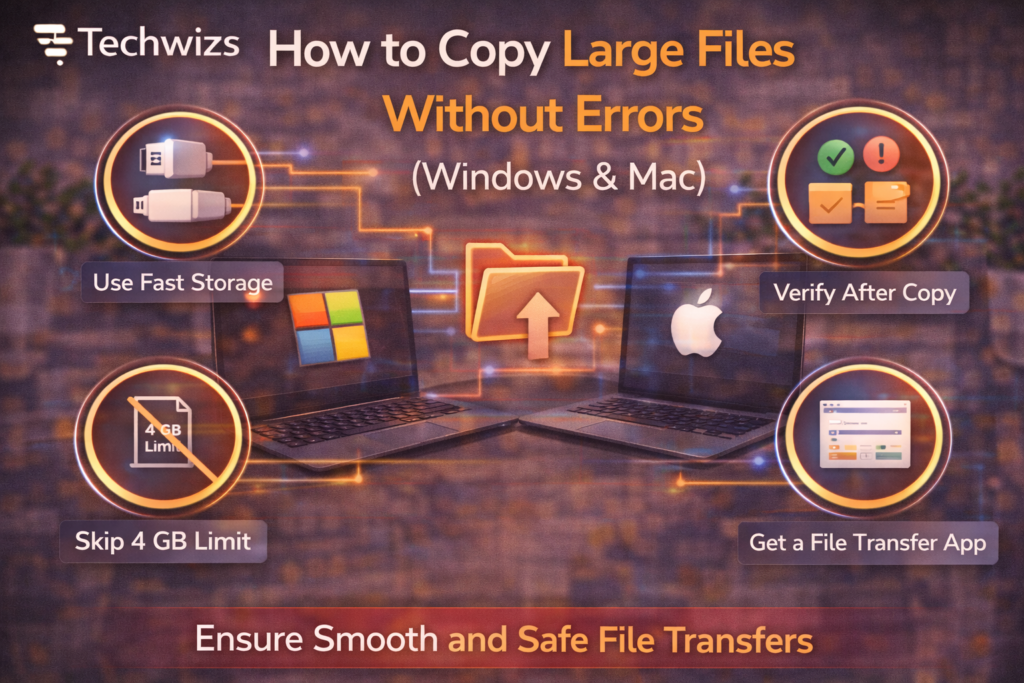
- FAT32 → Do not use (4GB file limit)
- exFAT → Best for Windows + Mac
- NTFS → Windows-only (Mac read-only by default)
- APFS → Mac-only
Fix: If you move files between Windows and Mac, format the destination drive as exFAT.
Step 2: Use the Right Port and Cable
Large transfers need stable bandwidth.
- Plug drives directly into the computer (avoid hubs)
- Use short, high-quality USB cables
- Prefer USB 3.x / USB-C ports
Key Takeaway Box
A weak cable can corrupt transfers even if small files work fine.
Step 3: Disable Power Saving (Temporarily)
On Windows
- Device Manager → USB Root Hub
- Disable “Allow the computer to turn off…”
On Mac
- System Settings → Battery
- Prevent sleep during transfers
Step 4: Pause Background Apps
Background activity can interrupt long writes.
- Pause antivirus scans
- Pause cloud sync (Drive, OneDrive, iCloud)
- Close heavy apps
Quick Fix Box
Pause cloud sync before copying files larger than 20–30GB.
Step 5: Copy in Chunks (Safer for Huge Files)
For folders with many files:
- Compress into a ZIP/DMG first
- Or copy folders in batches
This reduces file-system overhead and retries.
Step 6: Verify Disk Health
Disk errors cause silent failures.
- Windows: Run CHKDSK
- Mac: Use Disk Utility → First Aid
Fixing errors often restores stable copying.
Step 7: Use Reliable Copy Tools (Optional)
Built-in copy works—but tools help with retries.
- Windows: Robocopy (built-in)
- Mac: rsync (Terminal) or Finder with verification
These tools resume transfers if interrupted.
Step 8: Watch Available Space
Large files need extra temporary space.
- Ensure destination has 20–30% free space
- Avoid nearly full drives
Windows vs Mac: Best Practices
| Tip | Windows | Mac |
|---|---|---|
| Cross-platform format | exFAT | exFAT |
| Power saving | Disable USB sleep | Prevent system sleep |
| Disk check | CHKDSK | Disk Utility |
| Resume tools | Robocopy | rsync |
FAQs: Copy Large Files Without Errors
1) Why does copying stop at 99%?
Usually power saving, disk errors, or low free space.
2) Is exFAT safe for large files?
Yes. It’s designed for large files and cross-platform use.
3) Do USB hubs cause errors?
Unpowered hubs often do—avoid them for big transfers.
4) Will compression reduce errors?
Yes, especially for many small files.
5) SSD or HDD—does it matter?
SSDs are more stable and faster for large transfers.