Stop Losing Files: The Ultimate 4-Folder Digital Filing System for Clutter-Free Google Drive/Dropbox

Difficulty Level: Beginner / Basic User
If you constantly lose documents, waste time searching for old files, or feel overwhelmed every time you open Google Drive or Dropbox, then you need a reliable digital filing system. Most people don’t struggle because they lack storage space—they struggle because their files have no structure. A simple, four-folder method can transform your digital workspace and ensure everything is always where it belongs.
This guide will show you how to build a clutter-free digital filing system that works for freelancers, small business owners, and everyday home users.
Why You Need a Digital Filing System Today
The Real Cost of Disorganized Files
If you’ve ever spent 10 minutes searching for a single document, you’re not alone.
A McKinsey study found that workers lose nearly 19% of their week searching for information.
A proper digital filing system eliminates this by reducing decision fatigue and giving every file a permanent home.
Why Google Drive or Dropbox Work Perfectly
These cloud tools already provide everything you need:
- Universal access across devices
- Fast search
- Version history
- Easy sharing
- Built-in backups
Instead of buying new software, you’ll create a clean, scalable structure using tools you already have.
The 4-Folder Digital Filing System (Your Core Method)
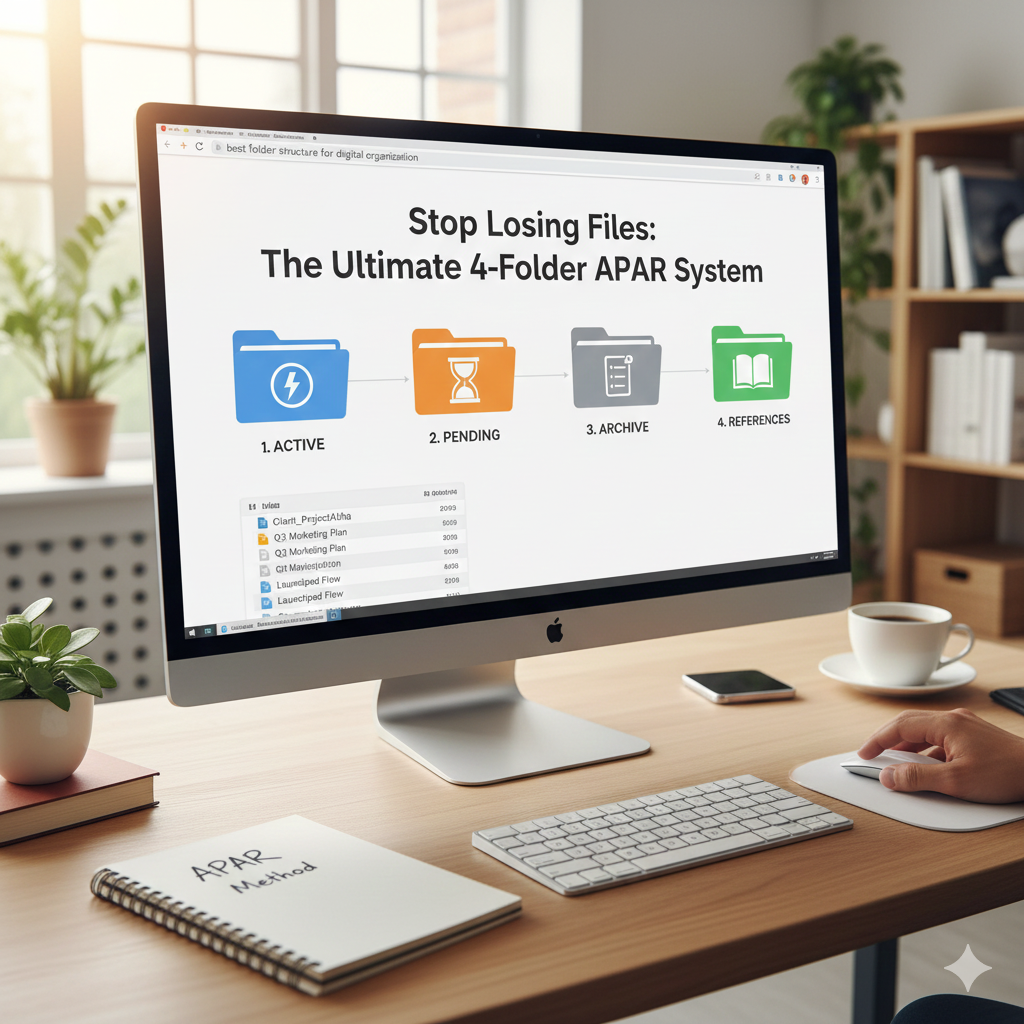
The entire method is based on four main folders:
- Projects (Active Work)
- Assets (Reusable Content)
- Archive (Completed Work)
- Personal (Life Documents)
This mirrors how humans actually use files — not how software forces you to.
Folder 1: Projects (Your Daily Workspace)
Use this folder for anything currently “in progress”:
- Client files
- Work tasks
- School assignments
- Designs or drafts
Organize by project/client:
Projects
   └── Client A
         └── Drafts
         └── Reports
   └── Client B
         └── Invoices
         └── Designs
Why this works:
You never mix active files with old ones. Workflow becomes faster and stress-free.
Folder 2: Assets (Stuff You Reuse Often)
Place reusable materials here:
- Templates
- Brand assets
- Logos and icons
- Research documents
- Training materials
This is your long-term time saver.
Folder 3: Archive (Completed Work)
Once a project is done, move it here.
Use yearly subfolders for clarity:
Archive
   └── 2025
   └── 2024
This keeps your main workspace clutter-free.
Folder 4: Personal (Your Family & Life Documents)
Keep your private files separate from work:
- Bills
- Certificates
- Tax documents
- School files
- Personal photos
Separation prevents accidental oversharing and keeps things organized.
How to Apply This Digital Filing System in Google Drive
Step 1: Create the Four Main Folders
Color-code each to visually separate them.
Step 2: Move Files Slowly—Not All at Once
Don’t reorganize everything today.
Instead:
Whenever you open a file, move it to its correct folder.
This gradually cleans your entire drive.
Step 3: Use Smart, Search-Friendly File Names
Format:
YYYY-MM-DD DocumentName.pdf
Google Drive search becomes extremely accurate with consistent naming.
Step 4: Use Starred Items for Weekly Priorities
Only star:
- This week’s project
- A document for an upcoming meeting
- A file you’ll need every day
Unstar when done.
Key Takeaway Box
A digital filing system doesn’t need to be complex. Using four folders—Projects, Assets, Archive, and Personal—lets you instantly find any document and eliminates years of accumulated clutter.
FAQ Section
1. What if my files are already a huge mess?
Start small. Only move files when you use them. The system organizes itself over time.
2. Can I add more than four folders?
You can, but you shouldn’t. More folders = more confusion. This method works because it’s simple.
3. Does this work on OneDrive or a local computer?
Yes — the system works everywhere: Windows, Mac, Drive, Dropbox, iCloud.
4. Should families use this method?
Yes. It’s perfect for home users who keep photos, school files, and household documents.