Difficulty: Beginner
What Is DNS (Explained Simply)
DNS stands for Domain Name System.
Think of DNS like the contact list in your phone.
Instead of remembering someone’s phone number, you tap their name. Your phone looks up the number automatically.
DNS works the same way:
| What You Type | What the Computer Uses |
|---|---|
| google.com | 142.250.xxx.xxx |
| youtube.com | 172.xxx.xxx.xxx |
If DNS stops working, your computer cannot find the website’s “number,” which causes the DNS errors fix Windows Mac problem.
According to global internet usage data reported by StatCounter, DNS issues remain one of the most common causes of browsing failures across both Windows and macOS devices.
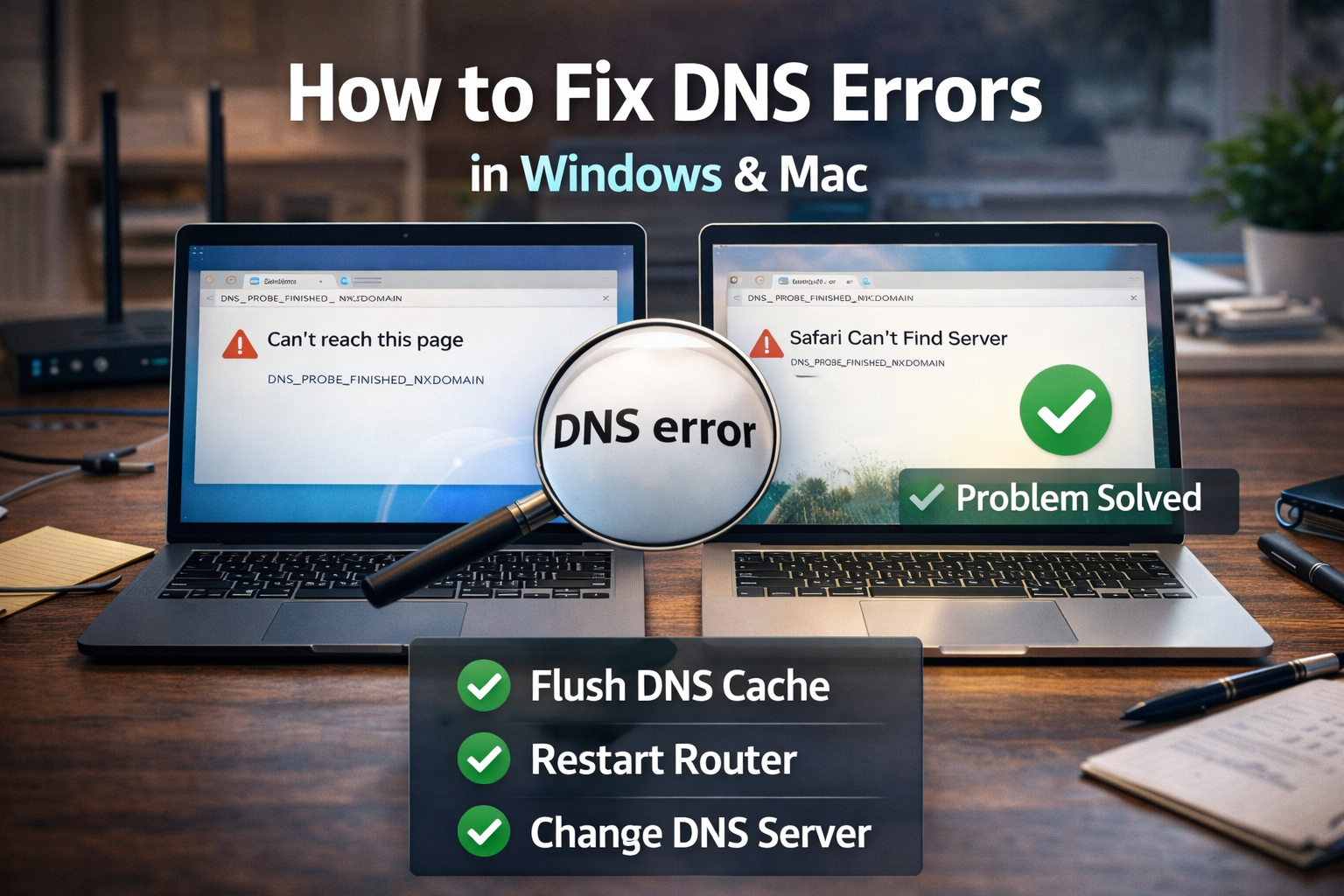
Common DNS Error Messages
You might see messages such as:
- DNS Server Not Responding
- DNS Probe Finished No Internet
- This Site Can’t Be Reached
- DNS Address Could Not Be Found
All of these indicate your device cannot translate website names properly.
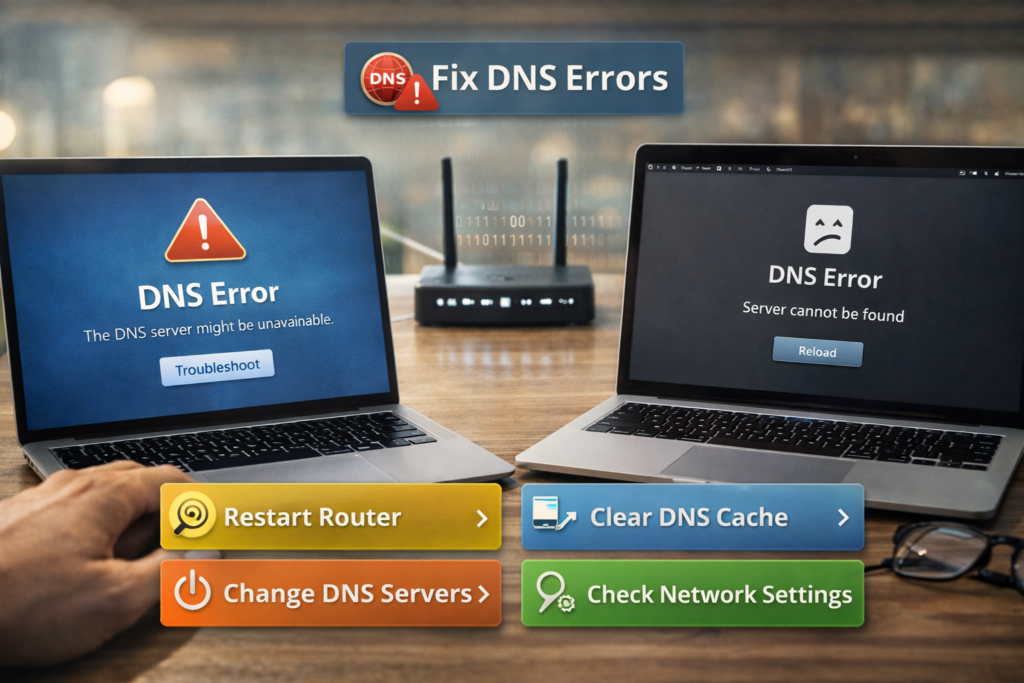
Step 1: Restart Your Router and Computer
Before trying technical fixes, restart both devices.
Why this helps:
- Clears temporary network glitches
- Refreshes DNS communication
- Re-establishes internet connection
Steps:
- Turn off your router
- Wait 30 seconds
- Turn it back on
- Restart your computer
This simple step resolves many DNS errors fix Windows Mac issues.
⚡ Quick Fix Box
If you suddenly get DNS errors:
1️⃣ Restart router
2️⃣ Restart computer
3️⃣ Try another browser
4️⃣ Flush DNS cache
These steps solve most DNS problems.
Step 2: Flush DNS Cache (Clear Stored DNS Records)
Your computer stores DNS information to speed up browsing. Sometimes this cache becomes corrupted.
Clearing it forces your system to request fresh DNS information.
On Windows
- Press Windows + S
- Type Command Prompt
- Right-click → Run as Administrator
Enter:
ipconfig /flushdns
You should see:
Successfully flushed the DNS Resolver Cache.
On Mac
- Open Terminal
- Enter the command:
sudo dscacheutil -flushcache; sudo killall -HUP mDNSResponder
- Enter your Mac password
Your DNS cache will now refresh.
Step 3: Change Your DNS Server
Sometimes your internet provider’s DNS server is slow or malfunctioning.
Switching to a public DNS server often fixes DNS errors fix Windows Mac problems instantly.
Recommended DNS Servers
| Provider | Primary DNS | Secondary DNS |
|---|---|---|
| Google DNS | 8.8.8.8 | 8.8.4.4 |
| Cloudflare DNS | 1.1.1.1 | 1.0.0.1 |
These services are widely used and known for reliability.
How to Change DNS on Windows
- Open Control Panel
- Go to Network and Internet
- Click Network and Sharing Center
- Select Change adapter settings
- Right-click your connection → Properties
- Select Internet Protocol Version 4 (IPv4)
Choose:
Use the following DNS server addresses
Enter:
Primary: 1.1.1.1
Secondary: 1.0.0.1
How to Change DNS on Mac
- Open System Settings
- Go to Network
- Select your active connection
- Click Details
- Go to DNS
Add:
- 1.1.1.1
- 1.0.0.1
Apply the changes.
Step 4: Reset Network Settings
If DNS errors persist, resetting your network configuration can help.
Windows Network Reset
- Open Settings
- Go to Network & Internet
- Select Advanced network settings
- Click Network reset
Your computer will restart.
Mac Network Reset
- Go to System Settings
- Open Network
- Remove your current connection
- Reconnect to Wi-Fi
This refreshes your network configuration.
Step 5: Disable VPN or Proxy
VPNs sometimes interfere with DNS resolution.
If you are using:
- VPN software
- Corporate proxy settings
Try disabling them temporarily to test connectivity.
Step 6: Check Your Firewall or Antivirus
Security software may block DNS communication.
Temporarily disable:
- Firewall
- Antivirus web protection
If browsing works afterward, update or reconfigure the software.
Step 7: Test Another Browser
Sometimes DNS errors appear due to browser cache.
Try opening the same website in:
- Chrome
- Edge
- Safari
- Firefox
If one browser works, clearing the browser cache may fix the problem.
🔎 Definition Box
DNS Cache:
A temporary memory that stores website addresses so your computer can load them faster without asking the DNS server each time.
Real-World Example
A home user couldn’t open any websites but still had Wi-Fi connected.
Fix applied:
- Flushed DNS cache
- Switched DNS server to Cloudflare (1.1.1.1)
Result:
Internet browsing restored within minutes.
When DNS Problems Are Not Your Computer
Sometimes the problem is external.
Possible causes:
- ISP DNS server outage
- Website server outage
- Regional internet routing issue
In this case, waiting or switching DNS servers is usually the solution.
How to Prevent DNS Errors
You can reduce DNS problems by:
- Using reliable DNS providers
- Restarting router occasionally
- Keeping system updated
- Avoiding suspicious browser extensions
Stable network configuration prevents most DNS errors fix Windows Mac problems.
Key Takeaway
DNS errors look scary but are usually easy to fix. Restarting your router, clearing DNS cache, or changing DNS servers solves most issues in under five minutes.
Frequently Asked Questions (FAQ)
1. What causes DNS errors?
DNS errors occur when your computer cannot translate a website name into its IP address.
2. Is changing DNS safe?
Yes. Public DNS providers like Google and Cloudflare are widely trusted.
3. Why do DNS errors happen randomly?
Router glitches, ISP DNS issues, or corrupted DNS cache can cause intermittent errors.
4. Can DNS errors mean my internet is down?
Not always. Your connection may work, but DNS translation may fail.
5. Which DNS server is fastest?
Cloudflare (1.1.1.1) and Google DNS (8.8.8.8) are among the fastest globally.