Difficulty: Beginner
Why Excel Files Become Corrupted
Definition Box – Corrupted Excel File
A corrupted Excel file is a spreadsheet that cannot be opened, displays errors, shows missing data, or crashes Excel due to internal file damage.
Before starting Excel file recovery, it helps to understand the common causes:
- Sudden power loss or system crash
- Force-closing Excel during saving
- USB or external drive removal without ejecting
- Bad sectors on storage devices
- Incompatible Excel versions
- Malware or antivirus interference
According to Microsoft support documentation, unexpected shutdowns during write operations are one of the leading causes of Office file corruption.
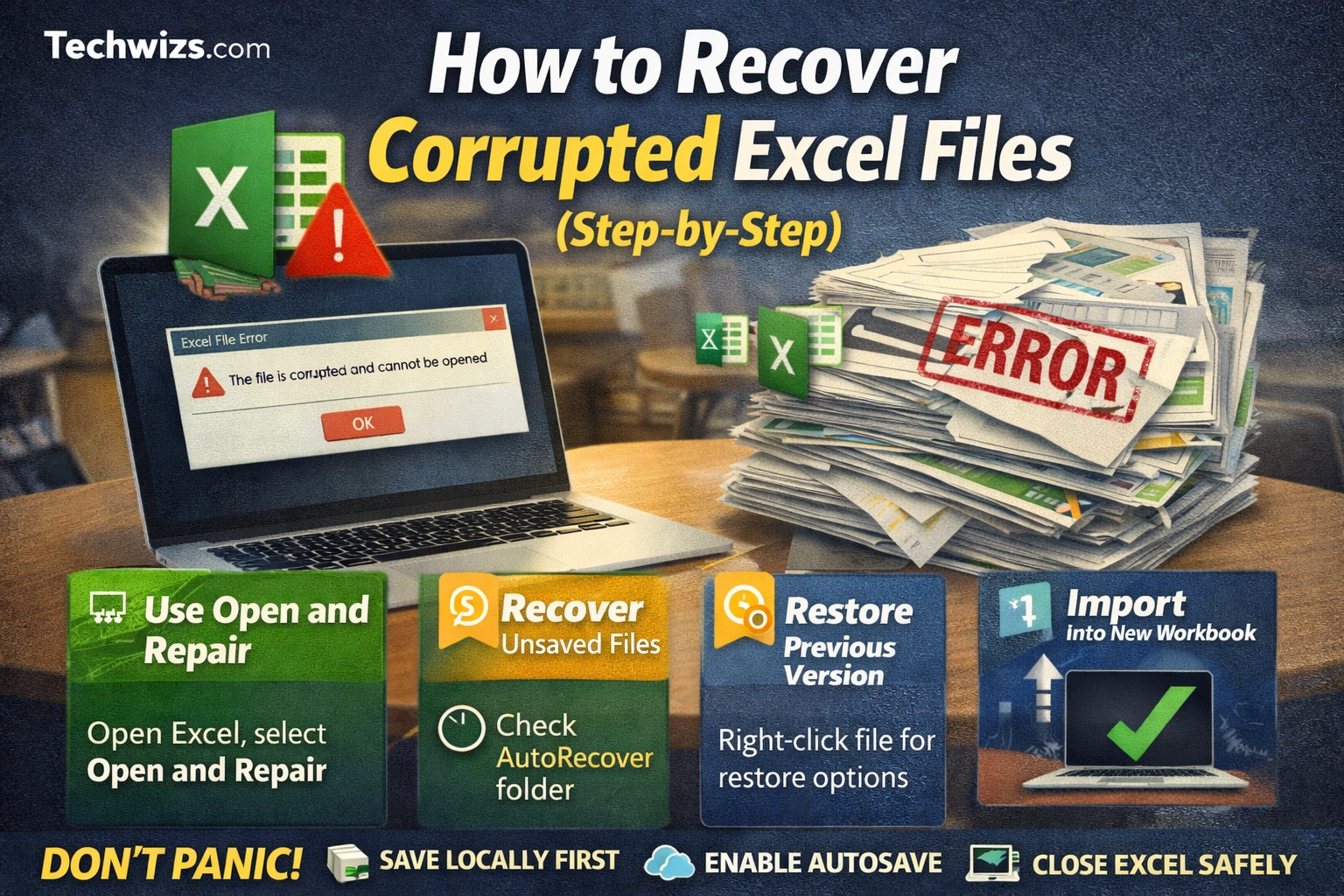
Step 1: Try Excel’s Built-In Repair Tool (First & Easiest)
This is the fastest and safest Excel file recovery method.
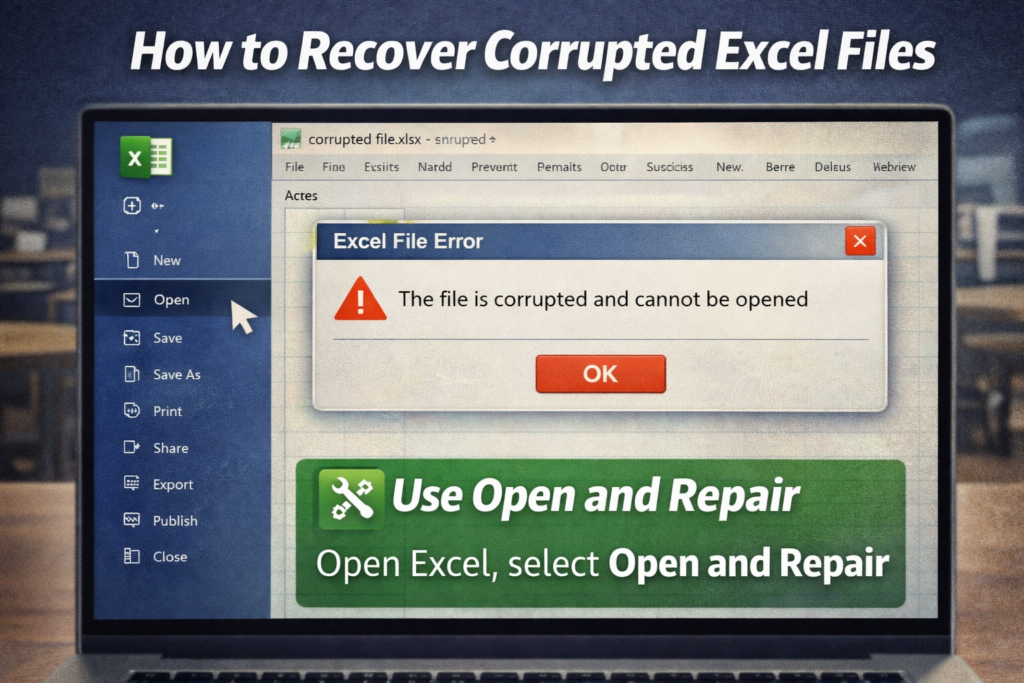
How to use Open and Repair:
- Open Microsoft Excel
- Click File → Open
- Browse to the corrupted file
- Click the arrow next to Open
- Select Open and Repair
- Choose Repair
- If Repair fails, try Extract Data
✔ Best for mild corruption
❌ May not restore formulas perfectly
Step 2: Recover from Excel AutoRecover Files
Excel automatically saves temporary recovery files.
Where to find AutoRecover files:
- Open Excel
- Go to File → Info
- Click Manage Workbook
- Select Recover Unsaved Workbooks
You can also manually check:
C:\Users\[Username]\AppData\Roaming\Microsoft\Excel\
Quick Fix Box
Always wait for Excel to fully close before shutting down your computer—this prevents most corruption cases.
Step 3: Open Excel in Safe Mode
Safe Mode disables add-ins that may cause file issues.
Steps:
- Press Win + R
- Type
excel /safe - Press Enter
- Try opening the corrupted file
If it opens, save it immediately with a new name.
Step 4: Restore from Previous Versions (Windows)
If File History or System Protection is enabled:
- Right-click the corrupted Excel file
- Select Properties
- Go to Previous Versions
- Restore an earlier copy
This Excel file recovery method is highly effective for work or office environments.
Step 5: Import Data into a New Workbook
If the structure is broken but data exists:
- Open a new Excel workbook
- Go to Data → Get Data
- Choose From File → From Workbook
- Select the corrupted file
- Import tables or sheets
This method often recovers raw data even if formatting is lost.
Step 6: Change File Extension (Advanced but Useful)
Sometimes Excel misreads the file structure.
Try this:
- Make a copy of the file
- Rename
.xlsxto.zip - Open with WinRAR or 7-Zip
- Look for
/xl/worksheets/ - Extract readable XML data
⚠️ This is a last-resort Excel file recovery method for advanced users.
Step 7: Use Free Excel Recovery Software (Cautiously)
If all else fails, third-party tools may help—but be careful.
Tips:
- Use reputable tools only
- Avoid uploading sensitive data
- Test free preview before paying
Never use cracked or unknown recovery tools—they often contain malware.
How to Prevent Excel File Corruption in the Future
Key Takeaway Box
Prevention is easier than recovery. Most Excel corruption is caused by unsafe shutdowns or unstable storage.
Best practices:
- Enable AutoSave
- Save files locally before cloud sync
- Avoid editing files directly on USB drives
- Keep Excel and Windows updated
- Use UPS for desktop systems
FAQ: Excel File Recovery
Can corrupted Excel files be fully recovered?
Yes, in many cases. Data is often recoverable even if formatting or formulas are lost.
Does Excel automatically save backups?
Yes, if AutoRecover is enabled in Excel settings.
Are online Excel recovery tools safe?
Some are legitimate, but avoid uploading confidential or sensitive spreadsheets.
Why does Excel say “File format or extension is not valid”?
This usually indicates internal file structure corruption or incorrect file extension.
Should I reinstall Excel to fix corruption?
Reinstalling Excel rarely fixes corrupted files but may help if Excel itself is broken.