Difficulty: Beginner
What “Connected, No Internet” Actually Means
Definition Box
Connected, No Internet
Your device can talk to the router, but the router (or your device’s settings) can’t reach the wider internet.
Common causes:
- DNS not responding
- IP conflict or invalid address
- Router/modem sync issues
- Captive portals not completed
- VPN or firewall interference
Guidance from Microsoft and Apple notes DNS and IP renewal as the fastest first checks.
Try These First (2 Minutes)
1) Toggle Airplane Mode
- Turn ON for 10 seconds → OFF
- Forces a clean network re-handshake
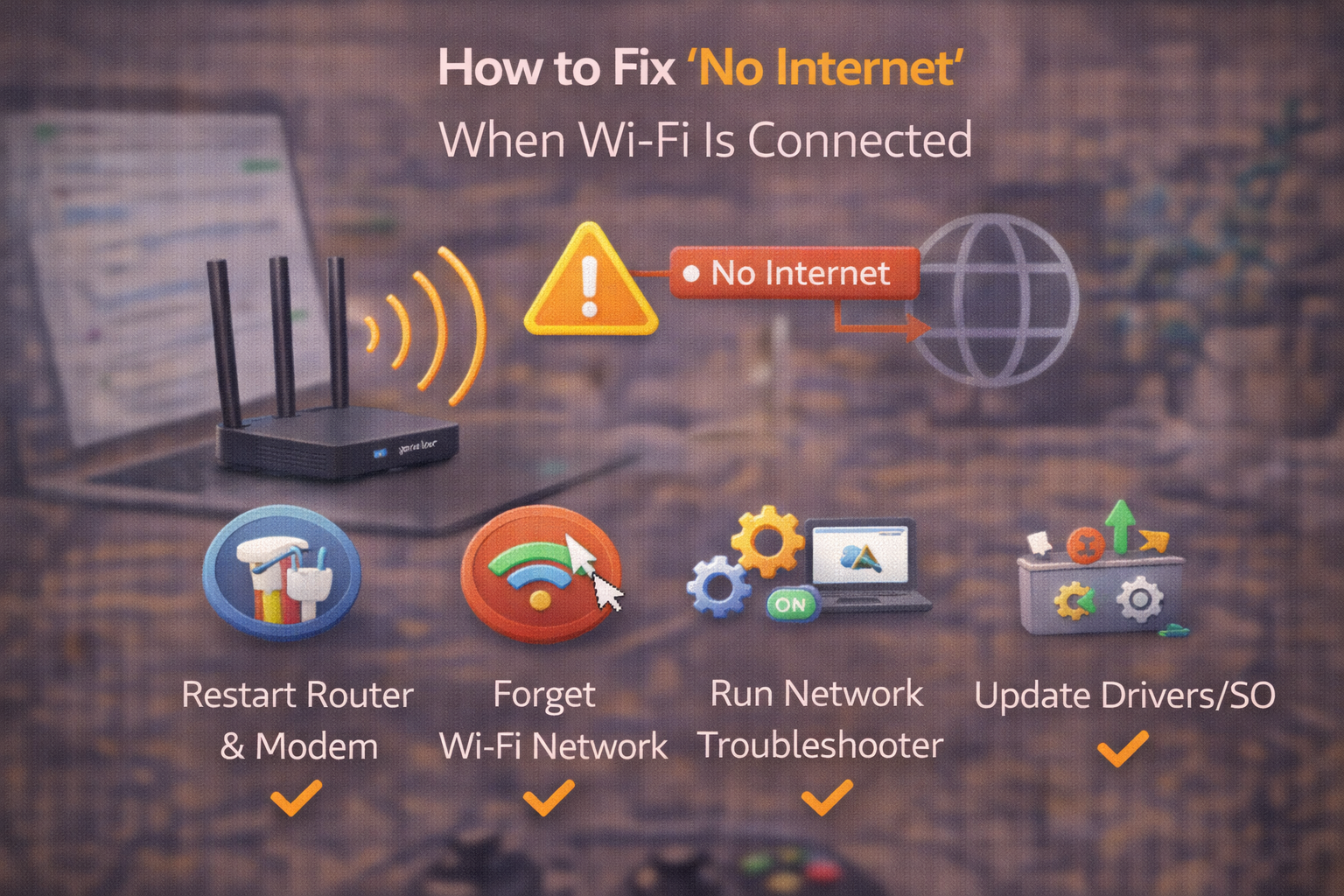
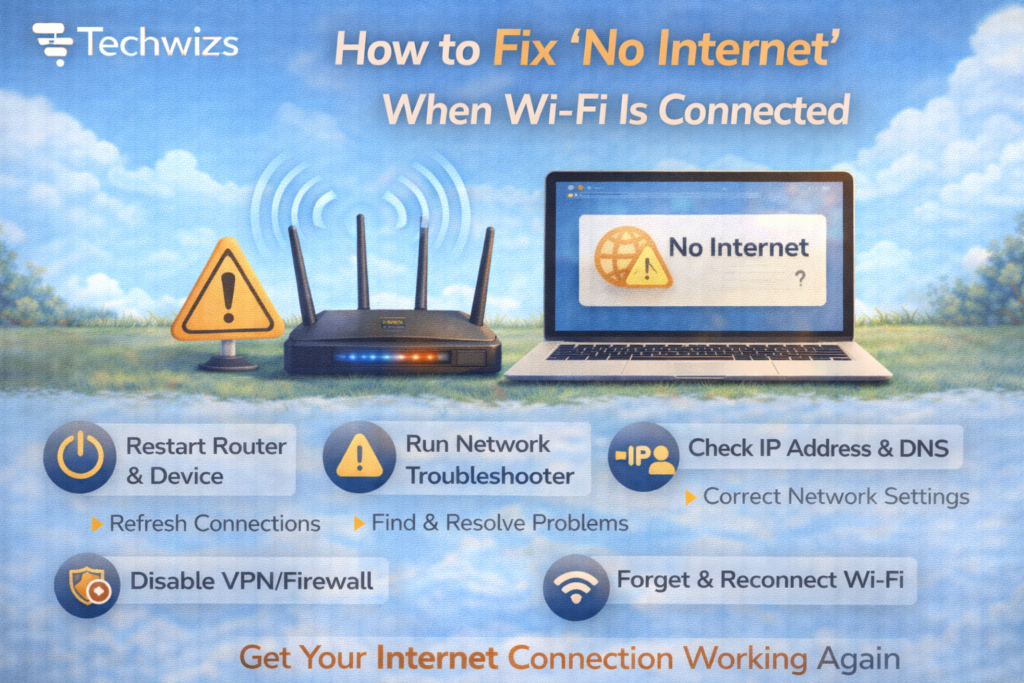
2) Restart the Router (Properly)
- Power off modem → wait 30s
- Power off router → wait 30s
- Power on modem → wait until online
- Power on router
Key Takeaway Box
A proper power cycle fixes many “no internet” states by re-syncing your ISP link.
Fix DNS Issues (Most Common)
3) Switch to Public DNS
Public DNS often restores browsing instantly.
- Google DNS: 8.8.8.8 / 8.8.4.4
- Cloudflare DNS: 1.1.1.1 / 1.0.0.1
Windows / macOS / Mobile: Network settings → DNS → Manual → add servers.
Quick Fix Box
If websites fail but apps partially work, DNS is likely the culprit.
Renew Your IP Address
4) Reconnect to the Network
- “Forget” the Wi-Fi network
- Reconnect and re-enter the password
5) Check IP Details
You should see:
- A valid local IP (e.g., 192.168.x.x or 10.x.x.x)
- A default gateway (your router)
If you see 169.254.x.x, your device didn’t get an IP—reboot router or renew DHCP.
Check Captive Portals (Hidden Login Pages)
Public, office, or hotel Wi-Fi may require acceptance.
6) Trigger the Login Page
- Open a browser
- Visit http://neverssl.com
- Complete the sign-in/acceptance
Disable Interfering Software (Temporarily)
7) Turn Off VPNs
VPNs can block routes if they fail to connect.
8) Pause Firewall/Filtering Apps
- Security suites
- Parental controls
- DNS filtering apps
Re-enable after testing.
Device-Specific Fixes
Windows
- Network reset (Settings → Network → Advanced → Network reset)
- Disable/enable the Wi-Fi adapter
- Update network drivers
macOS
- Renew DHCP Lease
- Remove and re-add the Wi-Fi service
- Toggle “Limit IP address tracking” (test both)
Android
- Reset network settings
- Disable “Private DNS” (test)
- Toggle Wi-Fi calling (test)
iOS
- Reset Network Settings
- Disable “Limit IP Address Tracking” (test)
- Rejoin the network
Check If It’s the ISP
9) Test Another Device
- If all devices show no internet → ISP or modem issue
- If one device only → local settings
10) Check ISP Status
Outages can be regional and brief.
When Ethernet Still Has Internet
If Ethernet works but Wi-Fi doesn’t:
- Change Wi-Fi channel
- Disable “Smart Connect” temporarily
- Update router firmware
- Factory reset router (last resort)
FAQs: No Internet When WiFi Is Connected
1) Why does Wi-Fi say connected but nothing loads?
Usually DNS or IP issues.
2) Does resetting the router help?
Yes—especially after outages or long uptimes.
3) Should I change DNS permanently?
It’s safe and often faster.
4) Can VPNs cause this?
Yes—disable to test.
5) Is this a hardware failure?
Rarely. It’s usually configuration or sync.