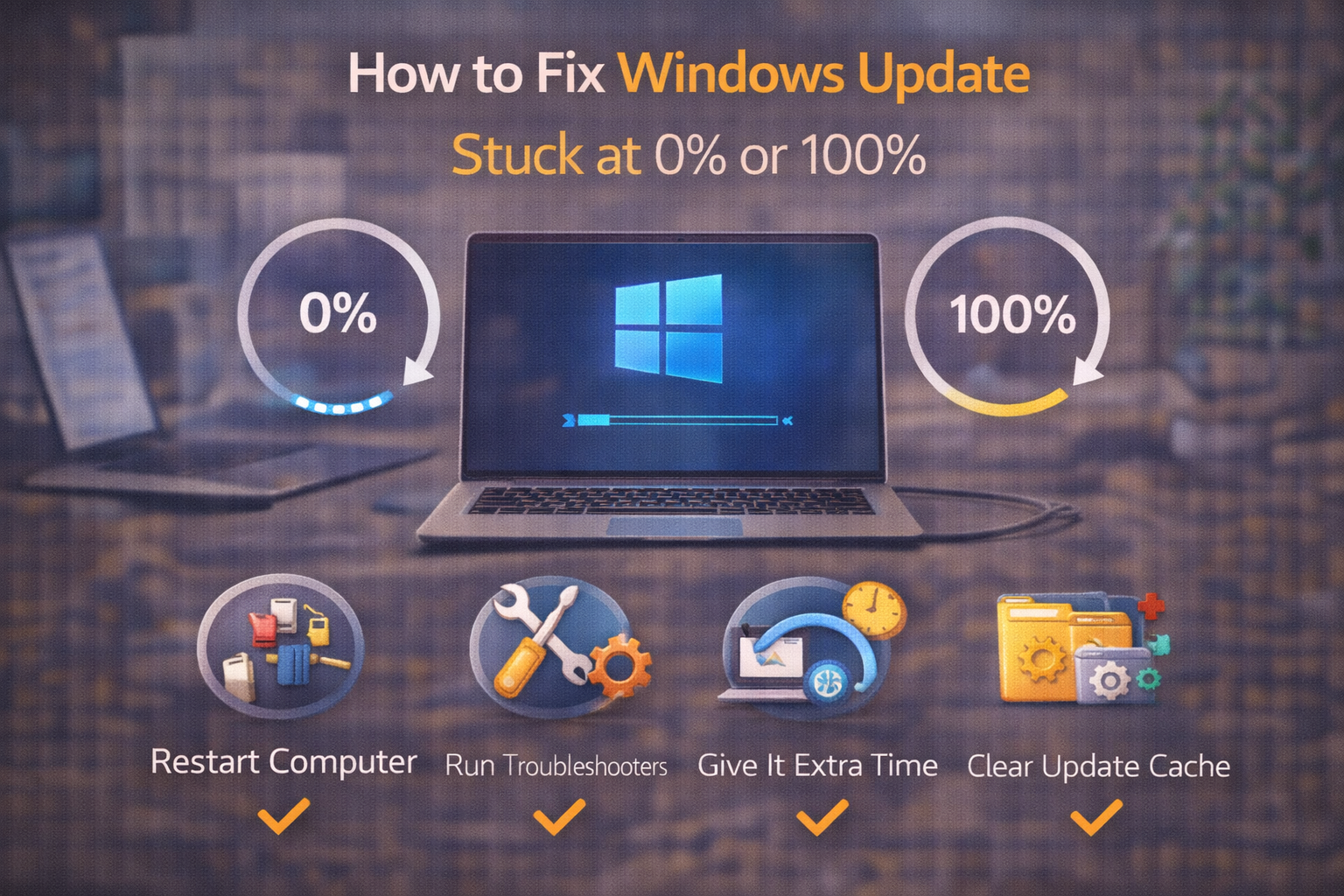
What “Stuck at 0% or 100%” Actually Means
Definition Box
Windows Update Cache
Temporary files Windows stores while downloading and preparing updates. If corrupted, updates can freeze or loop.
According to guidance from Microsoft, update stalls are commonly tied to cache corruption or service interruptions.
Before You Do Anything (2-Minute Checks)
1) Wait a Little—But Not Forever
- Large updates can pause at 0% or 100% while verifying files.
- Rule of thumb: If there’s no progress after 60–90 minutes, proceed with fixes.
2) Check Disk Space
- Ensure 10–20 GB free space.
- Low space can freeze finalization at 100%.
Key Takeaway Box
If storage is tight, Windows Update often stalls near the end.
Quick Fixes That Work Most Often
3) Restart Windows Update Services
- Press Win + R → type
services.msc - Restart:
- Windows Update
- Background Intelligent Transfer Service (BITS)
- Cryptographic Services
This alone fixes many 0% stalls.
4) Run the Built-In Troubleshooter
- Settings → System → Troubleshoot → Other troubleshooters
- Run Windows Update
Quick Fix Box
The troubleshooter resets common update components automatically.
Clear the Update Cache (Safe & Effective)
5) Delete SoftwareDistribution Folder
- Stop Windows Update service
- Go to:
C:\Windows\SoftwareDistribution - Delete contents (not the folder)
- Restart the service
- Retry Windows Update
This forces a clean re-download.
Fix 100% Stalls (Finalization Issues)
6) Restart the PC (Yes—Really)
- If stuck at 100% for a long time, restart once.
- Windows often completes the update during reboot.
7) Disconnect Non-Essential Devices
- Unplug USB drives, printers, docks.
- Driver detection can hang final steps.
Check for Driver Conflicts
8) Update or Roll Back Problem Drivers
- Open Device Manager
- Look for warning icons
- Update network, storage, and chipset drivers
Outdated drivers frequently block updates.
Repair Windows System Files
9) Run SFC and DISM (Beginner-Safe)
Open Command Prompt (Admin) and run:
sfc /scannowDISM /Online /Cleanup-Image /RestoreHealth
These repair corrupted files that block updates.
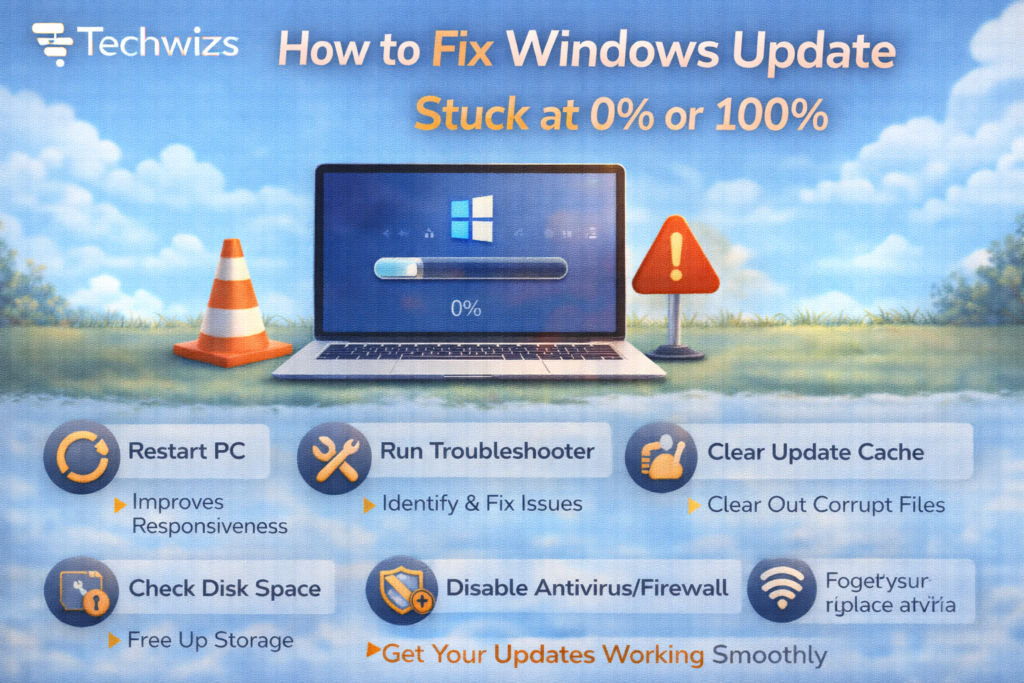
Temporarily Disable Interfering Software
10) Pause Antivirus / VPN
- Third-party antivirus and VPNs can block update servers.
- Disable temporarily → update → re-enable.
When Updates Still Won’t Move
11) Manually Install the Update
- Download the update from Microsoft’s Update Catalog
- Install the specific KB manually
12) Use Windows Update Assistant
- Forces an in-place update without data loss
What Not to Do
- ❌ Don’t force power off repeatedly
- ❌ Don’t delete system folders randomly
- ❌ Don’t reinstall Windows as a first step
FAQs: Windows Update Stuck
1) Is it safe to restart if stuck at 100%?
Yes—after waiting a reasonable time.
2) Why does it stick at 0%?
Cache or service startup issues.
3) Will clearing the cache delete files?
No—only update temp files.
4) Does slow internet cause this?
Rarely. Stalls are usually local issues.
5) Is this a sign of malware?
Usually not. It’s a configuration problem.