Difficulty: Beginner
Why Gmail Gets Slow Over Time
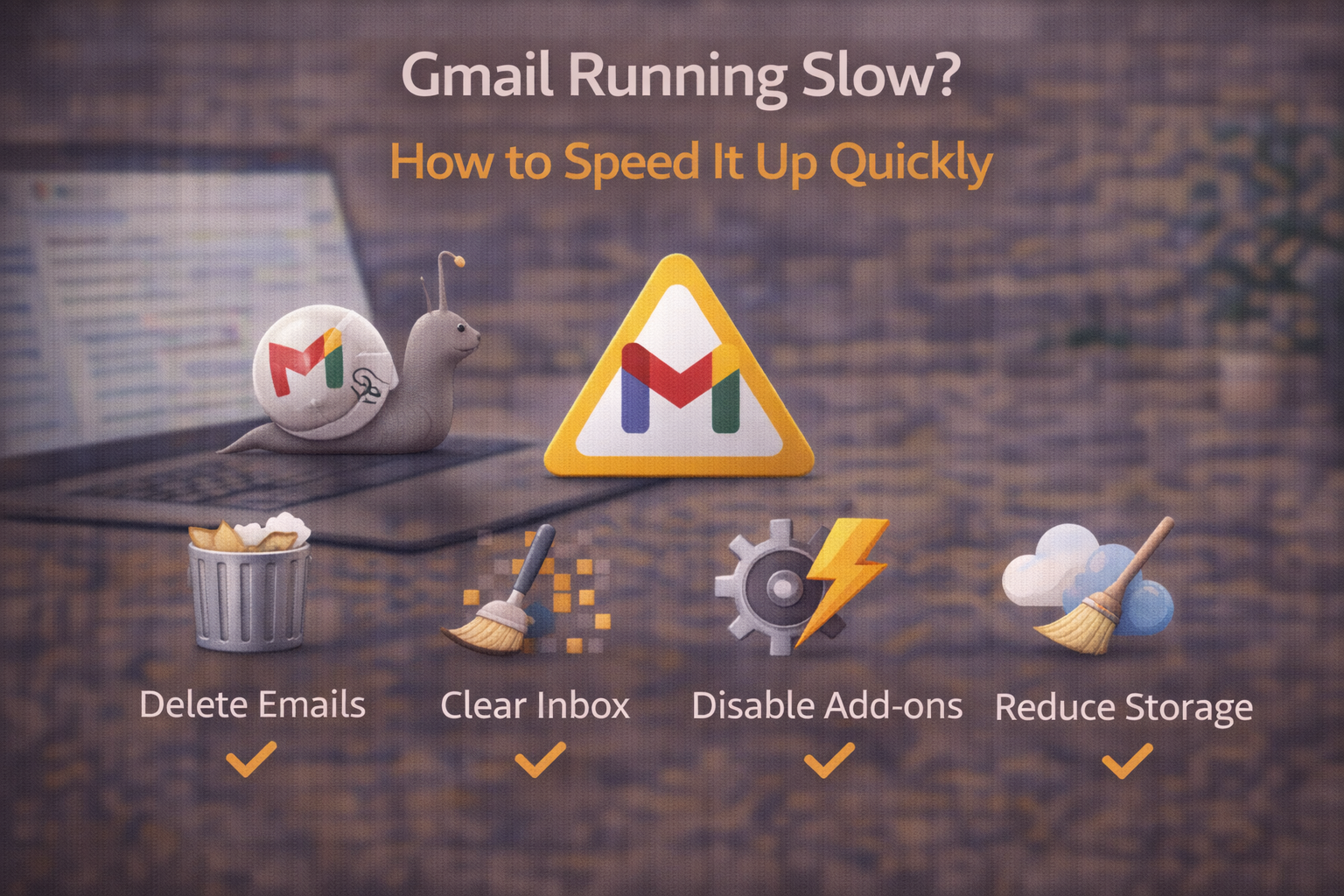
Gmail is a web app that runs inside your browser. As your mailbox grows and features pile up, performance can dip—especially if your browser is overloaded.
According to guidance from Google, browser health and account size directly affect Gmail responsiveness.
Definition Box
Web App Cache
Temporary files stored by your browser to load web apps faster. When bloated or corrupted, cache can slow things down.
Quick Wins (Try These First)
1) Refresh Gmail Without Reloading the Browser
- Press Shift + Refresh inside Gmail
This reloads Gmail components without restarting everything.
2) Close Heavy Tabs
- Streaming, dashboards, and many tabs steal CPU/RAM
- Keep Gmail in its own window if possible
Key Takeaway Box
One overloaded browser tab can slow every web app—Gmail included.
Fix Browser-Related Causes
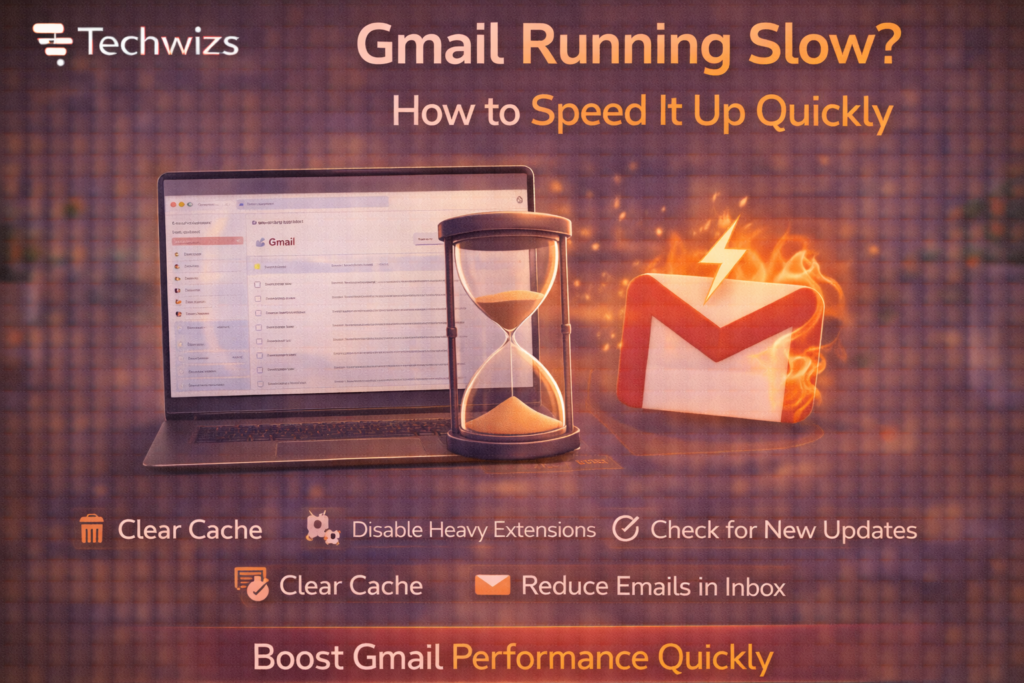
3) Disable Unnecessary Extensions
Extensions are the #1 cause of slow Gmail.
What to do
- Disable extensions one by one
- Pay attention to ad blockers, email trackers, coupon tools
- Restart the browser after changes
Quick Fix Box
If Gmail speeds up in Incognito mode, an extension is the culprit.
4) Clear Cache for Gmail
- Clear browser cache (last 4 weeks is enough)
- Reload Gmail
This removes corrupted files that cause lag.
5) Update Your Browser
Older browser builds struggle with modern Gmail features.
- Chrome/Edge/Firefox → Check for updates
- Restart after updating
Reduce Gmail’s Own Load
6) Turn Off Unused Gmail Features
- Settings → See all settings
- Disable:
- Chat (if unused)
- Meet sidebar
- Smart Compose (optional)
Fewer features = less background processing.
7) Limit Email Sync
- Settings → See all settings → Forwarding and POP/IMAP
- Disable POP if not needed
- Reduce IMAP sync scope
8) Clean Up Labels and Filters
- Too many filters slow processing
- Delete unused labels
- Simplify nested labels
Manage Large Mailboxes (Without Deleting Everything)
9) Archive Old Emails
- Archiving removes emails from the inbox view
- Improves loading without deleting messages
10) Empty Spam and Trash
Spam folders with thousands of emails slow indexing.
Check System-Level Issues
11) Test Another Browser
If Gmail is slow only in one browser:
- Try Chrome vs Edge vs Firefox
- If it’s fast elsewhere, reset the original browser
12) Check CPU & Memory Usage
High system load affects Gmail responsiveness.
- Close heavy apps
- Restart if uptime is long
Advanced (Optional) Speed Boosts
- Use Basic HTML view temporarily (for very old devices)
- Disable third-party email trackers
- Split work and personal Gmail into separate browser profiles
FAQs: Gmail Running Slow
1) Is Gmail slow because my internet is bad?
Usually no. Gmail is sensitive to browser performance first.
2) Does having many emails slow Gmail?
Yes—especially inbox and spam folders.
3) Are extensions safe to keep?
Yes, but fewer is faster.
4) Will archiving delete emails?
No. Archived emails remain searchable.
5) Is Gmail faster in Chrome?
Often yes—but Edge and Firefox can be just as fast when clean.