Difficulty: Beginner
What Does “Google Drive Not Syncing” Mean?
Google Drive syncing means your files automatically update between:
- Your computer
- Your phone
- Google’s cloud servers
When Google Drive not syncing happens, the changes you make on one device don’t appear on the others.
Think of syncing like a delivery system.
When it works:
- Files move smoothly between devices.
When it breaks:
- The delivery truck stops moving.
Common Signs Google Drive Is Not Syncing
You may notice:
- Files missing on other devices
- A “Sync paused” message
- Google Drive stuck on “Uploading…”
- Files showing “Waiting to upload”
- Documents not updating for hours
If you see these signs, the sync process likely stopped somewhere.
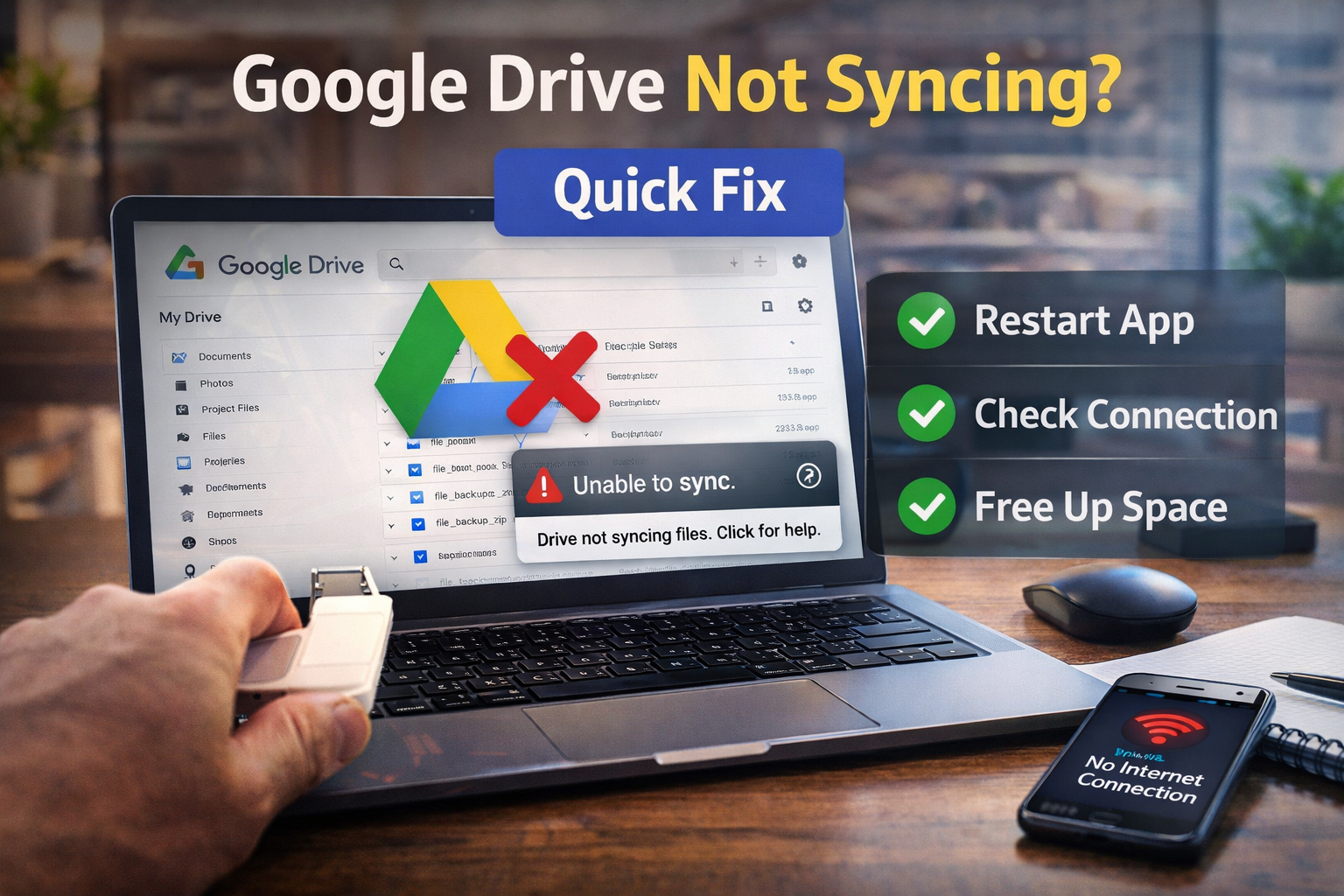
⚡ Quick Fix Box
If Google Drive is not syncing, try these first:
- Check internet connection
- Resume syncing
- Restart Google Drive
- Check storage space
- Sign out and sign back in
These steps solve most problems within minutes.
Step 1: Check Your Internet Connection
Google Drive relies on the internet to upload and download files.
If your connection drops or becomes unstable:
- Files stop syncing
- Uploads freeze
Quick check
Open a browser and visit any website.
If it loads slowly or fails, your internet connection may be the issue.
Restart your router or reconnect to Wi-Fi.
Step 2: Make Sure Sync Is Not Paused
Sometimes Google Drive pauses syncing automatically.
How to check
- Click the Google Drive icon in the system tray (bottom-right of screen)
- Look for a Paused message
- Click Resume syncing
Many users accidentally pause sync without realizing it.
Step 3: Restart Google Drive
Apps sometimes freeze in the background.
Restarting resets the sync process.
Windows Steps
- Click the Google Drive icon
- Click Settings (gear icon)
- Select Quit Google Drive
- Reopen the app from Start Menu
Restarting often resolves Google Drive not syncing issues instantly.
Step 4: Check Your Google Drive Storage
If your cloud storage is full, files cannot upload.
How to check storage
- Go to drive.google.com
- Look at the storage bar on the left
Google Drive storage is shared with:
- Gmail
- Google Photos
- Drive files
If storage is full, syncing stops.
Fix
Delete unnecessary files or upgrade storage.
Step 5: Check File Size Limits
Google Drive has limits for uploads.
Typical limits include:
- Very large files
- Extremely large folders
If a file is too big, syncing may fail.
Try compressing the file or splitting it into smaller parts.
Step 6: Update Google Drive App
Older versions of the Drive app can cause sync failures.
Update steps
- Open Google Drive
- Click Settings
- Check for updates
Google regularly releases fixes for syncing bugs.
Step 7: Check File Name Issues
Certain file names can cause sync errors.
Avoid using:
- Special characters like
<> : " / \ | ? * - Extremely long names
If a file has an unsupported name, rename it and try syncing again.
Step 8: Sign Out and Sign Back In
Sometimes the connection between your computer and Google account becomes unstable.
Signing out refreshes the connection.
Steps
- Open Google Drive
- Go to Settings
- Disconnect account
- Sign in again
This rebuilds the sync connection.
Step 9: Check Sync Folder Location
If you moved the Google Drive folder manually, syncing may break.
The app must know where your Drive folder is located.
Open Google Drive settings and confirm the folder path is correct.
Step 10: Restart Your Computer
If nothing else works, restart your computer.
A restart clears:
- background processes
- stuck services
- temporary software glitches
Many Google Drive not syncing issues disappear after a restart.
🔎 Definition Box
Cloud Sync:
Cloud syncing automatically keeps files updated across devices by uploading them to online storage and downloading changes wherever needed.
Real-World Example
Imagine you upload a presentation from your office laptop.
You expect to open it on your phone during a meeting — but the file isn’t there.
The problem?
Sync was paused on your laptop.
Once resumed, the file appears within seconds.
How to Prevent Google Drive Sync Problems
Follow these simple habits:
- Keep the Drive app updated
- Maintain stable internet connection
- Monitor storage usage
- Restart your computer weekly
- Avoid unusual file names
Preventive maintenance keeps Google Drive syncing smoothly.
Frequently Asked Questions (FAQ)
1. Why is Google Drive not syncing on my computer?
The most common reasons include paused syncing, internet issues, full storage, or outdated apps.
2. How do I force Google Drive to sync?
Restart the Google Drive application or sign out and sign back in.
3. Why does Google Drive say “Waiting to upload”?
This usually means your internet connection is unstable or syncing is paused.
4. Can antivirus software block Google Drive?
Yes. Some security software may block cloud syncing.
5. Does reinstalling Google Drive fix sync problems?
Yes, reinstalling can fix corrupted application files if other troubleshooting steps fail.