Difficulty: Beginner
What Does “Idle Battery Drain” Mean?
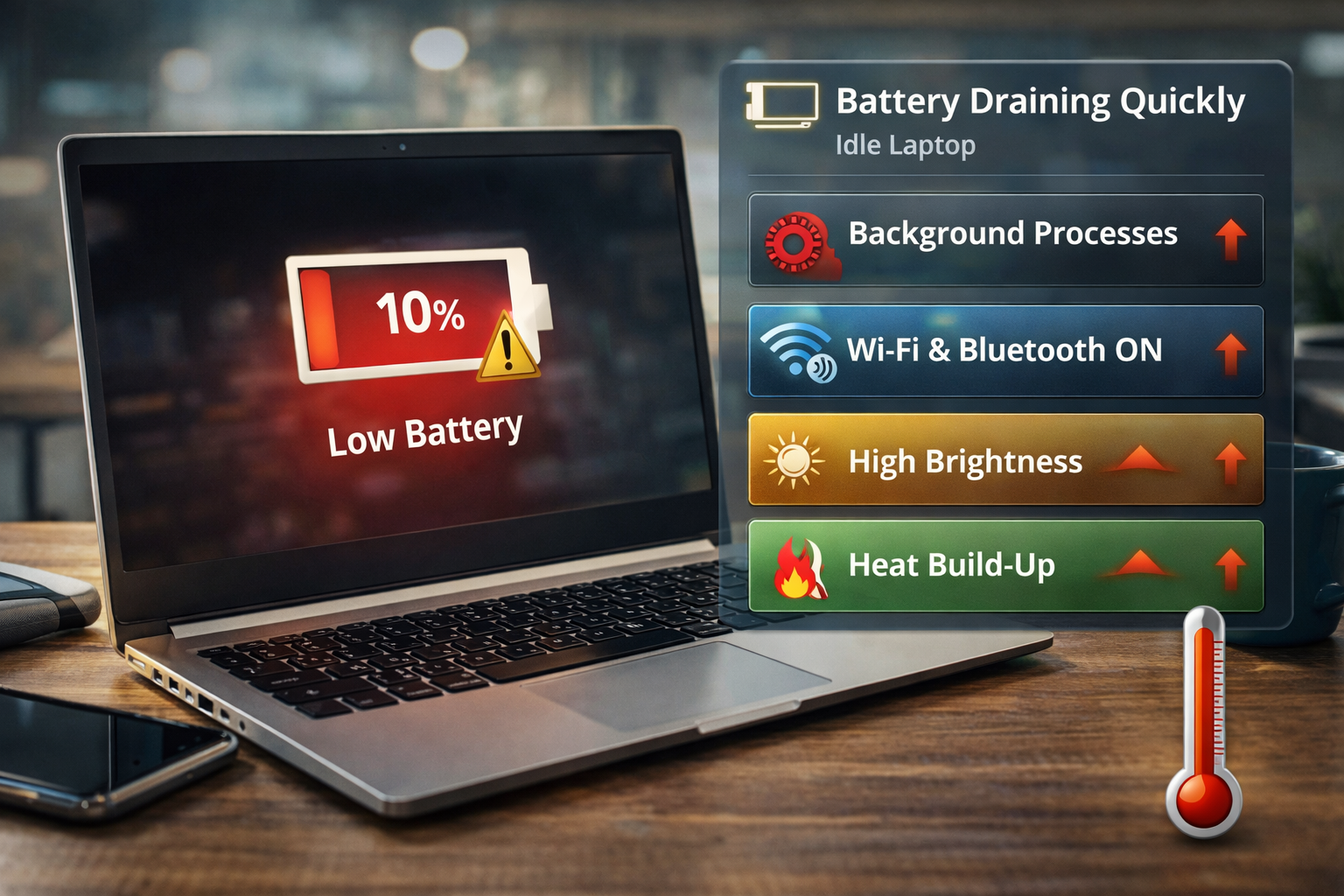
Idle battery drain happens when your laptop continues to consume power even though you are not actively using it.
Think of your laptop like a car engine left running at a stoplight. You’re not moving, but the engine still burns fuel.
Similarly, your laptop may still be running:
- Background applications
- System updates
- Network connections
- Power-hungry hardware components
These processes slowly drain your battery even when the screen is off.
Common Signs Your Laptop Battery Drains Fast
You may notice:
- Battery drops 10–20% overnight
- Laptop becomes warm while closed
- Fans occasionally spin even when idle
- Battery life feels much shorter than before
If these symptoms appear regularly, something is using power in the background.
8 Reasons Your Laptop Battery Drains Fast Even When Idle
1. Background Apps Running Constantly
Many apps keep running even when you’re not using them.
Examples include:
- Cloud storage apps
- Messaging apps
- Update services
- Web browsers with many tabs
These apps continue using CPU and internet connectivity.
How to Fix
- Open Task Manager
- Check Background Processes
- Close apps you don’t need
This is often the biggest cause of a laptop battery draining fast problem.
2. Windows “Modern Standby” Power Mode
Some laptops use a feature called Modern Standby.
Instead of fully sleeping, the laptop stays partially awake to:
- Receive emails
- Sync files
- Download updates
Think of it like your phone checking notifications in the background.
While convenient, it consumes battery power.
According to Microsoft documentation, Modern Standby keeps certain system components active even during sleep.
3. Wi-Fi and Bluetooth Staying Active
Wireless connections continue searching for networks or devices.
Even when idle, Wi-Fi chips periodically transmit signals, which slowly drains battery.
Quick Fix
Turn off wireless features when not needed:
- Disable Bluetooth
- Turn off Wi-Fi during sleep
⚡ Quick Fix Box
If your laptop battery drains fast while idle, try these first:
✔ Restart your laptop
✔ Disable unnecessary startup apps
✔ Reduce background apps
✔ Turn on battery saver mode
These steps solve most idle battery drain issues.
4. Too Many Startup Programs
Some programs automatically launch when your laptop starts.
Examples include:
- Game launchers
- Cloud syncing apps
- Update managers
More startup apps mean more background activity.
How to Fix
- Open Task Manager
- Go to Startup Apps
- Disable unnecessary programs
This reduces idle system load.
5. High Screen Brightness or Display Settings
Even if your laptop appears idle, the screen may still consume significant power.
Displays are one of the biggest energy users.
Easy Adjustment
Lower screen brightness or set a shorter screen timeout.
6. Outdated Drivers or Windows Updates
Drivers control how hardware communicates with Windows.
Outdated drivers may cause inefficient power management.
Solution
- Open Windows Update
- Install available updates
- Update chipset and graphics drivers
Hardware manufacturers frequently release power optimization updates.
7. Battery Health Decline
Laptop batteries degrade over time.
Most lithium-ion batteries lose capacity after 300–500 charge cycles.
As capacity drops, the battery drains faster even during idle periods.
You might notice:
- Battery percentage dropping quickly
- Laptop lasting fewer hours than before
8. Malware or Hidden Processes
Malware sometimes runs silently in the background.
It may:
- Use CPU resources
- Communicate with external servers
- Run hidden scripts
This increases battery usage.
Recommended Step
Run a full scan with Windows Security or trusted antivirus software.
🧠 Definition Box
Idle Mode:
A state where your laptop is powered on but not actively used. Background tasks may still run, using CPU, network, and battery power.
How to Check What Is Draining Your Battery
Windows includes a built-in battery report.
Steps
- Open Command Prompt as Administrator
- Run:
powercfg /batteryreport
Windows will generate a report showing:
- Battery health
- Power usage patterns
- Apps consuming the most energy
This is very useful for diagnosing laptop battery drains fast problems.
Additional Ways to Improve Battery Life
Enable Battery Saver Mode
- Go to Settings → System → Power & Battery
- Turn on Battery Saver
This reduces background activity automatically.
Reduce Background App Permissions
- Open Settings
- Go to Apps → Installed Apps
- Select apps
- Disable background permissions
Keep Laptop Cool
Heat increases battery drain.
Use your laptop on a hard surface instead of soft materials like beds or couches.
Better airflow improves efficiency.
Real-World Example
A user reported their laptop losing 25% battery overnight.
Investigation showed:
- Cloud sync app running continuously
- Bluetooth enabled
- Windows updates downloading in background
After disabling background syncing and adjusting sleep settings, overnight battery loss dropped to 3–5%.
🛡️ Key Takeaway Box
If your laptop battery drains fast even when idle, the cause is usually background activity or power settings — not necessarily a faulty battery.
Frequently Asked Questions (FAQ)
1. Why does my laptop lose battery while sleeping?
Modern standby features may keep your system partially active to sync emails and updates.
2. Is it normal for a laptop to lose battery overnight?
Yes, small drops (2–5%) are normal, but large drops may indicate background activity.
3. How do I check battery health in Windows?
Use the command powercfg /batteryreport to generate a battery report.
4. Should I replace my laptop battery?
If capacity drops below 60–70%, replacement may improve battery life.
5. Does Wi-Fi drain battery when idle?
Yes. Wireless adapters periodically scan for networks, consuming power.