Difficulty: Beginner
What Does a Laptop Fan Actually Do?
Inside every laptop is a processor (CPU) that generates heat when running programs.
The fan helps by:
- Pulling cool air into the laptop
- Pushing hot air out through vents
Think of it like a mini air-conditioning system for your computer.
Without proper cooling, the laptop protects itself by:
- Slowing down performance
- Turning off automatically
According to Intel thermal management documentation, modern processors reduce speed automatically if temperatures exceed safe limits.
How to Tell If Your Laptop Fan Is Not Working
Before assuming the fan is broken, check these signs:
- Laptop feels unusually hot
- Laptop shuts down randomly
- Performance becomes very slow
- No fan noise when laptop heats up
- Air vents blow no warm air
Some laptops only turn the fan on when temperatures rise, so silence doesn’t always mean failure.
🔎 Quick Check Box
Your laptop fan may be normal if:
✔️ Fan starts only during heavy tasks
✔️ Laptop temperature stays normal
✔️ No shutdowns occur
If your laptop overheats quickly, the fan likely needs attention.
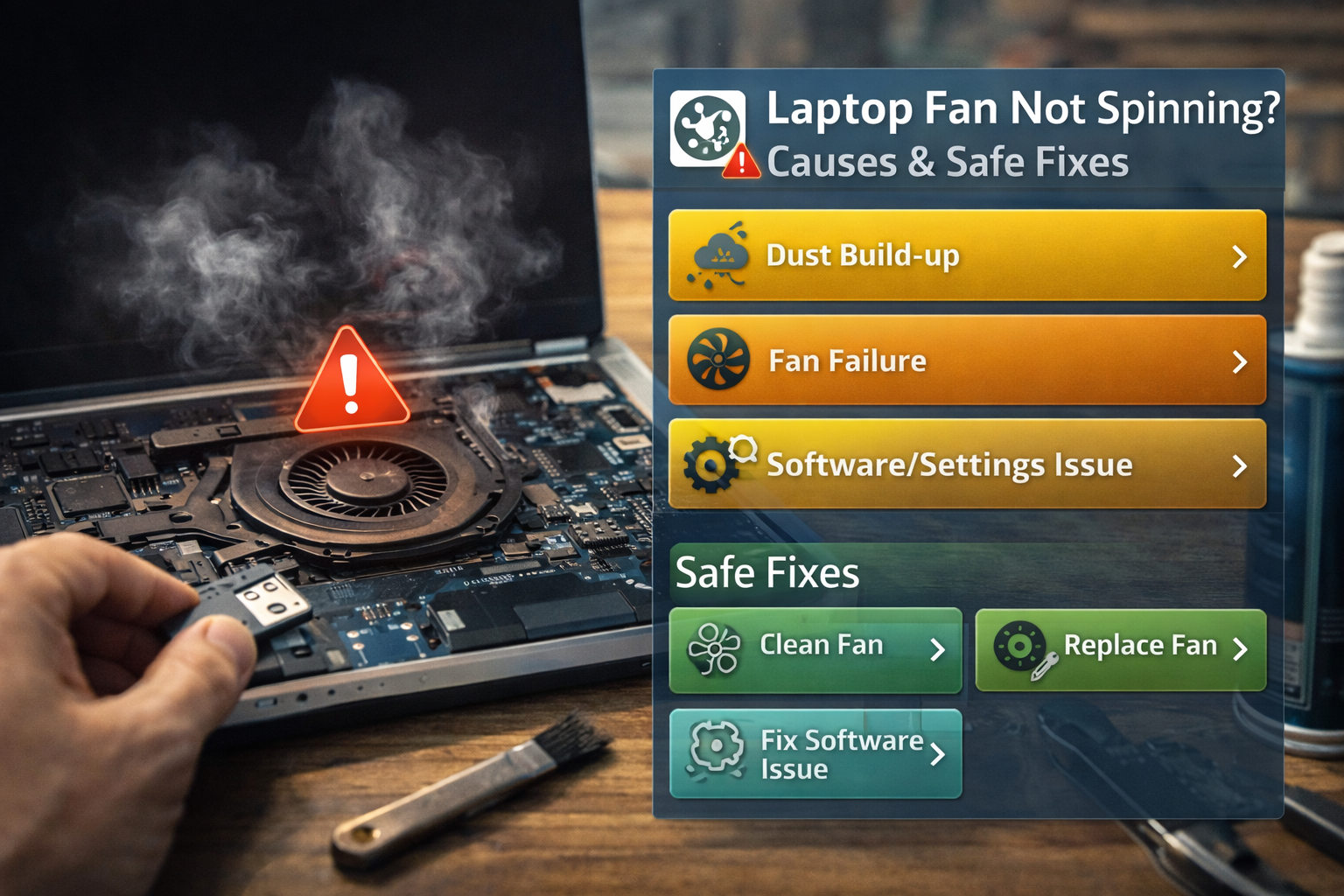
Common Causes of Laptop Fan Not Spinning
Let’s break down the most common reasons.
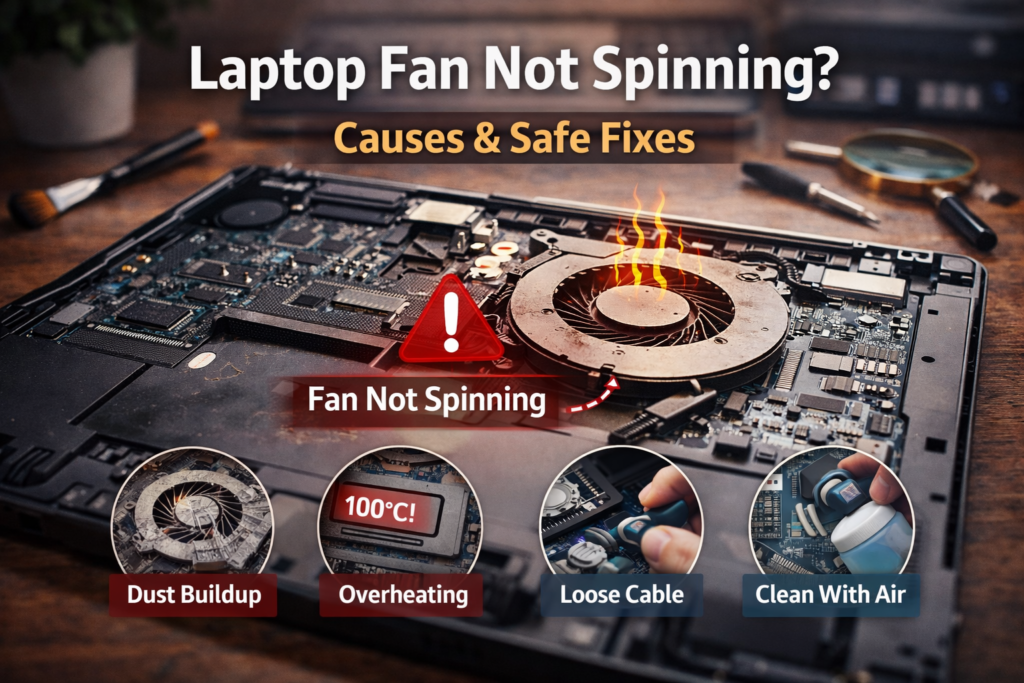
1. Dust Blocking the Cooling System
Dust is the number one cause.
Over time dust collects in:
- Air vents
- Fan blades
- Internal heat sink
Think of dust like a blanket covering a cooling vent — airflow becomes restricted.
This makes the fan work harder or stop spinning properly.
2. Laptop Is in Silent or Power Saving Mode
Some laptops slow down or disable fans in quiet mode.
Power-saving profiles reduce heat output by lowering CPU performance.
This means the fan may not spin until temperatures increase significantly.
3. BIOS or Firmware Settings
Your laptop’s BIOS controls hardware including fans.
If settings become misconfigured or firmware outdated, the fan may behave incorrectly.
4. Software Controlling the Fan
Certain applications control fan speed.
Examples include:
- Manufacturer utilities
- Performance tuning apps
- Gaming software
If these programs malfunction, the fan may stop spinning.
5. Physical Fan Failure
Fans are mechanical components with moving parts.
Over time they can fail due to:
- Bearing wear
- Electrical failure
- Physical damage
In this case, the fan must be replaced.
Safe Fix #1: Restart Your Laptop
This may sound simple, but restarting resets system controls.
If the fan was stuck due to a software glitch, this can restore normal operation.
Safe Fix #2: Check Air Vents
Look at the bottom and sides of your laptop.
If vents are blocked by dust:
- Turn off the laptop
- Use compressed air
- Blow gently into the vents
Never use a vacuum cleaner because static electricity may damage components.
Safe Fix #3: Monitor Laptop Temperature
You can check if overheating is actually happening.
Signs of overheating:
- Laptop becomes very hot to touch
- Fans suddenly become loud
- System slows dramatically
If temperatures stay normal, your fan may be working correctly.
Safe Fix #4: Change Power Settings
Your laptop fan not spinning issue may be caused by power mode.
To check:
- Open Power Options
- Set mode to Balanced or Best Performance
Higher performance modes allow the fan to activate earlier.
Safe Fix #5: Update BIOS and Drivers
Sometimes the fan control system is updated through firmware.
Check your laptop manufacturer website for:
- BIOS updates
- Chipset updates
- System utilities
These updates can fix fan control bugs.
🛠️ Key Takeaway Box
If your laptop fan is not spinning, the most common cause is dust buildup or power settings — not hardware failure.
Safe Fix #6: Check for Background CPU Usage
If a program is constantly using high CPU, the fan should spin.
Open Task Manager and check:
- CPU usage
- Background processes
If CPU is high but the fan remains silent, cooling may be malfunctioning.
When the Fan Needs Replacement
Your laptop fan likely needs replacement if:
- Laptop overheats quickly
- Fan never spins even under heavy load
- Grinding or rattling sounds occur
- System shuts down frequently
Fan replacement is usually inexpensive compared to replacing a laptop.
Real-World Example
A user reported their laptop overheating while watching YouTube.
Cause:
Dust buildup blocking the cooling vents.
Fix:
Cleaning vents with compressed air restored airflow and the fan began spinning normally again.
Problem solved without hardware replacement.
How to Prevent Laptop Fan Problems
To avoid future cooling issues:
- Clean air vents every few months
- Use laptop on hard surfaces
- Avoid using laptop on bed or couch
- Keep room dust levels low
Soft surfaces block ventilation and trap heat.
Frequently Asked Questions (FAQ)
1. Is it normal for a laptop fan to not spin sometimes?
Yes. Many laptops only activate fans when temperatures rise.
2. Can dust stop a laptop fan from spinning?
Yes. Dust buildup can block airflow and prevent the fan from operating properly.
3. How do I know if my laptop is overheating?
Signs include high heat, slow performance, and sudden shutdowns.
4. Can I fix a laptop fan myself?
Cleaning vents is safe for beginners, but internal fan replacement should be done carefully.
5. Should I continue using a laptop if the fan isn’t working?
No. Continuous overheating can damage the CPU and motherboard.