Difficulty: Beginner
First: Check for the Obvious (30 Seconds)
1) Look for a Touchpad Shortcut Key
Many laptops have a function key to disable the touchpad.
Examples:
- Fn + F5 / F6 / F7 / F9 (varies by brand)
- A key with a touchpad icon
Accidental key presses are common.
Key Takeaway Box
A disabled touchpad shortcut is the #1 cause of sudden touchpad failure.
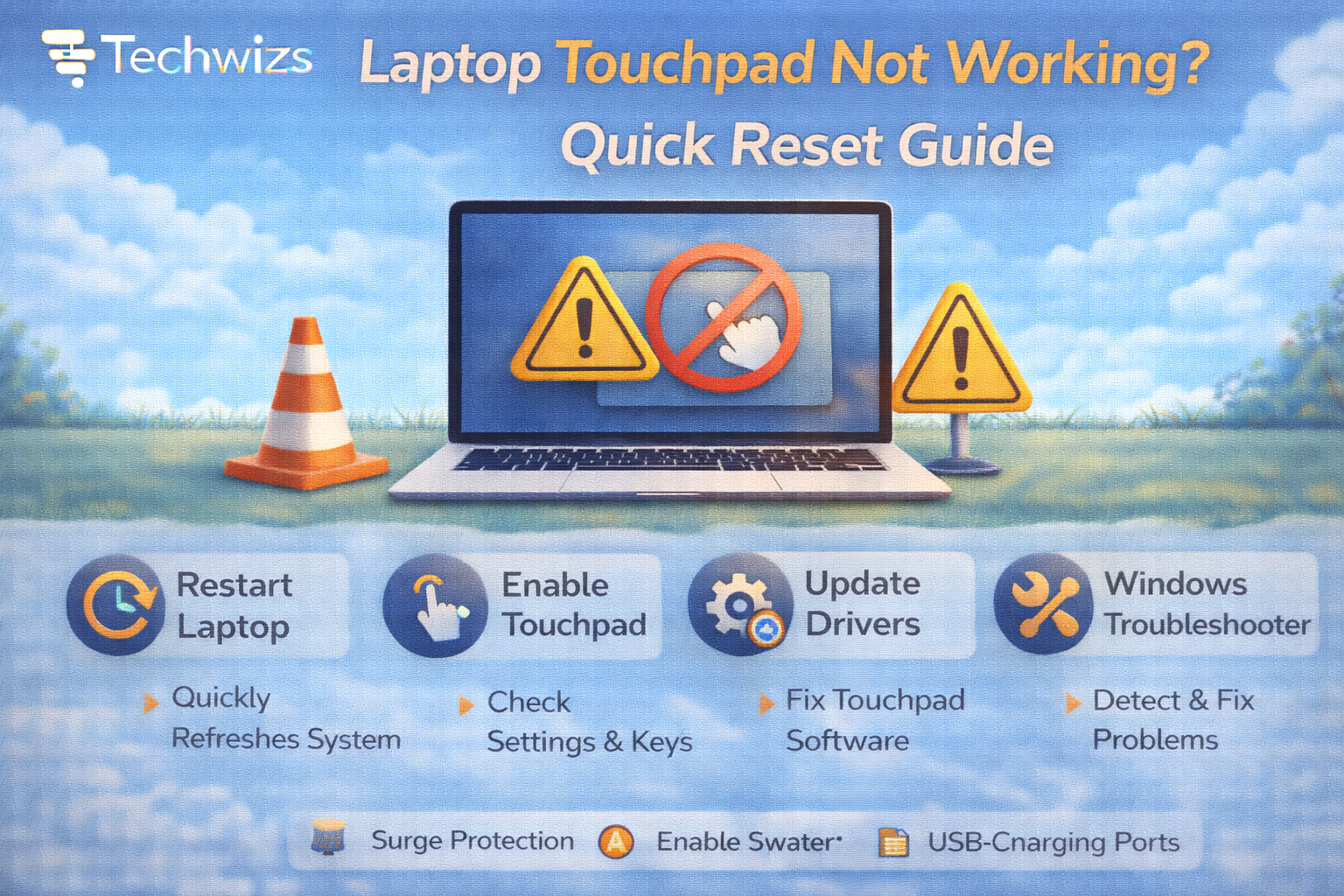
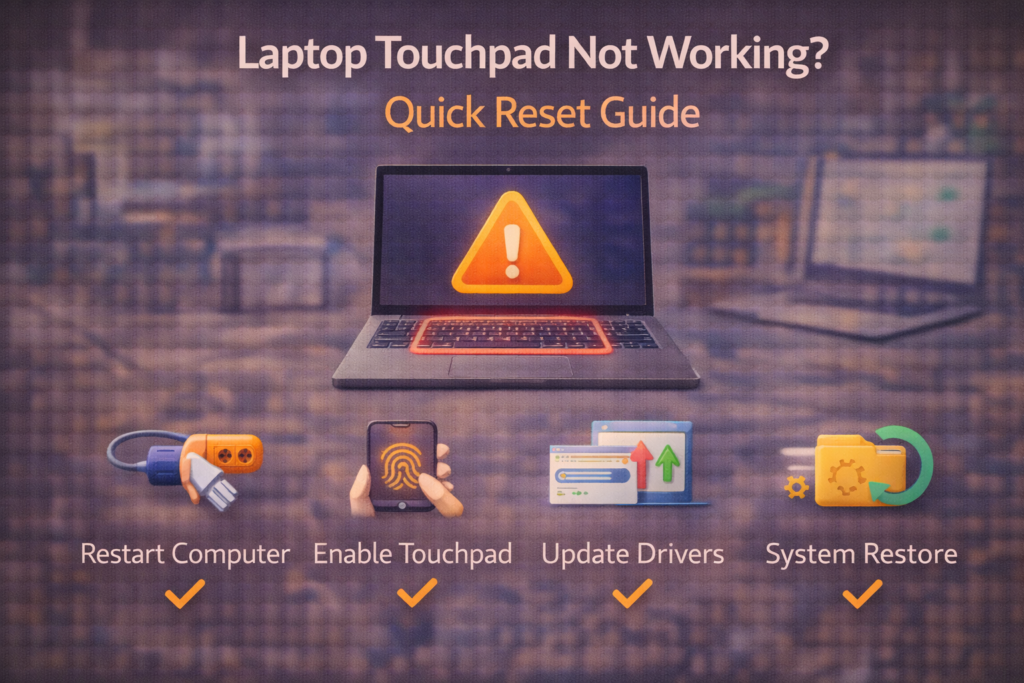
Step 1: Restart Your Laptop
It sounds simple—but driver hiccups often resolve after rebooting.
If the laptop touchpad is not working due to a temporary service crash, this may instantly restore it.
Step 2: Check Touchpad Settings (Windows 10/11)
- Go to Settings → Bluetooth & devices → Touchpad
- Ensure:
- Touchpad toggle is ON
- Sensitivity is set properly
- No external mouse override is enabled
Some systems disable the touchpad automatically when a mouse is plugged in.
According to documentation from Microsoft, Windows may disable precision touchpads after certain updates.
Step 3: Update or Reinstall Touchpad Driver
Open Device Manager
- Press Win + X → Device Manager
- Expand Mice and other pointing devices
Look for:
- Synaptics
- ELAN
- HID-compliant touchpad
If Present:
- Right-click → Update driver
If Missing:
- Click Action → Scan for hardware changes
Step 4: Roll Back After Windows Update
If the laptop touchpad stopped working after an update:
- Device Manager → Touchpad device
- Right-click → Properties
- Driver tab → Roll Back Driver
Windows updates sometimes install incompatible drivers.
Step 5: Enable Touchpad in BIOS
If the device doesn’t appear at all:
- Restart laptop
- Enter BIOS (usually F2, Del, or F10)
- Look under:
- Internal Devices
- Advanced settings
Ensure touchpad is enabled.
Quick Fix Box
If BIOS shows the touchpad disabled, Windows can’t detect it.
Step 6: Perform a Precision Touchpad Reset
If using Windows Precision drivers:
- Settings → Touchpad
- Scroll → Reset touchpad settings
This restores default gestures and sensitivity.
Step 7: Disconnect External Devices
- Unplug USB mouse
- Remove docking stations
- Restart laptop
Some systems prioritize external devices.
When It Might Be Hardware
Signs of hardware failure:
- Touchpad partially responding
- Physical damage
- No detection even in BIOS
- Random cursor jumping
In this case, service or replacement may be required.
Mac Users: Quick Fix
If using Apple MacBook:
- Restart Mac
- Reset SMC (older models)
- Reset NVRAM
- Check Trackpad settings under System Settings
Mac trackpads rarely fail due to software—but resets help.
Common Causes Summarized
| Cause | Fix |
|---|---|
| Disabled shortcut | Press Fn + Touchpad key |
| Windows update issue | Roll back driver |
| Driver corruption | Reinstall driver |
| External mouse override | Disable setting |
| BIOS disabled | Enable in BIOS |
FAQs: Laptop Touchpad Not Working
1) Why did my touchpad suddenly stop?
Often accidental disable or Windows update.
2) Is reinstalling Windows necessary?
Almost never.
3) Can drivers fix it?
Yes—very often.
4) Does external mouse disable touchpad?
Sometimes, by design.
5) Should I replace the laptop?
Only if hardware failure is confirmed.