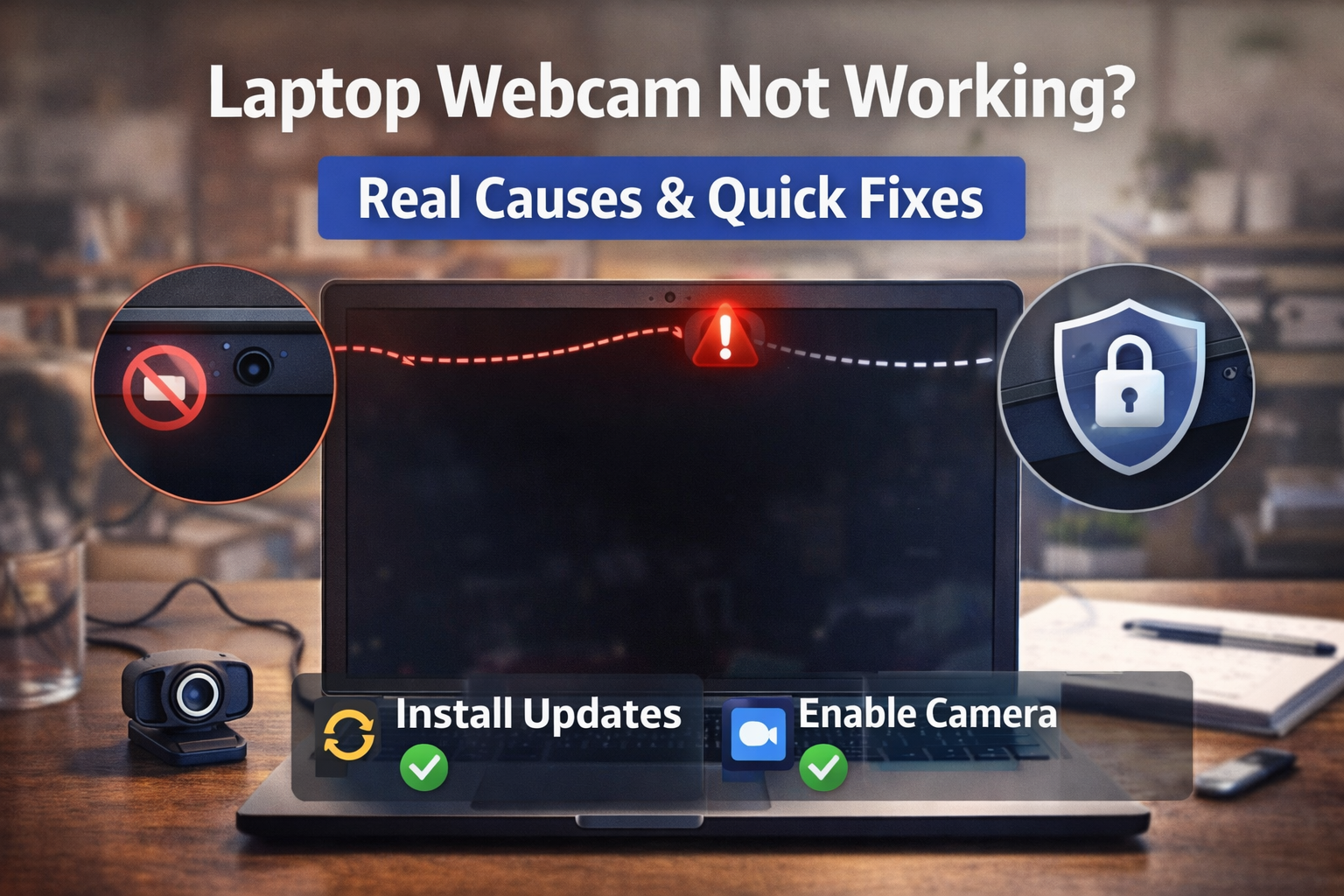
Difficulty: Beginner
How Your Laptop Webcam Actually Works (Simple Explanation)
Your laptop webcam works like a small digital camera built into your computer.
When you open an app like Zoom or Teams:
- The app requests permission to access the webcam
- Windows checks privacy settings
- The camera driver communicates with the hardware
- The camera activates and sends video to the app
If any of these steps fail, you may see errors like:
- Camera not detected
- Black screen
- “No camera found”
- Camera used by another application
Understanding this process helps explain why laptop webcam not working problems occur.
10 Real Causes of Laptop Webcam Not Working
1. Camera Access Is Disabled in Windows
Windows 11 includes privacy controls that can block apps from accessing the camera.
If camera access is turned off, apps simply cannot use it.
How to Fix
- Open Settings
- Go to Privacy & Security
- Click Camera
- Turn on:
- Camera access
- Let apps access your camera
This alone fixes many laptop webcam not working situations.
2. Webcam Disabled in Device Manager
Sometimes the webcam device is accidentally disabled.
Fix
- Press Windows + X
- Select Device Manager
- Expand Cameras
- Right-click your webcam
- Click Enable device
Think of Device Manager as the control panel for your computer’s hardware.
3. Another App Is Using the Camera
Only one application can use the webcam at a time.
If Teams is using the camera, Zoom cannot access it.
Quick Fix
Close all apps using the camera:
- Zoom
- Teams
- Skype
- Browser tabs
Then reopen the app you want to use.
⚡ Quick Fix Box
If your laptop webcam is not working, try this first:
✔ Restart your laptop
✔ Check camera privacy settings
✔ Close other video apps
✔ Check Device Manager
These steps solve most webcam problems.
4. Camera Driver Is Outdated or Corrupted
Drivers act like translators between Windows and your hardware.
If the webcam driver becomes corrupted, the camera stops responding.
According to Microsoft support documentation, driver corruption is a common cause of webcam detection problems after system updates.
Fix
- Open Device Manager
- Right-click your webcam
- Select Update driver
If the issue continues:
- Uninstall device
- Restart computer
Windows will reinstall the driver automatically.
5. Physical Camera Privacy Switch Is On
Many modern laptops include a camera privacy switch or shutter.
Examples:
- Lenovo ThinkPad shutter
- HP privacy key
- Dell camera switch
If enabled, the webcam is physically blocked.
Look for:
- Small slider near the camera
- Keyboard camera key
6. Antivirus or Security Software Blocking Camera
Some security software blocks webcam access for privacy protection.
Check antivirus settings for:
- Webcam protection
- Privacy shield
Temporarily disable it to test the camera.
7. Webcam Disabled in BIOS
Rare, but possible.
BIOS controls hardware at the motherboard level.
If the webcam is disabled there, Windows cannot detect it.
Fix
- Restart laptop
- Enter BIOS (usually F2, DEL, or F10)
- Find Camera settings
- Ensure camera is Enabled
8. Windows Update Broke the Camera Driver
Occasionally Windows updates introduce driver conflicts.
Fix
Go to:
Settings → Windows Update → Update History
If the problem started after an update, try:
- Rolling back the driver
- Installing manufacturer drivers
9. App Permission Not Enabled
Even if camera access is enabled, individual apps still require permission.
Check:
Settings → Privacy → Camera → App Permissions
Make sure apps like:
- Zoom
- Teams
- Chrome
are allowed.
10. Hardware Failure (Rare)
If none of the fixes work, hardware may be damaged.
Possible causes:
- Cable inside laptop loosened
- Webcam sensor failure
- Liquid damage
In this case, external webcams are inexpensive alternatives.
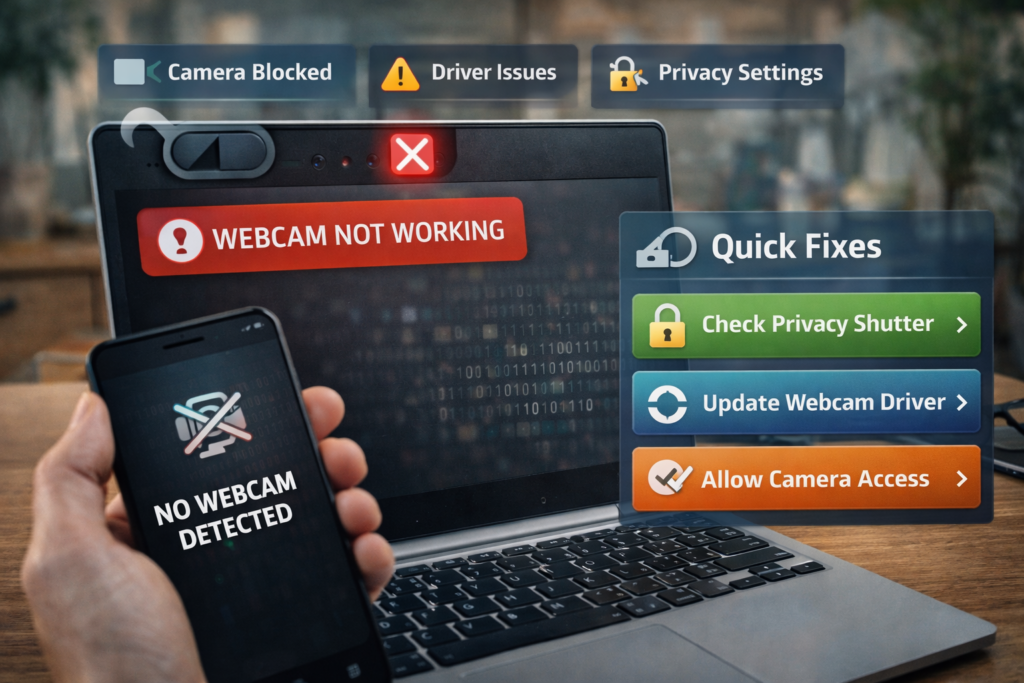
🛠️ Key Takeaway Box
Most laptop webcam issues are caused by privacy settings, driver problems, or app conflicts — not broken hardware.
Real-World Example
A remote worker reported their camera stopped working before a Teams meeting.
The problem?
Chrome had locked the webcam from a previous Google Meet call.
Closing the browser instantly restored camera functionality.
Prevent Webcam Problems in the Future
To reduce webcam issues:
- Keep Windows updated
- Update drivers regularly
- Avoid installing unknown camera apps
- Restart your laptop weekly
- Close unused video apps
Simple maintenance prevents most laptop webcam not working issues.
Frequently Asked Questions (FAQ)
1. Why is my laptop webcam showing a black screen?
Usually caused by driver issues or another app using the camera.
2. Why does Zoom say camera not detected?
Camera permissions may be disabled or another app is using the webcam.
3. How do I test my laptop webcam?
Open the Camera app in Windows to test it quickly.
4. Can malware disable a webcam?
Yes, some malware interferes with drivers or permissions.
5. Should I replace my laptop if the webcam fails?
Not necessary. External USB webcams are affordable and often better quality.