Difficulty: Beginner
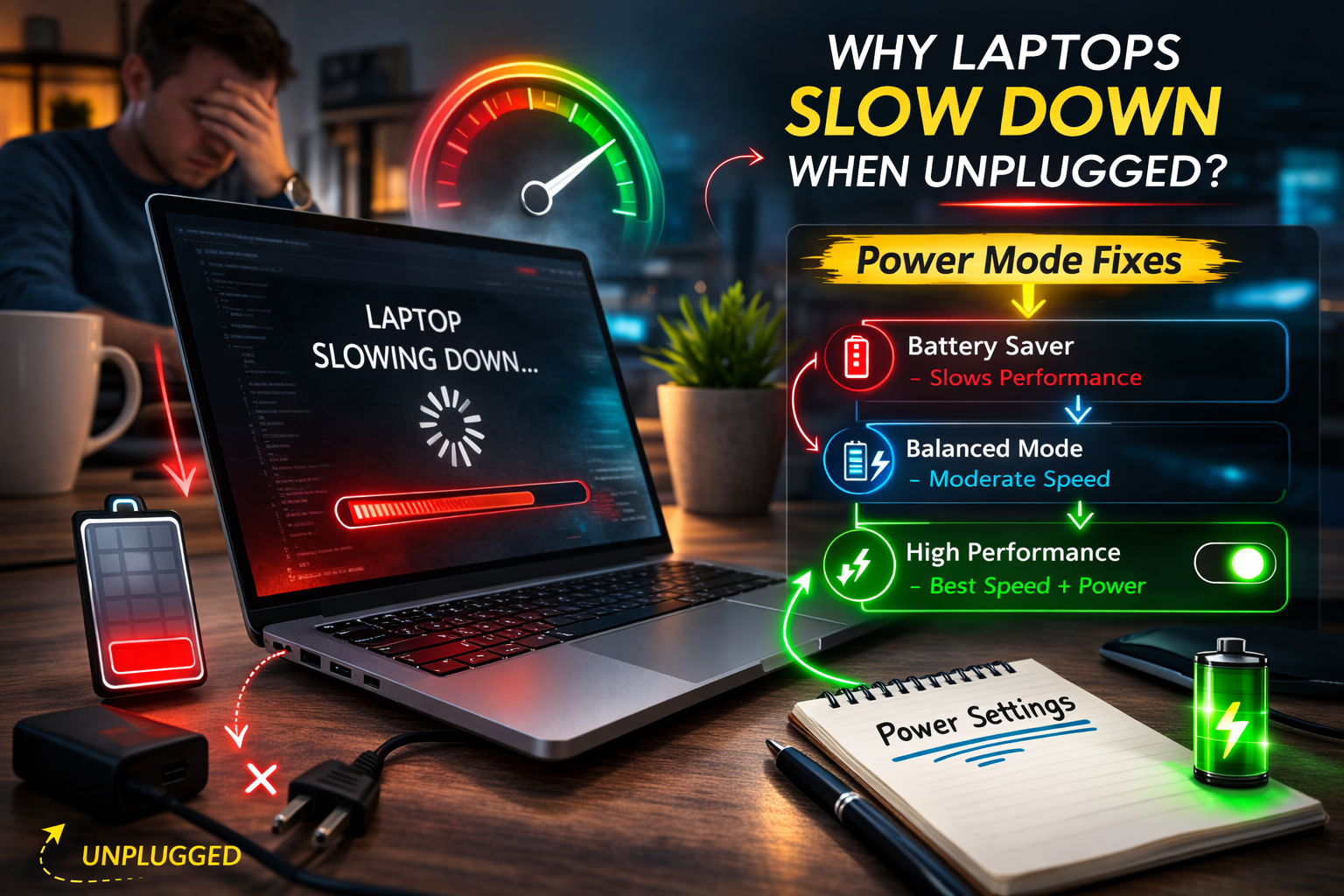
Why Do Laptops Slow Down When Unplugged?
Let’s explain this in simple terms.
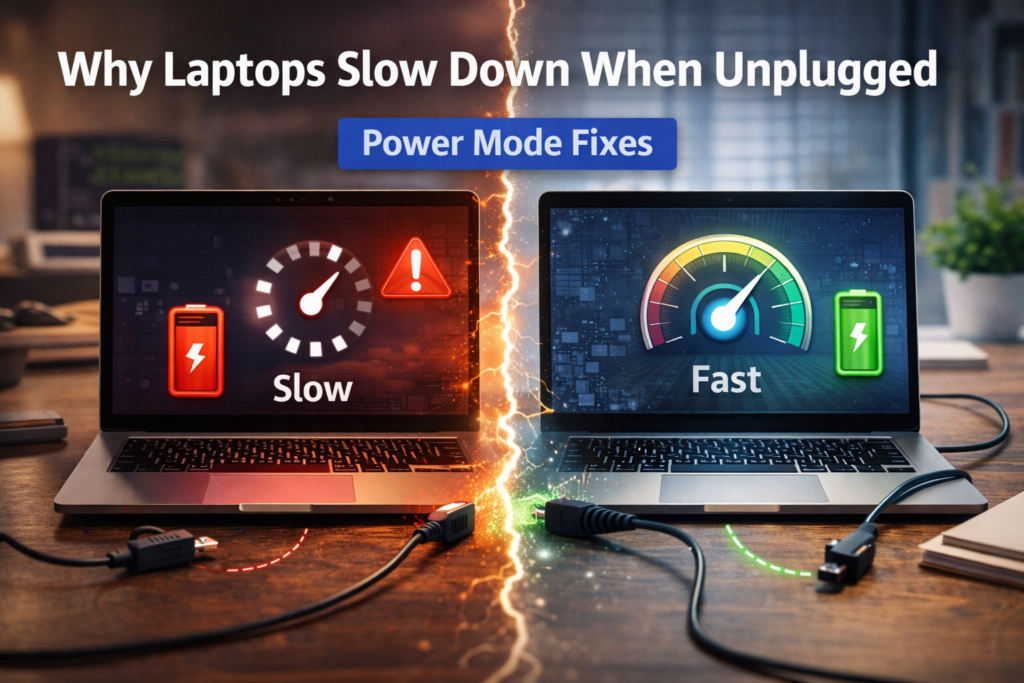
When your laptop is plugged in:
- It uses maximum performance
- CPU runs at higher speed
- Graphics operate at full power
When unplugged:
- Windows tries to save battery
- CPU speed is reduced
- Background processes are limited
Think of it like your car switching into “eco mode” to save fuel.
According to Microsoft’s power management documentation, Windows dynamically adjusts processor performance based on power source to extend battery life.
This is normal behavior — but sometimes it becomes too aggressive.
What Actually Gets Slowed Down?
When laptops slow down when unplugged, the system may reduce:
- Processor speed (CPU throttling)
- Graphics performance
- Screen brightness
- Background app activity
- Disk performance
This is called power throttling.
🔎 Quick Check: Is Power Mode Causing the Slowdown?
Unplug your laptop and:
- Open Task Manager (Ctrl + Shift + Esc)
- Click Performance
- Check CPU speed
If your processor speed drops significantly compared to when plugged in — power mode is the cause.
Step-by-Step Power Mode Fixes (Windows 11)
Now let’s fix it.
✅ Step 1: Change Power Mode to Best Performance
- Click Start → Settings
- Go to System → Power & Battery
- Under Power Mode
- Select Best Performance
This alone fixes most “laptops slow down when unplugged” issues.
✅ Step 2: Adjust Advanced Power Plan Settings
For deeper control:
- Open Control Panel
- Go to Power Options
- Click Change plan settings
- Select Change advanced power settings
Find:
Processor Power Management
Check:
- Minimum processor state (on battery) → Set to 50–100%
- Maximum processor state (on battery) → Set to 100%
If this is set too low (like 30%), your laptop will feel slow.
🧠 Definition Box
Processor Throttling:
When your laptop intentionally reduces CPU speed to save power and extend battery life.
✅ Step 3: Disable Battery Saver Mode
Battery Saver automatically limits performance.
- Go to Settings → System → Power & Battery
- Turn off Battery Saver
If enabled at high percentages (like 80%), performance drops immediately after unplugging.
✅ Step 4: Update Graphics Drivers
Some laptops limit GPU performance on battery.
Go to:
- NVIDIA / AMD / Intel website
- Update latest graphics driver
Graphics drivers sometimes override Windows power plans.
✅ Step 5: Check Manufacturer Power Software
Some brands include extra power management tools:
- Lenovo Vantage
- Dell Power Manager
- HP Command Center
These tools may have their own “Battery Optimized” mode.
Set to:
- Performance Mode
- Balanced (if overheating concerns)
Why Manufacturers Do This
Laptop brands reduce performance on battery to:
- Extend battery runtime
- Reduce heat
- Protect battery lifespan
If full performance were always enabled, battery could drain in under 1–2 hours.
So the slowdown is intentional — just sometimes too aggressive.
When Should You Leave It Slowed Down?
Not everyone needs full performance on battery.
Keep default settings if you:
- Mainly browse web
- Watch videos
- Use email and Office
- Want longer battery life
Increase performance only if you:
- Edit videos
- Use heavy applications
- Game on battery
- Experience noticeable lag
⚠️ Important Trade-Off
If you increase performance while unplugged:
- Battery drains faster
- Laptop may run warmer
- Fan noise may increase
There is no free performance boost — it’s always a balance.
Real-World Example
A user complained their laptop was “broken” because it lagged during Zoom calls when unplugged.
Fix applied:
- Switched to Best Performance
- Increased minimum processor state to 70%
Result:
Smooth video calls — but battery life reduced from 6 hours to 4 hours.
That’s the trade-off.
Could It Be a Hardware Issue?
If laptops slow down when unplugged even after adjusting power settings, check:
- Battery health
- Thermal throttling
- Outdated BIOS
- Faulty power adapter
If battery is failing, the system may reduce performance to prevent shutdown.
🛡️ Key Takeaway Box
When laptops slow down when unplugged, it’s usually power-saving settings — not hardware failure. Adjust performance mode carefully based on your needs.
Advanced Tip: Create a Custom Power Plan
You can create two profiles:
- Work Mode (Balanced battery life)
- Performance Mode (Max speed, shorter battery)
Switch depending on your situation.
Frequently Asked Questions (FAQ)
1. Why does my laptop lag only when not charging?
Because Windows switches to battery-saving mode and reduces processor speed.
2. Is it bad to use Best Performance on battery?
No, but battery drains faster and heat increases.
3. Can a weak battery cause slowdown?
Yes. If battery health is poor, performance may be limited.
4. Why is gaming worse when unplugged?
Many laptops reduce GPU performance significantly on battery.
5. Should I keep laptop plugged in all the time?
Occasionally unplugging helps battery calibration, but constant 100% charging may reduce lifespan over years.