Difficulty: Beginner
Why Do Laptops Overheat?
To understand overheating laptop cooling tips, first understand how laptops cool themselves.
Inside your laptop are components like the CPU (processor) and GPU (graphics chip). These parts generate heat when working hard.
Your laptop cools itself using:
- Internal cooling fan
- Heat pipes
- Air vents
Think of it like a car engine. When the engine works harder, it generates more heat — so the cooling system must remove that heat efficiently.
When airflow is blocked or heat cannot escape, temperatures rise.
According to Intel thermal guidelines, most modern laptop CPUs operate safely up to around 90–100°C, but sustained high temperatures can reduce performance through a process called thermal throttling.
Common Signs Your Laptop Is Overheating
You may notice:
- Laptop base becoming very hot
- Loud fan noise
- Slow performance
- Sudden system shutdowns
- Keyboard area feeling warm
These are clear signals you should apply some overheating laptop cooling tips immediately.
⚡ Quick Fix Box
If your laptop is overheating, try these first:
✔ Move laptop to a hard flat surface
✔ Clean air vents
✔ Close unused apps
✔ Restart computer
These simple steps fix many overheating cases.
Tip 1: Use Your Laptop on a Hard Surface
This is the most overlooked cause of overheating.
Soft surfaces like:
- Beds
- Cushions
- Sofas
block the ventilation openings underneath the laptop.
Think of it like covering a fan with a blanket — the heat cannot escape.
Instead use:
- A desk
- Laptop stand
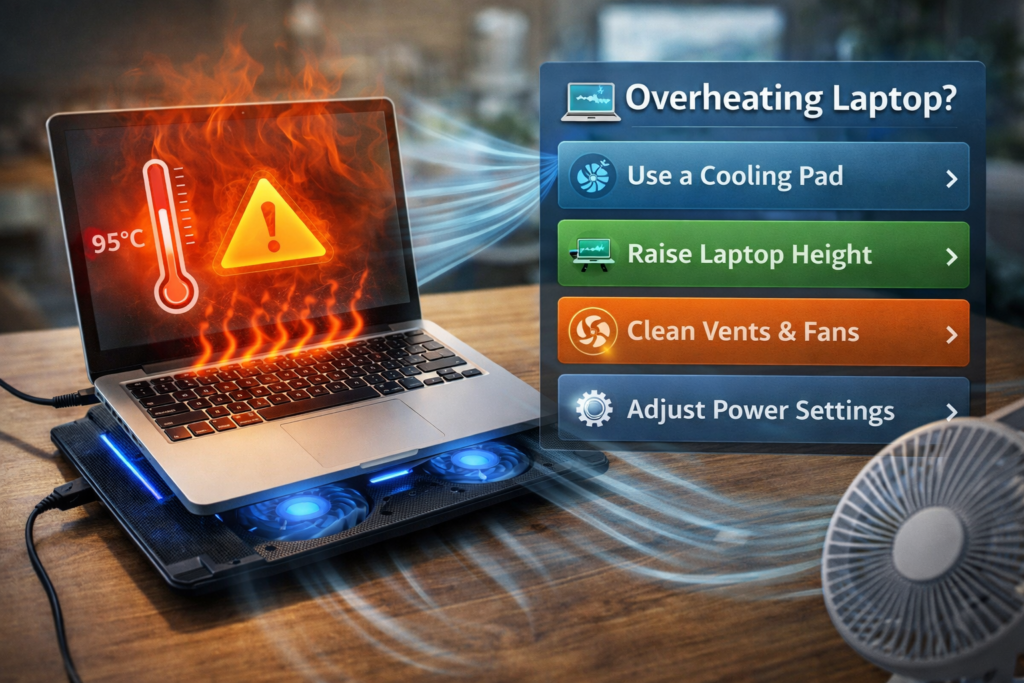
- Cooling pad
This improves airflow immediately.
Tip 2: Clean the Air Vents
Dust buildup is a major reason laptops overheat.
Over time, dust accumulates in:
- Fan vents
- Cooling fins
- Internal air pathways
Even a thin layer of dust can reduce cooling efficiency.
Easy cleaning method
- Turn off laptop
- Use compressed air
- Blow air into side or rear vents
Avoid inserting objects inside the vents.
This simple step is one of the most effective overheating laptop cooling tips.
Tip 3: Close Unnecessary Applications
Running many apps increases CPU usage.
Higher CPU usage = more heat.
Check running programs:
- Press Ctrl + Shift + Esc
- Open Task Manager
- Look for apps using high CPU or memory
Close programs you don’t need.
For example:
- Multiple browser tabs
- Video editing software
- Background cloud syncing
Tip 4: Improve Airflow with a Laptop Stand
Laptop stands lift the device slightly, allowing air to circulate underneath.
Benefits:
- Better cooling airflow
- More comfortable typing angle
- Reduced heat buildup
Some stands include built-in fans.
Tip 5: Adjust Power Settings
High-performance power settings make the CPU run at full speed constantly.
Lowering power settings can reduce heat significantly.
How to change power mode
- Go to Settings
- Open Power & Battery
- Choose Balanced or Best Power Efficiency
This reduces CPU stress and heat generation.
Tip 6: Update Drivers and Windows
Outdated drivers can cause hardware to work inefficiently.
Update:
- Graphics drivers
- Chipset drivers
- Windows updates
Manufacturers often release updates that improve power management and cooling efficiency.
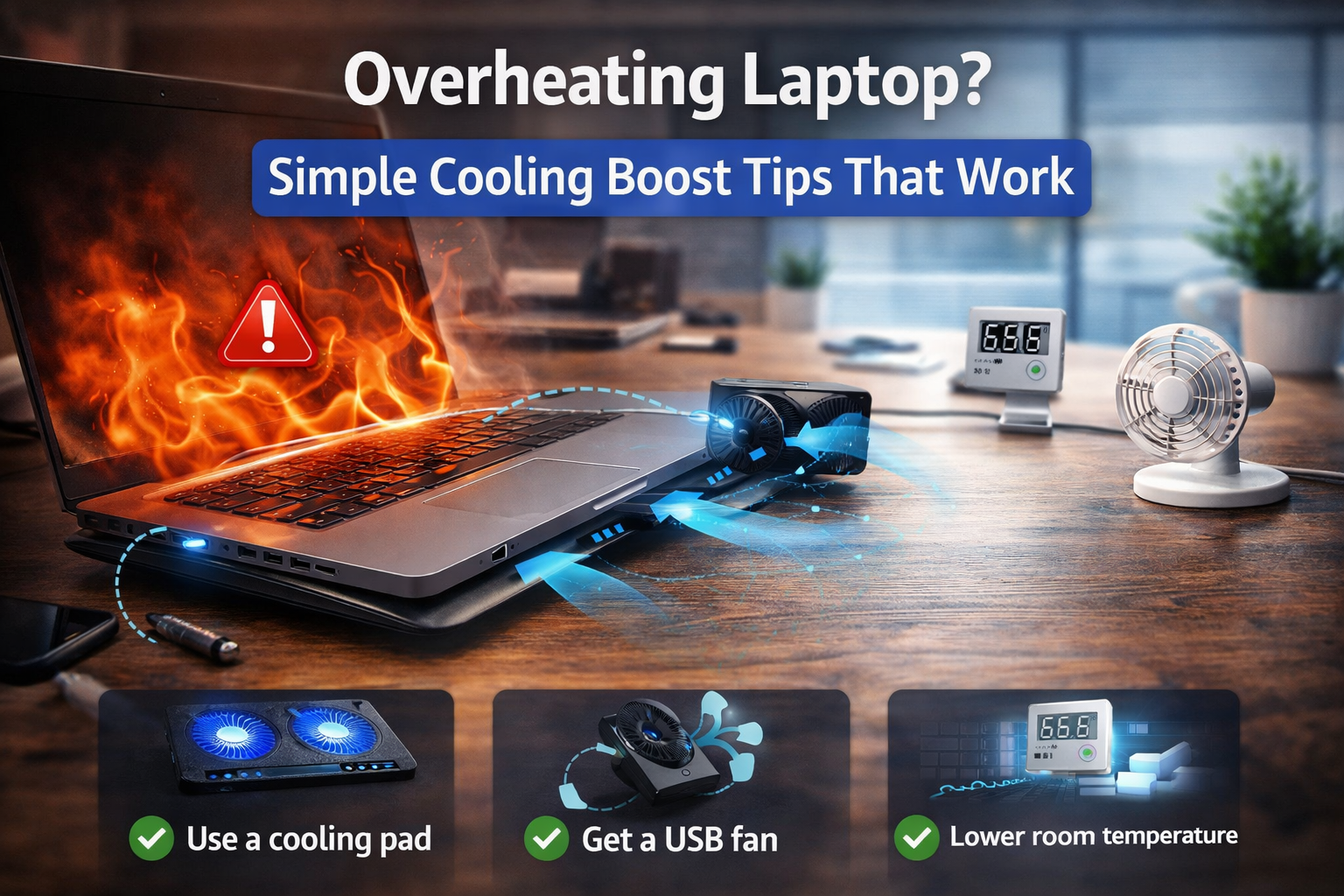
Tip 7: Use a Laptop Cooling Pad
Cooling pads are external stands with built-in fans.
They help push cool air toward the laptop’s vents.
This can reduce temperature by 3–10°C depending on the model and airflow design.
Cooling pads are especially helpful for:
- Gaming laptops
- Video editing
- Long work sessions
Tip 8: Reduce Background Startup Programs
Too many startup apps can cause constant CPU activity.
Disable unnecessary startup programs:
- Open Task Manager
- Select Startup Apps
- Disable high-impact apps
Reducing background load helps cooling systems work more efficiently.
🧠 Definition Box
Thermal Throttling:
A safety feature where the processor slows down automatically when it becomes too hot to prevent damage.
Tip 9: Keep Your Laptop in a Cooler Environment
Room temperature affects laptop cooling.
If your room is hot:
- Fans work harder
- Heat dissipates slower
Using a laptop in a cooler room can noticeably improve temperature performance.
Tip 10: Restart Your Laptop Regularly
Many users keep laptops running for days without restarting.
Restarting clears:
- Memory leaks
- Background processes
- System glitches
This often improves both performance and temperature.
When Overheating Requires Professional Repair
If none of these overheating laptop cooling tips work, there may be internal issues such as:
- Failing cooling fan
- Dried thermal paste
- Blocked internal heatsink
These issues require professional cleaning or repair.
Real-World Example
A student reported their laptop becoming extremely hot during online classes.
The issue turned out to be:
- 30+ Chrome tabs open
- Laptop placed on a bed
After moving the laptop to a desk and closing unnecessary tabs, temperatures dropped significantly.
🛡️ Key Takeaway Box
Most laptop overheating problems are caused by airflow restrictions or heavy workloads — not hardware failure.
Frequently Asked Questions (FAQ)
1. Is it normal for laptops to get hot?
Yes. Laptops naturally produce heat when processing tasks, but excessive heat indicates cooling problems.
2. Can overheating damage a laptop?
Over time, excessive heat can shorten the lifespan of internal components.
3. Do cooling pads really work?
Yes. They improve airflow and can lower temperatures slightly.
4. Why does my laptop fan run loudly?
The fan speeds up when the system detects higher temperatures.
5. Should I shut down my laptop if it overheats?
If temperatures are extremely high or the system shuts down automatically, letting it cool down is recommended.