Difficulty: Beginner
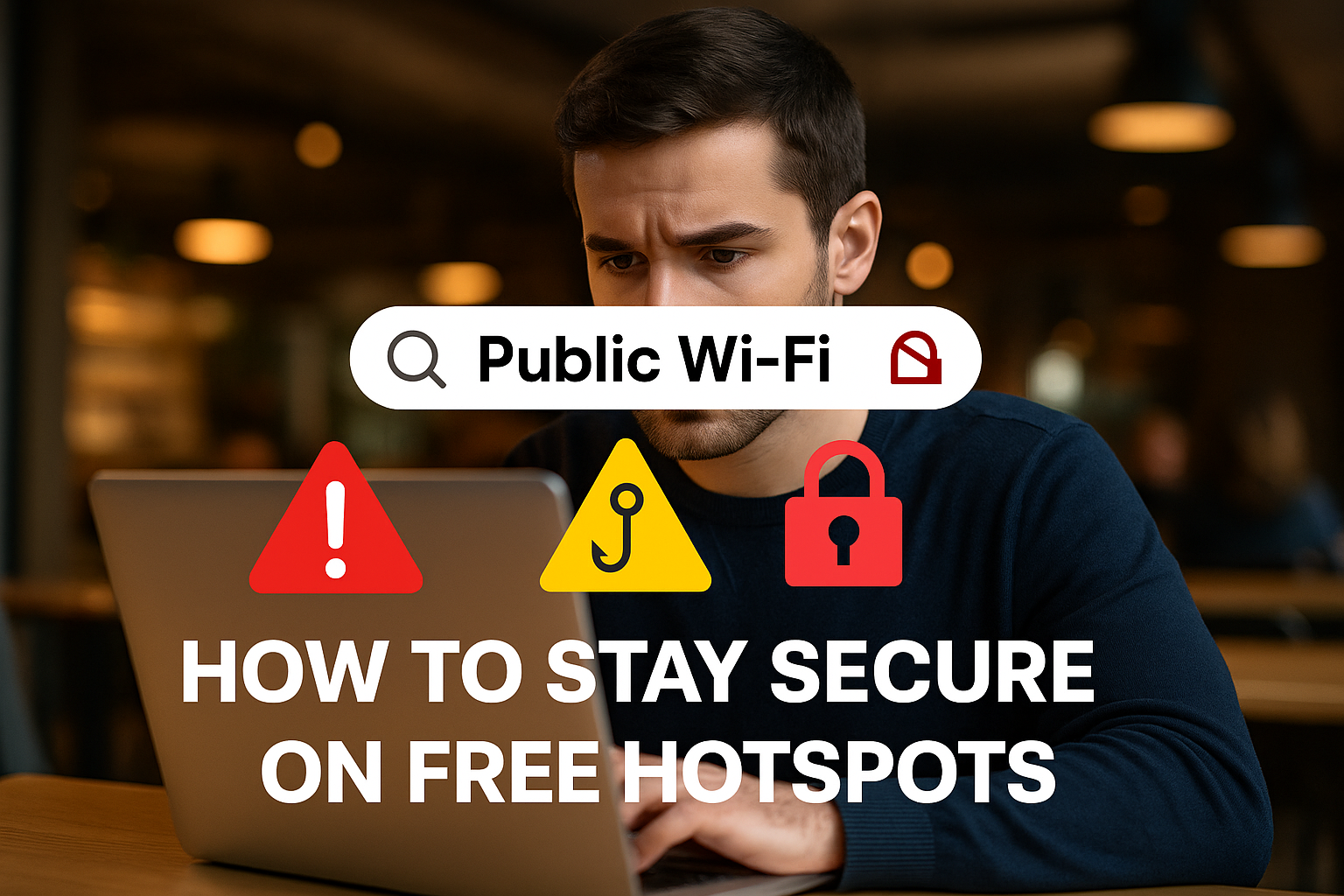
Free hotspots are everywhere — cafés, airports, malls, hotels — but they remain one of the biggest cybersecurity risks for everyday users. Understanding public Wi-Fi safety is essential because attackers often exploit unsecured networks to steal passwords, intercept browsing data, and impersonate legitimate networks. This guide teaches you how to stay fully protected while still enjoying the convenience of free internet.
Why Public Wi-Fi Safety Matters
According to a report from Forbes Advisor, 40% of people have had their data compromised while using public Wi-Fi. Hackers commonly use techniques like “man-in-the-middle attacks,” fake hotspots, and packet sniffing — all of which target users on unsecured networks. Good news? With the right steps, you can avoid almost all of these risks.
How to Stay Secure on Free Hotspots (10-Second Checks)
1. Verify the Network Name
Fake hotspots often mimic real ones to trick users (e.g., “Starbucks_WiFi” vs. “StarbuckFreeWiFi”).
Always ask staff for the exact network name before connecting.
2. Avoid Logging In or Accessing Sensitive Accounts
When using public Wi-Fi, avoid:
- Online banking
- Email logins
- Shopping with saved cards
- Entering passwords
If you must log in → use mobile data or a VPN.
3. Turn On HTTPS-Only Browsing
Most browsers now support an “HTTPS-only” mode.
Why?
HTTPS encrypts your traffic, protecting your:
- Passwords
- Cookies
- Personal data
If a site loads in HTTP → do not continue.
4. Always Use a VPN (Most Effective Protection)
A VPN encrypts your entire connection, making your data unreadable even on hacked networks.
A reliable VPN protects you from:
- Packet sniffing
- Man-in-the-middle attacks
- Rogue hotspots
- Data theft
If you frequently use public Wi-Fi → a VPN is essential.
5. Turn Off Auto-Connect
Auto-connect can unknowingly link your device to:
- Fake hotspots
- Old networks you don’t remember
- Nearby devices pretending to be Wi-Fi
Turn off:
- Auto-connect
- Auto-join
- Wi-Fi scanning
6. Use Mobile Hotspot When Handling Sensitive Information
If something requires:
- Logging in
- Paying
- Seeing personal details
Switch to mobile data — it’s much safer than public Wi-Fi.
7. Disable File Sharing & AirDrop
File sharing features allow strangers on the network to:
- Access your files
- Drop malware
- Send unwanted content
Turn off:
- File Sharing
- Network Discovery
- AirDrop (set to Contacts Only or Off)
8. Keep Firewall Enabled
Your OS firewall blocks unwanted network traffic from other devices on the hotspot.
Make sure it’s ON:
- Windows Defender Firewall
- macOS Firewall
- Android/iOS built-in network protections
9. Update Your Apps & OS
Hackers often exploit old, unpatched vulnerabilities.
Regular updates protect against:
- Wi-Fi chipset exploits
- Zero-day browser attacks
- OS-level weaknesses
10. Forget the Network After Use
This prevents:
- Auto-reconnection
- Persistent tracking
- Saved login vulnerabilities
Definition Box: What Is Public Wi-Fi Safety?
Public Wi-Fi safety refers to the security practices users should follow to protect personal data when connecting to open or free wireless networks with no password or weak encryption.
Quick Fix Box: If You MUST Use Public Wi-Fi
- Turn on VPN
- Use HTTPS-only mode
- Do NOT log into bank/email
- Turn off Auto-Connect
- Disable file sharing
- Forget the network afterward
These quick fixes reduce 90% of public Wi-Fi risks.
Common Attacks to Watch Out For (and How to Avoid Them)
1. Fake Hotspots (Evil Twin Attacks)
Hackers create networks that look identical to real ones.
Fix: Always verify the hotspot name with staff.
2. Man-in-the-Middle Attacks
Hackers silently intercept your traffic.
Fix: Always use VPN or switch to mobile data.
3. Packet Sniffing
Attackers capture data packets from unsecured connections.
Fix: Use HTTPS-only browsing + VPN.
4. Malware Injection
Some hotspots redirect users to infected websites.
Fix: Use an updated browser + built-in anti-malware.
Key Takeaways
- Public Wi-Fi is convenient but risky
- Fake networks and interception attacks are common
- You must verify networks, use HTTPS, and avoid sensitive tasks
- A VPN dramatically boosts public Wi-Fi safety
- Simple device settings can prevent major threats
FAQ
1. Is it safe to use public Wi-Fi for banking?
No. Public networks are too vulnerable. Always use mobile data or VPN for financial tasks.
2. Can hackers see what I do on public Wi-Fi?
Yes — unless you use HTTPS and a VPN.
3. Are hotel Wi-Fi networks safe?
Not always. They can be just as risky as café or airport Wi-Fi.
4. Should I trust “Free Airport Wi-Fi”?
Only if verified through official airport info screens or staff.
5. Is a VPN enough to stay safe?
A VPN greatly improves security but should be combined with good habits (like avoiding sensitive logins).
6. Do apps leak data on public Wi-Fi?
Yes — some older apps don’t use secure encryption.