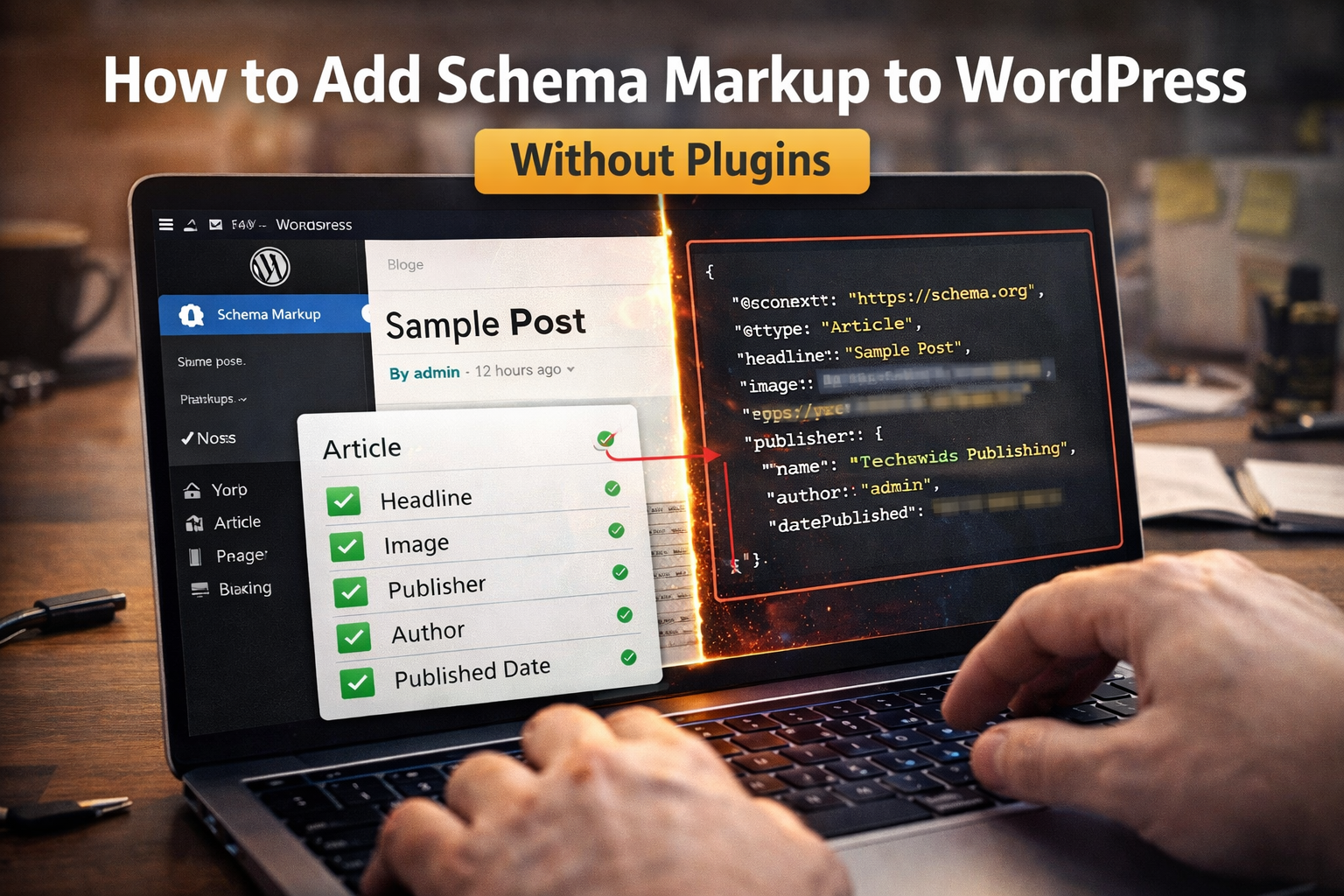
Difficulty: Beginner
What Is Schema Markup?
Before learning schema markup WordPress without plugins, let’s explain what schema actually is.
Schema markup is a type of structured data written in code that tells search engines exactly what your content represents.
For example, schema can identify:
- Articles
- Products
- Reviews
- FAQs
- Businesses
- Recipes
Think of schema markup like labels for search engines.
Without schema, Google reads your page and tries to guess what it means.
With schema, you clearly tell Google what the content is about.
According to Google Search Central documentation, structured data helps search engines generate rich results, which can include star ratings, FAQs, and enhanced search snippets.
Why Add Schema Markup to WordPress?
Using schema markup WordPress without plugins has several advantages.
1️⃣ Better Search Appearance
Schema can create enhanced results such as:
- FAQ dropdowns
- Product ratings
- Event information
These rich results attract more clicks.
2️⃣ Improved SEO Signals
While schema is not a direct ranking factor, it helps search engines interpret content more accurately.
Better understanding often leads to better indexing.
3️⃣ Faster Website Performance
Plugins add extra code and database queries.
Adding schema manually avoids:
- plugin bloat
- slower page loading
- unnecessary scripts
This keeps your website lightweight.
🧠 Definition Box
Schema Markup:
A structured data format that helps search engines understand the meaning of website content.
The Best Format for Schema Markup
Google recommends using JSON-LD.
JSON-LD is a script format placed inside the <script> tag of a webpage.
Why JSON-LD?
- Easier to implement
- Cleaner code
- Recommended by Google
Example basic schema:
<script type="application/ld+json">
{
 "@context": "https://schema.org",
 "@type": "Article",
 "headline": "Example Article Title",
 "author": {
   "@type": "Person",
   "name": "Author Name"
 }
}
</script>
Don’t worry if this looks technical — you usually only modify a few fields.
Method 1: Add Schema Using WordPress Header File
This is the most common way to implement schema markup WordPress without plugins.
Step 1: Access Theme Editor
- Go to WordPress Dashboard
- Click Appearance
- Select Theme File Editor
Step 2: Open header.php
Find the file called:
header.php
This file loads on every page of your site.
Step 3: Insert JSON-LD Schema
Paste the schema code before the closing </head> tag.
Example:
<script type="application/ld+json">
{
 "@context": "https://schema.org",
 "@type": "Organization",
 "name": "Your Website Name",
 "url": "https://yourwebsite.com"
}
</script>
Save the file.
Now your site contains structured data.
Method 2: Add Schema to Specific Pages
Sometimes you only want schema on certain pages.
Example:
- FAQ pages
- Product pages
- Blog articles
How to Do It
Edit the page in WordPress and switch to Custom HTML block.
Paste the JSON-LD script inside the block.
This method works well for FAQ schema.
Example: FAQ Schema
If your article has FAQs, you can add FAQ schema manually.
Example:
<script type="application/ld+json">
{
 "@context": "https://schema.org",
 "@type": "FAQPage",
 "mainEntity": [{
   "@type": "Question",
   "name": "What is schema markup?",
   "acceptedAnswer": {
     "@type": "Answer",
     "text": "Schema markup is structured data used by search engines to understand content."
   }
 }]
}
</script>
This may allow Google to display FAQ results directly in search.
Method 3: Add Schema via functions.php
If you want a cleaner implementation, you can add schema using your theme’s functions.php file.
Example:
function add_schema_markup() {
echo '<script type="application/ld+json">
{
 "@context":"https://schema.org",
 "@type":"WebSite",
 "name":"Your Site Name",
 "url":"https://yourdomain.com"
}
</script>';
}
add_action('wp_head', 'add_schema_markup');
This automatically inserts schema in the site header.
⚡ Quick Fix Box
If you want the easiest method:
✔ Use JSON-LD
✔ Insert code in header.php
✔ Test using Google Rich Results Test
This works for most WordPress sites.
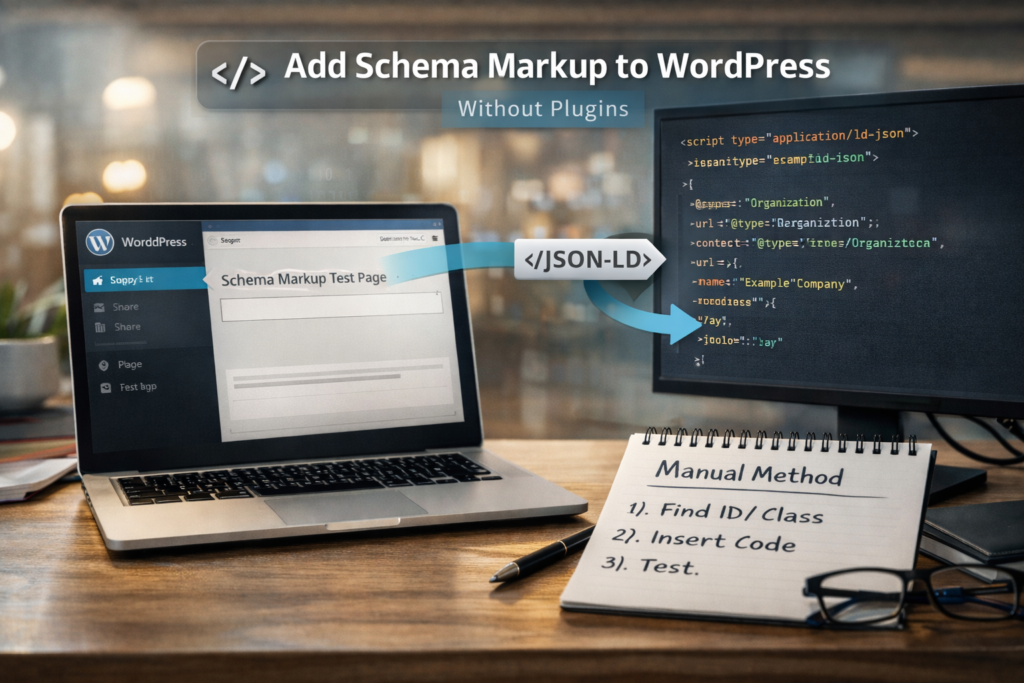
How to Test Your Schema Markup
After adding schema markup WordPress without plugins, always test it.
Use:
Google Rich Results Test
or
Google Schema Markup Validator
These tools check if:
- your schema is valid
- Google can read it
- rich results are possible
Testing is essential before publishing.
Common Schema Types for Blogs
If you run a blog like Techwizs, these schemas are most useful.
Article Schema
For blog posts.
FAQ Schema
Improves visibility in search results.
Organization Schema
Helps Google understand your brand.
Breadcrumb Schema
Improves navigation display in search.
Common Mistakes to Avoid
1️⃣ Incorrect JSON Formatting
Even a missing comma can break schema.
Always validate code.
2️⃣ Adding Duplicate Schema
If your theme already includes schema, adding another version may cause conflicts.
3️⃣ Using Wrong Schema Type
For example:
Using product schema on a blog article.
Choose the correct type.
Real Example
A small blog added FAQ schema to its troubleshooting articles.
Result:
- FAQ results started appearing in Google search
- Click-through rate increased
Structured data made the search result more visible.
🛡️ Key Takeaway Box
You don’t need heavy SEO plugins to use schema markup. Adding simple JSON-LD code directly to WordPress is lightweight, efficient, and fully supported by Google.
Frequently Asked Questions (FAQ)
1. Can I add schema markup without plugins in WordPress?
Yes. You can insert JSON-LD schema code directly into your theme files or page content.
2. Is JSON-LD better than microdata?
Yes. Google recommends JSON-LD because it is easier to manage and cleaner to implement.
3. Will schema markup improve SEO ranking?
Schema does not directly improve ranking but can improve search appearance and click-through rates.
4. Can too much schema cause problems?
Yes. Incorrect or duplicate schema may confuse search engines.
5. Do WordPress themes already include schema?
Some themes include basic schema like Article or Organization schema automatically.