Difficulty: Beginner
What Causes Sound Crackling on Windows?
Before fixing the issue, it helps to understand what’s happening.
Think of audio on your computer like a continuous stream of data. If something interrupts that stream — even for a split second — the sound can break into small pops or crackles.
Common causes include:
- Outdated audio drivers
- Incorrect audio settings
- CPU overload
- Faulty headphones or speakers
- USB audio device conflicts
According to Microsoft support documentation, audio driver conflicts and incorrect sound enhancements are among the most common causes of audio distortion on Windows systems.
Step 1: Restart Your Computer
This may sound simple, but it often works.
Restarting your PC resets:
- Audio services
- Background processes
- Temporary driver glitches
Many users fix sound crackling Windows issues with a simple reboot.
Step 2: Check Your Headphones or Speakers
Before changing system settings, test the hardware.
Try:
- Plugging headphones into another device
- Testing another speaker or headset
- Checking cable connections
If the crackling disappears with another device, the problem is likely your speakers or headphones.
🔎 Quick Fix Box
Try these quick checks first:
✔ Restart the computer
✔ Test different headphones or speakers
✔ Update audio drivers
✔ Disable sound enhancements
These steps solve most sound crackling Windows issues.
Step 3: Update Audio Drivers
Drivers allow Windows to communicate with hardware. If the driver is outdated or corrupted, audio may crackle.
How to Update:
- Right-click Start
- Open Device Manager
- Expand Sound, video and game controllers
- Right-click your audio device
- Click Update driver
You can also download the latest driver from your laptop or motherboard manufacturer website.
Updated drivers often fix sound crackling Windows immediately.
Step 4: Disable Audio Enhancements
Windows sometimes adds audio “enhancements” like virtual surround or bass boost. These can cause distortion.
Disable Them:
- Right-click the speaker icon
- Click Sound settings
- Select your output device
- Click Device properties
- Disable Audio enhancements
After turning these off, test your audio again.
Step 5: Adjust the Audio Format
Incorrect audio format settings can cause crackling.
Change Format:
- Open Sound settings
- Click Advanced sound settings
- Select Playback device
- Click Properties
- Go to Advanced tab
- Change Default format
Try common settings such as:
- 16-bit, 44100 Hz
- 24-bit, 48000 Hz
These are stable formats used by most applications.
Step 6: Reduce CPU Usage
If your computer is overloaded, audio processing may lag.
Open Task Manager and check CPU usage.
If CPU is above 80–90%, close unnecessary programs.
High CPU load can cause sound crackling Windows because the system cannot process audio data smoothly.
Step 7: Disable Exclusive Mode
Some apps take exclusive control of your audio device, which can cause conflicts.
Disable Exclusive Mode:
- Open Sound settings
- Go to Playback devices
- Select your speaker or headphones
- Click Properties
- Go to Advanced
- Uncheck:
- Allow applications to take exclusive control
This often stabilizes audio playback.
Step 8: Change Power Settings
Power-saving modes may limit CPU performance, which affects audio.
Set High Performance Mode:
- Open Control Panel
- Go to Power Options
- Select High Performance
This ensures your system processes audio smoothly.
Step 9: Check USB Audio Devices
If you use:
- USB headset
- USB DAC
- USB sound card
Try:
- Plugging into a different USB port
- Avoiding USB hubs
- Using ports directly on the computer
USB bandwidth conflicts can cause sound crackling Windows issues.
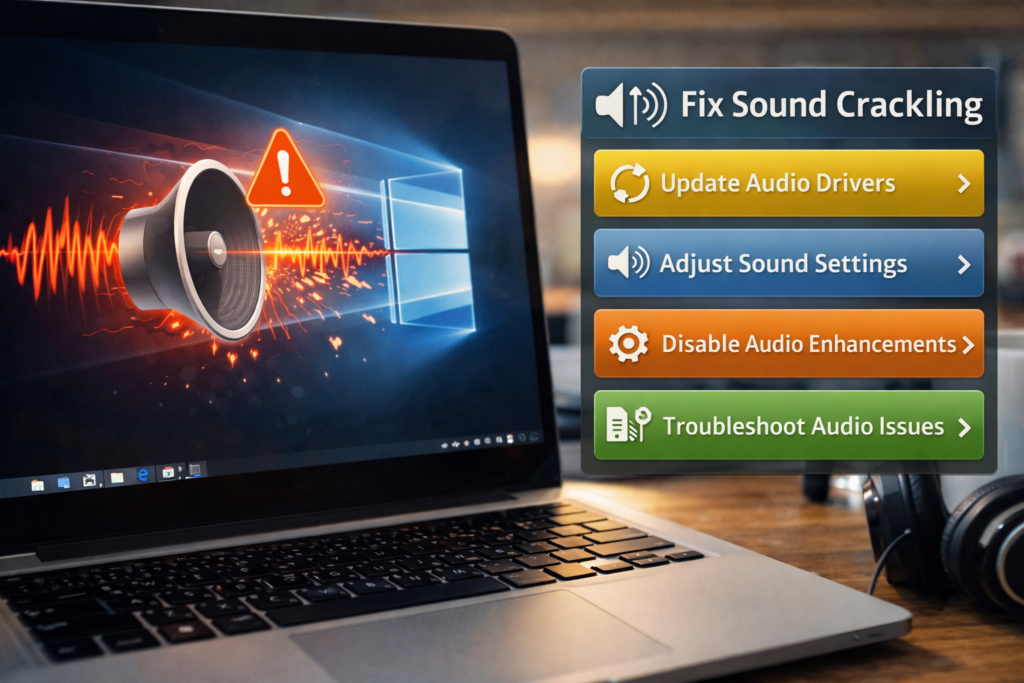
Step 10: Run Windows Audio Troubleshooter
Windows includes a built-in audio repair tool.
Run It:
- Open Settings
- Go to System
- Click Troubleshoot
- Select Other troubleshooters
- Run Playing Audio
This tool automatically checks common problems.
🛠️ Key Takeaway Box
Most sound crackling problems on Windows are caused by driver issues or incorrect audio settings — not hardware failure.
When Is It a Hardware Problem?
The issue may be hardware-related if:
- Crackling occurs on multiple devices
- Audio stops completely
- Speaker cables are damaged
- Laptop audio chip is faulty
In those cases, external USB sound adapters can often fix the issue cheaply.
Real-World Example
A remote worker noticed crackling audio during Zoom meetings.
The cause? Windows audio enhancements were enabled by default.
After disabling them, the sound returned to normal immediately.
How to Prevent Audio Problems
To avoid future sound crackling Windows issues:
- Keep drivers updated
- Avoid installing unnecessary audio software
- Use quality headphones or speakers
- Restart your PC regularly
- Keep Windows updated
Small maintenance steps help keep audio stable.
Frequently Asked Questions (FAQ)
1. Why is my audio crackling on Windows?
Usually because of outdated drivers, incorrect audio settings, or high CPU usage.
2. Can bad headphones cause crackling?
Yes. Damaged cables or poor connectors can produce crackling sounds.
3. Does updating drivers fix audio crackling?
In many cases, yes. Driver updates resolve compatibility issues.
4. Why does crackling happen during gaming?
Gaming uses heavy CPU and GPU resources, which may interrupt audio processing.
5. Can Windows updates cause audio issues?
Occasionally yes. Updating drivers usually resolves the problem.