Why an SSD Might Not Appear
Before fixing the issue, it helps to understand what’s happening.
Think of a storage drive like a new filing cabinet.
Even if the cabinet is physically in the room (your computer), Windows still needs to:
- Detect the hardware
- Initialize the drive
- Create a partition
- Assign a drive letter
If any of these steps are missing, your SSD problem appears.
According to Microsoft storage documentation, many new drives don’t appear in File Explorer until they are initialized in Disk Management.
Step 1: Check File Explorer First
Start with the simplest check.
- Open File Explorer
- Click This PC
Look under Devices and Drives.
If the SSD appears here, the system already recognizes it.
If not, continue with the steps below.
Step 2: Open Disk Management
Disk Management is the tool Windows uses to manage storage drives.
How to open it
- Press Win + X
- Click Disk Management
Wait a few seconds for Windows to scan all drives.
If your SSD is detected but not configured, you may see it listed as:
- Unallocated
- Not Initialized
- No drive letter
This is the most common cause of SSD not showing up issues.
⚡ Quick Fix Box
If your SSD appears in Disk Management but not in File Explorer:
- Initialize the disk
- Create a new volume
- Assign a drive letter
This fixes most detection problems.
Step 3: Initialize the SSD (For New Drives)
If the SSD shows Not Initialized, Windows hasn’t prepared it yet.
How to initialize
- In Disk Management
- Right-click the disk name (left side)
- Select Initialize Disk
Choose one of these options:
- GPT (Recommended) – modern systems
- MBR – older compatibility
For most Windows 10 or Windows 11 systems, choose GPT.
After initialization, the SSD should appear as Unallocated.
Step 4: Create a New Partition

Now Windows needs a usable storage section.
- Right-click Unallocated space
- Select New Simple Volume
- Follow the wizard
- Assign a drive letter
- Format using NTFS
Once completed, the SSD will appear in File Explorer.
Your SSD not showing up problem should now be solved.
Step 5: Assign a Drive Letter
Sometimes Windows detects the SSD but forgets to assign a letter.
Without a letter (like D: or E:), File Explorer can’t display the drive.
Fix:
- In Disk Management
- Right-click the partition
- Select Change Drive Letter and Paths
- Click Add
- Choose a letter
The SSD should instantly appear.
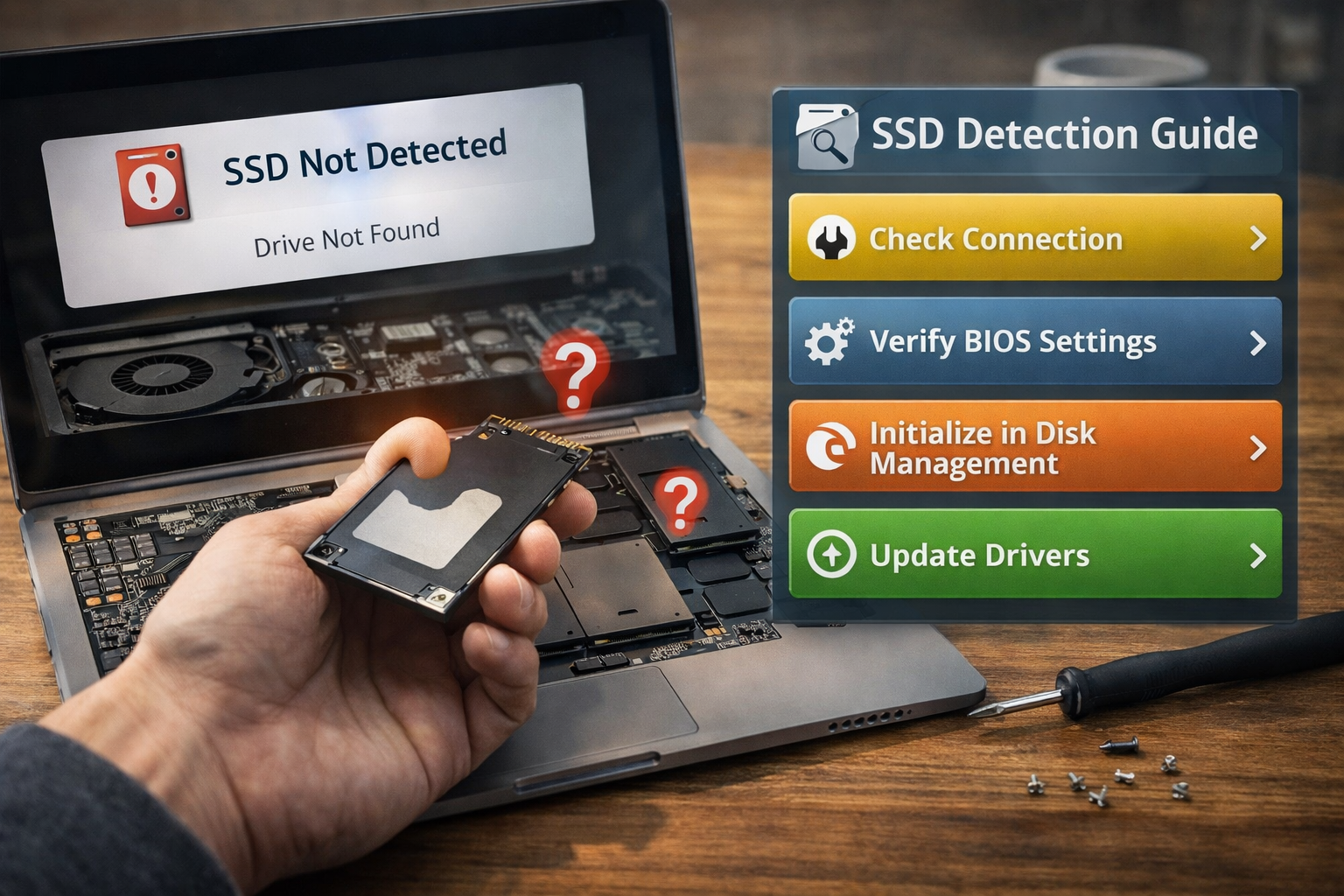
Step 6: Check Physical Connections
If the SSD still doesn’t appear, the connection may be the problem.
For desktop computers:
Check:
- SATA cable
- Power cable
- Motherboard SATA port
For laptops:
Check:
- M.2 SSD seating
- NVMe slot connection
Loose cables are a surprisingly common cause of SSD not showing up problems.
Step 7: Check BIOS / UEFI Detection
If Windows doesn’t detect the drive at all, verify BIOS detection.
How to check
- Restart computer
- Enter BIOS (usually DEL, F2, or F10)
- Look under Storage or Boot devices
If the SSD appears here, the hardware works.
If it does not appear in BIOS, the issue may be:
- Faulty cable
- Disabled port
- Hardware failure
Step 8: Update Storage Drivers
Outdated storage drivers can prevent detection.
Update:
- SATA controller drivers
- NVMe drivers
- Motherboard chipset drivers
These updates are available from your motherboard or laptop manufacturer.
According to storage hardware vendors like Samsung and Western Digital, updated drivers can resolve compatibility issues with modern NVMe drives.
Step 9: Check Device Manager
- Press Win + X
- Open Device Manager
- Expand Disk drives
If your SSD appears here but not in File Explorer, the issue is likely configuration rather than hardware.
Step 10: Test the SSD on Another Computer
If the drive still doesn’t appear:
Try connecting the SSD to another system.
If it works there, your original system configuration needs adjustment.
If it fails on multiple systems, the SSD may be defective.
🛠 Key Takeaway Box
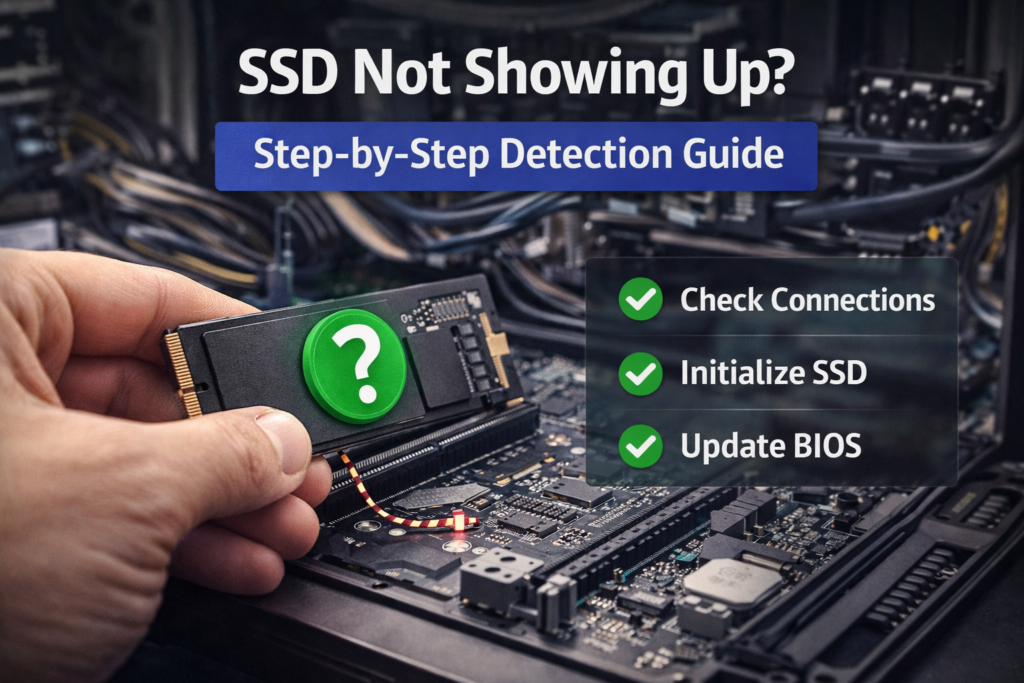
Most SSD detection issues occur because the drive hasn’t been initialized or assigned a drive letter — not because the drive is broken.
Common Scenarios Explained
New SSD Not Showing Up
Usually not initialized yet.
SSD Visible in BIOS but Not Windows
Partition or driver issue.
External SSD Not Showing
Possible USB cable or enclosure issue.
NVMe SSD Not Showing
Possible BIOS NVMe configuration or outdated chipset driver.
Real-World Example
A user installs a new 1TB SSD and panics because it doesn’t appear in File Explorer.
Disk Management shows:
Disk 1 – Not Initialized
After initializing the disk and creating a partition, the SSD appears instantly.
The drive was working the entire time.
How to Prevent SSD Detection Issues
- Install drives carefully
- Keep storage drivers updated
- Update motherboard BIOS when necessary
- Use quality SATA cables or NVMe slots
These steps prevent future SSD not showing up problems.
Frequently Asked Questions (FAQ)
1. Why is my SSD not showing up in File Explorer?
Most likely the drive hasn’t been initialized or assigned a drive letter.
2. Can an SSD fail suddenly?
Yes, but it’s less common than configuration issues.
3. Should I choose GPT or MBR?
GPT is recommended for modern systems and larger drives.
4. Why does my SSD show in BIOS but not Windows?
Windows may need partitioning or driver updates.
5. Will initializing an SSD erase data?
If it’s a new drive, there is no data yet. On used drives, initialization may remove existing partition information.