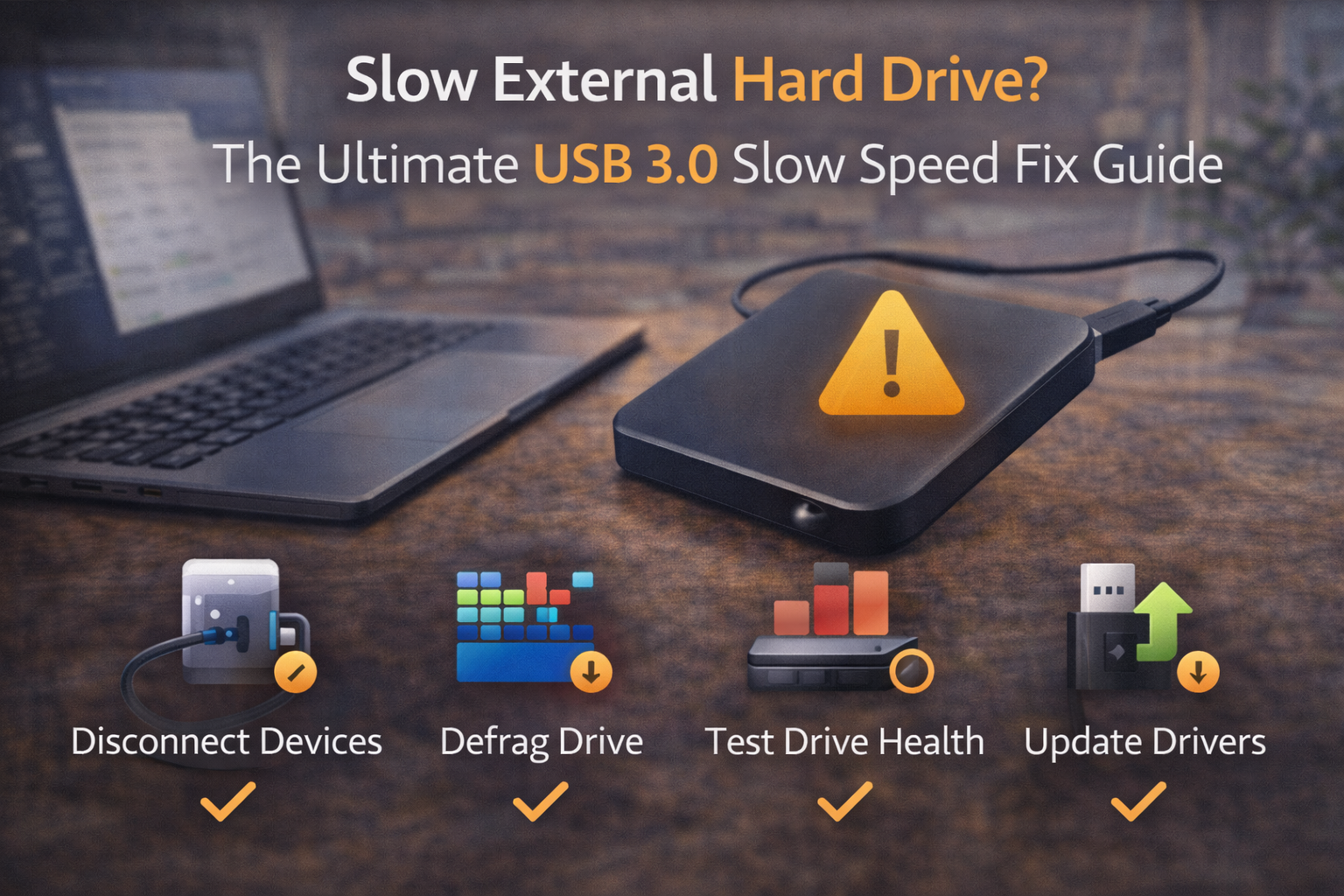
Slow External Hard Drive? The Ultimate USB 3.0 Slow Speed Fix Guide

Difficulty Level: Beginner / Basic User
What USB 3.0 Speed Should You Expect?
USB 3.0 (also known as USB 3.2 Gen 1) supports up to 5 Gbps in theory. In real-world use, external hard drives typically reach:
- 80–150 MB/s for HDDs
- 300–450 MB/s for SSDs
If you’re seeing speeds far below this, something is wrong.
Definition Box
USB 3.0 (USB 3.2 Gen 1)
A USB standard designed for faster data transfer, offering up to 5 Gbps compared to USB 2.0’s 480 Mbps.
According to specifications from the USB Implementers Forum, correct cables, ports, and drivers are essential to reach expected speeds.
Step 1: Confirm You’re Using a Real USB 3.0 Port
Not all USB ports are equal.
What to check:
- Blue-colored USB ports usually indicate USB 3.0
- “SS” (SuperSpeed) logo near the port
- Avoid front-panel ports on desktops for testing
Key Takeaway Box
Plugging a USB 3.0 drive into a USB 2.0 port instantly limits speed.
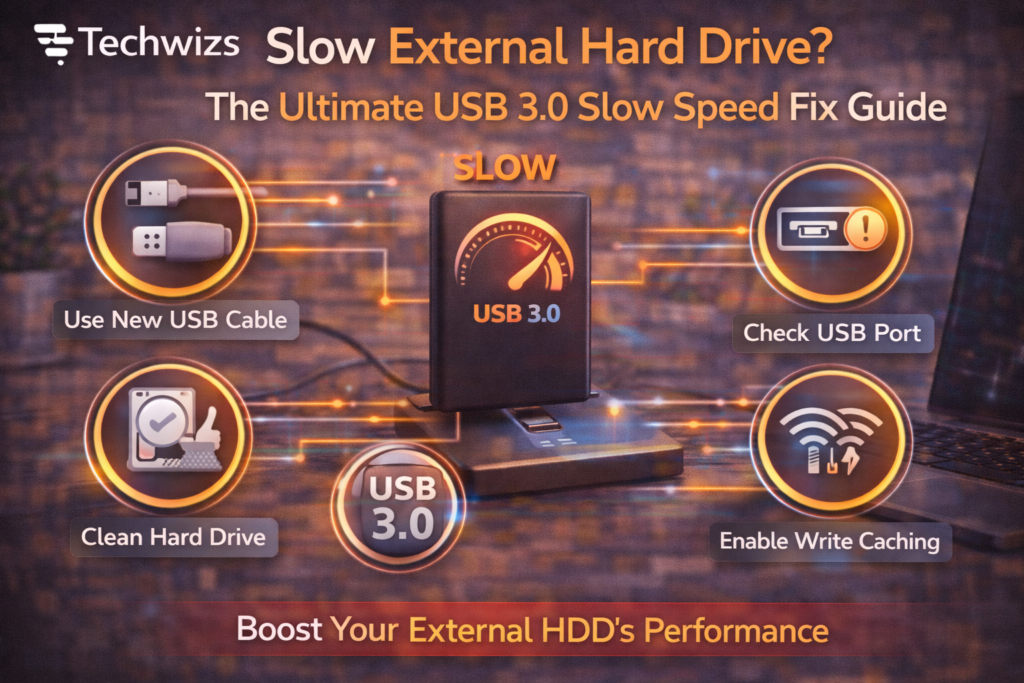
Step 2: Replace the USB Cable (Often the Real Culprit)
A poor or damaged cable can silently force USB 2.0 speeds.
Fix:
- Use a short, high-quality USB 3.0 cable
- Avoid cheap or very long cables
- Replace cables older than a few years
Step 3: Check File Copy Type (Small Files Are Slower)
Copying thousands of small files is much slower than large files.
Why this happens:
- File system overhead
- HDD seek limitations
Solution:
- Zip many small files into one archive
- Copy folders in batches
Step 4: Disable USB Power Saving
Power management can throttle performance.
On Windows:
- Device Manager → USB Root Hub
- Disable “Allow the computer to turn off…”
Microsoft notes that aggressive power-saving can reduce peripheral performance under load.
Step 5: Change Write Caching Policy (Windows)
Write caching improves transfer speed.
How:
- Device Manager → Disk Drives
- Enable “Better performance”
- Safely eject drives after use
Quick Fix Box
Enabling write caching often doubles sustained transfer speed.
Step 6: Scan for Drive Errors
File system errors slow everything down.
What to do:
- Run disk check (CHKDSK or equivalent)
- Repair detected errors
Step 7: Check Drive Format
Some formats perform better depending on OS.
General guidance:
- Windows-only: NTFS
- Cross-platform: exFAT
- Avoid FAT32 for large transfers
Step 8: Watch Background Activity
Background processes steal bandwidth.
Check for:
- Antivirus scans
- Cloud sync tools
- Indexing services
Pause them during large transfers.
Step 9: Test Another Computer or Port
This isolates the problem.
- Fast elsewhere → your system is the issue
- Slow everywhere → drive or cable problem
Step 10: Accept HDD Limitations
Mechanical drives have limits.
If you need:
- Faster backups
- Frequent large transfers
An SSD may be the better choice.
FAQs: USB 3.0 Slow Speed
1) Why is USB 3.0 as slow as USB 2.0?
Wrong port, bad cable, or power saving is usually the cause.
2) Does USB hub affect speed?
Yes, especially unpowered hubs.
3) Can formatting improve speed?
Yes, especially if the file system is mismatched.
4) Are external HDDs always slow?
They’re slower than SSDs, but should still exceed USB 2.0 speeds.
5) Should I upgrade to USB-C?
USB-C helps, but speed depends on the USB standard, not the connector.