The Slow Charge Mystery: How to Diagnose and Fix USB-C Slow Charging on Your Laptop

Difficulty Level: Beginner
Why Your Laptop Suffers From USB-C Slow Charging (And Why It Happens Unexpectedly)
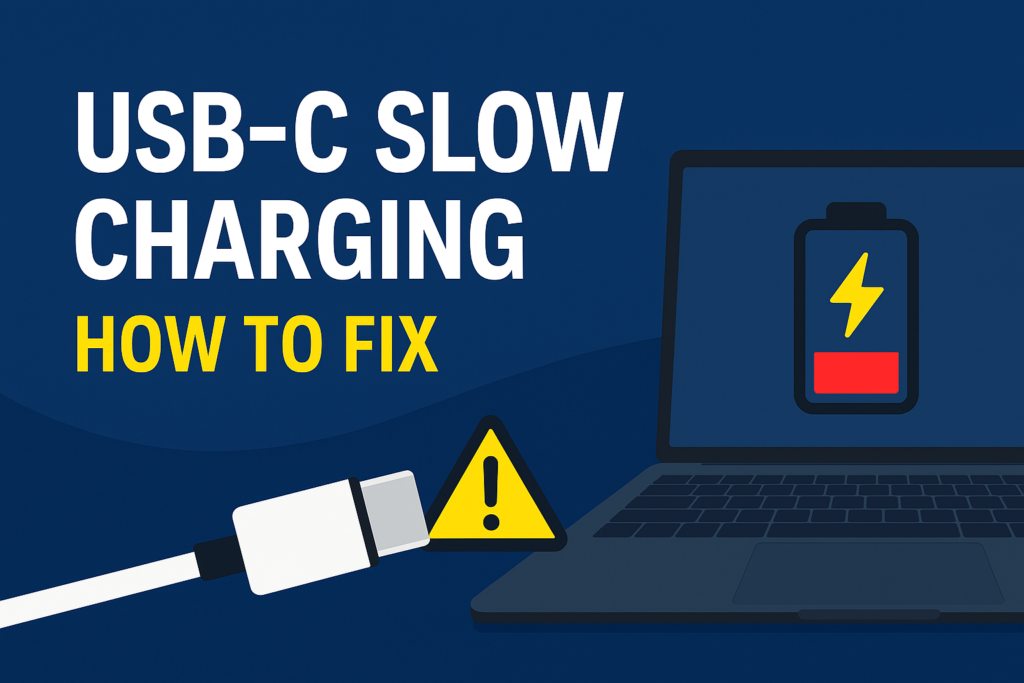
If you’ve ever plugged in your laptop and noticed it barely charges, drains while plugged in, or displays “Charging Slowly,” you’re facing USB-C slow charging — one of the most common problems for modern laptops. Because USB-C has many power standards, cable types, and charging protocols, your laptop may not receive the wattage it needs even if “everything looks correct.”
This guide will show you the real causes, the practical fixes, and the simple checks you can perform at home.
How USB-C Power Works and Why Slow Charging Happens
Charger Wattage Mismatch
Most laptops require 45W, 65W, 90W, or 140W.
Many third-party chargers only output 20–30W, causing slow charging.
What to do
- Look at your original charger wattage
- Compare it to your third-party charger
- Replace if wattage is below your laptop’s requirement
Cable Limitations and Low-Quality USB-C Cables
Your cable is often the hidden cause.
Basic USB-C cables only support 15–30W, even if your charger can deliver 100W.
How to test
- Try a 100W or 240W E-Marked USB-C cable
- If speed improves → cable was the bottleneck
Charging Protocol Issues (PD / PPS Compatibility)
Laptops rely on USB-C Power Delivery (PD).
Older chargers without full PD support can fall back to low-power charging modes.
Wrong USB-C Port Being Used
Some ports are power-in, while others are for display or data only.
Look for the charging icon ⚡.
If you plug into the wrong port → charging is slow or inconsistent.
Step-By-Step Guide to Fix USB-C Slow Charging
Step 1 — Verify the Correct Charger Wattage
Compare:
- Laptop wattage requirement
- Charger output rating
If the charger wattage is lower → slow charging is expected.
Step 2 — Test With a Proper USB-C Cable
A low-quality cable throttles power.
Use a cable rated 100W+.
Step 3 — Clean and Inspect USB-C Ports
Dust and debris block proper contact.
Clean gently using compressed air or a soft brush.
Step 4 — Adjust Laptop Battery Settings
Both Windows and macOS have battery protection modes that intentionally slow charging.
Windows
Settings → Power → Disable Battery Smart Charging for testing.
macOS
System Settings → Battery → Turn off Optimized Charging temporarily.
Step 5 — Identify Hardware-Level Problems
If nothing improves:
- Port may be damaged
- Battery health may be low
- Charging controller may be failing
You can check battery health with:
- Windows:
powercfg /batteryreport - macOS: System Information → Power
Key Takeaway Box: What Causes USB-C Slow Charging?
USB-C slow charging happens when your laptop receives less power than required.
Common causes include:
- Low-wattage chargers
- Non-PD chargers
- Weak or uncertified cables
- Wrong charging port
- Battery optimization settings
FAQ: Fixing USB-C Slow Charging
1. Why does my laptop say “Charging Slowly”?
Usually due to insufficient wattage or a weak cable.
2. Can my phone charger fast-charge a laptop?
No — most phone chargers output 20–30W, not enough for laptops.
3. Does USB-C slow charging harm the battery?
No — but it may prevent proper usage while plugged in.
4. How do I know if my USB-C cable supports fast charging?
Look for “E-Marked,” “100W,” or “PD” labels.
5. Do all USB-C ports support charging?
No. Some ports are data/display only.