Difficulty: Beginner
Why Are USB Ports Not Working?
When USB ports fail, it typically falls into one of four categories:
- Driver Issues
- Power Management Problems
- Physical Damage
- Motherboard or BIOS Configuration Errors
According to Microsoft Support documentation, corrupted or outdated USB drivers are one of the most common reasons devices fail to connect properly in Windows.
Before assuming hardware failure, always rule out software causes first.
Step 1: Check the Basics (Don’t Skip This)
Before diving into advanced troubleshooting:
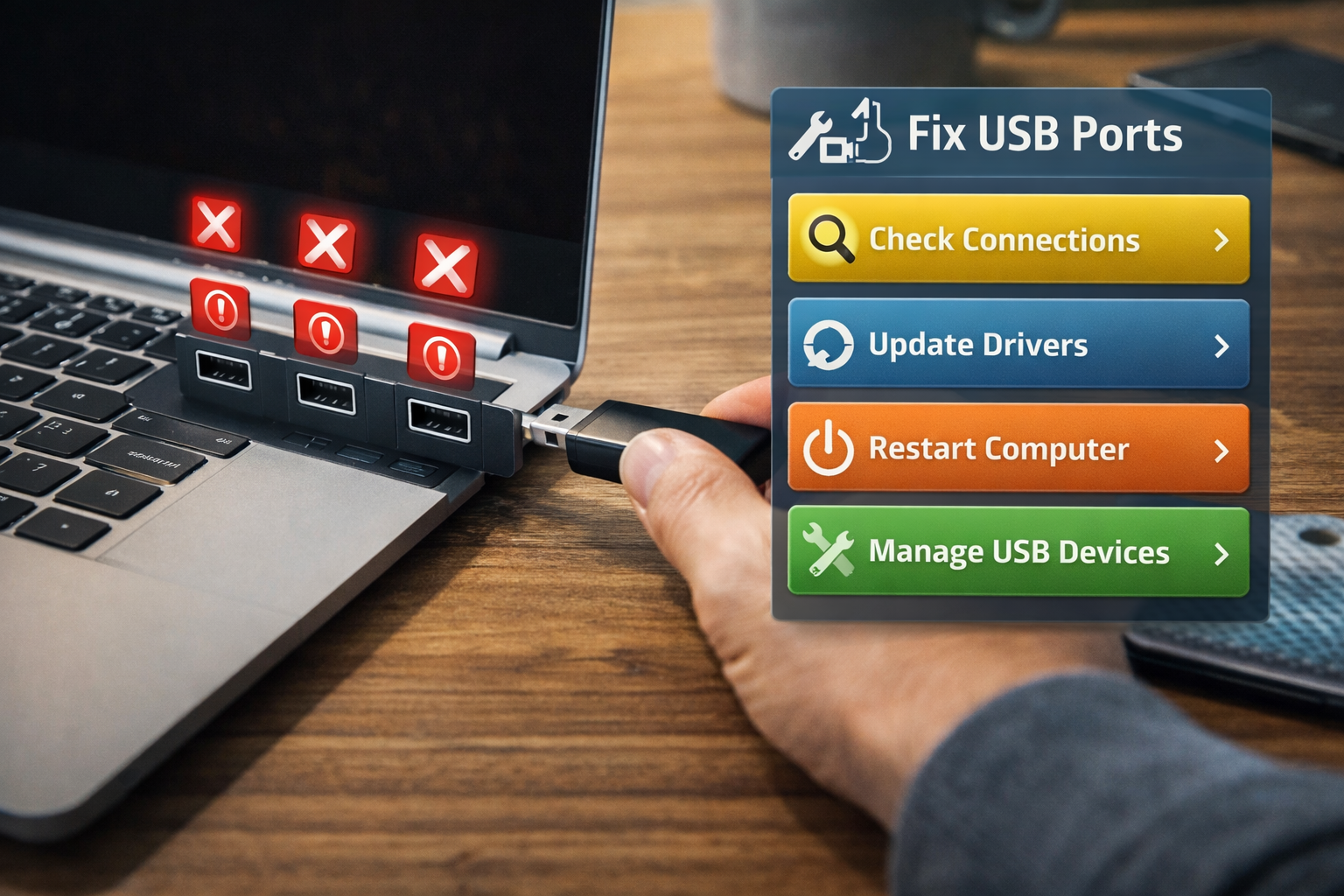
- Try another USB device
- Try a different USB port
- Restart your computer
- Test the device on another computer
If the device works elsewhere, the problem is likely your system — not the USB device.
🔎 Quick Diagnosis Box
If:
- Only one USB port fails → likely physical damage
- All USB ports fail → likely driver or power issue
- USB works after restart → likely power management issue
Step 2: Check for Physical Damage
Look closely inside the USB port:
- Bent pins?
- Dust or debris?
- Loose internal connector?
Use compressed air to clean the port. Never insert metal objects.
If your USB ports not working issue is caused by physical damage, repair or motherboard replacement may be required.
Step 3: Restart Windows USB Services
Sometimes Windows USB services crash silently.
- Press Win + R
- Type
devmgmt.msc - Open Device Manager
- Expand Universal Serial Bus controllers
If you see a yellow warning icon, that indicates a driver problem.
Step 4: Reinstall USB Drivers (Most Effective Fix)
This solves many USB ports not working problems.
- Open Device Manager
- Expand Universal Serial Bus controllers
- Right-click each:
- USB Root Hub
- Generic USB Hub
- USB Host Controller
- Select Uninstall device
- Restart your computer
Windows will automatically reinstall fresh drivers.
This step alone resolves most Windows USB failures.
Step 5: Disable USB Power Management
Windows sometimes turns off USB ports to save power.
- Open Device Manager
- Expand Universal Serial Bus controllers
- Right-click USB Root Hub
- Select Properties
- Go to Power Management
- Uncheck: Allow the computer to turn off this device to save power
Repeat for each Root Hub.
This is especially common on laptops.
Step 6: Check Windows Power Plan Settings
- Open Control Panel
- Go to Power Options
- Select your active plan
- Click Change advanced power settings
- Expand USB settings
- Disable USB selective suspend
USB selective suspend can cause USB ports not working randomly after sleep mode.
Step 7: Update Chipset Drivers
Your motherboard chipset controls USB functionality.
Go to:
- Your laptop manufacturer website
- Or motherboard manufacturer site
Download the latest:
- Chipset driver
- USB controller driver
According to Intel and AMD documentation, outdated chipset drivers can interfere with USB communication stability.
Step 8: Check BIOS / UEFI Settings
If all USB ports not working, BIOS may have USB disabled.
- Restart computer
- Enter BIOS (usually F2, DEL, or F10)
- Locate USB Configuration
- Ensure:
- USB Controller → Enabled
- Legacy USB Support → Enabled
Save and exit.
Be careful not to change unrelated settings.
Step 9: Check for Windows Updates
Corrupted system files can cause USB issues.
- Go to Settings → Windows Update
- Install all pending updates
- Restart system
If the issue began after an update, consider rolling back the update.
Step 10: Test in Safe Mode
Booting into Safe Mode helps determine if third-party software is interfering.
If USB works in Safe Mode:
- Recently installed software may be the cause
- Uninstall recent programs
When Is It a Hardware Failure?
Your USB ports not working issue is likely hardware-related if:
- Ports feel loose
- No power is detected
- BIOS reset doesn’t help
- Drivers reinstall doesn’t fix anything
- Front panel USB ports fail but rear ports work
In desktops, front USB ports connect via cable to motherboard — these cables can loosen.
🛠️ Key Takeaway Box
Most USB ports not working problems are software-related.
Always try driver reinstall and power management fixes before assuming hardware damage.
Common USB Port Scenarios
USB Works for Charging but Not Data
Likely:
- Data pin damage
- Driver corruption
Only USB 3.0 Ports Not Working
Possible causes:
- Missing USB 3.0 driver
- Chipset issue
USB Stops Working After Sleep
Disable:
- USB selective suspend
- Power management shutdown
Real-World Example
A business user reported all USB ports stopped working after a Windows update. The fix?
Reinstalling USB host controllers and disabling power management restored full functionality within 10 minutes.
No hardware replacement required.
How to Prevent USB Port Issues
- Avoid forcing USB connectors
- Use surge protectors
- Keep drivers updated
- Avoid cheap USB hubs
- Regularly update Windows
Display industry data shows that power surges and poor-quality hubs are common causes of USB controller failure in desktops.
Frequently Asked Questions (FAQ)
1. Why are my USB ports not working suddenly?
It’s usually caused by driver corruption, power management settings, or a recent Windows update.
2. Can a virus cause USB ports to stop working?
Yes, malware can disable USB drivers or interfere with system services.
3. Why does only one USB port not work?
That usually indicates physical damage or a loose internal connection.
4. How do I reset USB ports in Windows?
Uninstall all USB controllers in Device Manager and restart your PC.
5. Do I need to replace my motherboard?
Only if all troubleshooting steps fail and hardware damage is confirmed.