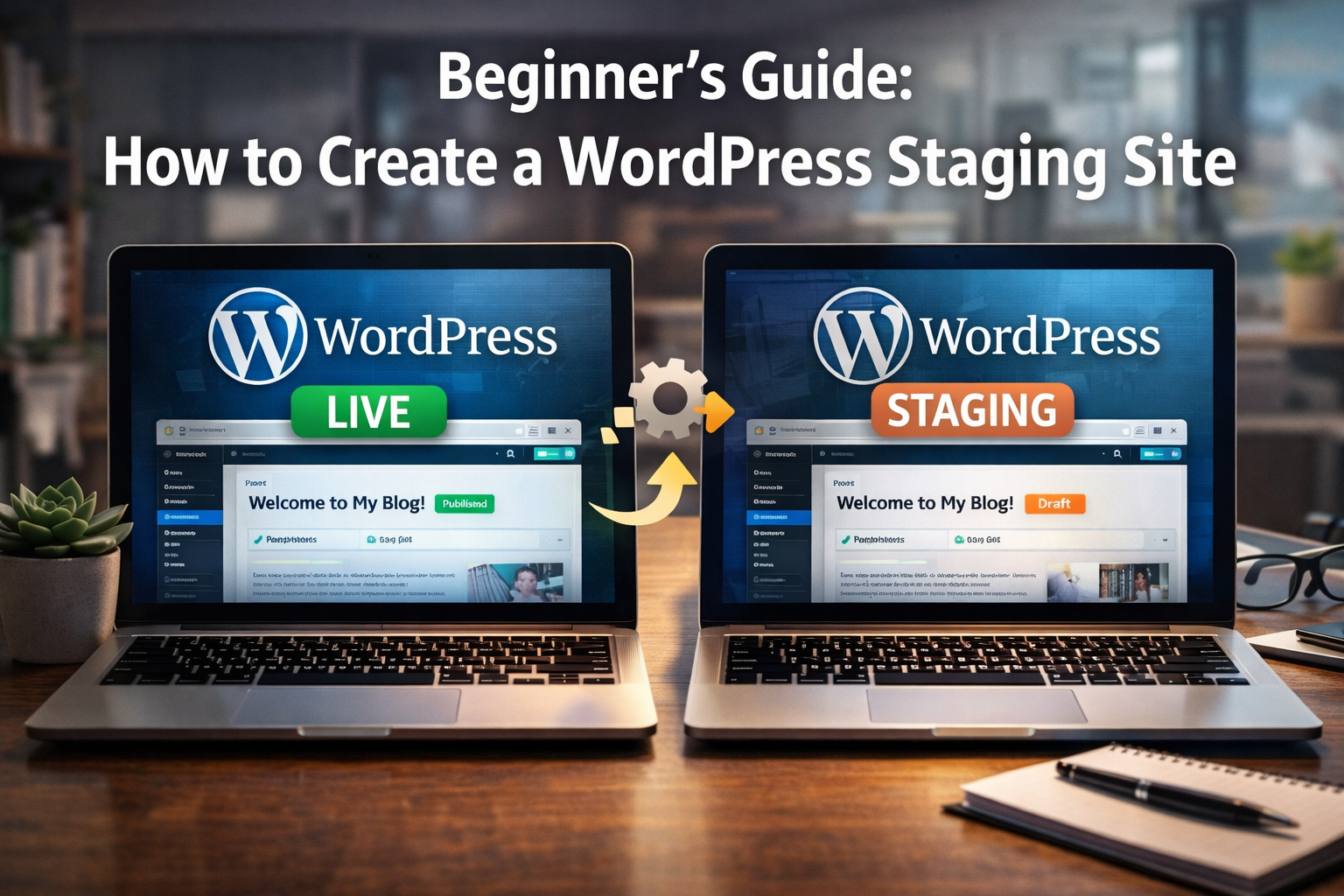
Difficulty: Beginner
What Is a WordPress Staging Site? (Simple Explanation)
Think of your website like a restaurant kitchen.
- Your live website = the kitchen serving real customers
- Your staging site = a test kitchen where you try new recipes
If something goes wrong in the test kitchen, customers never notice.
👉 A WordPress staging site is simply a duplicate of your website where you can:
- Test plugins
- Update themes
- Try new designs
- Fix bugs
…without risking your actual site.
Why You Should Use a WordPress Staging Site
If you update your live site directly, you risk:
- Website crashes
- Broken layouts
- Plugin conflicts
- Lost data
According to WordPress best practices and hosting providers, testing updates before applying them live is one of the most important steps in website maintenance.
🧠 Definition Box
Staging Site:
A private copy of your website used for testing changes before applying them to the live site.
3 Easy Ways to Create a WordPress Staging Site
There are three main ways to create a WordPress staging site:
- Using your hosting provider (easiest)
- Using a plugin (beginner-friendly)
- Manual method (advanced)
Let’s go step-by-step.
Method 1: Create Staging Site via Hosting (Easiest)
Most modern hosting providers offer 1-click staging.
Examples include:
- Hostinger
- SiteGround
- Bluehost
Steps:
- Log in to your hosting dashboard
- Find Staging or Website Tools
- Click Create Staging
- Wait for cloning to complete
That’s it — your WordPress staging site is ready.
👉 This method is best for beginners because:
- No technical setup
- Fast
- Safe
Method 2: Use a WordPress Plugin
If your host doesn’t support staging, use a plugin.
Popular options:
- WP Staging
- Duplicator
Steps:
- Go to Plugins → Add New
- Search for “WP Staging”
- Install and activate
- Click Create New Staging Site
- Choose what to copy
- Start cloning
The plugin creates a separate version of your site within your WordPress dashboard.
Method 3: Manual Staging Site (Advanced)
This method involves:
- Creating a subdomain (e.g., staging.yoursite.com)
- Copying website files
- Exporting/importing database
Simple Explanation:
Think of it like:
- Copying your entire house (files)
- Copying your furniture layout (database)
👉 This method is powerful but more technical — not recommended for beginners.
🔧 Quick Fix Box
If you’re a beginner, use:
✔️ Hosting staging (best)
✔️ Plugin (second best)
Avoid manual setup unless you’re comfortable with hosting and databases.
What Can You Do on a Staging Site?
Once your WordPress staging site is ready, you can safely:
- Update WordPress core
- Install new plugins
- Change themes
- Test design changes
- Fix errors
Nothing affects your live website until you publish changes.
How to Push Changes to Live Site
After testing:
- Go to your hosting dashboard (or plugin)
- Click Push to Live
- Confirm changes
👉 This replaces your live site with the tested version.
Always:
- Backup your live site first
- Double-check everything works
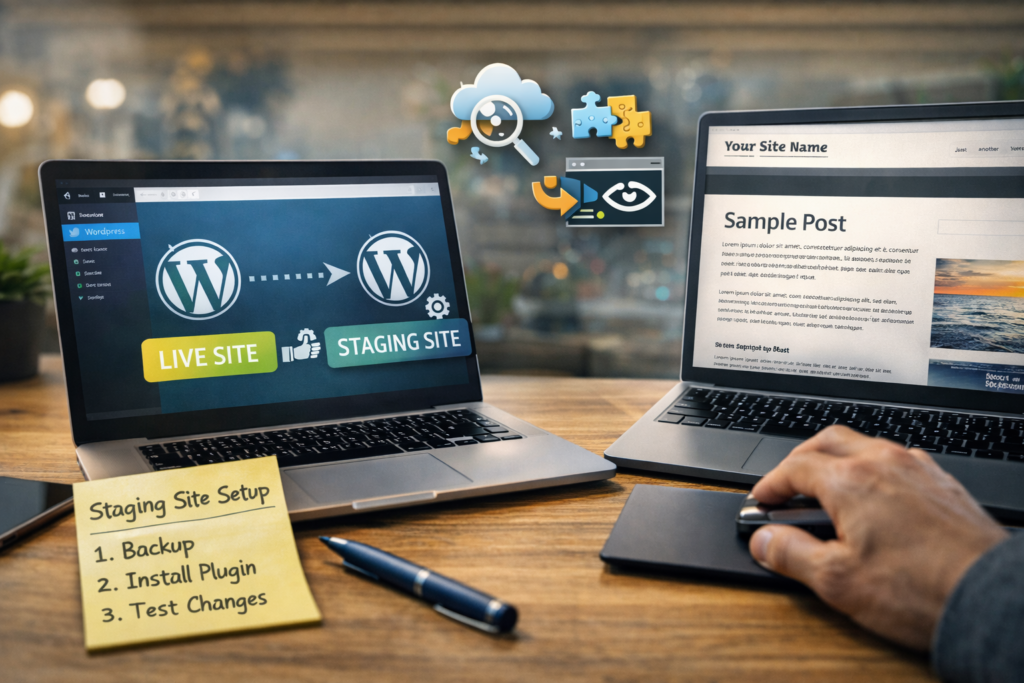
Common Mistakes to Avoid
❌ Editing Live Site Directly
Always use staging first.
❌ Forgetting to Update Links
Sometimes staging links remain when pushing live.
❌ Not Backing Up Before Deployment
Always keep a backup — just in case.
❌ Leaving Staging Site Public
Search engines should not index staging sites.
Real-World Example
Let’s say you want to install a new plugin for your Techwizs website.
Without staging:
- Plugin conflicts → site breaks → visitors see errors
With staging:
- Test plugin safely
- Fix issues
- Then publish
Result:
Zero downtime. Zero stress.
🛡️ Key Takeaway Box
A WordPress staging site lets you test changes safely before going live — protecting your website from errors and downtime.
When Should You Use a Staging Site?
Use staging when:
- Updating plugins
- Changing themes
- Redesigning your site
- Fixing bugs
- Testing performance improvements
Even small changes are safer in staging.
Frequently Asked Questions (FAQ)
1. Is a WordPress staging site free?
It depends. Some hosting providers include it for free, while plugins may have free and paid versions.
2. Will my visitors see the staging site?
No. Staging sites are private unless you make them public.
3. Do I need coding skills?
No. Most hosting and plugins are beginner-friendly.
4. Can I have multiple staging sites?
Yes, depending on your hosting plan or plugin.
5. Is staging necessary for small websites?
Yes. Even small sites can break from updates.