Difficulty: Beginner
What Is Caching (Explained Simply)?
To understand WordPress caching properly, imagine this situation:
You walk into a café and order a drink. The barista makes it from scratch every time.
Now imagine the café prepares popular drinks in advance and keeps them ready.
Customers get their drinks instantly.
That’s exactly how caching works.
Normally, WordPress builds pages dynamically by:
- Querying the database
- Loading plugins
- Processing PHP scripts
This takes time.
Caching creates a ready-made version of your page so visitors receive it instantly.
Why WordPress Caching Is Important
When WordPress caching properly is enabled, your website benefits from:
- Faster page load times
- Better Google rankings
- Reduced server resource usage
- Improved user experience
- Ability to handle more visitors
According to Google’s Web Performance research, slow websites significantly increase bounce rates, meaning visitors leave before the page finishes loading.
Speed matters.
Types of WordPress Caching (Simple Breakdown)
To implement WordPress caching properly, it helps to know the main types.
1️⃣ Page Cache
This is the most important type.
It stores a static version of your page so the server doesn’t rebuild it every time.
Example:
- A blog article that rarely changes
- Cached version loads instantly
2️⃣ Browser Cache
Browser caching stores files on the visitor’s device.
These include:
- Images
- CSS files
- JavaScript files
When visitors return to your website, their browser loads files locally instead of downloading them again.
Result: faster page loading.
3️⃣ Object Cache
This stores database query results.
Instead of asking the database repeatedly for the same information, the system remembers the result.
Object caching helps larger WordPress sites.
4️⃣ CDN Cache
A Content Delivery Network (CDN) stores copies of your website across multiple global servers.
Visitors receive content from the server closest to them.
This improves speed worldwide.
🧠 Definition Box
Caching:
A technique that stores pre-built website content so visitors receive pages instantly without the server rebuilding them every time.
Step-by-Step: How to Use Caching Properly on WordPress
Let’s walk through the easiest way to configure WordPress caching properly.
Step 1: Install a Caching Plugin
Most WordPress websites rely on caching plugins.
Popular options include:
- LiteSpeed Cache
- WP Rocket
- W3 Total Cache
- WP Super Cache
These plugins automate caching configuration.
For beginners, LiteSpeed Cache or WP Rocket are usually the easiest.
Step 2: Enable Page Cache
Once the plugin is installed:
- Go to plugin settings
- Enable Page Cache
This alone can reduce load time dramatically.
Most websites see improvements immediately.
Step 3: Enable Browser Caching
Inside your caching plugin:
Enable settings such as:
- Browser Cache
- Static file caching
This ensures returning visitors load your site faster.
Step 4: Enable Compression (GZIP or Brotli)
Compression reduces file size before sending them to visitors.
Think of it like zipping a file before sending an email.
Smaller files = faster loading.
Most caching plugins enable this automatically.
Step 5: Minify CSS and JavaScript
Minification removes unnecessary code elements like:
- Spaces
- Comments
- Formatting
The website still works the same, but files become smaller.
Enable:
- CSS minification
- JavaScript minification
Be careful not to break your site — test after enabling.
Step 6: Use Image Optimization
Images are often the biggest contributors to slow websites.
Use tools or plugins to:
- Compress images
- Convert to modern formats (like WebP)
- Lazy load images
Lazy loading means images only load when visitors scroll to them.
Step 7: Use a CDN (Optional but Powerful)
A CDN improves speed for international visitors.
Popular CDNs include:
- Cloudflare
- BunnyCDN
- KeyCDN
These services store copies of your website across global servers.
Visitors receive the closest version.
⚡ Quick Fix Box
To implement WordPress caching properly quickly:
- Install a caching plugin
- Enable Page Cache
- Enable Browser Cache
- Enable Compression
- Optimize images
These five steps alone can dramatically improve performance.
Common Caching Mistakes
Even when using caching plugins, mistakes can happen.
❌ Using Multiple Caching Plugins
Never install two caching plugins.
They conflict and may break your website.
❌ Forgetting to Clear Cache
When you update content, the cached version may still show.
Always clear cache after:
- Updating posts
- Installing plugins
- Changing themes
❌ Over-Minifying Scripts
Aggressive minification may break layouts or interactive features.
Always test after enabling.
Real-World Example
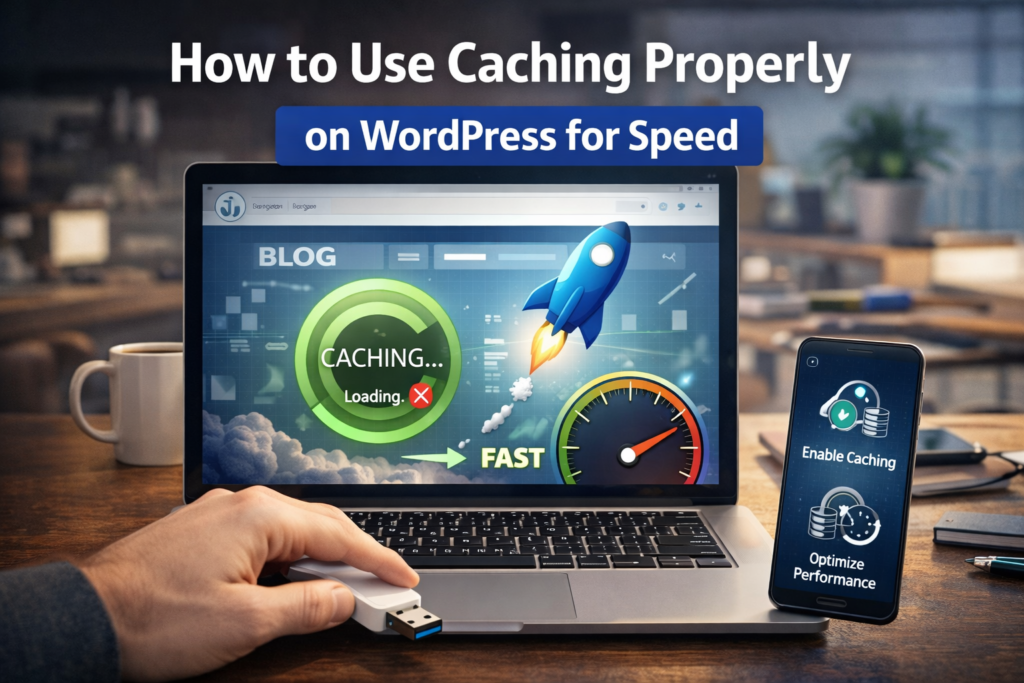
A blog running on shared hosting had page load times of 4.5 seconds.
After enabling:
- Page caching
- Image compression
- Browser caching
Load time dropped to 1.6 seconds.
No server upgrade required.
This demonstrates the power of WordPress caching properly configured.
How to Test Your Website Speed
After configuring caching, measure improvements.
Use tools like:
- Google PageSpeed Insights
- GTmetrix
- Pingdom
These tools identify remaining performance issues.
🛡️ Key Takeaway Box
WordPress caching is one of the easiest ways to speed up a website without upgrading hosting or changing your website design.
When Caching May Not Work Perfectly
Some pages should not be cached, such as:
- Shopping cart pages
- Checkout pages
- User account pages
These require real-time updates.
Most caching plugins automatically exclude them.
Frequently Asked Questions (FAQ)
1. Do I need caching if I have fast hosting?
Yes. Even fast hosting benefits from caching because it reduces server workload.
2. Can caching break my website?
Sometimes aggressive settings may cause layout issues, but most plugins include safe default settings.
3. How often should I clear WordPress cache?
Clear cache whenever you update website content or settings.
4. Is caching important for SEO?
Yes. Faster websites improve user experience and can positively impact search rankings.
5. Do beginners need a CDN?
Not always. CDN is useful when your visitors come from different countries.