Difficulty: Beginner
What Is Wi-Fi Channel Width? (Simple Explanation)
Before choosing the best Wi-Fi channel width, imagine your Wi-Fi signal as a road on a highway.
- Narrow road → fewer cars but less traffic jam
- Wide road → more cars but higher chance of congestion
Channel width is simply how wide the wireless “road” is for your internet traffic.
Common channel widths:
| Channel Width | What It Means |
|---|---|
| 20 MHz | Narrow lane (stable, less interference) |
| 40 MHz | Medium lane |
| 80 MHz | Wide lane (faster but more interference risk) |
| 160 MHz | Very wide lane (high speed but rarely needed at home) |
Choosing the best Wi-Fi channel width means balancing speed vs interference.
Understanding the Two Main Wi-Fi Bands
Most routers today use two frequencies:
2.4 GHz
- Longer range
- Slower speeds
- More interference from other devices
Used for:
- Smart home devices
- Older phones or laptops
- Long-distance coverage
5 GHz
- Much faster speeds
- Shorter range
- Less interference
Used for:
- Streaming
- Gaming
- Video calls
The best Wi-Fi channel width is different for each band.
Best Channel Width for 2.4 GHz
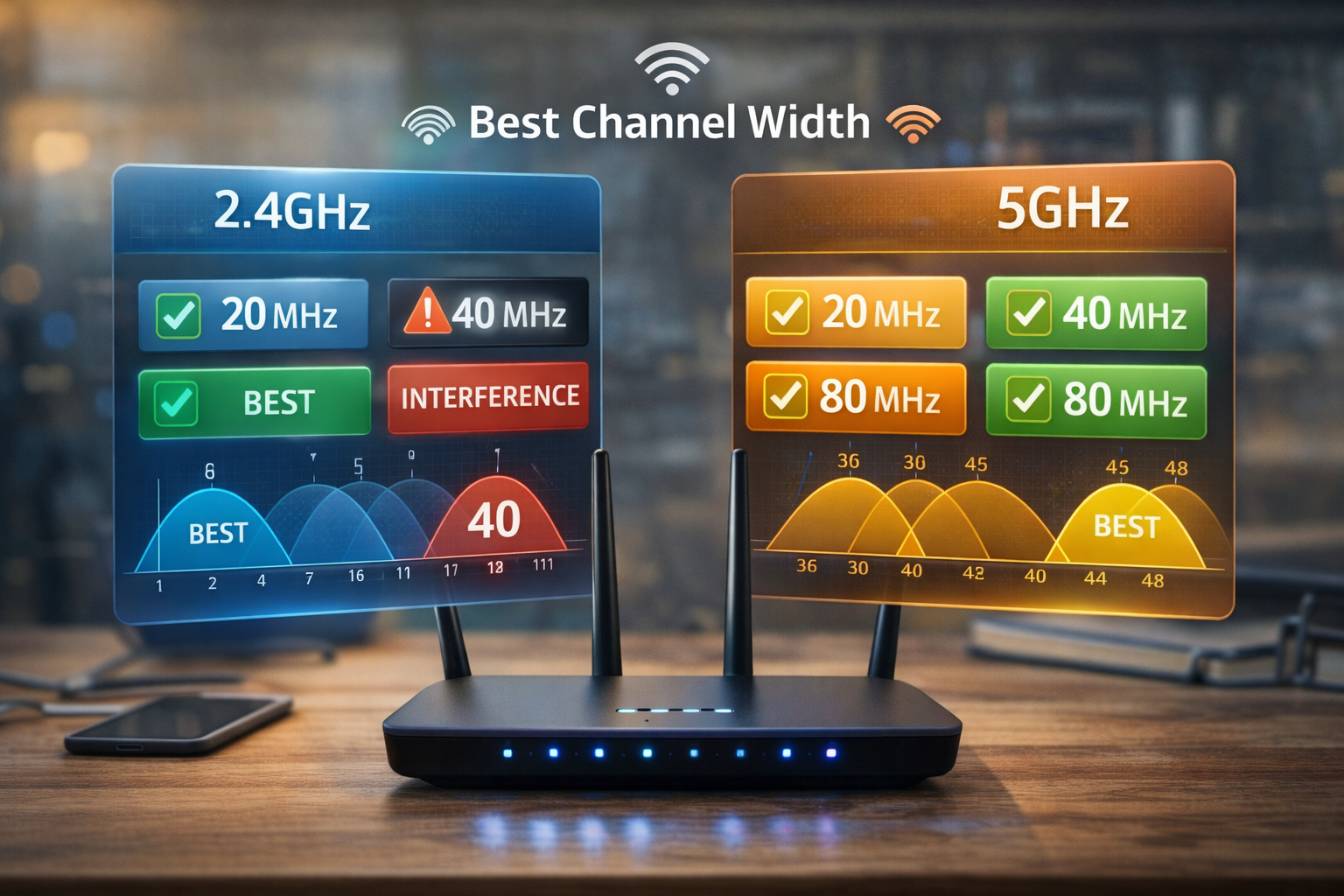
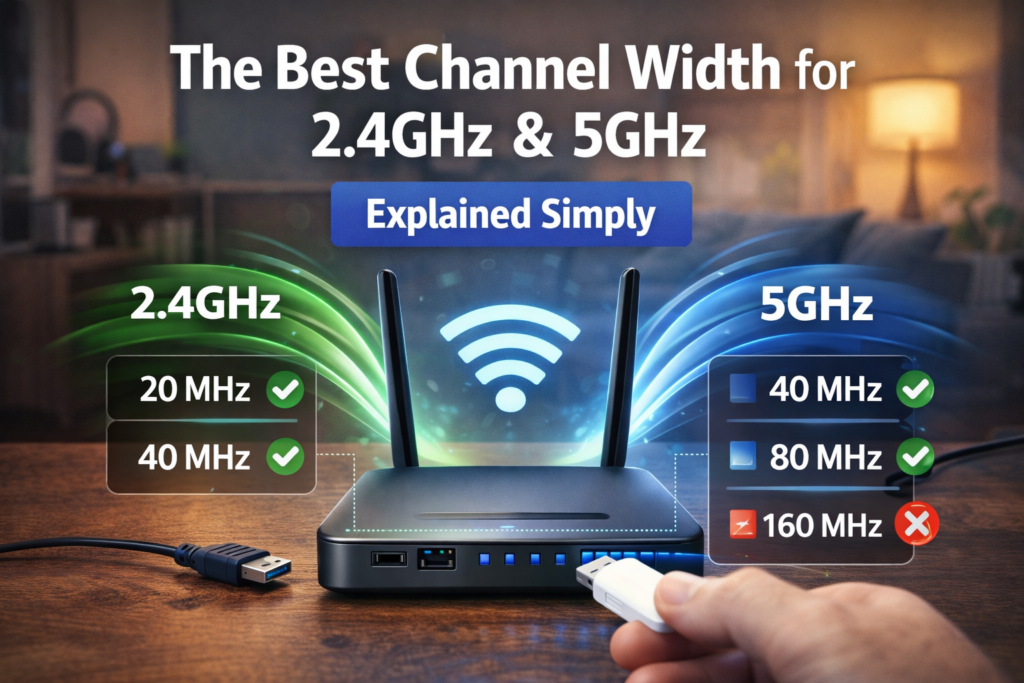
Recommended Setting: 20 MHz
Why?
2.4 GHz only has three non-overlapping channels:
- Channel 1
- Channel 6
- Channel 11
If you increase channel width to 40 MHz, the signal overlaps with neighboring networks.
This causes:
- Wi-Fi slowdown
- Packet loss
- Unstable connections
According to networking guidance from the Wi-Fi Alliance and router manufacturers, 20 MHz is the most reliable channel width for crowded 2.4 GHz environments.
🧠 Definition Box
Interference:
When multiple Wi-Fi networks compete on the same frequency, causing slower speeds and unstable connections.
Best Channel Width for 5 GHz
Recommended Settings:
- 40 MHz → Stable performance
- 80 MHz → Best speed for most homes
5 GHz has many more channels, so wider bandwidth is usually safe.
Using 80 MHz allows your router to transmit more data at once.
Think of it as opening more lanes on the highway for your devices.
Quick Recommendation Table
| Band | Best Channel Width | Why |
|---|---|---|
| 2.4 GHz | 20 MHz | Avoid interference |
| 5 GHz | 40–80 MHz | Faster speeds |
| 5 GHz (dense apartments) | 40 MHz | Less congestion |
⚡ Quick Fix Box
If your Wi-Fi is slow, try these settings first:
2.4 GHz
- Channel: 1, 6, or 11
- Width: 20 MHz
5 GHz
- Channel: Auto
- Width: 80 MHz
These settings work best for most home networks.
When Should You Use 40 MHz on 2.4 GHz?
Almost never.
The only time it may help is:
- Rural areas
- Very few nearby networks
- Minimal interference
In cities or apartments, 40 MHz usually causes congestion.
When Should You Use 80 MHz on 5 GHz?
80 MHz is ideal if:
- You stream 4K video
- You play online games
- You transfer large files
- Your router and devices support it
Most modern routers default to 80 MHz for 5 GHz.
When 160 MHz Channel Width Makes Sense
160 MHz is very wide and rarely needed.
You should only use it if:
- You have Wi-Fi 6E or Wi-Fi 7 devices
- You live in a low-interference area
- You have a multi-gigabit internet connection
Otherwise, it may cause instability.
Real-World Example
Imagine a typical home:
Devices connected:
- 2 smartphones
- 1 smart TV
- 1 laptop
- 6 smart home devices
Best setup:
2.4 GHz → 20 MHz for IoT devices
5 GHz → 80 MHz for streaming and laptops
This setup balances stability and performance.
Why Auto Settings Sometimes Fail
Many routers default to Auto channel width, but this is not always optimal.
Auto mode may:
- Choose overly wide channels
- Cause interference with neighbors
Manual configuration often improves performance.
🛡️ Key Takeaway Box
The best Wi-Fi channel width is not the widest option — it’s the one that avoids interference while providing enough bandwidth for your devices.
Signs Your Channel Width Is Wrong
Watch for these symptoms:
- Wi-Fi drops frequently
- High latency while gaming
- Slow speeds despite fast internet plan
- Smart home devices disconnecting
Adjusting channel width often solves these issues.
Bonus Tip: Scan Your Wi-Fi Environment
Use apps such as:
- WiFi Analyzer (Android)
- NetSpot
- Airport Utility (iOS)
These tools show which channels nearby networks are using.
Selecting less crowded channels improves performance.
Frequently Asked Questions (FAQ)
1. What is the best channel width for 2.4 GHz?
20 MHz is best because it minimizes interference with nearby networks.
2. Should I use 40 MHz on 2.4 GHz?
Usually no. It often causes overlapping channels and slower Wi-Fi.
3. What is the best channel width for 5 GHz?
80 MHz provides the best balance between speed and stability for most homes.
4. Is wider channel width always faster?
Not always. Wider channels can increase interference, which actually reduces speed.
5. Should I leave channel width on Auto?
Auto works in many cases, but manual settings often perform better in crowded areas.