Difficulty: Beginner
Why Browser Privacy Matters
Every time you visit a website, small pieces of data are stored in your browser. These include:
- Cookies
- Tracking scripts
- Advertising identifiers
- Browser fingerprint data
These technologies help websites remember you, but they also allow advertisers and analytics companies to follow your activity across the internet.
According to privacy research published by the Electronic Frontier Foundation (EFF), most websites include third-party tracking scripts that collect user behavior data.
That’s why adjusting your browser privacy settings is one of the simplest ways to improve online security.
What Happens If You Don’t Protect Your Browser?
Without proper privacy controls:
- Advertisers track your browsing habits
- Data brokers collect behavioral data
- Websites build a digital profile about you
- Targeted ads follow you across the web
This is why you sometimes search for something once and suddenly see ads everywhere.
Your browser settings determine how much of this tracking is allowed.
🧠 Definition Box
Browser Tracking:
The process where websites and advertising networks collect information about your browsing activity to analyze behavior or show targeted ads.
Step 1: Enable Strict Privacy Settings
Most modern browsers include built-in privacy controls.
Google Chrome
- Open Settings
- Go to Privacy and Security
- Enable:
- Send “Do Not Track” request
- Block third-party cookies
Microsoft Edge
- Go to Settings → Privacy, Search, and Services
- Select Strict tracking prevention
Firefox
Firefox already prioritizes privacy.
- Go to Settings
- Select Enhanced Tracking Protection → Strict
Adjusting these browser privacy settings reduces many tracking attempts automatically.
Step 2: Block Third-Party Cookies
Cookies are small files websites store on your device.
First-party cookies help websites remember login sessions.
But third-party cookies allow advertisers to track you across different websites.
Blocking them significantly improves privacy.
Most browsers now allow this option in privacy settings.
⚡ Quick Fix Box
If you want fast privacy improvement:
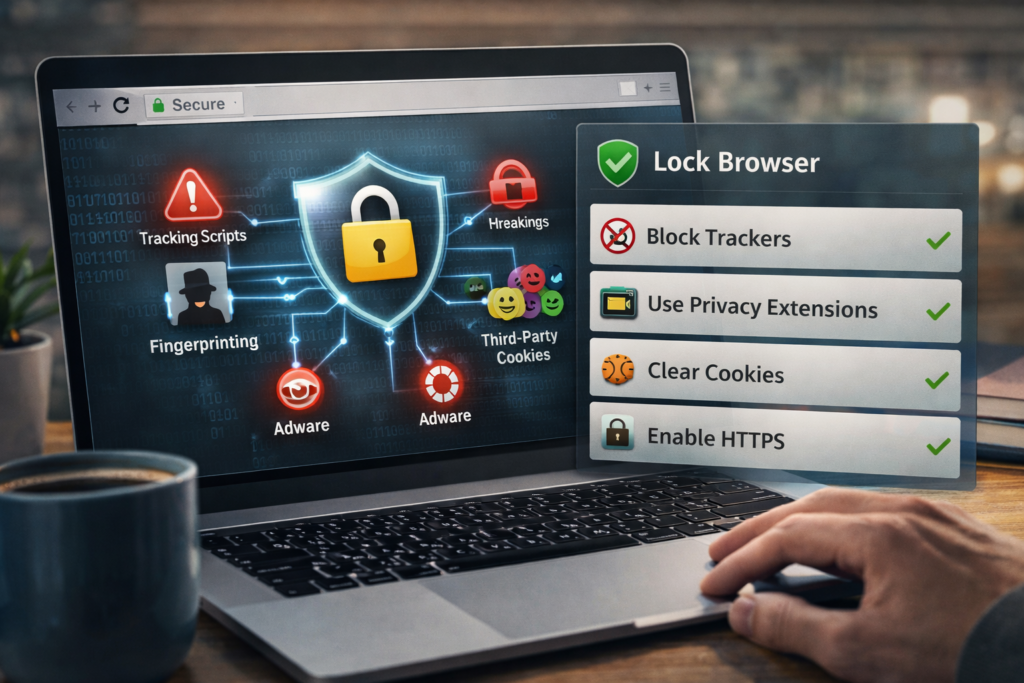
✔ Block third-party cookies
✔ Enable strict tracking protection
✔ Install a tracker-blocking extension
✔ Use private search engines
These four steps dramatically improve browser privacy.
Step 3: Install Privacy Extensions
Browser extensions help block tracking scripts and ads.
Popular privacy tools include:
- uBlock Origin – blocks ads and trackers
- Privacy Badger – automatically blocks trackers
- DuckDuckGo Privacy Essentials – privacy-focused browsing protection
These extensions enhance your browser privacy settings by stopping scripts before they load.
Step 4: Use a Privacy-Focused Search Engine
Search engines collect significant browsing data.
Instead of traditional search engines, consider:
- DuckDuckGo
- Startpage
- Brave Search
These services do not store personal search history.
This helps prevent your browsing behavior from being linked to your identity.
Step 5: Disable Browser Sync (If Privacy Is Critical)
Browser sync connects your bookmarks, history, and passwords across devices.
However, syncing may store data in cloud accounts.
If maximum privacy is your goal, disable unnecessary sync features.
Step 6: Clear Cookies and History Regularly
Even with strong browser privacy settings, stored data can accumulate.
To clear it:
- Open Browser Settings
- Go to Clear browsing data
- Select:
- Cookies
- Cached files
- Browsing history
Doing this regularly removes stored trackers.
Step 7: Enable HTTPS-Only Mode
HTTPS encrypts communication between your browser and websites.
Most browsers support HTTPS-only mode.
Why It Matters
Without HTTPS, attackers on public networks could intercept traffic.
Encryption protects:
- Login credentials
- Payment details
- Personal messages
Step 8: Manage Site Permissions Carefully
Many websites request access to:
- Location
- Camera
- Microphone
- Notifications
Review and remove permissions you don’t need.
In most browsers:
Settings → Privacy → Site permissions
Limiting these permissions strengthens your browser privacy settings.
Step 9: Consider a Privacy-Focused Browser
Some browsers are designed with privacy as a priority.
Examples include:
- Brave – built-in tracker blocking
- Firefox – strong privacy protections
- Tor Browser – extreme anonymity
Tor provides the highest privacy but may slow browsing speed.
Step 10: Avoid Suspicious Browser Extensions
Extensions can access browsing data.
Before installing:
- Check developer reputation
- Read reviews
- Avoid unnecessary extensions
A malicious extension can bypass your browser privacy settings entirely.
🛡️ Key Takeaway Box
Improving browser privacy does not require advanced technical skills. Simple adjustments to browser privacy settings and installing trusted privacy tools can significantly reduce online tracking.
Real-World Example
Imagine visiting a shopping website.
Without privacy protections:
- Advertising networks track your visit
- Your activity is shared with data brokers
- Targeted ads appear on social media later
With stronger browser privacy settings, most tracking scripts never load, protecting your browsing behavior.
Balancing Privacy and Convenience
More privacy may slightly affect convenience.
For example:
- Some websites may require cookies
- Strict settings may block certain features
You can adjust settings per website if needed.
Frequently Asked Questions (FAQ)
1. What browser has the best privacy?
Firefox and Brave are widely considered among the best mainstream browsers for privacy.
2. Do private browsing modes protect privacy?
Private browsing only prevents local history storage. It does not stop websites from tracking you.
3. Are browser extensions safe?
Only install trusted extensions from reputable developers.
4. Does a VPN improve browser privacy?
Yes. A VPN hides your IP address from websites and your internet provider.
5. Should I clear cookies regularly?
Yes. Clearing cookies removes stored trackers and session data.