Difficulty: Beginner
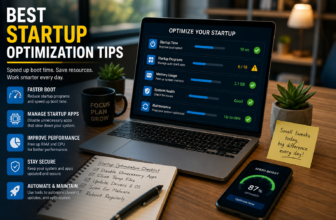
Why Windows 10/11 Startup Becomes Slow
Definition Box – Slow Windows Startup
Slow Windows startup refers to extended boot times caused by software loading delays, system misconfigurations, or hardware limitations.
According to Microsoft support documentation, most startup delays are software-related—not hardware failure. Common causes include:
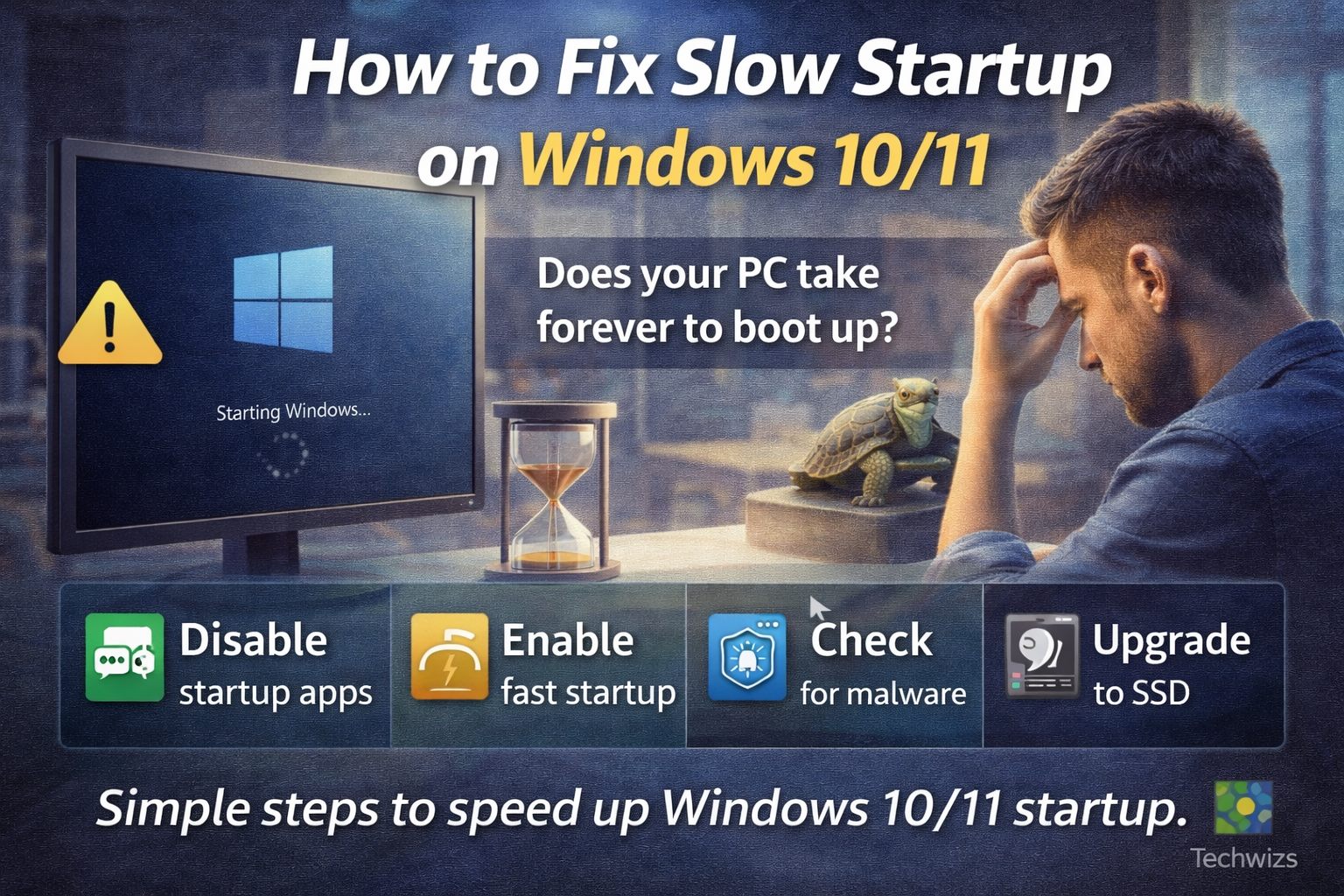
- Too many startup apps
- Heavy background services
- Outdated drivers
- HDD instead of SSD
- Corrupted system files
- Malware or unwanted software
Step 1: Disable Unnecessary Startup Programs (Biggest Impact)
This is the #1 fix for slow Windows startup.
How to disable startup apps:
- Press Ctrl + Shift + Esc to open Task Manager
- Go to the Startup tab
- Look at the Startup impact column
- Right-click apps marked High
- Select Disable
✅ Safe to disable:
- Chat apps (Teams, Discord)
- Launchers (Adobe, Spotify)
- Updaters
❌ Don’t disable:
- Antivirus software
- Hardware drivers
Key Takeaway Box
Disabling high-impact startup apps alone can cut startup time by 30–70%.
Step 2: Enable Fast Startup (Often Disabled)
Fast Startup helps Windows boot faster by saving system state.
Enable Fast Startup:
- Open Control Panel
- Go to Power Options
- Click Choose what the power buttons do
- Select Change settings currently unavailable
- Check Turn on fast startup
- Click Save changes
This setting is supported on both Windows 10 and Windows 11.
Step 3: Reduce Background Services (Safe Method)
Some services run at startup even if you don’t need them.
How to optimize services:
- Press Win + R
- Type
msconfig - Go to Services
- Check Hide all Microsoft services
- Disable unnecessary third-party services
- Restart your PC
⚠️ Always hide Microsoft services to avoid system issues.
Step 4: Check Disk Type (HDD vs SSD Matters)
Fact: According to StatCounter hardware data, systems running on SSDs boot up to 5× faster than HDD-based systems.
If you’re still using an HDD:
- Startup will always be slower
- Upgrading to an SSD is the single biggest speed boost
How to check your disk:
- Open Task Manager
- Go to Performance
- Select Disk
- Look for SSD or HDD
Step 5: Scan for Malware & Unwanted Programs
Malware often runs silently at startup.
What to do:
- Run Windows Security → Full Scan
- Remove unknown apps from Apps & Features
- Avoid “PC booster” software (often causes slow startup)
Step 6: Update Windows & Drivers
Outdated drivers can delay startup.
Update checklist:
- Windows Update → Install pending updates
- Update GPU drivers
- Update chipset drivers (from manufacturer site)
Microsoft states that startup performance improvements are frequently included in cumulative updates.
Step 7: Repair System Files (Advanced but Safe)
Corrupted system files can slow startup.
Run system repair:
- Open Command Prompt (Admin)
- Run:
sfc /scannow - Wait for completion
- Restart
This fixes hidden issues without affecting files.
How to Prevent Slow Startup in the Future
Quick Fix Box
Keep startup apps minimal and avoid auto-launch installers.
Best practices:
- Review startup apps monthly
- Avoid installing unnecessary utilities
- Shut down properly (don’t force power off)
- Use SSD instead of HDD
- Keep Windows updated
FAQ: Slow Windows Startup
Why is my Windows 11 startup slower than before?
Usually caused by new startup apps, background services, or updates running in the background.
Is slow startup a virus?
Not always, but malware can contribute. Always scan if startup time suddenly increases.
Will upgrading RAM fix slow startup?
RAM helps multitasking, but SSD upgrades impact startup speed far more.
Is Fast Startup safe to use?
Yes. It’s a Microsoft-supported feature designed to reduce boot time.
Should I reset Windows to fix startup speed?
Only as a last resort. Most slow startup issues are fixable without resetting.