Difficulty: Beginner
Why WiFi Keeps Disconnecting on Windows 11
Definition Box
Network Dropout
A temporary loss of connection between your device and router, often caused by driver resets, signal instability, or power-saving policies.
According to documentation from Microsoft, Windows 11 network stability heavily depends on updated drivers and correct power management settings.
Common triggers:
- Outdated Wi-Fi drivers
- Windows Update driver replacement
- Router firmware bugs
- Power-saving settings
- DNS conflicts
Fix #1: Disable WiFi Power Saving (Most Effective)
Windows 11 aggressively manages power on laptops.
- Press Win + X → Device Manager
- Expand Network adapters
- Right-click your Wi-Fi adapter → Properties
- Go to Power Management
- Uncheck: “Allow the computer to turn off this device to save power”
Key Takeaway Box
Power-saving mode is the #1 cause of random Wi-Fi drops on laptops.
Fix #2: Update (or Roll Back) WiFi Drivers
Windows Update sometimes installs unstable drivers.
Update:
- Device Manager → Network adapter → Update driver
Roll Back:
- Properties → Driver tab → Roll Back Driver
If Wi-Fi started dropping after an update, rollback often fixes it.
Fix #3: Reset Network Settings
- Settings → Network & Internet
- Advanced network settings
- Network reset
This reinstalls adapters and clears corrupted configs.
Quick Fix Box
Network reset fixes stubborn disconnect loops in minutes.
Fix #4: Change DNS Servers
DNS instability can appear as disconnections.
Set manual DNS:
- 1.1.1.1 / 1.0.0.1 (Cloudflare)
- 8.8.8.8 / 8.8.4.4 (Google)
Switching DNS often improves stability instantly.
Fix #5: Set WiFi Band Manually
If your Wi-Fi keeps disconnecting on Windows 11, band steering conflicts may be involved.
- Device Manager → Wi-Fi adapter → Advanced
- Preferred band → Choose 5GHz (if near router)
Guidance from the Wi-Fi Alliance highlights that higher-frequency bands are faster but more sensitive to distance.
Fix #6: Update Router Firmware
Outdated firmware can cause:
- Device drops
- Band switching instability
- DHCP conflicts
Check your router admin panel and update firmware if available.
Fix #7: Disable Fast Startup
Fast Startup sometimes interferes with network drivers.
- Control Panel → Power Options
- Choose what power buttons do
- Disable Turn on fast startup
Restart afterward.
Fix #8: Check for Interference
Physical factors matter:
- Keep laptop within 5–8 meters
- Avoid thick walls
- Avoid microwave or Bluetooth interference
- Move router to central, elevated location
Fix #9: Turn Off Random Hardware Address
- Settings → Network & Internet → Wi-Fi
- Disable Random hardware addresses
Sometimes this causes authentication conflicts.
When It’s the Router (Not Windows)
If:
- All devices disconnect → Router issue
- Only Windows 11 device disconnects → Driver/settings issue
Testing another device helps isolate the cause.
Signs It Might Be Hardware Failure
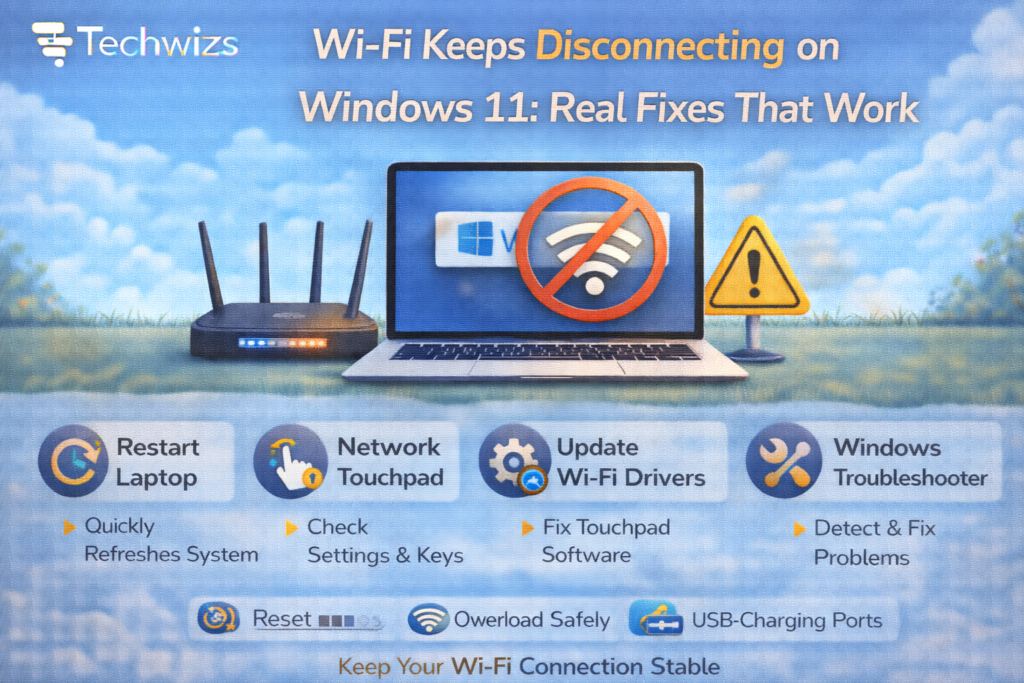
- Adapter disappears from Device Manager
- Frequent “Device cannot start (Code 10)”
- Wi-Fi works only when plugged into Ethernet
In that case, USB Wi-Fi adapters are inexpensive replacements.
FAQs: WiFi Keeps Disconnecting on Windows 11
1) Why does Wi-Fi disconnect only on my laptop?
Power-saving settings or driver issues.
2) Does Windows 11 have Wi-Fi bugs?
Occasionally, especially after major updates.
3) Is 5GHz more stable?
Usually faster, but less range than 2.4GHz.
4) Will reinstalling Windows fix it?
Rarely necessary.
5) Should I replace my router?
Only if multiple devices disconnect.