Difficulty: Beginner
Why Your Laptop Keyboard Is Typing Wrong Letters
Definition Box
Keyboard Layout
A software configuration that determines how physical keys map to characters (e.g., US QWERTY, UK, AZERTY).
When layouts change accidentally, the physical keys remain the same—but the characters change.
According to support documentation from Microsoft, language and layout switching is one of the most common keyboard-related issues on Windows systems.
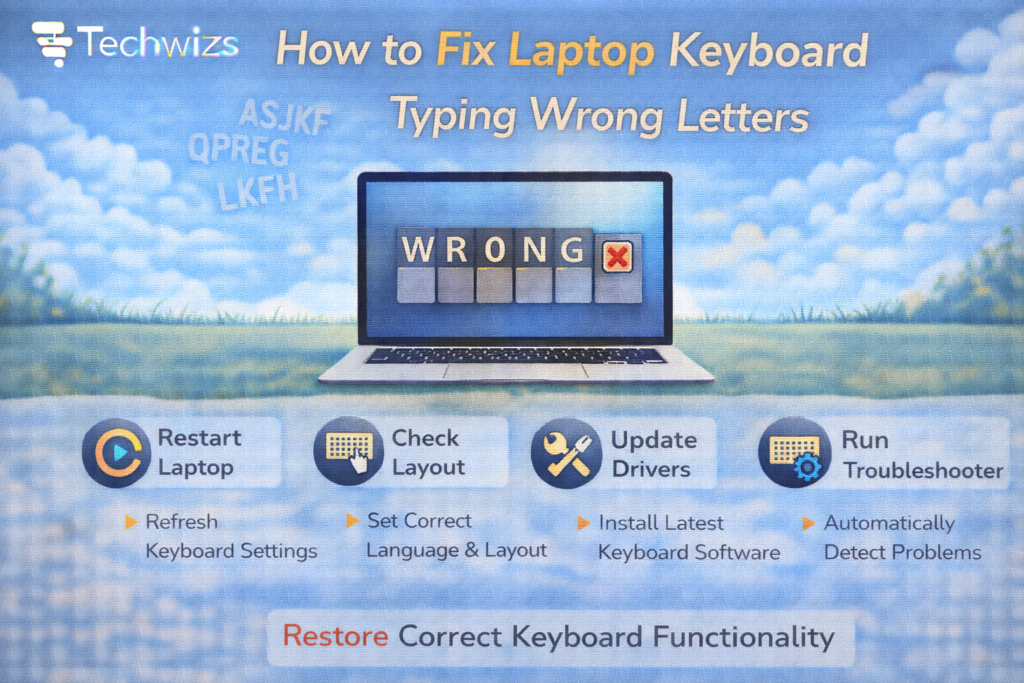
Fix #1: Check Keyboard Language & Layout (Most Common)
- Go to Settings → Time & Language → Language & Region
- Under Preferred Language, click your language
- Check Keyboard layout
- Ensure it’s set to the correct layout (e.g., US QWERTY)
Quick Tip
If you see multiple layouts installed (e.g., US + UK), remove the one you don’t use.
Key Takeaway Box
Accidental language switching causes most “wrong letter” issues.
Fix #2: Disable Keyboard Shortcut Switching
Windows allows layout switching with:
- Alt + Shift
- Win + Space
You may have triggered it accidentally.
To disable:
- Settings → Typing → Advanced keyboard settings
- Set default input method
- Remove extra layouts
Fix #3: Turn Off Num Lock (For Compact Keyboards)
Some laptops combine number keys with letters.
If Num Lock is ON:
- “U” might type “4”
- “I” might type “5”
Press Fn + Num Lock (varies by model) to toggle.
Fix #4: Check for Stuck Modifier Keys
If:
- Letters become uppercase randomly
- Symbols appear instead of numbers
Check:
- Shift key stuck
- Ctrl key pressed
- Sticky Keys enabled
Disable Sticky Keys:
- Settings → Accessibility → Keyboard
Fix #5: Reinstall Keyboard Driver
If the laptop keyboard typing wrong letters started suddenly:
- Press Win + X → Device Manager
- Expand Keyboards
- Right-click → Uninstall device
- Restart laptop
Windows automatically reinstalls the driver.
Fix #6: Check for Malware or Key Remapping Software
Rare—but possible.
Look for:
- Keyboard remapping apps
- Macro tools
- Suspicious background programs
If unsure, run Windows Security scan.
Fix #7: Clean the Keyboard (Physical Issues)
Spilled liquid or debris can cause:
- Double typing
- Wrong characters
- Key ghosting
Use:
- Compressed air
- Soft brush
- Isopropyl alcohol (lightly, if safe)
Mac Users: Quick Fix
If using a Mac from Apple:
- Go to System Settings → Keyboard → Input Sources
- Confirm correct layout
- Remove unused layouts
- Restart Mac
Mac layout switching is less common—but still possible.
When It’s a Hardware Failure
Signs of hardware damage:
- Only specific keys malfunction
- Liquid spill occurred
- Keys physically sticky
- External keyboard works fine
If an external keyboard works normally, your laptop keyboard may need replacement.
Quick Troubleshooting Flow
| Symptom | Likely Cause | Fix |
|---|---|---|
| A types Q | Wrong layout | Change keyboard layout |
| U types 4 | Num Lock enabled | Turn off Num Lock |
| Double letters | Debris or driver issue | Clean or reinstall driver |
| Random switching | Layout shortcut | Remove extra layouts |
FAQs: Laptop Keyboard Typing Wrong Letters
1) Why did my keyboard suddenly change?
Accidental language switch.
2) Can Windows Update cause this?
Sometimes—layout resets happen.
3) Do I need a new keyboard?
Rarely.
4) Can malware change key output?
Uncommon, but possible.
5) Is factory reset necessary?
Almost never.