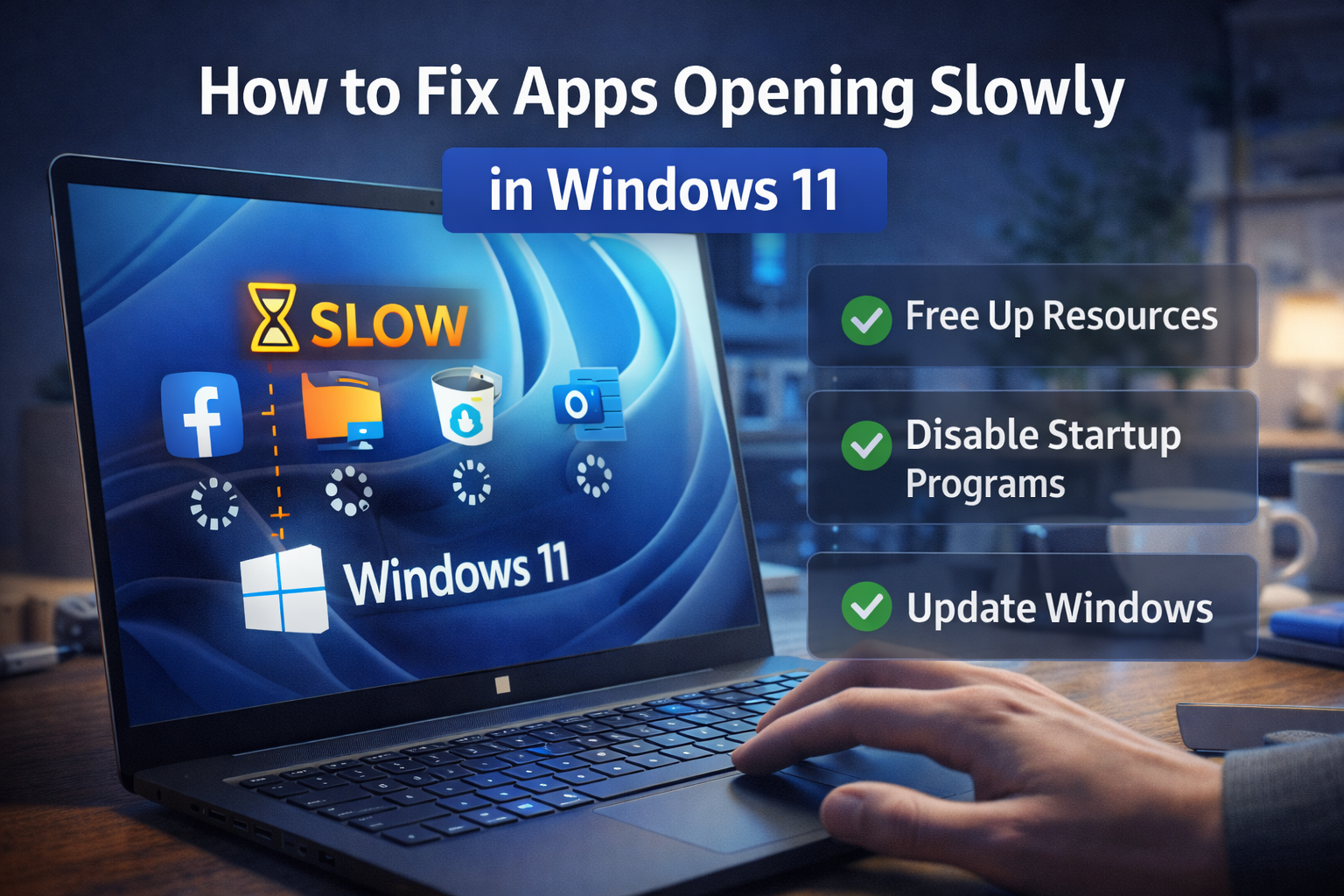
Difficulty: Beginner
Why Are Apps Opening Slowly in Windows 11?
Before fixing the problem, it helps to understand what’s happening behind the scenes.
When you launch an app, Windows must:
- Allocate memory (RAM)
- Access storage (SSD/HDD)
- Load background services
- Validate security processes
If any of these are overloaded or misconfigured, apps opening slowly Windows 11 becomes noticeable.
According to Microsoft documentation, excessive startup programs and background services are among the top causes of performance degradation in Windows 11 systems.
Step 1: Restart Your Computer (Quick Reset)
If your system hasn’t been restarted in days, background services may be stuck.
A proper restart clears:
- Temporary memory leaks
- Stalled processes
- Cached system resources
This simple step often improves app launch speed immediately.
Step 2: Disable Unnecessary Startup Programs
Too many startup apps slow down Windows.
How to Check:
- Press Ctrl + Shift + Esc
- Open Task Manager
- Go to Startup apps
- Disable apps with high impact that you don’t need
Common unnecessary startup items:
- Auto-updaters
- Messaging apps
- Cloud sync tools
Reducing startup load improves apps opening slowly Windows 11 issues significantly.
⚡ Quick Fix Box
If your apps open slowly:
- Disable startup bloat
- Restart PC
- Check disk usage in Task Manager
- Update Windows
These 4 steps fix most cases.
Step 3: Check Disk Usage
Slow storage is a major bottleneck.
- Open Task Manager
- Click Performance
- Select Disk
If disk usage stays near 100%, your storage is struggling.
If You’re Using HDD
Consider upgrading to SSD.
SSD dramatically reduces launch time compared to traditional hard drives.
According to storage performance benchmarks from major hardware manufacturers, SSDs can be up to 5–10x faster in real-world app launch scenarios.
Step 4: Check RAM Usage
Insufficient RAM can cause apps opening slowly Windows 11 symptoms.
In Task Manager:
- Check Memory usage
If RAM usage is above 80% constantly, consider:
- Closing unused apps
- Upgrading RAM (8GB minimum, 16GB recommended)
Step 5: Turn Off Background Apps
Windows runs many apps in the background.
To Disable:
- Go to Settings → Apps → Installed Apps
- Select app
- Click Advanced options
- Set Background app permissions → Never
This reduces resource competition.
Step 6: Change Power Plan to Performance Mode
Windows may throttle performance on balanced mode.
- Open Control Panel
- Go to Power Options
- Select High Performance
On laptops:
- Go to Settings → System → Power & Battery
- Set Power mode → Best performance
This is especially effective for apps opening slowly Windows 11 on business laptops.
Step 7: Disable Windows Visual Effects
Animations can slow lower-end systems.
- Press Win + R
- Type
sysdm.cpl - Go to Advanced → Performance Settings
- Select Adjust for best performance
This removes extra visual effects.
Step 8: Scan for Malware
Malware can consume resources silently.
Run:
- Windows Security → Full Scan
If you notice:
- High CPU usage
- Unknown background processes
A scan is essential.
Step 9: Update Windows and Drivers
Outdated drivers can cause slow app launches.
- Go to Settings → Windows Update
- Install all updates
Also check:
- GPU drivers
- Chipset drivers
Manufacturers like Intel and AMD regularly release performance optimization updates.
Step 10: Disable Indexing (If Causing High Disk Usage)
Windows Search indexing can spike disk activity.
- Press Win + R
- Type
services.msc - Find Windows Search
- Set Startup type to Manual
Test performance afterward.
Step 11: Repair Corrupted System Files
Corrupted system files may delay app loading.
Open Command Prompt as Administrator and run:
sfc /scannow
Then:
DISM /Online /Cleanup-Image /RestoreHealth
These tools repair system integrity.
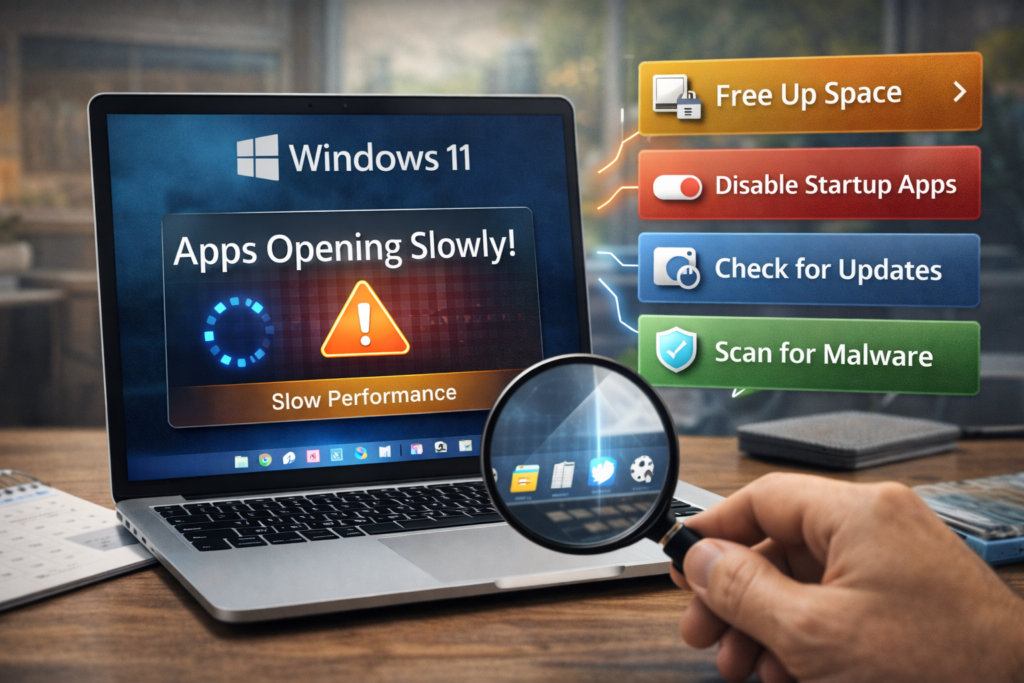
🛠️ Key Takeaway Box
If apps open slowly in Windows 11, the cause is usually startup overload, storage bottlenecks, or background processes — not hardware failure.
When Is It a Hardware Problem?
It may be hardware-related if:
- You use an old HDD
- RAM is below 8GB
- CPU constantly maxes out
- Laptop thermal throttles
In these cases, upgrading to SSD and 16GB RAM provides the biggest improvement.
Real-World Example
A user with 8GB RAM and 20 startup apps complained that Office apps took 30 seconds to open.
Fix applied:
- Disabled 12 startup apps
- Switched to performance mode
- Installed Windows updates
Result:
App launch time reduced to under 5 seconds.
Long-Term Optimization Tips
- Keep startup apps under 5
- Maintain 20% free disk space
- Update drivers quarterly
- Restart weekly
- Avoid installing unnecessary utilities
Preventive maintenance keeps apps opening slowly Windows 11 from returning.
Frequently Asked Questions (FAQ)
1. Why are apps opening slowly in Windows 11 after an update?
Updates may reset power settings or introduce driver conflicts. Try restarting and updating drivers.
2. Does upgrading to SSD improve app speed?
Yes. SSD significantly improves launch times compared to HDD.
3. Is 8GB RAM enough for Windows 11?
For light use, yes. For multitasking, 16GB is recommended.
4. Can antivirus software slow app launch?
Yes, especially if real-time scanning is aggressive.
5. Should I reset Windows?
Only as a last resort after all troubleshooting steps fail.