Difficulty: Beginner
What Is a USB-C Dock (Explained Simply)
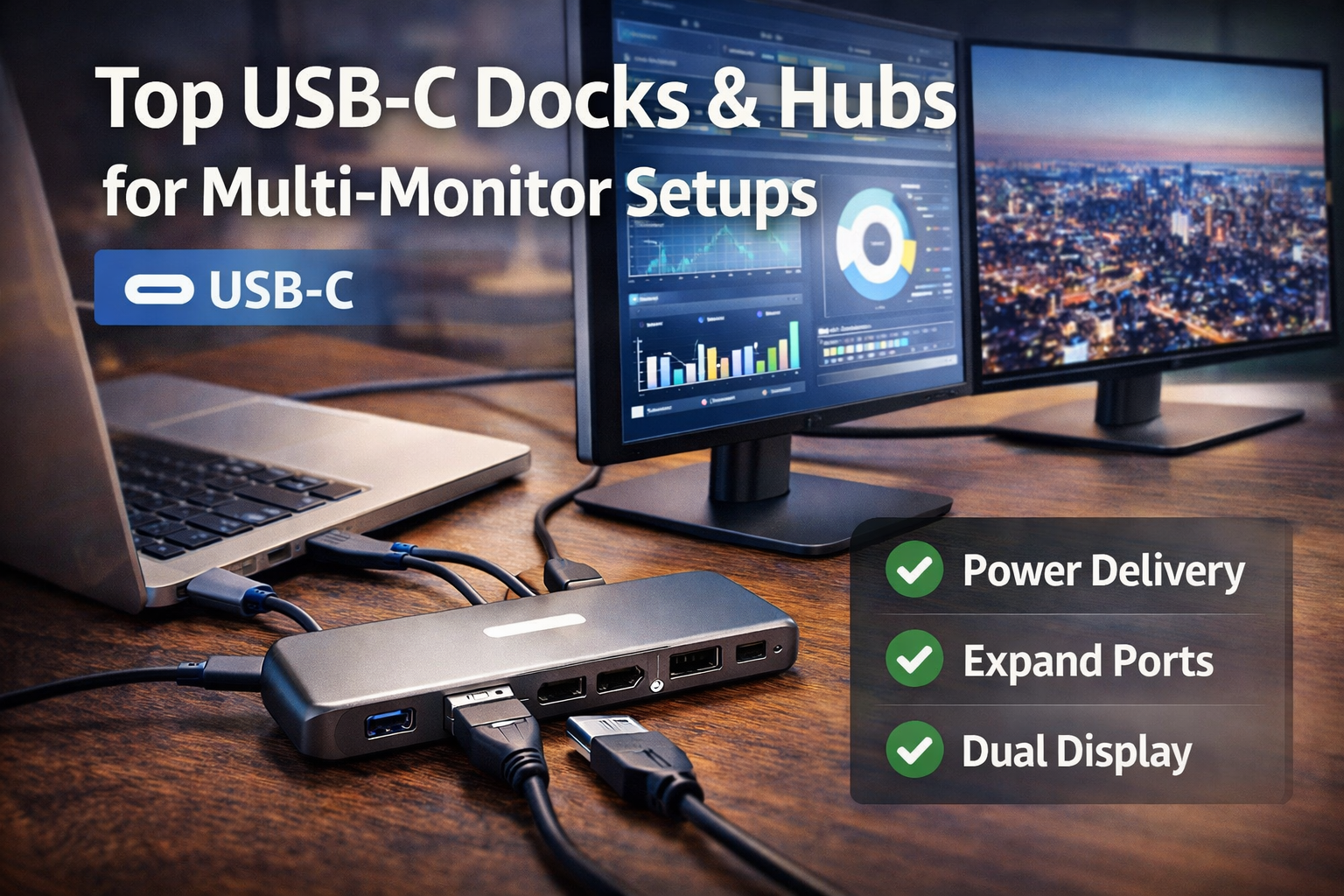
A USB-C dock is like a power strip for your laptop’s ports.
Instead of plugging multiple cables into your laptop — monitor, charger, keyboard, Ethernet — everything connects to the dock.
Then only one USB-C cable connects to your laptop.
Think of it like a control hub for your entire desk setup.
Typical connections include:
- Multiple monitors
- Keyboard and mouse
- Ethernet internet
- USB storage drives
- Laptop charging
For remote workers and office setups, this makes switching between workspaces much easier.
Why Multi-Monitor Setups Are So Popular
Using two or three monitors significantly improves productivity.
Examples:
- One screen for email
- One for spreadsheets
- One for video calls or documentation
According to productivity research from display manufacturers and workplace studies, multiple monitors can improve task efficiency by up to 30–40% for certain workflows.
A USB-C dock multi-monitor setup makes this easy even on thin laptops.
What to Check Before Buying a USB-C Dock
Before choosing a dock, check these three things.
1️⃣ Laptop USB-C Capability
Not all USB-C ports support video output.
Your laptop must support:
- DisplayPort over USB-C
- Thunderbolt 3 / Thunderbolt 4
Most modern business laptops support this.
2️⃣ Number of Monitors You Want
Different docks support different display setups:
- Single monitor
- Dual monitor
- Triple monitor
Choose based on your desk workflow.
3️⃣ Power Delivery (Charging)
A good dock should charge your laptop while connected.
Look for:
65W – 100W Power Delivery
This means you don’t need a separate charger.
Top USB-C Docks for Multi-Monitor Setups
Here are some reliable options widely used for home offices and professional setups.
1. Anker 575 USB-C Docking Station
Best overall dock for multi-monitor setups.
Key Features
- Supports triple monitor output
- 13 total ports
- 85W laptop charging
- Dual HDMI + DisplayPort
- Gigabit Ethernet
Why It’s Great
Anker is known for reliable accessories, and this dock supports most modern laptops without complicated setup.
Ideal for:
- Home office
- Remote workers
- Productivity setups
2. CalDigit TS4 Thunderbolt Dock
Best premium dock.
Key Features
- Up to 18 ports
- Thunderbolt 4 support
- Dual 6K monitor support
- 98W charging
- Extremely stable performance
Why It’s Great
This is one of the most powerful docking stations available.
Perfect for:
- Creators
- Engineers
- Power users
However, it’s more expensive than most docks.
3. Plugable UD-3900 Dock
Best budget multi-monitor dock.
Key Features
- Dual monitor support
- USB-A and USB-C ports
- Gigabit Ethernet
- Affordable price
Why It’s Great
If you only need two monitors and basic peripherals, this dock offers excellent value.
4. Dell WD19S Dock
Best for business laptops.
Key Features
- Dual monitor support
- 90W charging
- Reliable enterprise build
- Works great with Dell laptops
Why It’s Great
Many companies use this dock for corporate workstations.
Very stable and durable.
5. UGREEN Revodok Pro Dock
Best compact dock.
Key Features
- Dual display support
- 100W power delivery
- Multiple USB ports
- Compact design
Why It’s Great
If you want a portable dock for travel or hybrid work, this is a good option.
📦 Quick Recommendation Box
Best Overall: Anker 575 Dock
Best Premium: CalDigit TS4
Best Budget: Plugable UD-3900
Best Business Dock: Dell WD19S
Best Compact Dock: UGREEN Revodok Pro
USB-C Dock vs USB-C Hub
Many people confuse these two.
USB-C Hub
Small and portable.
Usually includes:
- 1 HDMI
- few USB ports
- card reader
Best for travel.
USB-C Dock
Larger and more powerful.
Includes:
- Multiple monitors
- Ethernet
- Laptop charging
- many USB ports
Best for permanent desk setups.
Common Problems with Multi-Monitor Docks
Monitor Not Detected
Usually caused by:
- laptop USB-C not supporting video
- outdated drivers
- incompatible dock
Limited Monitor Resolution
Some docks support only:
- 4K single display
- dual 1080p displays
Check supported resolution before buying.
macOS vs Windows Differences
MacBooks sometimes limit multi-monitor setups unless using DisplayLink docks.
Always check compatibility.
🛠️ Key Takeaway Box
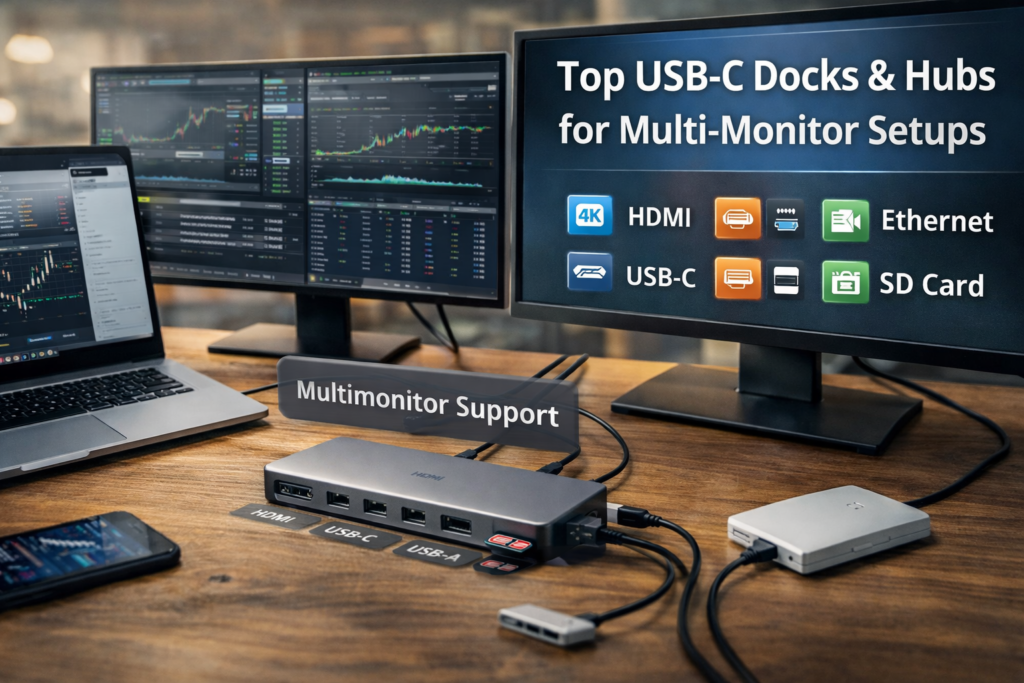
A USB-C dock for multi-monitor setup simplifies your workspace by connecting multiple screens, peripherals, and charging through one cable.
Ideal Multi-Monitor Setup Example
Typical home office:
Laptop → USB-C dock →
- 2 external monitors
- keyboard & mouse
- Ethernet internet
- external SSD
- laptop charging
Only one cable connects to the laptop.
Clean, efficient, and easy.
When You Don’t Need a Dock
You might not need a full dock if:
- You only use one monitor
- Your laptop already has many ports
- You travel frequently
In these cases, a simple USB-C hub may be enough.
Future Trend: USB4 & Thunderbolt 4
Newer docking technology supports:
- faster data speeds
- more display bandwidth
- better compatibility
Thunderbolt 4 docks will become more common in the next few years.
Frequently Asked Questions (FAQ)
1. Can USB-C support two monitors?
Yes, if the laptop supports DisplayPort over USB-C or Thunderbolt.
2. Do USB-C docks charge laptops?
Most good docks provide 65W–100W charging.
3. Why does my USB-C hub only show one monitor?
Your laptop may not support multi-display output through USB-C.
4. Do docking stations reduce performance?
No. They simply route signals from your laptop to peripherals.
5. Are docking stations universal?
Most work across brands, but compatibility depends on USB-C capabilities.