

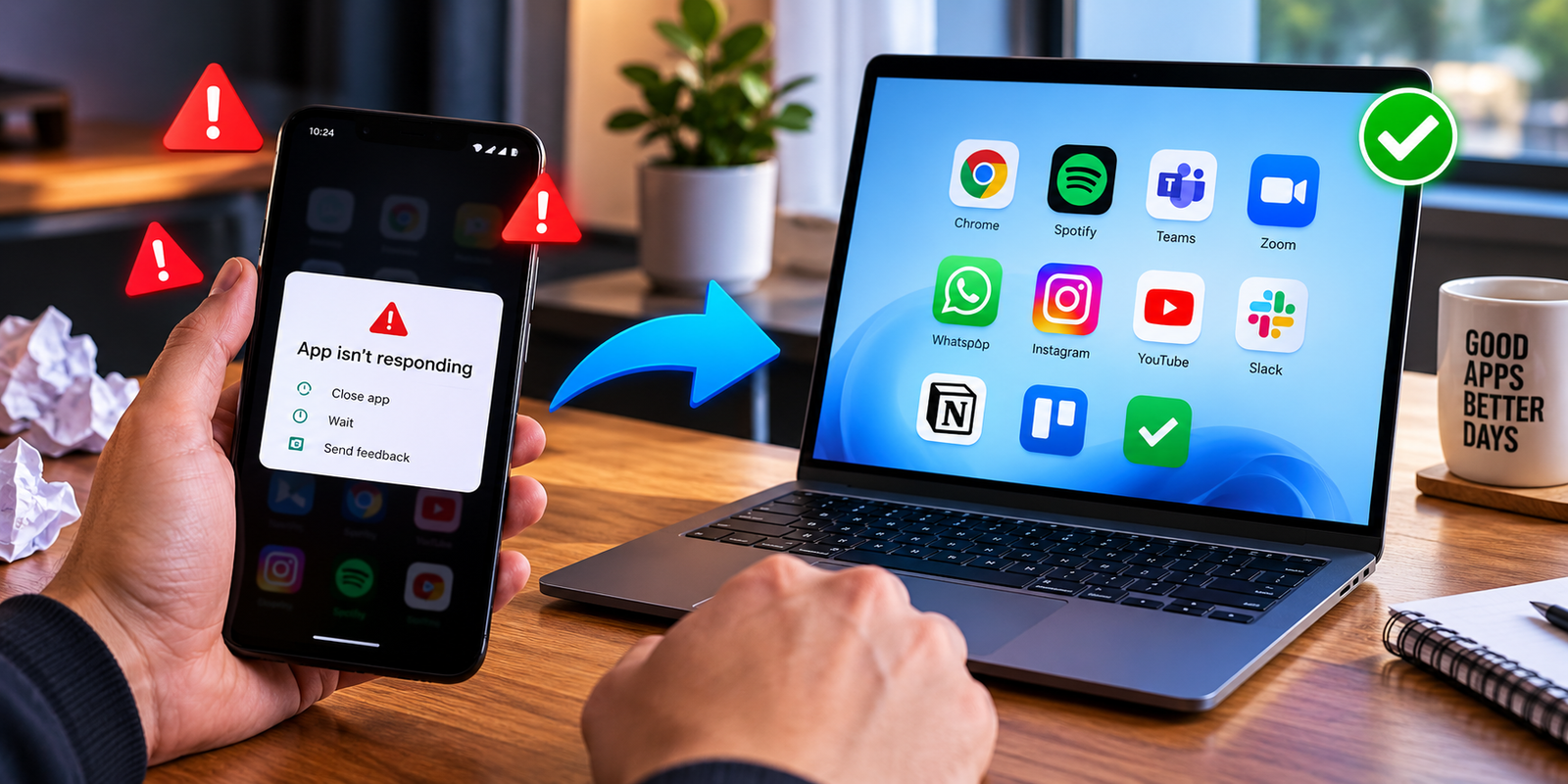
When apps crashing randomly becomes a daily problem, your phone, tablet, or computer can feel broken even when the device itself is still fine. One moment you are opening WhatsApp, YouTube, Instagram, Outlook, Chrome, TikTok, or a banking app. The next moment, the app closes by itself like someone pulled the plug.
The good news? Most random app crashes are fixable without being an IT expert.
Think of an app like a small shop inside your device. Sometimes the shop gets too crowded, the shelves become messy, the cashier system freezes, or the electricity flickers. Restarting, updating, clearing cache, or reinstalling the app is like cleaning the shop, fixing the cashier, and opening again properly.
This guide explains why apps crash and how to fix them fast on Android, iPhone, iPad, Windows, and general devices.
Quick Fix Box
If an app keeps crashing, restart your device first, update the app, check your storage, clear the app cache if available, then reinstall the app only if the problem continues.
Why Are Apps Crashing Randomly?
When apps crashing randomly happens, it does not always mean the app is “bad.” It usually means something in the background is not working smoothly.
Common causes include:
| Cause | Simple Meaning | What Usually Fixes It |
|---|---|---|
| Outdated app | The app version has bugs or compatibility issues | Update the app |
| Outdated system | Your phone or PC software is too old | Update the operating system |
| Low storage | Your device has no room to work properly | Delete unused files/apps |
| Corrupted cache | Temporary app files are broken | Clear cache |
| Poor internet | App cannot load data correctly | Switch network |
| App bug | The developer needs to fix it | Update or wait for patch |
| Too many background apps | Device memory is overloaded | Close apps and restart |
| Damaged app install | App files are broken | Reinstall the app |
In simple terms, apps need space, memory, updates, and stable data to work properly. If one of those things breaks, the app may freeze, close, or refuse to open.
First: Restart Your Device
This sounds too simple, but restarting your device is still one of the fastest ways to fix random app crashes.
A restart clears temporary memory, closes stuck background processes, and gives your phone or computer a clean start.
How to do it
For phones and tablets:
- Hold the power button.
- Tap restart if available.
- If restart is not available, power off the device.
- Wait 20–30 seconds.
- Turn it back on.
For Windows:
- Click Start.
- Click Power.
- Select Restart.
Do not just lock the screen. Locking is like closing your laptop lid. Restarting is like turning the whole machine off and on again properly.
Update the App That Keeps Crashing
If only one app is crashing, update that specific app first.
App developers regularly release updates to fix bugs, improve stability, and support newer versions of Android, iOS, iPadOS, or Windows.
Google’s official Android troubleshooting guidance recommends updating the app, force stopping it, clearing cache or data, and checking for wider app issues when an installed Android app is not working properly. Google Help
On Android
- Open Google Play Store.
- Search for the app.
- Tap Update if available.
- Open the app again.
On iPhone or iPad
- Open the App Store.
- Tap your profile icon.
- Scroll to available updates.
- Update the crashing app.
Apple’s support guidance for iPhone and iPad apps that stop responding, close unexpectedly, or will not open includes restarting the device, checking for app updates, and updating iPhone or iPad software when needed. Apple Support
On Windows
- Open Microsoft Store.
- Go to Library.
- Click Get updates.
- Update the affected app.
If the app was not installed from Microsoft Store, open the app’s official website and download the latest version from there.
Update Your Phone, Tablet, or Computer
Sometimes the app is fine, but your device software is outdated.
For example, a newer app may need newer system files to work correctly. If your phone or PC is behind on updates, the app may behave strangely.
Android
Go to:
Settings > System > Software update
The exact menu name can vary depending on Samsung, Xiaomi, Oppo, Vivo, Pixel, Honor, or other Android brands.
iPhone or iPad
Go to:
Settings > General > Software Update
Windows
Go to:
Settings > Windows Update > Check for updates
Updating your system can fix hidden compatibility issues. It also improves security, which matters because outdated systems can become easier targets for malware and attacks.
Clear App Cache
Cache is temporary data stored by an app to make it load faster.
Think of cache like notes your app keeps on the table so it does not need to search the whole cabinet every time. Usually, this makes the app faster. But if the notes become messy or wrong, the app may crash.
Clearing cache removes these temporary files without usually deleting your account.
How to clear app cache on Android
- Open Settings.
- Go to Apps.
- Choose the crashing app.
- Tap Storage.
- Tap Clear cache.
- Open the app again.
This is one of the best fixes when apps crashing randomly affects Android apps like Facebook, Instagram, TikTok, YouTube, Chrome, Shopee, Lazada, banking apps, or games.
Can you clear app cache on iPhone?
iPhone does not provide the same universal “clear cache” button for every app.
Instead, you can:
- Restart the app
- Restart the phone
- Update the app
- Delete and reinstall the app
- Use built-in cache-clearing options inside certain apps, such as browsers
For Safari, you can clear website data through iPhone settings, but for most apps, reinstalling is the cleaner option.
Check Your Storage Space
Low storage can make apps unstable.
Your device needs free space to open apps, save temporary files, download updates, and process background tasks. If your storage is almost full, apps may freeze, lag, or close without warning.
Recommended action
Try to keep at least a few gigabytes free if possible.
Delete or move:
- Old videos
- Duplicate photos
- Unused apps
- Downloaded movies
- Large WhatsApp media
- Old screen recordings
- Offline music you no longer need
Check storage on Android
Go to:
Settings > Storage
Check storage on iPhone
Go to:
Settings > General > iPhone Storage
Check storage on Windows
Go to:
Settings > System > Storage
If your device has very low storage, fixing that may solve multiple problems at once, not just app crashes.
Force Stop the App
Force stopping an app fully closes it.
Normally, when you swipe an app away, part of it may still remain active in the background. Force stop is stronger. It tells the app, “Stop everything now.”
On Android
- Open Settings.
- Go to Apps.
- Select the problem app.
- Tap Force stop.
- Open the app again.
This can help when the app is stuck in a bad state.
On iPhone or iPad
- Swipe up from the bottom and pause, or double-click the Home button on older models.
- Swipe the app up to close it.
- Open it again.
On Windows
- Press Ctrl + Shift + Esc.
- Open Task Manager.
- Select the app.
- Click End task.
- Reopen the app.
Check Your Internet Connection
Some apps crash because they cannot load data properly.
This is common with apps that depend heavily on internet access, such as:
- Streaming apps
- Social media apps
- Banking apps
- Shopping apps
- Food delivery apps
- Cloud storage apps
- Work apps like Teams, Outlook, Slack, or Zoom
Try these quick checks:
- Switch from Wi-Fi to mobile data.
- Switch from mobile data to Wi-Fi.
- Restart your router.
- Turn airplane mode on and off.
- Test another app or website.
- Disable VPN temporarily to test.
If the app only crashes on one network, the network may be the real issue.
Disable VPN, Private DNS, or Ad Blockers Temporarily
VPNs, Private DNS settings, and ad blockers can sometimes interfere with apps.
This does not mean these tools are bad. It simply means some apps do not handle filtered or rerouted connections well.
Try turning them off temporarily and reopen the crashing app.
Check especially if the affected app is:
- Banking app
- Streaming app
- Company app
- Government app
- Food delivery app
- Game
- Login-based service
Some apps are strict because they want to prevent fraud, location spoofing, or unusual login behaviour.
Reinstall the App
If updates and cache clearing do not work, reinstalling the app gives it a fresh start.
This removes the app and installs a clean copy.
Before reinstalling
Make sure your data is backed up or linked to an account.
For example:
- WhatsApp should be backed up
- Notes apps should be synced
- Games should be linked to your account
- Authenticator apps need special care
- Banking apps may require reactivation
How to reinstall safely
- Delete or uninstall the app.
- Restart your device.
- Download the app again from the official app store.
- Sign in again.
- Test whether the crash is fixed.
Avoid downloading apps from random websites, especially APK files for Android, unless you truly understand the risk.
Repair or Reset Apps on Windows
If apps crashing randomly happens on Windows, you may not need to uninstall immediately.
Windows allows some apps to be repaired or reset from Settings. Microsoft’s official Windows guidance explains that users can repair apps and programs, and if repair does not fix the issue, reset may be available for some apps. Microsoft Support
How to repair or reset a Windows app
- Open Settings.
- Go to Apps.
- Select Installed apps.
- Find the problem app.
- Click the three-dot menu.
- Choose Advanced options if available.
- Try Repair first.
- Try Reset only if repair does not work.
Repair tries to fix the app without deleting its data. Reset is stronger and may remove app settings or stored data.
Check If the App Server Is Down
Sometimes the app is not crashing because of your device. The app’s own server may be having problems.
This happens with popular apps too.
Signs the issue may be server-side:
- Many people are complaining online
- The app crashes during login
- The app opens but cannot load anything
- The website version is also not working
- The problem started suddenly for many users
- Other apps on your device are working fine
You can check the app’s official social media page, status page, or app store reviews to see if others are reporting the same issue.
If the server is down, you may simply need to wait.
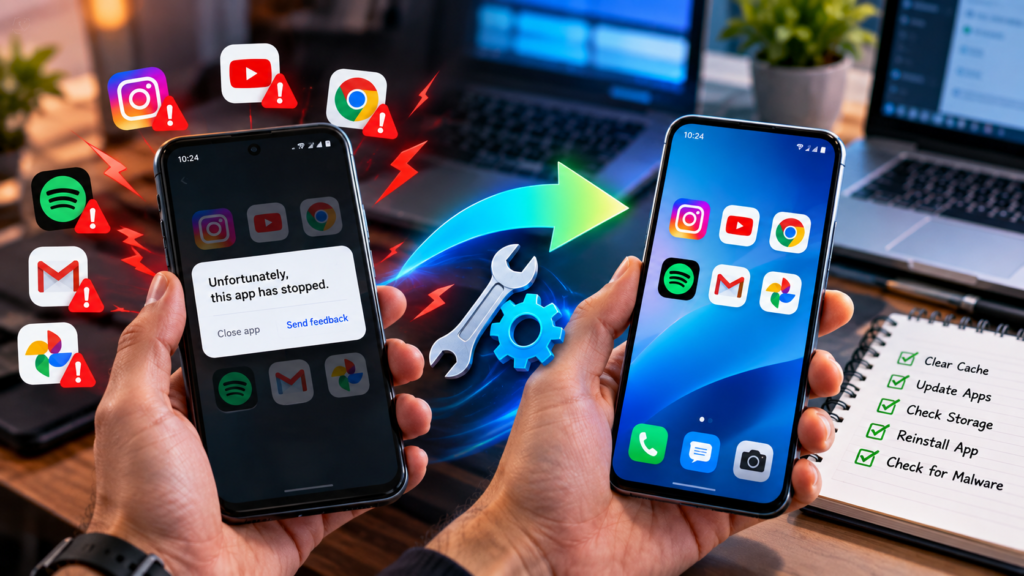
Check Recently Installed Apps
If your phone started crashing after you installed a new app, that new app might be causing problems.
This is especially possible with:
- Cleaner apps
- Battery saver apps
- Unknown APK apps
- Free VPN apps
- Screen overlay apps
- Launchers
- Keyboard apps
- Security apps from unknown companies
Try uninstalling recently installed apps one by one, then restart your device.
Android Safe Mode
Android has a feature called Safe Mode. It starts the phone with only essential system apps.
If crashes stop in Safe Mode, one of your downloaded apps may be causing the problem.
This is useful when your whole phone feels unstable, not just one app.
Scan for Malware or Unsafe Apps
Malware can cause apps to crash, show strange pop-ups, drain battery, or slow down your device.
For normal users, the safest approach is simple:
- Install apps only from trusted app stores
- Avoid unknown APK files
- Remove suspicious apps
- Keep your device updated
- Use built-in security tools
- Do not grant unnecessary permissions
On Android, use Google Play Protect. On Windows, use Windows Security. On iPhone, avoid installing unknown profiles or apps from untrusted sources.
Check App Permissions
Some apps crash when they do not have permission to access something they need.
For example:
- Camera app needs camera permission
- Navigation app needs location permission
- Voice recorder needs microphone permission
- Photo editor needs photo permission
- Messaging app may need contacts permission
How to check permissions
On Android:
Settings > Apps > Select app > Permissions
On iPhone:
Settings > Privacy & Security
On Windows:
Settings > Privacy & security > App permissions
Only allow permissions that make sense. A weather app may need location, but it probably does not need access to your microphone.
When Apps Crashing Randomly Means a Bigger Problem
Most app crashes are easy to fix. But sometimes the issue points to a bigger device problem.
Watch for these warning signs:
- Many unrelated apps crash
- Device restarts by itself
- Phone becomes very hot
- Battery drains unusually fast
- Storage is almost completely full
- Screen freezes often
- System updates fail
- Apps crash even after reinstalling
- Crashes started after water damage or dropping the device
If many apps are crashing together, the problem may be your operating system, storage, memory, or hardware—not just the app.
Fast Troubleshooting Checklist
Use this order so you do not waste time:
- Restart your device.
- Update the crashing app.
- Update your device system.
- Check free storage.
- Force stop the app.
- Clear cache if available.
- Test a different internet connection.
- Disable VPN, Private DNS, or ad blockers temporarily.
- Reinstall the app.
- Check if other users report the same issue.
- Remove recently installed suspicious apps.
- Contact app support if nothing works.
This order starts with the easiest and safest steps before moving to stronger fixes.
Common Mistakes to Avoid
Deleting the app before checking backup
This can cause data loss, especially for chat apps, notes apps, games, and authenticator apps.
Installing unofficial versions
A modified APK may promise extra features, but it can create more crashes and security risks.
Ignoring system updates forever
Some crashes happen because the app expects a newer version of your operating system.
Clearing app data too quickly
Clear cache first. Clearing data is stronger and may log you out or remove local app settings.
Blaming the phone immediately
If only one app crashes, the problem is usually that app, not the whole device.
FAQ
Why do my apps keep closing by themselves?
Apps may close by themselves because of bugs, low storage, outdated software, corrupted cache, poor internet, or memory overload. Restarting the device, updating the app, and clearing cache often fix the problem.
Why are apps crashing randomly after an update?
Sometimes updates introduce new bugs or compatibility issues. Check if another update is available, restart your device, and read recent app store reviews to see if other users are facing the same problem.
Should I clear cache or clear data?
Clear cache first because it removes temporary files without usually deleting your account or settings. Clear data only if the app still fails, because it may reset the app and sign you out.
Can low storage cause app crashes?
Yes. Apps need storage space to save temporary files and run properly. If your device storage is almost full, apps may freeze, lag, or crash more often.
Is reinstalling an app safe?
Yes, but only if your important data is backed up or synced. Be careful with messaging apps, banking apps, games, note apps, and authenticator apps before uninstalling.
Why does only one app keep crashing?
If only one app crashes, the issue is likely related to that app’s update, cache, server, permissions, or compatibility with your device. Start by updating, force stopping, clearing cache, and reinstalling the app.
Final Thoughts
When apps crashing randomly becomes annoying, do not panic and do not immediately assume your phone or computer is damaged.
Start with the simple fixes: restart, update, clear cache, check storage, and test your internet connection. These solve many common app problems without needing technical skills.
If one app keeps crashing, focus on that app. If many apps crash together, look at your device storage, system updates, malware risk, or hardware condition.
The best fix is usually not the most complicated one. It is the one that removes the most common cause first.