
If your internet feels slow, changing DNS settings is one of the easiest things to try. It is free, reversible, and does not require buying a new router or upgrading your internet plan.
But there is one important thing to understand first: DNS does not increase your actual internet speed from 300 Mbps to 500 Mbps. Instead, the best DNS settings can reduce the waiting time before a website starts loading.
Think of DNS like your phone’s contact list.
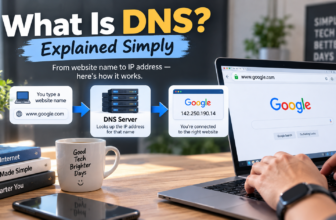
When you type google.com, your device does not automatically know where Google lives on the internet. It asks a DNS server to translate that name into an IP address, which is like the website’s real “phone number.” If the DNS server answers quickly, the website can start loading faster. If the DNS server is slow, you may feel a delay before the page opens.
Key Takeaway Box
Changing DNS can improve how quickly websites begin loading, especially if your current ISP DNS is slow or unreliable. However, DNS will not increase your actual download speed for large files, streaming, or speed tests.
What Is DNS in Simple Terms?
DNS stands for Domain Name System.
It works like the internet’s address book. You type a website name, and DNS finds the correct IP address behind it.
For example:
| What You Type | What DNS Finds |
|---|---|
| google.com | Google’s server address |
| facebook.com | Facebook’s server address |
| techwizs.com | Techwizs server address |
| youtube.com | YouTube’s server address |
Without DNS, you would need to remember long numbers instead of simple website names. That would be painful.
Cloudflare explains that a DNS resolver translates domain names into IP addresses so your device knows which server to contact.
How DNS Affects Internet Speed
DNS mainly affects the “starting delay” when opening a website.
Here is a simple example:
- You type a website name.
- Your device asks DNS, “Where is this website?”
- DNS replies with the correct IP address.
- Your browser starts loading the website.
If step 2 and step 3 are slow, the page feels slow to start.
This is why changing to the best DNS settings can help with:
- Faster website lookup
- Quicker first page response
- Less delay when opening new websites
- Better reliability if your ISP DNS has issues
- Sometimes better access to nearby cached services
But DNS usually will not help much with:
- Downloading large files
- Gaming ping after the game server is already connected
- Weak Wi-Fi signal
- Slow router hardware
- Congested internet line
- Bad website hosting
- Streaming speed after video playback starts
So if your Wi-Fi signal is poor in your room, changing DNS is not the main fix. You may need better router placement, mesh Wi-Fi, LAN cable, or a stronger access point.
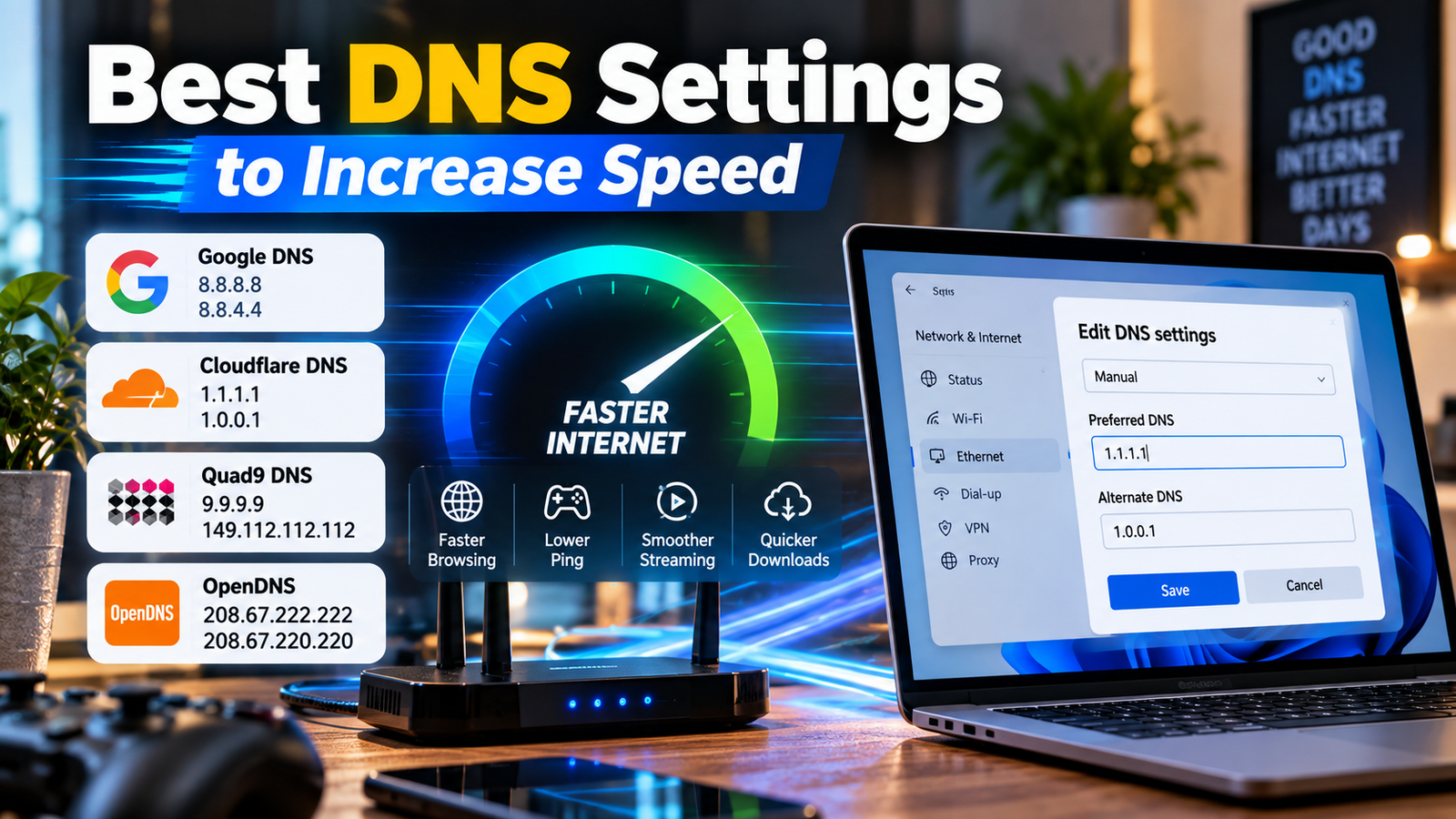
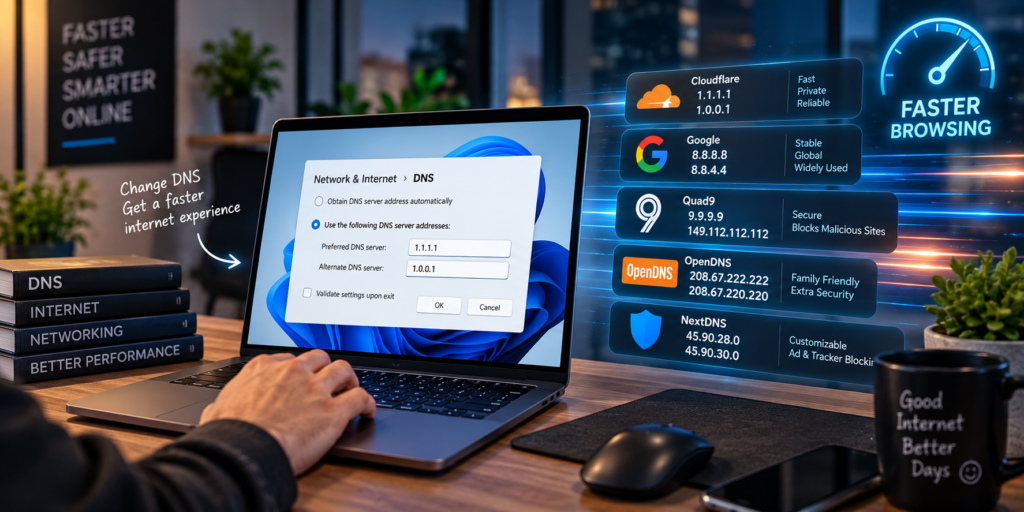
Best DNS Settings to Try
Here are the most common public DNS options normal users can test.
| DNS Provider | Primary DNS | Secondary DNS | Best For |
|---|---|---|---|
| Cloudflare | 1.1.1.1 | 1.0.0.1 | Speed and privacy |
| Google Public DNS | 8.8.8.8 | 8.8.4.4 | Reliability and compatibility |
| Quad9 | 9.9.9.9 | 149.112.112.112 | Security filtering |
| OpenDNS | 208.67.222.222 | 208.67.220.220 | Family filtering options |
| ISP DNS | Automatic | Automatic | Local default setup |
Cloudflare lists 1.1.1.1 and 1.0.0.1 as its standard resolver addresses. Google Public DNS lists 8.8.8.8 and 8.8.4.4 as its IPv4 DNS server addresses. Quad9 lists 9.9.9.9 as its primary secure DNS service address.
Which DNS Is Fastest?
There is no single fastest DNS for everyone.
The fastest DNS depends on:
- Your country
- Your internet provider
- Your router
- Your device
- The website you are visiting
- The time of day
- Whether the DNS provider has a nearby server
For example, someone in Kuala Lumpur may get a different result from someone in Singapore, London, or New York.
Cloudflare, Google, and Quad9 all use large global networks. Google says queries to Google Public DNS are routed to the nearest location advertising its anycast address. In simple words, this means your request is usually sent to a nearby available DNS location instead of one fixed server far away.
That is why the best answer is: test a few DNS services yourself.
Recommended Best DNS Settings for Most Users
For most normal home users, start with Cloudflare.
Option 1: Cloudflare DNS
Use this if you want a simple speed-focused option.
| Type | DNS Address |
|---|---|
| Primary DNS | 1.1.1.1 |
| Secondary DNS | 1.0.0.1 |
Cloudflare is popular because it focuses heavily on speed and privacy. Its standard resolver does not include content filtering, so it is suitable if you only want normal DNS resolution.
Option 2: Google Public DNS
Use this if you want a reliable and widely compatible option.
| Type | DNS Address |
|---|---|
| Primary DNS | 8.8.8.8 |
| Secondary DNS | 8.8.4.4 |
Google Public DNS is one of the most recognised public DNS services. It is a safe choice if you want something stable and easy to remember.
Option 3: Quad9 DNS
Use this if you care more about security filtering.
| Type | DNS Address |
|---|---|
| Primary DNS | 9.9.9.9 |
| Secondary DNS | 149.112.112.112 |
Quad9 focuses on blocking known malicious domains. Quad9 says its secure service checks domains against threat intelligence sources to help block malicious, phishing, and botnet-related domains.
This may be slightly better for users who want extra protection against dangerous websites, but it may sometimes block a site if it is flagged incorrectly.
Best DNS Settings for Different Needs
Best DNS Settings for Speed
Use:
- Primary DNS:
1.1.1.1 - Secondary DNS:
1.0.0.1
Cloudflare is a good first test if your main goal is faster website lookup.
Best DNS Settings for Reliability
Use:
- Primary DNS:
8.8.8.8 - Secondary DNS:
8.8.4.4
Google Public DNS is easy to remember and usually very stable.
Best DNS Settings for Security
Use:
- Primary DNS:
9.9.9.9 - Secondary DNS:
149.112.112.112
Quad9 is suitable if you want DNS-level protection against some known harmful domains.
Best DNS Settings for Family Safety
Consider OpenDNS or Cloudflare Family DNS if you want filtering options.
However, family filtering is not perfect. It should not replace parental controls, safe search settings, browser restrictions, and proper device supervision.
Should You Change DNS on Your Device or Router?
You can change DNS in two main places.
Change DNS on one device
This affects only that device.
For example:
- Your laptop
- Your phone
- Your tablet
- Your gaming console
- Your smart TV
This is good if you only want to test DNS before changing the whole house.
Change DNS on your router
This affects most devices connected to your home network.
Cloudflare notes that setting up 1.1.1.1 on a router applies the DNS setting to every device on the network.
This is useful if you want all home devices to use the same DNS automatically.
However, if you make a mistake on the router, many devices may lose internet browsing until you fix it. So if you are not confident, test on one device first.
How to Change DNS on Windows
Here is the simple version for Windows 10 or Windows 11:
- Open Settings.
- Go to Network & Internet.
- Choose Wi-Fi or Ethernet.
- Open your active network connection.
- Look for DNS server assignment.
- Click Edit.
- Change from automatic to manual.
- Enable IPv4.
- Enter your preferred DNS.
- Save the setting.
Example using Cloudflare:
- Preferred DNS:
1.1.1.1 - Alternate DNS:
1.0.0.1
After saving, close and reopen your browser.
How to Change DNS on Android
The exact steps depend on your phone brand, but usually:
- Open Settings.
- Go to Network & Internet or Connections.
- Tap your Wi-Fi network.
- Open network details.
- Look for IP settings or DNS.
- Change from DHCP to static if needed.
- Enter the DNS addresses.
- Save.
Some Android phones also support Private DNS.
For Private DNS, you normally enter a hostname instead of numbers. For example, Cloudflare uses DNS-over-TLS hostnames for encrypted DNS setups, but normal users can start with basic DNS first.
How to Change DNS on iPhone
On iPhone:
- Open Settings.
- Tap Wi-Fi.
- Tap the information icon beside your connected Wi-Fi.
- Scroll to Configure DNS.
- Choose Manual.
- Remove old DNS entries if needed.
- Add your preferred DNS addresses.
- Tap Save.
This setting applies to that Wi-Fi network only. If you join another Wi-Fi, you may need to configure it again.
How to Change DNS on a Router
Every router brand looks different, but the idea is similar:
- Open your router admin page.
- Log in with admin credentials.
- Find Internet, WAN, LAN, or DHCP settings.
- Look for DNS server settings.
- Enter primary and secondary DNS.
- Save changes.
- Restart the router if required.
Common router admin addresses include:
192.168.0.1192.168.1.1192.168.8.110.0.0.1
If you use mesh Wi-Fi or business equipment, DNS settings may be inside the controller app instead of a normal web page.
How to Test If DNS Is Faster
Do not judge DNS speed based on one website only.
Try this simple test:
- Write down your current DNS setting.
- Open several websites you normally use.
- Notice how fast they start loading.
- Change DNS to Cloudflare.
- Restart your browser.
- Test the same websites again.
- Try Google Public DNS.
- Try Quad9.
- Keep the one that feels fastest and most stable.
For a more proper test, you can use DNS benchmark tools. But for most users, real-world browsing feel is enough.
Quick Fix Box
If your internet feels slow only when opening websites, try Cloudflare DNS first:
1.1.1.1and1.0.0.1. If some websites behave strangely, switch to Google Public DNS:8.8.8.8and8.8.4.4.
Common Mistakes When Changing DNS
Expecting DNS to increase your subscribed speed
If your plan is 300 Mbps, DNS will not turn it into 500 Mbps.
DNS may improve response time, not your maximum bandwidth.
Changing DNS when the real problem is Wi-Fi
If your signal is weak, your room is far from the router, or your mesh system is badly placed, DNS will not solve the main issue.
Using too many custom DNS services
Do not randomly mix DNS providers unless you know what you are doing.
For example, avoid this:
- Primary DNS: Cloudflare
- Secondary DNS: random unknown DNS
Use matching pairs from the same provider for cleaner troubleshooting.
Forgetting the original setting
Before changing anything, take a screenshot of your original DNS setting. If something goes wrong, you can easily change it back.
Changing office DNS without checking IT policy
If this is for a company network, do not simply change DNS without checking with IT. Office DNS may be connected to Active Directory, internal apps, security filtering, VPN, or monitoring tools.
Does DNS Help Gaming?
DNS may help only during the initial connection, login, or server lookup.
It usually does not reduce in-game ping once you are already connected to the game server.
For gaming lag, focus more on:
- Wired LAN connection
- Better router placement
- Lower Wi-Fi interference
- Choosing nearby game servers
- Avoiding downloads during gaming
- Using QoS settings on the router
- Checking ISP routing issues
DNS is worth trying, but do not expect miracles for gaming latency.
Does DNS Help Streaming?
Sometimes, but not always.
DNS can help streaming apps find servers faster. However, once the video starts playing, streaming quality depends more on:
- Your internet speed
- Wi-Fi strength
- Streaming platform server
- Device performance
- Network congestion
- ISP peering and routing
If Netflix, YouTube, or Disney+ buffers often, DNS is only one possible factor.
Should You Use ISP DNS or Public DNS?
Your ISP DNS is not always bad.
Sometimes the default DNS from your internet provider is already fast because it is local and optimised for your network.
Public DNS may be better if:
- Websites take long to start loading
- DNS errors happen often
- Some domains fail randomly
- Your ISP DNS feels unreliable
- You want security filtering from providers like Quad9
- You want to test privacy-focused DNS options
The practical advice is simple: test both.
If ISP DNS is faster and stable, keep it. If public DNS feels faster, use it.
FAQ
What are the best DNS settings for faster internet?
The best DNS settings to try first are Cloudflare 1.1.1.1 and 1.0.0.1, followed by Google Public DNS 8.8.8.8 and 8.8.4.4. The fastest option depends on your location and internet provider.
Can DNS increase my internet speed?
DNS can make websites start loading faster, but it does not increase your actual internet package speed. It improves lookup time, not your maximum download speed.
Is Cloudflare DNS better than Google DNS?
Cloudflare may feel faster for some users, while Google Public DNS may be more reliable for others. The best choice depends on your network, location, and the websites you use.
Is it safe to change DNS settings?
Yes, it is generally safe if you use trusted DNS providers and write down your original settings first. If anything goes wrong, you can switch back to automatic DNS.
Should I change DNS on my router or phone?
Change DNS on one device first if you are testing. Change it on your router only when you want most devices in your home to use the same DNS.
Why is my internet still slow after changing DNS?
Your real problem may be weak Wi-Fi, router limitations, ISP congestion, poor signal, overloaded devices, or the website itself. DNS only handles website address lookup.
Final Thoughts
The best DNS settings can make your internet feel faster, especially when your current DNS server is slow or unreliable. For most users, Cloudflare DNS is the best first option to test, Google Public DNS is a strong reliability choice, and Quad9 is useful if you want extra security filtering.
Just remember the realistic expectation: DNS improves lookup speed, not your internet package speed.
If websites are slow to start loading, changing DNS is worth trying. If downloads, streaming, gaming, or Wi-Fi coverage are the real problem, DNS alone will not fix everything.