Difficulty: Beginner
What Does “PC Randomly Freezing” Actually Mean?
A freeze is different from a normal slowdown.
When your PC freezes:
- Mouse may stop moving
- Keyboard may not respond
- Audio may loop or hang
- Apps stop updating
- You may need to force restart
Think of it like traffic completely stopping on a highway instead of just moving slowly.
A slow PC still responds eventually.
A frozen PC temporarily stops functioning altogether.
Quick Fix Box
First Things to Try Immediately
- Restart your PC
- Disconnect unnecessary USB devices
- Check CPU temperatures
- Update Windows
- Update graphics drivers
- Run memory diagnostics
- Check SSD/HDD health
Why Is Your PC Randomly Freezing?
1. Overheating Is One of the Biggest Causes
Modern CPUs and GPUs automatically slow down or freeze when temperatures become unsafe.
Common overheating signs:
- Fans spinning loudly
- Laptop feels extremely hot
- Freezes during gaming
- Random shutdowns
- Performance drops before freezing
Why Heat Causes Freezing
Your processor works like an engine.
Too much heat creates instability.
Dust buildup, bad airflow, or dried thermal paste can cause temperatures to rise quickly.
According to Intel, excessive CPU temperatures can lead to thermal throttling and system instability.
How to Check Temperatures
Use monitoring tools like:
- HWMonitor
- MSI Afterburner
- HWiNFO
Safe Temperature Ranges
| Component | Normal Load |
|---|---|
| CPU | 60°C–85°C |
| GPU | 65°C–85°C |
| SSD | Below 70°C |
If temperatures exceed these ranges regularly, cooling improvements may be needed.
2. Faulty RAM Can Cause Random Freezes
RAM (memory) temporarily stores active data your PC is using.
If RAM becomes unstable:
- Windows may freeze
- Apps may crash
- Blue screens may appear
- Random reboots can happen
Think of RAM like a workspace desk.
If the desk suddenly becomes unstable, everything on it gets disrupted.
How to Test RAM
Windows Memory Diagnostic
- Press Start
- Search:
Windows Memory Diagnostic - Restart and scan
Better Alternative
Many advanced users prefer:
- MemTest86
because it performs deeper testing.
3. Old or Corrupted Drivers
Drivers help Windows communicate with hardware.
Bad drivers can easily cause:
- Freezing
- Stuttering
- Crashes
- Black screens
Most Common Problem Drivers
- GPU drivers
- Wi-Fi drivers
- Audio drivers
- Chipset drivers
- RGB software drivers
This is especially common after:
- Windows updates
- GPU upgrades
- Major driver installations
Real Fixes for Driver Problems
Update Graphics Drivers Properly
If your PC randomly freezes during gaming or video playback, GPU drivers are a major suspect.
Use official drivers from:
- NVIDIA
- AMD
- Intel
Avoid random third-party driver websites.
Use DDU for Clean GPU Driver Installation
DDU (Display Driver Uninstaller) removes old corrupted GPU drivers completely.
This often fixes:
- Random freezes
- Driver conflicts
- Black screen issues
Think of it like cleaning old paint before repainting a wall.
4. SSD or Hard Drive Problems
Failing storage drives are another common cause of freezing.
Warning Signs
- PC freezes while opening files
- Slow boot times
- Clicking HDD noises
- Apps hang randomly
- Windows takes forever to respond
How to Check Drive Health
Use tools like:
- CrystalDiskInfo
- Samsung Magician
- WD Dashboard
Look for:
- Bad sectors
- Warning status
- High temperatures
Industry storage reliability data consistently shows SSD failures can create intermittent freezing before total failure occurs.
5. Too Many Background Apps
Modern Windows systems often run:
- RGB software
- Launchers
- Browser tabs
- Cloud sync tools
- Antivirus scans
all at once.
Sometimes background apps conflict with each other.
Common Culprits
- RGB software
- Overclocking tools
- Third-party antivirus
- Monitoring software
- Old printer software
How to Reduce Background Software Problems
Check Startup Apps
- Press:
Ctrl + Shift + Esc - Open Startup tab
- Disable unnecessary apps
This alone can improve stability significantly.
6. Corrupted Windows Files
Windows itself can become corrupted over time.
Especially after:
- Failed updates
- Sudden shutdowns
- Malware
- Storage errors
Symptoms
- Random freezing
- Apps failing to launch
- Broken settings
- Explorer crashes
Real Windows Repair Commands
Open Command Prompt as Administrator and run:
sfc /scannowThen:
DISM /Online /Cleanup-Image /RestoreHealthThese tools repair damaged Windows system files.
According to Microsoft, these built-in tools help restore Windows image integrity and system stability.
7. Unstable Overclocking
Overclocking pushes hardware beyond default speeds.
Even if gaming looks stable, hidden instability can still cause:
- Random freezes
- App crashes
- Sudden reboots
Fix
Reset:
- CPU overclock
- GPU overclock
- XMP/EXPO RAM settings
back to default temporarily.
If freezing stops, instability was likely the cause.
8. Power Supply Problems
A weak or failing PSU (Power Supply Unit) can create:
- Sudden freezes
- Random restarts
- Boot issues
Especially during:
- Gaming
- Video rendering
- Heavy workloads
Cheap power supplies are often overlooked.
But unstable power delivery can affect the entire PC.
9. Malware and Hidden Crypto Miners
Some malware silently consumes:
- CPU resources
- RAM
- GPU power
This may cause:
- Freezes
- Overheating
- High fan speeds
- Strange slowdowns
Scan Your PC
Use:
- Windows Defender
- Malwarebytes
Avoid downloading cracked software from untrusted sites.
10. BIOS and Firmware Issues
Older BIOS versions sometimes create:
- RAM instability
- CPU compatibility issues
- Random freezing
This is more common on:
- New motherboard platforms
- DDR5 systems
- Newly released CPUs
Important Note
Only update BIOS if:
- Stability issues exist
- Manufacturer specifically recommends it
A failed BIOS update can brick a motherboard.
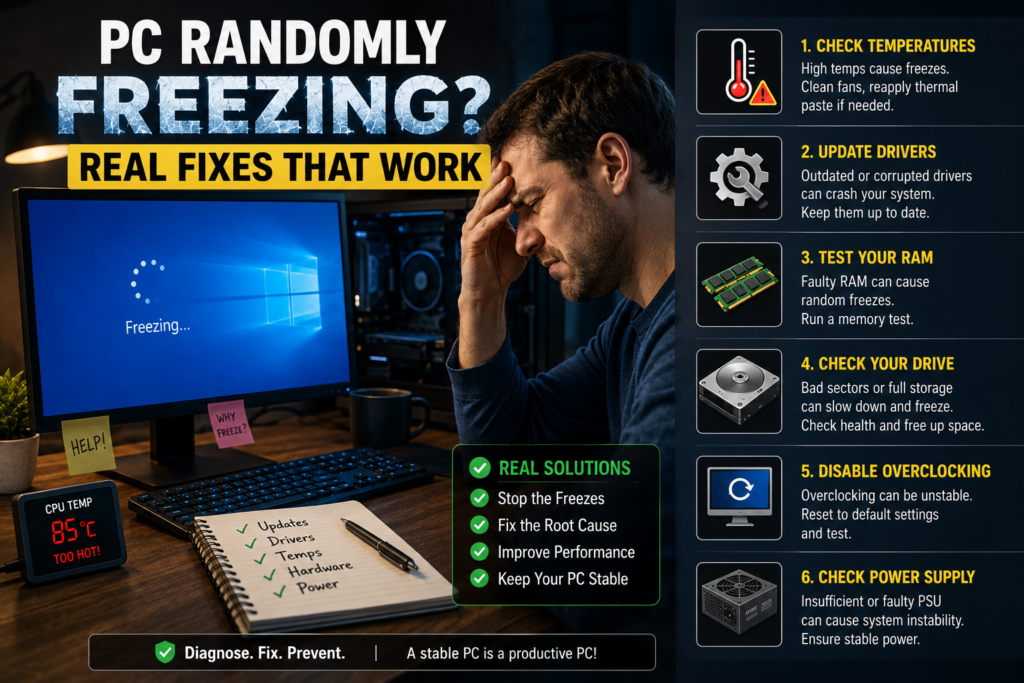
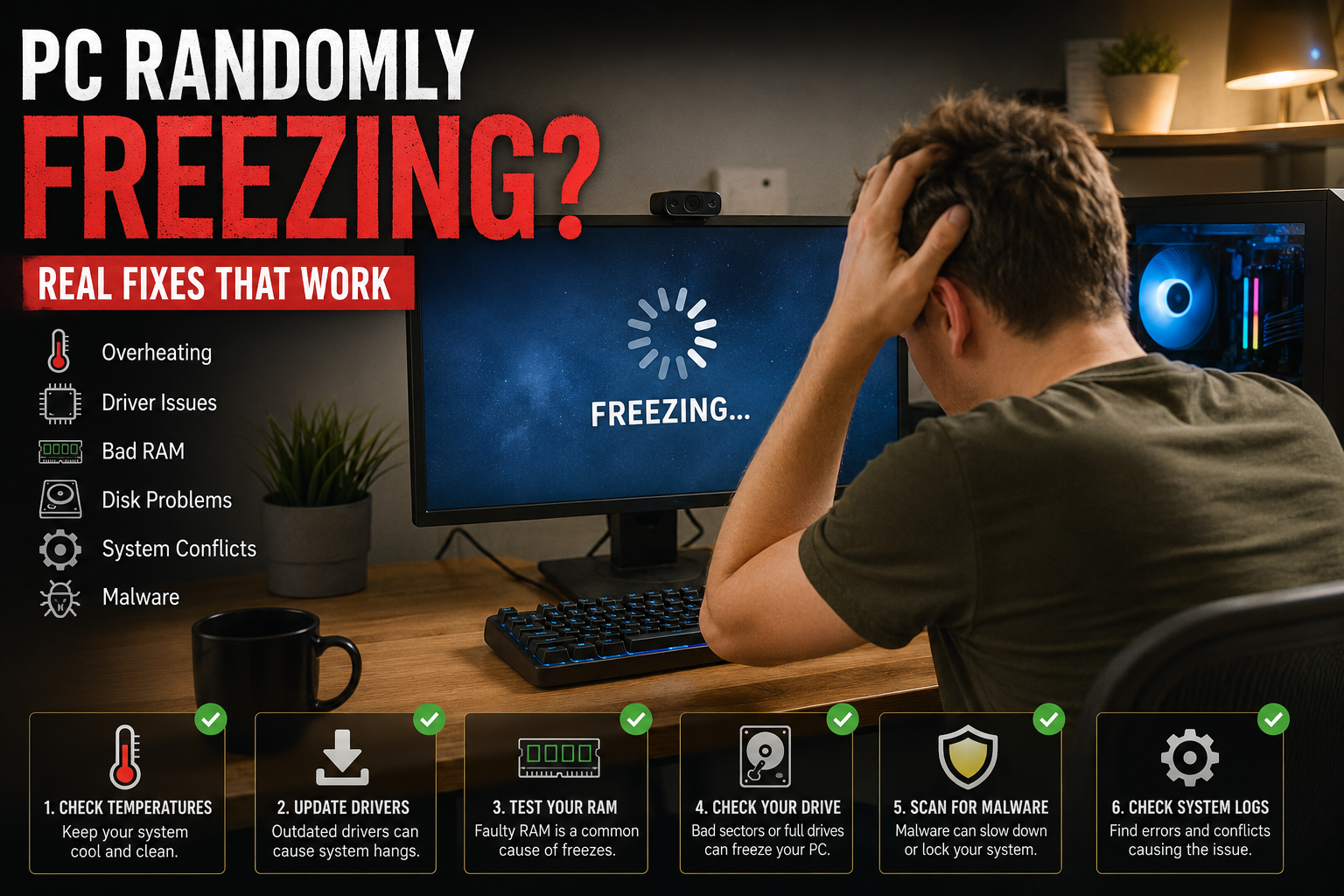
Best Step-by-Step Troubleshooting Order
Start Here First
Step 1
Check temperatures.
Step 2
Update GPU drivers.
Step 3
Run memory test.
Step 4
Check SSD/HDD health.
Step 5
Run Windows repair commands.
Step 6
Disable startup apps.
Step 7
Scan for malware.
Step 8
Reset overclocks.
This approach avoids randomly replacing parts unnecessarily.
When Freezing Usually Happens Matters
Freezes During Gaming
Likely causes:
- GPU overheating
- GPU drivers
- PSU instability
- VRAM issues
Freezes During Idle
Likely causes:
- Background apps
- Driver conflicts
- Windows corruption
- Power settings
Freezes While Opening Files
Likely causes:
- SSD/HDD problems
- Windows corruption
- RAM instability
Should You Reinstall Windows?
Sometimes yes.
If:
- Drivers are messy
- Malware exists
- Windows corruption is severe
a clean Windows installation can dramatically improve stability.
But reinstalling should usually come after basic troubleshooting first.
FAQ
Why does my PC randomly freeze but no blue screen appears?
Many freezes happen without blue screens, especially from overheating, driver conflicts, or storage instability.
Can bad RAM cause freezing without crashes?
Yes. Faulty RAM can create random freezing, app instability, or corrupted behavior without always showing blue screens.
Does overheating always shut down the PC?
Not always. Sometimes overheating causes temporary freezing or performance drops first.
Can SSD problems freeze a PC?
Yes. A failing SSD can cause apps and Windows itself to stop responding temporarily.
Is Windows 11 causing freezing problems?
Sometimes certain updates or drivers may create compatibility issues, but hardware problems are still very common causes.
Should I replace hardware immediately?
No. Always troubleshoot systematically first before buying replacement parts.
Final Thoughts
If your PC randomly freezing issue keeps happening, do not panic and immediately replace everything.
Most freezing problems come from a small group of common causes:
- Heat
- Drivers
- RAM
- Storage
- Software conflicts
The key is troubleshooting step by step instead of guessing.
In many cases, a simple driver cleanup, cooling improvement, or Windows repair fixes the issue completely.
And if your PC has not been cleaned internally for years, start there first — dust alone causes more freezing problems than many people realize.