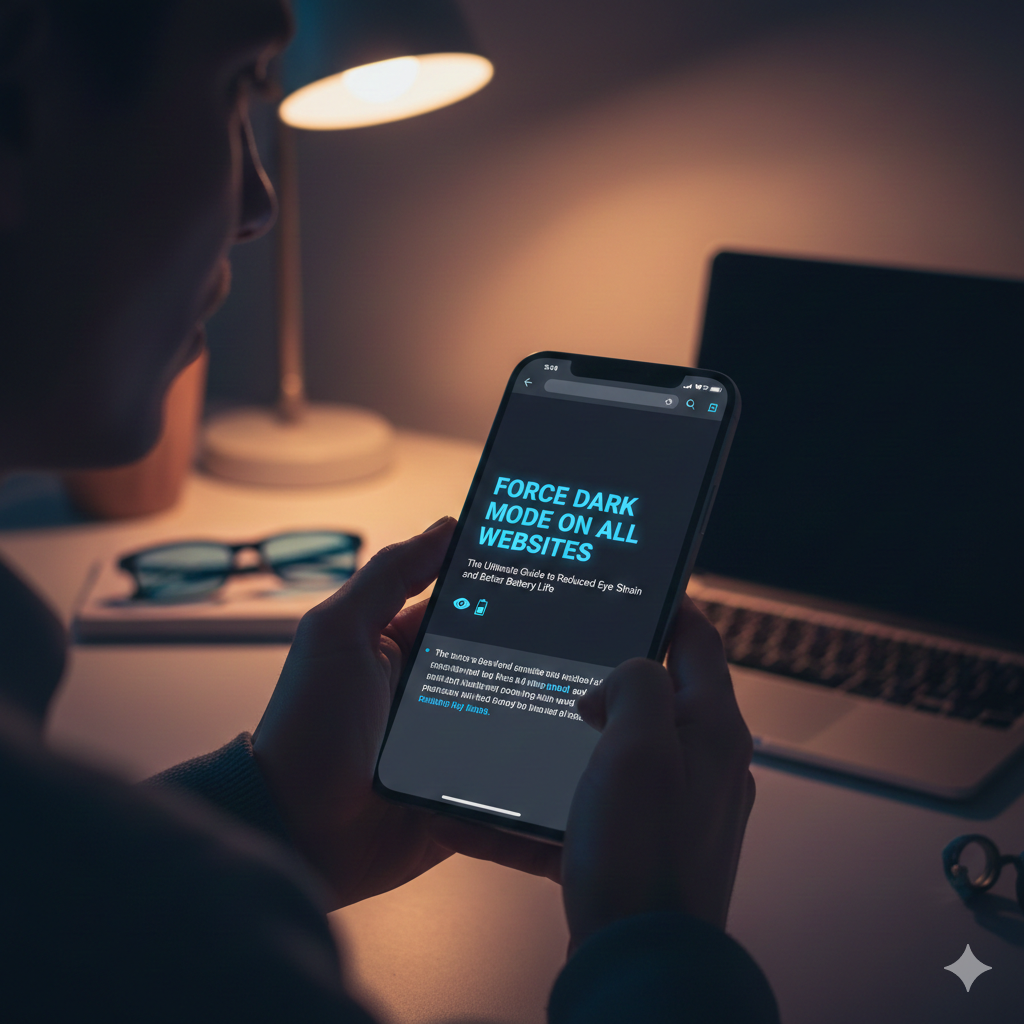
Force Dark Mode on All Websites: The Ultimate Guide to Reduced Eye Strain and Better Battery Life

Difficulty Level: Intermediate
If you spend long hours online, bright websites can quickly strain your eyes, drain your battery, and disrupt your sleep. Many sites now offer native dark modes, but you’ll quickly notice that most of the internet still doesn’t. That’s where force dark mode becomes useful. It lets you apply dark mode across all websites automatically, even if the site doesn’t provide its own dark theme.
This guide will show you why dark mode benefits your health and battery life — and exactly how to enable force dark mode on Chrome, Firefox, and Microsoft Edge.
The Essential Benefits of Dark Mode
Reduced Eye Strain and Lower Blue Light Exposure
Bright white backgrounds create significant contrast and glare, especially at night. This causes eye fatigue, dryness, and discomfort during long browsing sessions.
Dark mode reduces the amount of bright white light hitting your eyes, making it easier to read for longer periods. Several studies, including one from Harvard Medical School, have noted that blue light exposure in the evening can disrupt melatonin production, interfering with sleep patterns.
When you enable force dark mode, you instantly reduce:
- Screen brightness
- Light sensitivity triggers
- Visual discomfort
- Late-night strain
This is especially helpful if you use your phone or computer in dim environments.
Significant Battery Savings, Especially on OLED Screens
Dark mode is not just about comfort — it can meaningfully improve battery life.
OLED displays work by individually lighting each pixel. When your screen displays black or near-black colors, those pixels turn off completely and consume zero power. LCD screens, however, use a backlight that stays on regardless of color.
Google previously shared data showing that dark mode can reduce battery consumption by up to 60% at maximum brightness on OLED phones. The savings are even more noticeable if you constantly browse text-heavy sites.
By using force dark mode to push every website into a darker theme, you maintain these savings across your entire browsing experience.
Aesthetics and Improved Focus
Dark mode has become the modern default design choice across apps and operating systems. For many users, it feels premium, clean, and easier on the eyes.
Dark backgrounds also:
- Make text feel sharper
- Help videos and images stand out
- Reduce visual clutter
- Improve concentration on content
This is why power users — developers, writers, designers, and remote workers — increasingly adopt dark environments across their tools.
Accessibility Benefits for Light Sensitivity
For users with photophobia or visual impairments, dark mode is not merely a preference — it’s a necessity.
A forced dark mode setup can help:
- Reduce painful brightness spikes
- Improve readability for low-vision users
- Provide a consistent visual environment
- Reduce migraines or triggering light patterns
Force dark mode creates a predictable, comfortable color scheme even on websites that normally use harsh white backgrounds.
Introducing Force Dark Mode
What Does “Force Dark Mode” Mean?
Not every website provides its own dark theme. Many older sites or blogs still use bright white pages, which can feel jarring when your system and browser are both in dark mode.
Force dark mode corrects this by applying browser-level transformations such as:
- Color inversion
- Contrast adjustments
- CSS overrides
- Darkening background elements
- Lightening text automatically
It works even on websites with no dark mode option.
What Force Dark Mode Is Not
It’s important to understand that forced dark mode is not the same as a native dark theme.
Native dark themes:
- Are designed by the site
- Maintain perfect color accuracy
- Adapt icons and graphics intentionally
Forced dark mode:
- Automatically adjusts colors
- May cause occasional color shifts
- Might invert images incorrectly on rare sites
Despite occasional quirks, the consistency and comfort usually far outweigh the drawbacks.
How to Force Dark Mode on All Websites (Step-by-Step)
Below are the most reliable ways to enable force dark mode across major browsers.
Method 1: Chrome & Chromium Browsers (Using Chrome Flags)
This method works on:
- Google Chrome
- Brave
- Opera
- Vivaldi
- Any Chromium-based browser
Steps to Enable Force Dark Mode
- Open Chrome and type the following into the address bar:
chrome://flags - In the search bar at the top, type:
“Auto Dark Mode for Web Contents” - Change the dropdown from Default to Enabled.
- Restart the browser.
Your browser will now automatically apply dark mode to every website.
Optional: Experiment With Variants
Variants such as “Selective Inversion” or “Simple HSL-based” may provide more accurate color rendering depending on the site.
Method 2: Firefox (Using Extensions or Built-In Settings)
Firefox does not include Chrome’s auto-dark flag, but it supports powerful extensions.
Best Option: Install “Dark Reader”
Dark Reader is one of the most popular open-source tools for creating consistent dark themes.
To install:
- Open Firefox Add-ons
- Search for Dark Reader
- Install and enable it
Dark Reader allows highly customizable settings:
- Whitelist/blacklist specific sites
- Adjust brightness or contrast
- Control font or color presets
Alternative: High-Contrast Mode
Firefox can follow your system-level dark theme, but this won’t convert all websites like a true forced mode.
Method 3: Microsoft Edge (Settings and Flags)
Built-In Edge Settings (Recommended)
- Open Settings
- Select Appearance
- Choose Dark under theme options
Edge will automatically darken many compatible sites.
Chromium-Based Flags (Chrome Method Works Too)
Because Edge is Chromium-based, you can also use:edge://flags
Search: Auto Dark Mode for Web Contents
Enable → Restart browser.
This gives you full force dark mode control.
Key Takeaway Box
Force dark mode reduces eye strain, improves sleep quality, enhances readability, and extends battery life—while providing a consistent dark browsing experience across all websites, even those without a native dark theme.
FAQ Section
Is forcing dark mode safe for my browser?
Yes. It only changes the display colors and does not affect website functionality.
Will force dark mode break some websites?
Some complex sites may show inverted images or strange colors, but issues are rare and usually temporary.
Does dark mode save battery?
Yes. On OLED screens, dark pixels turn off completely, improving battery life significantly.
Is Dark Reader safe?
Yes. The extension is open-source, transparent, and widely trusted by developers and power users.
Should I use force dark mode or native dark modes?
Use native dark modes when available, and force dark mode everywhere else.