Stop The Digital Sandbox: How to Isolate Work vs. Personal Browsing (The Multi-Profile Security Guide)

Difficulty Level: Intermediate – Power User
If you constantly mix work emails with personal shopping tabs, or if Google seems to “follow” you across devices, then you urgently need browser profile separation for privacy. Most people unknowingly blend all their identities—work, personal, banking, social media—into one browser. This creates tracking problems, login collisions, security risks, and endless digital clutter. With proper browser profile separation, you can create clean, isolated sandboxes that protect your privacy and dramatically improve productivity.
This guide will show you how to separate your online identities using tools you already have—no new software, no subscription required.
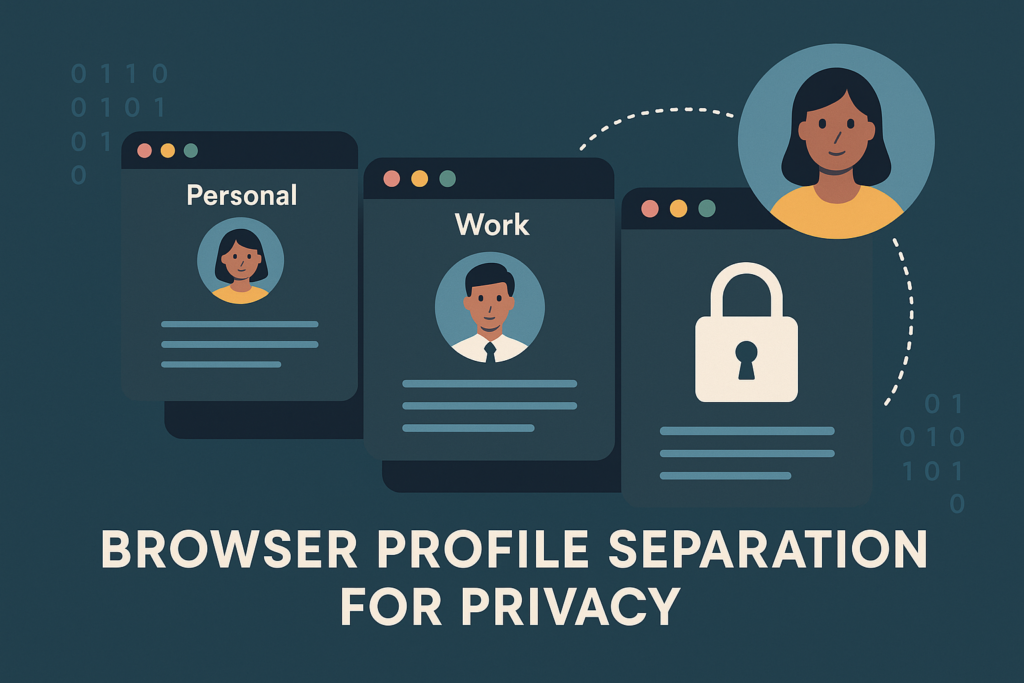
Why Browser Profile Separation Matters for Privacy and Productivity
How Mixed Identities Lead to Digital Chaos
When you use a single browser profile for everything, the following issues occur:
- Google combines your work and personal browsing history
- Cookies overlap, causing login conflicts (e.g., Gmail switching accounts)
- Shopping trackers leak into work accounts
- Ads follow you across devices
- Autofill recommendations become inaccurate
- Sensitive data (like corporate credentials) becomes exposed
A recent Pew Research study found that 72% of users feel they’ve “lost control” over how their data is tracked online. Profile separation directly solves this.
The Privacy Benefits of Browser Profile Separation for Privacy
Reduce Cross-Tracking and Cookie Leaks
When you create separate browser profiles, each profile has:
- Its own cookies
- Its own autofill data
- Its own extensions
- Its own history
- Its own security settings
This prevents Google, Meta, advertisers, and third-party trackers from building a unified profile of your online behavior.
Stop Google Account Switching Hell
If you constantly experience:
- Gmail defaulting to the wrong account
- Google Drive mixing work vs personal files
- Meet/Calendar login confusion
Then profile separation eliminates these issues entirely.
Each browser profile signs into one identity only.
Improved Productivity Through Context Switching
When your work profile contains:
- Only work bookmarks
- Only work email
- Only work extensions
And your personal profile contains:
- Shopping
- Banking
- Social media
You gain mental clarity and reduced distraction.
A University of California Irvine study found that task switching causes up to 40% productivity loss. Separate profiles eliminate unnecessary context switching.
Part 1: The Benefits of Browser Profile Separation (Deep Dive)
Eye-Opening Benefit #1 — True Privacy Walls
With browser profile separation for privacy, each profile becomes a silo:
- No shared cookies
- No shared history
- No shared cache
- No shared fingerprinting
This dramatically reduces the ability of advertisers and trackers to link identities together.
Benefit #2 — Security Against Credential Mix-Ups
Example:
You click a phishing link while logged into your corporate Gmail.
Disaster.
But if your corporate email lives only in your “Work Profile,” phishing attempts in your personal profile cannot access those sessions.
Benefit #3 — Cleaner, Faster Browsing Experience
Your work profile can use:
- Strict ad-blocking
- Zero social media
- Productivity extensions
Your personal profile can be:
- More relaxed
- More personalized
- More entertainment-oriented
Each environment becomes optimized for its purpose.
Part 2: What “Browser Profile Separation” Means in Practice
What Is a Browser Profile?
A browser profile is like a separate browser inside your browser—each with:
- Its own cookies
- Its own login sessions
- Its own data
- Its own extensions
- Its own bookmarks
Browsers that support multi-profile separation:
- Google Chrome (best for multiple identities)
- Microsoft Edge (built-in work/personal separation)
- Mozilla Firefox (best for privacy & containers)
Part 3: How to Enable Browser Profile Separation (Step-by-Step)
Chrome — The Easiest Method for Multi-Profile Separation
Step 1 — Open Chrome Profile Manager
Go to:chrome://settings/people
Step 2 — Create Profiles
Create profiles such as:
- Work
- Personal
- Banking
- Shopping
Use different icons and colors for instant recognition.
Step 3 — Customize Privacy Settings
For the Work Profile:
- Disable third-party cookies
- Enable Safe Browsing (Enhanced)
- Use a password manager
For the Personal Profile:
- Add strong ad blockers
- Disable unnecessary extensions
- Use Incognito when needed
Firefox — Best Choice for Privacy Isolation
Firefox has a unique feature called Multi-Account Containers.
Step 1 — Install the Firefox Containers extension
This creates isolated environments within one profile.
Step 2 — Create Containers With Labels
Examples:
- Work
- Social
- Banking
- Shopping
Step 3 — Assign Sites to Containers
Once assigned, the site always opens in the right sandbox.
This is one of the strongest methods for browser profile separation for privacy because cookies cannot escape containers.
Edge — Built-In Work vs Personal Isolation
Edge automatically detects:
- Work Microsoft accounts
- Personal Microsoft accounts
And alerts you when switching contexts.
Step 1 — Create Separate Profiles
Settings → Profiles → Add Profile.
Step 2 — Turn On Automatic Profile Switching
This ensures:
Work links → Open in Work Profile
Personal links → Open in Personal Profile
Step 3 — Apply Privacy Settings
Edge has robust tracking protection built-in:
- Strict mode recommended
- Turn off personalized ads
Key Takeaway Box
Browser profile separation for privacy allows you to create clean, isolated digital identities. This prevents tracking, boosts security, eliminates Google account conflicts, and dramatically increases productivity.
FAQ Section
1. Does browser profile separation really improve privacy?
Yes. Each profile stores separate cookies, preventing advertisers and trackers from merging your identities.
2. How many profiles should I create?
Most users need 2–3: Work, Personal, Banking. Power users may create more.
3. Is this better than Incognito Mode?
Yes — Incognito deletes data temporarily. Profiles maintain long-term isolation.
4. Does this work on phones?
Chrome and Firefox for Android support limited profile separation; desktops offer the best experience.
5. Can profiles sync across devices?
Yes, but keep Work and Personal syncs separate by using different accounts.