Difficulty: Beginner
Step 1: Check Your USB Port Version
Not all USB ports are equal.
USB Speed Comparison
| USB Version | Max Theoretical Speed |
|---|---|
| USB 2.0 | 480 Mbps |
| USB 3.0 / 3.2 Gen 1 | 5 Gbps |
| USB 3.2 Gen 2 | 10 Gbps |
| USB4 / Thunderbolt | 40 Gbps |
According to standards from the USB Implementers Forum, real-world speeds are much lower than theoretical maximums — but USB 2.0 is dramatically slower.
Key Takeaway Box
Plugging a USB 3.0 drive into a USB 2.0 port limits it to USB 2.0 speeds.
Look for:
- Blue USB ports (often USB 3.x)
- SS (SuperSpeed) logo
Step 2: Replace the USB Cable
Especially for external SSDs.
Cheap cables can:
- Limit speed
- Cause unstable transfers
- Reduce power delivery
Use:
- Certified USB 3.x cable
- Original manufacturer cable
Cables matter more than many realize.
Step 3: Check Drive Format (NTFS vs FAT32 vs exFAT)
Definition Box
File System
The method used by your operating system to store and organize files on a drive.
If transferring large files:
- FAT32 limits files to 4GB
- NTFS supports large files
- exFAT works cross-platform
Reformatting (after backup) may improve performance.
Step 4: Enable Write Caching (Windows)
- Right-click Start → Device Manager
- Expand Disk Drives
- Right-click USB drive → Properties
- Policies tab
- Select Better performance
Quick Fix Box
Enabling write caching increases speed but requires safe removal.
Step 5: Avoid Copying Thousands of Small Files
USB transfer slows dramatically when:
- Copying many small files
- Transferring mixed file types
- Moving fragmented data
Solution:
- Compress files into ZIP first
- Transfer large archive instead
This can double effective speed.
Step 6: Check Drive Health
Slow speeds can indicate:
- Failing flash memory
- Overheating controller
- Cheap low-quality drive
Use built-in Windows tools or disk check utilities.
If speeds drop suddenly mid-transfer, thermal throttling may be involved.
Step 7: Disable USB Power Saving
Windows sometimes reduces USB performance to save power.
- Control Panel → Power Options
- Change advanced power settings
- USB settings → Disable selective suspend
This can stabilize speeds.
Step 8: Try a Different Port or Computer
If performance improves elsewhere:
- Original port may be faulty
- Drivers may be outdated
Update chipset and USB drivers from your laptop manufacturer.
Step 9: Scan for Malware (Rare but Possible)
Malware can:
- Monitor file transfers
- Consume disk resources
- Slow storage performance
Run Windows Security scan if suspicious activity exists.
Real-World Speed Expectations
Typical real speeds:
- USB 2.0: 20–35 MB/s
- USB 3.0 flash drive: 80–150 MB/s
- USB 3.2 SSD: 400–1000 MB/s
- USB4 NVMe: 2000–3000+ MB/s
If you’re far below expected numbers, there’s a bottleneck.
Common Causes of Slow USB Speeds
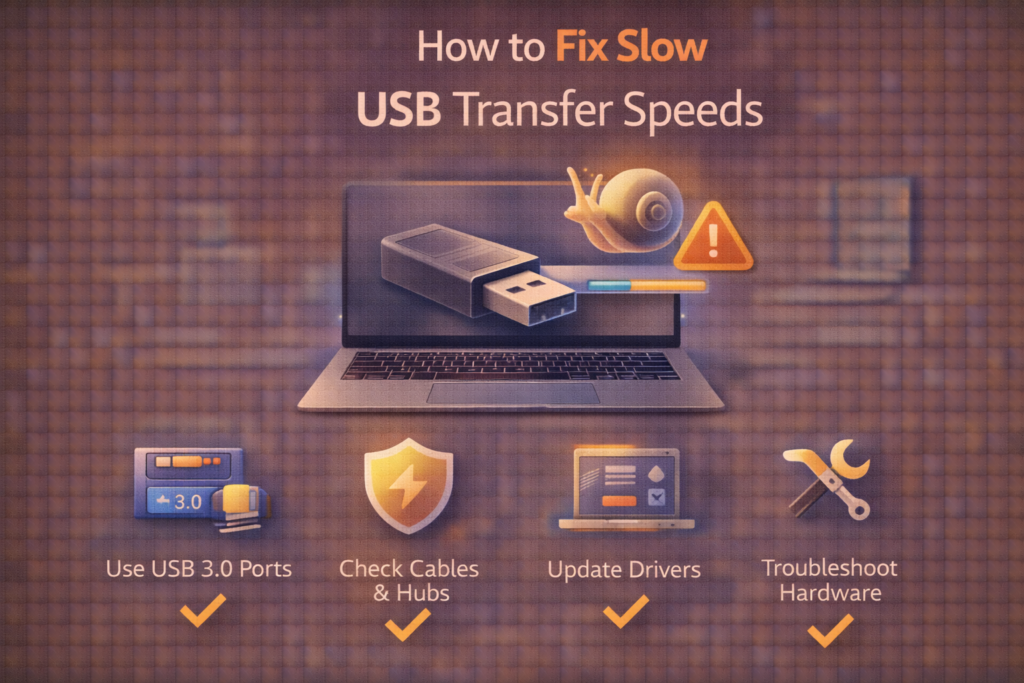
- Wrong port
- Cheap cable
- Outdated drivers
- Power-saving mode
- Fragmented drive
- Low-quality flash storage
When to Replace the Drive
Replace if:
- Speed drops below 10 MB/s consistently
- Drive disconnects randomly
- SMART errors appear
- Overheating persists
Cheap flash drives often have limited sustained write speed.
FAQs: Fix Slow USB Transfer Speeds
1) Why is my USB 3.0 drive slow?
It may be plugged into USB 2.0 port.
2) Does cable quality matter?
Yes, especially for SSDs.
3) Does formatting affect speed?
Yes — NTFS or exFAT is better for large files.
4) Why does speed drop during transfer?
Thermal throttling or write cache limits.
5) Is USB-C automatically fast?
No — depends on USB standard.