Laptop Fan Loud? Causes You Shouldn’t Ignore (And How to Fix Them Fast)

Difficulty: Beginner
Why Is Your Laptop Fan So Loud?
Your laptop fan’s job is simple: keep things cool. When it gets loud, it usually means it’s working overtime.
Think of it like your car engine — if it’s revving loudly all the time, something is off.
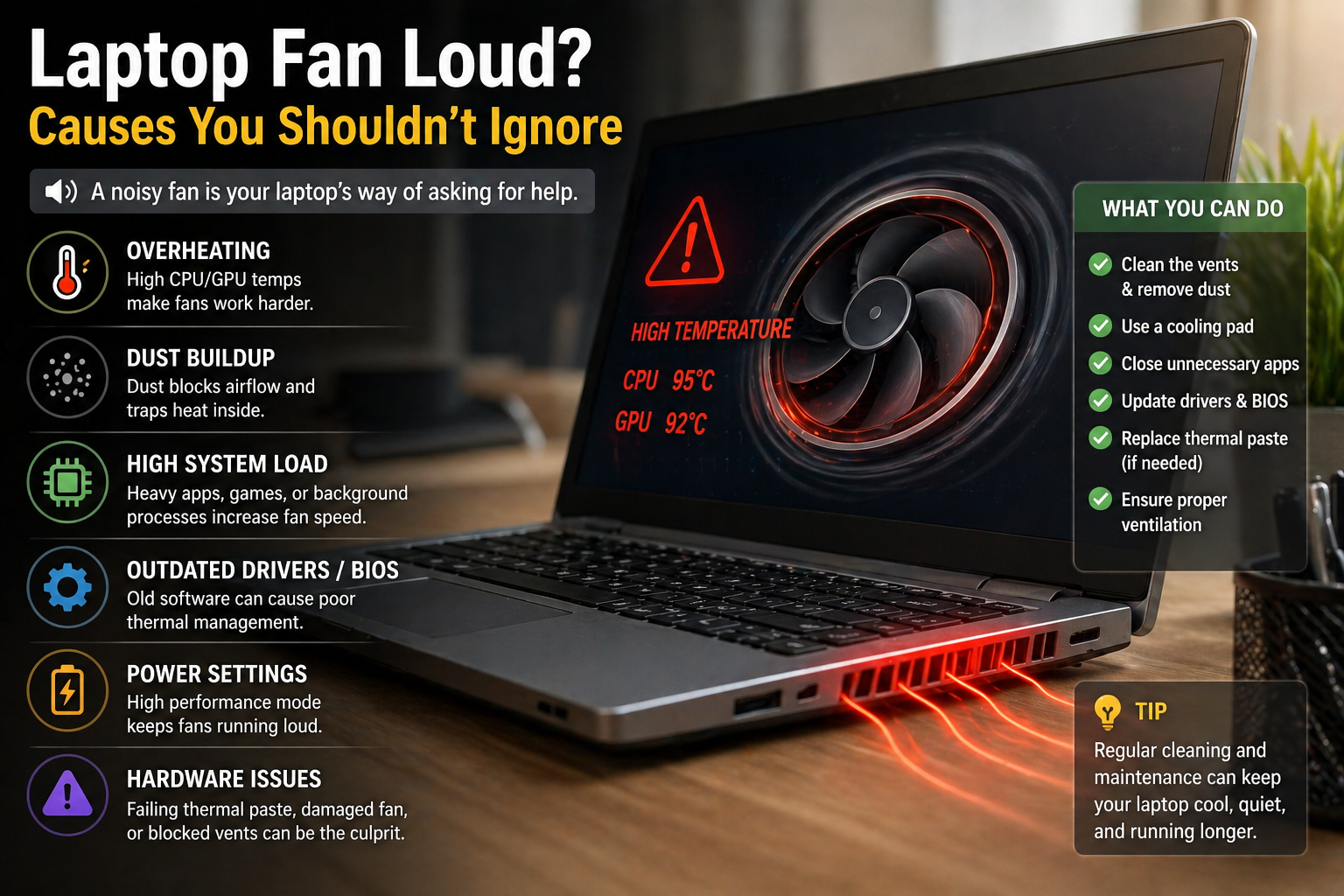
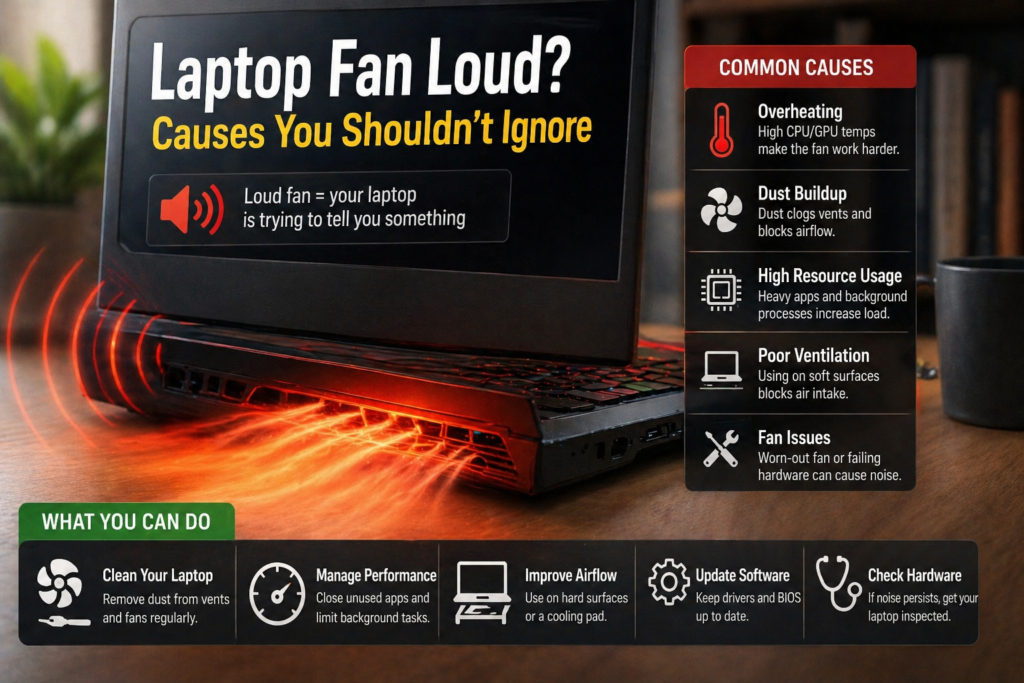
🔥 Common Causes of a Loud Laptop Fan
1. Dust Build-Up Inside the Laptop
Over time, dust collects inside your laptop and blocks airflow.
- Air can’t circulate properly
- Heat gets trapped
- Fan spins faster to compensate
💡 Think of it like a clogged air filter — your system has to work harder to breathe.
2. Too Many Apps Running (High CPU Usage)
If your laptop is juggling too many tasks:
- CPU usage spikes
- Heat increases
- Fan runs faster to cool it down
👉 This often happens when:
- Multiple browser tabs are open
- Background apps are running
- Heavy software (editing, gaming) is active
3. Poor Ventilation (Wrong Usage Position)
Using your laptop on:
- Bed
- Sofa
- Pillow
…blocks the air vents.
🚫 Result:
- Heat can’t escape
- Fan ramps up quickly
✔ Always use your laptop on a hard, flat surface.
4. Malware or Hidden Background Processes
Sometimes, your laptop is working hard without you knowing.
- Malware can run in the background
- Crypto-mining scripts can spike CPU
- Fan becomes constantly loud
📌 According to Microsoft, unusual CPU activity is often linked to hidden or malicious processes.
5. Old Thermal Paste (Advanced but Common)
Inside your laptop, thermal paste helps transfer heat away from the CPU.
Over time:
- It dries out
- Heat transfer becomes inefficient
- Fan compensates by spinning faster
6. Heavy Software or Gaming Load
Running:
- Video editing tools
- CAD software
- Games
…will naturally increase fan noise.
✔ This is normal — but only while those apps are running.
📦 Quick Fix Box: How to Reduce Laptop Fan Noise
✔ Clean air vents with compressed air
✔ Close unused apps
✔ Restart your laptop
✔ Use Task Manager to check CPU usage
✔ Place laptop on a hard surface
✔ Run antivirus scan
✔ Update system & drivers
🔍 How to Check What’s Causing the Noise
Step 1: Open Task Manager (Windows)
- Press Ctrl + Shift + Esc
- Look for high CPU usage apps
Step 2: Check Temperature (Optional)
Use tools like:
- HWMonitor
- Core Temp
Step 3: Listen Carefully
- Constant loud noise → possible dust or malware
- Loud only during heavy use → normal
⚠️ When You Should NOT Ignore a Loud Fan
A laptop fan loud issue becomes serious if:
- It’s loud even when idle
- Laptop feels very hot
- System slows down or freezes
- Sudden shutdowns happen
🚨 These are signs of overheating — and possible hardware risk.
🧠 Key Takeaway Box
A loud fan is not just noise — it’s a warning system. Fixing the root cause early helps prevent overheating, performance drops, and expensive repairs.
🛠️ Advanced Fixes (If Basic Steps Don’t Work)
If the issue persists:
1. Clean Internal Components
- Open laptop (if comfortable)
- Remove dust from fan & heatsink
2. Replace Thermal Paste
- Improves heat transfer
- Reduces fan workload
3. Use a Cooling Pad
- Adds extra airflow
- Helps reduce internal temperature
❓ FAQ Section
1. Is it normal for a laptop fan to be loud?
Yes — during heavy tasks like gaming or video editing. But not during idle use.
2. Can a loud fan damage my laptop?
Not directly, but it indicates overheating, which can damage components over time.
3. How often should I clean my laptop fan?
Every 6–12 months, depending on usage and environment.
4. Why is my laptop fan loud even when idle?
Possible causes include:
- Background apps
- Malware
- Dust buildup
5. Does using a cooling pad help?
Yes, especially if you use your laptop for long hours or heavy tasks.