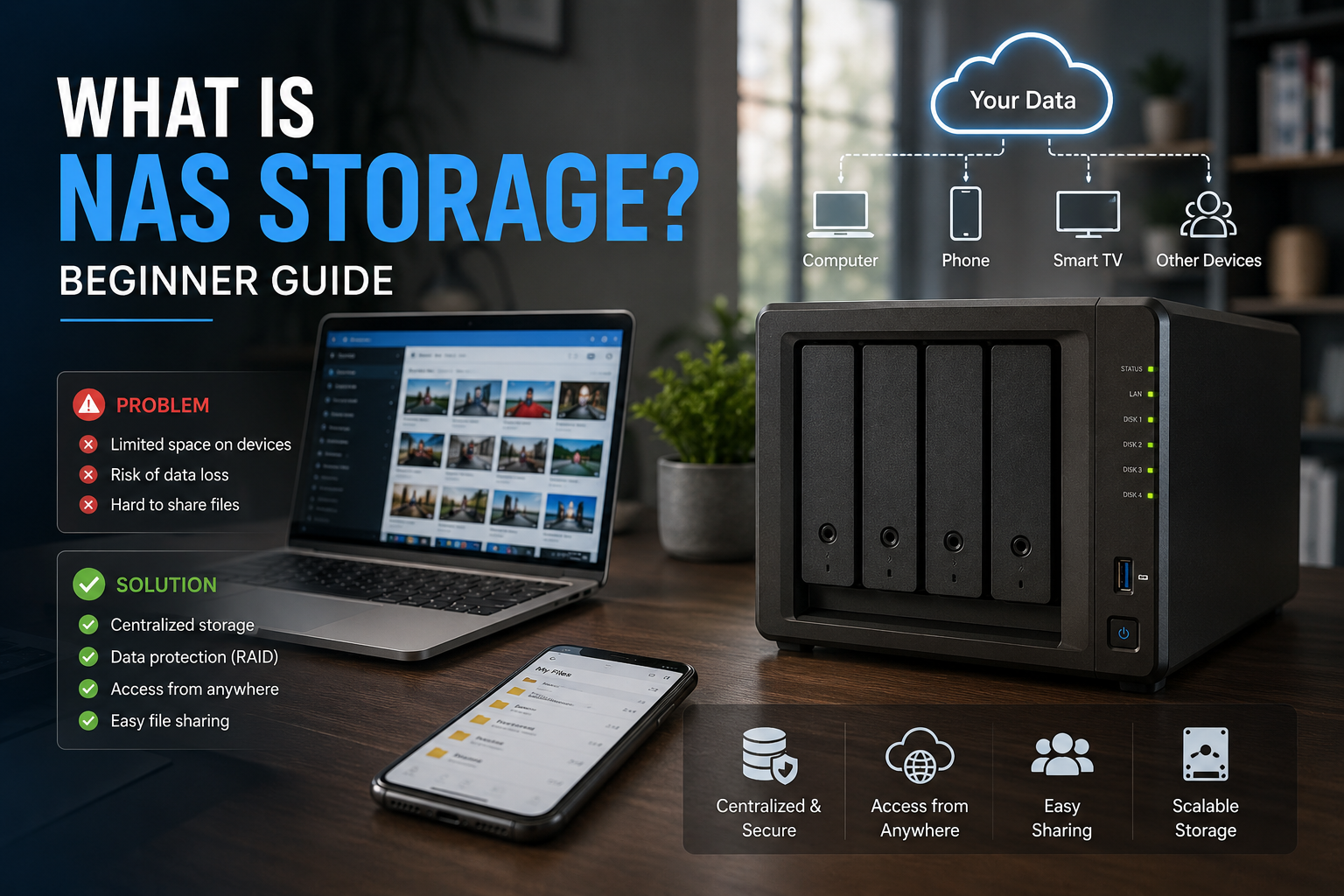
What Is NAS Storage? Beginner Guide
If you’ve ever wanted a central place to store photos, videos, documents, and backups that every device in your home or office can access, NAS storage may be exactly what you need. Unlike an external hard drive that plugs into one computer, a Network Attached Storage (NAS) device connects to your network and serves files to multiple users simultaneously.
Whether you’re a home user with thousands of family photos or a small business looking for an affordable file server, understanding NAS storage can help you make smarter technology decisions.
What Is NAS Storage?
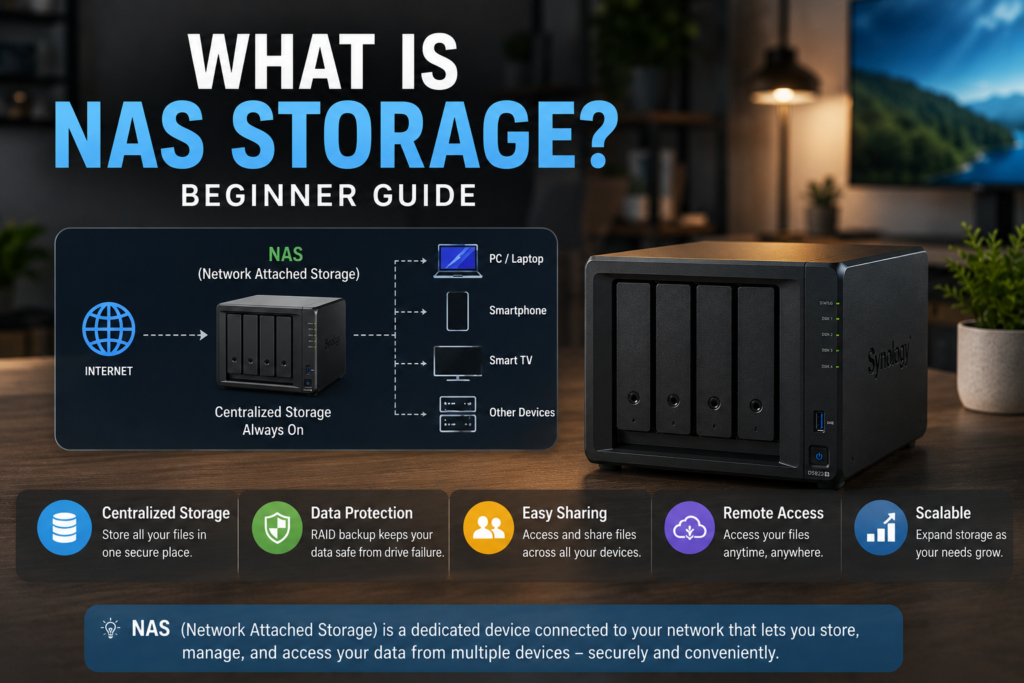
NAS stands for Network Attached Storage. It is a dedicated storage device connected to your local network that allows computers, smartphones, tablets, and even smart TVs to access files from one central location.
Unlike cloud storage services where files are stored on remote servers, a NAS device keeps your data on hardware you own while making it available across your network and, if configured securely, over the internet.
Definition Box
NAS Storage: A specialized file storage system connected to a network that enables multiple authorized users and devices to share and access data from a centralized location.
How NAS Storage Works
A NAS enclosure contains one or more hard drives or SSDs and runs its own lightweight operating system. Once connected to your router or switch via Ethernet, it receives an IP address and becomes accessible to other devices on the network.
Here’s a simple workflow:
- Connect the NAS to your network.
- Install one or more storage drives.
- Configure users and shared folders.
- Access files from PCs, Macs, smartphones, or media devices.
- Optionally enable remote access and automated backups.
Because the NAS manages storage independently, your files remain available even when your primary computer is turned off.
Why People Use NAS Storage
There are many reasons why NAS storage has become popular among both home users and businesses.
Centralized File Storage
Instead of scattering files across multiple laptops and USB drives, everyone can save documents to one secure location.
Automatic Backups
Many NAS systems automatically back up Windows PCs, Macs, smartphones, and servers, reducing the risk of data loss.
Media Streaming
A NAS can store movies, music, and photos that are streamed throughout your home to compatible devices.
Collaboration
Small businesses often use NAS devices so employees can share documents without relying on email attachments.
Private Cloud
Many users create their own personal cloud, giving them remote access without paying monthly subscription fees.
Types of NAS Storage Systems
Single-Bay NAS
- One drive installed
- Affordable
- Suitable for personal backups
- No drive redundancy
Two-Bay NAS
- Supports RAID mirroring
- Better data protection
- Ideal for home users and small offices
Four-Bay or Larger NAS
- Higher storage capacity
- Improved performance
- Advanced RAID configurations
- Suitable for content creators and businesses
NAS Storage vs External Hard Drive
| Feature | NAS Storage | External Drive |
|---|---|---|
| Network access | Yes | No |
| Multiple users | Yes | Usually no |
| Remote access | Often supported | Limited |
| Automatic backups | Common | Depends on software |
| Expandability | High | Limited |
| Initial cost | Higher | Lower |
If you simply need portable storage for one computer, an external drive may be enough. However, if multiple devices need continuous access to shared files, a NAS is usually the better long-term solution.
Benefits of NAS Storage
Easy File Sharing
Everyone on your network can access shared folders with proper permissions.
Better Organization
Keeping all files in one location reduces duplication and confusion.
Data Protection
Many NAS systems support RAID configurations that help protect against single-drive failure.
Scalability
Additional drives or larger disks can often be added as storage needs grow.
Energy Efficiency
A NAS typically consumes less power than leaving a desktop computer running 24/7 as a file server.
Key Takeaway
NAS storage combines centralized file sharing, automated backups, and expandable storage into one dedicated device, making it an excellent solution for homes and small businesses.
Common Real-World Examples
Family Photo Library
Instead of keeping photos across multiple phones and laptops, a family stores everything on one NAS that automatically backs up new pictures.
Home Office
A freelancer saves project files to a NAS and accesses them from both desktop and laptop computers without manually copying files.
Small Business
Employees collaborate using shared folders while automated nightly backups protect important business documents.
Video Creator
Large video projects remain stored on the NAS while editors work from multiple workstations on the same network.
Step-by-Step: Setting Up NAS
- Purchase a NAS enclosure and compatible drives.
- Install the storage disks.
- Connect the NAS to your router using Ethernet.
- Power it on and complete initial setup.
- Update firmware.
- Create user accounts and permissions.
- Configure shared folders.
- Enable automatic backups.
- Test access from computers and mobile devices.
- Monitor storage usage and system health.
Troubleshooting Common NAS Storage Problems
NAS Not Visible on Network
- Verify Ethernet cables.
- Restart the NAS and router.
- Check IP address assignments.
Slow Transfer Speeds
- Use Gigabit or faster networking.
- Avoid Wi-Fi for large transfers.
- Upgrade older hard drives if necessary.
Cannot Access Shared Folders
- Verify usernames and passwords.
- Check permissions.
- Confirm network discovery settings.
Running Out of Space
- Delete unnecessary files.
- Upgrade to larger drives.
- Expand storage if supported.
Quick Fix Box
If your NAS suddenly becomes inaccessible, first verify physical network connections, then reboot the NAS and router before investigating software settings.
Security Best Practices for NAS
Because NAS devices often contain valuable personal or business data, security matters.
Best practices include:
- Use strong administrator passwords.
- Enable multi-factor authentication when available.
- Keep firmware updated.
- Disable unused services.
- Limit remote access to trusted users.
- Perform regular backups to another location.
- Encrypt sensitive data whenever possible.
Is NAS Storage Better Than Cloud Storage?
The answer depends on your needs.
Choose NAS if you want:
- Full control over your data
- No recurring subscription fees
- Fast local network performance
- Large storage capacity
Choose cloud storage if you want:
- Access without managing hardware
- Automatic infrastructure maintenance
- Easy sharing across geographic locations
- Built-in disaster resilience from the provider
Many users combine both approaches by using a NAS for primary storage and cloud services for off-site backup.
Frequently Asked Questions
What does NAS stand for?
NAS stands for Network Attached Storage, a dedicated device that stores and shares files across a network.
Is NAS storage only for businesses?
No. Home users frequently use NAS devices for backups, media libraries, and personal cloud storage.
Do I need internet to use NAS storage?
No. A NAS works on your local network without internet access, although internet connectivity is needed for remote access features.
Can I access my NAS from my phone?
Yes. Most modern NAS platforms provide mobile apps or web interfaces for remote and local access.
Is RAID the same as backup?
No. RAID improves availability and may protect against a drive failure, but it does not replace proper backups against deletion, corruption, theft, or disasters.
How much storage should beginners buy?
For most home users, starting with 4 TB to 8 TB of usable storage is often sufficient, with the option to expand later as needs grow.
Conclusion
NAS storage offers an excellent balance of convenience, flexibility, and control. By centralizing your files and making them accessible across multiple devices, it simplifies backups, collaboration, and media management without depending entirely on third-party cloud providers.
For beginners, a two-bay NAS with mirrored drives is often an ideal starting point, providing both ease of use and an extra layer of protection for valuable data. As your storage needs grow, most NAS platforms can expand alongside you, making them a smart long-term investment.